Overview
This guide covers two ways to process a one-time payment through the AlarmPayments.com portal: directly from a customer's account in Cornerstone (for staff processing payments on behalf of a customer), or by visiting the website directly (for customers paying their own bill, or for staff working outside of Cornerstone).
Method 1: Processing a Payment from Cornerstone
Use these steps when you are processing a payment on behalf of a customer.
Step 1 — Find the Account
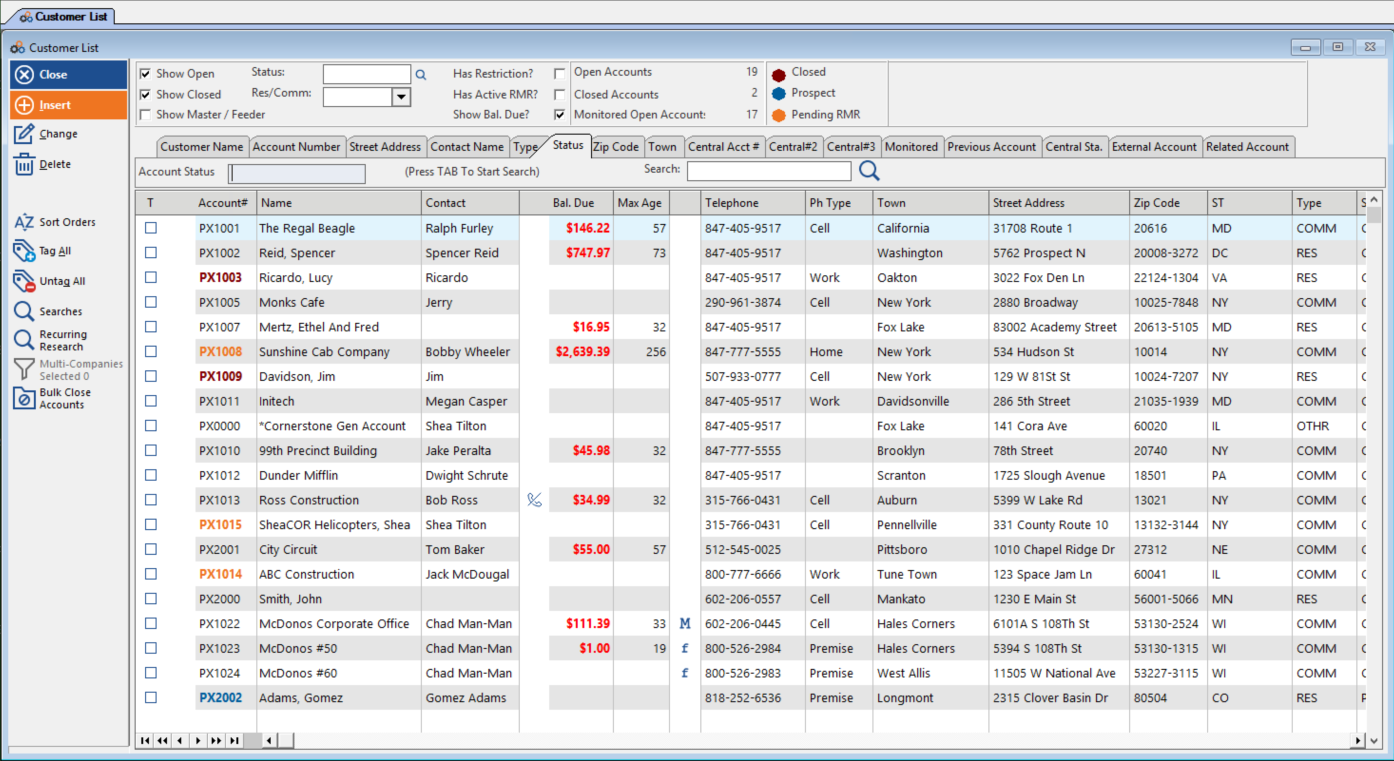
- Open the customer list: Click the Customer Icon from the main screen.
- Locate the customer: Search for and select the correct customer account to open their profile.
Step 2 — Launch the Payment Portal
- Open the portal: Click the Alarm Pay Button within the customer's account. This will securely launch the AlarmPayments.com portal.
(Your payment portal will show your company branding)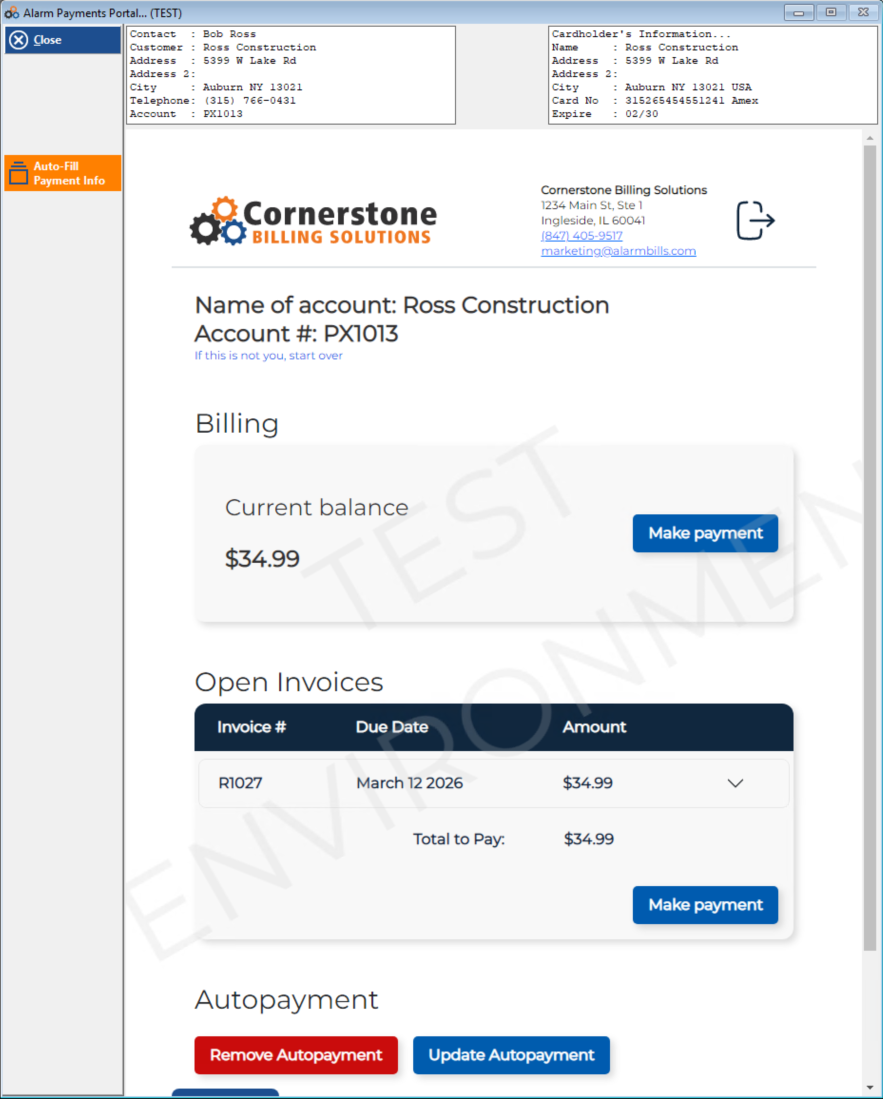
- Begin payment: Once the portal loads, click the Make Payment button.
Step 3 — Complete the Payment
- Review invoices: Review the list of open invoices. Uncheck any invoices that should not be included in this payment.
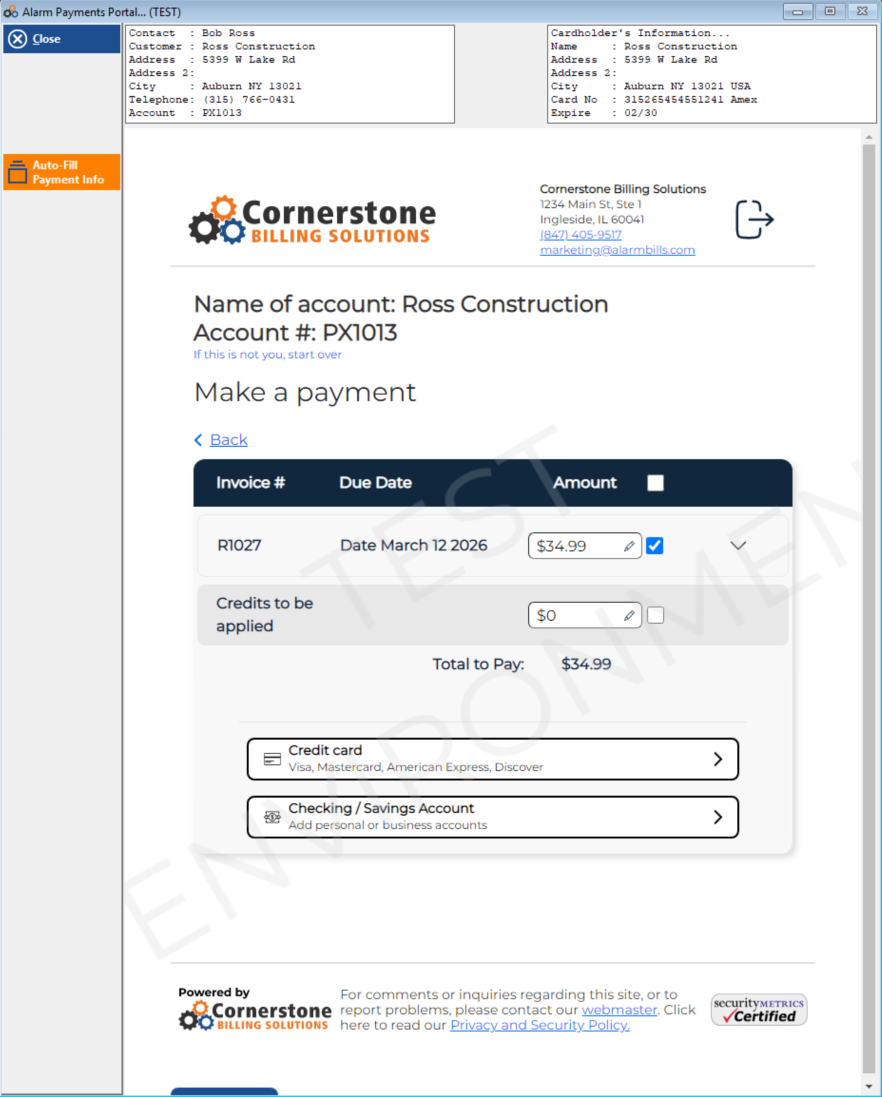
- Select a payment method: Scroll down and choose the applicable payment method (e.g., Credit Card, eCheck/ACH).
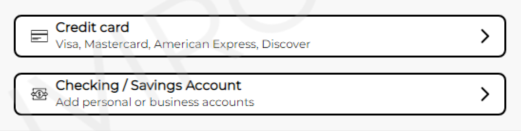
- Enter payment details: Add the required payment information into the fields provided.
- Continue: Click Continue.
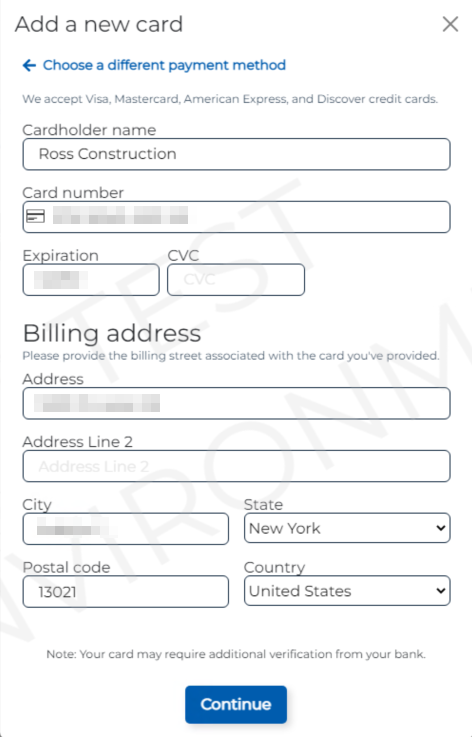
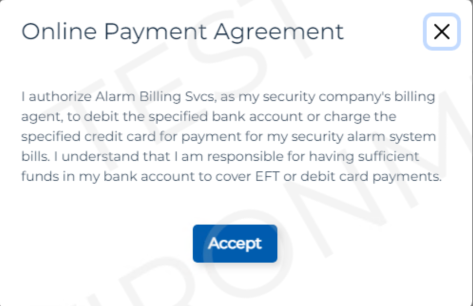
- Review and agree: Review the payment details for accuracy, then check the box to agree to the Online Payment Agreement.
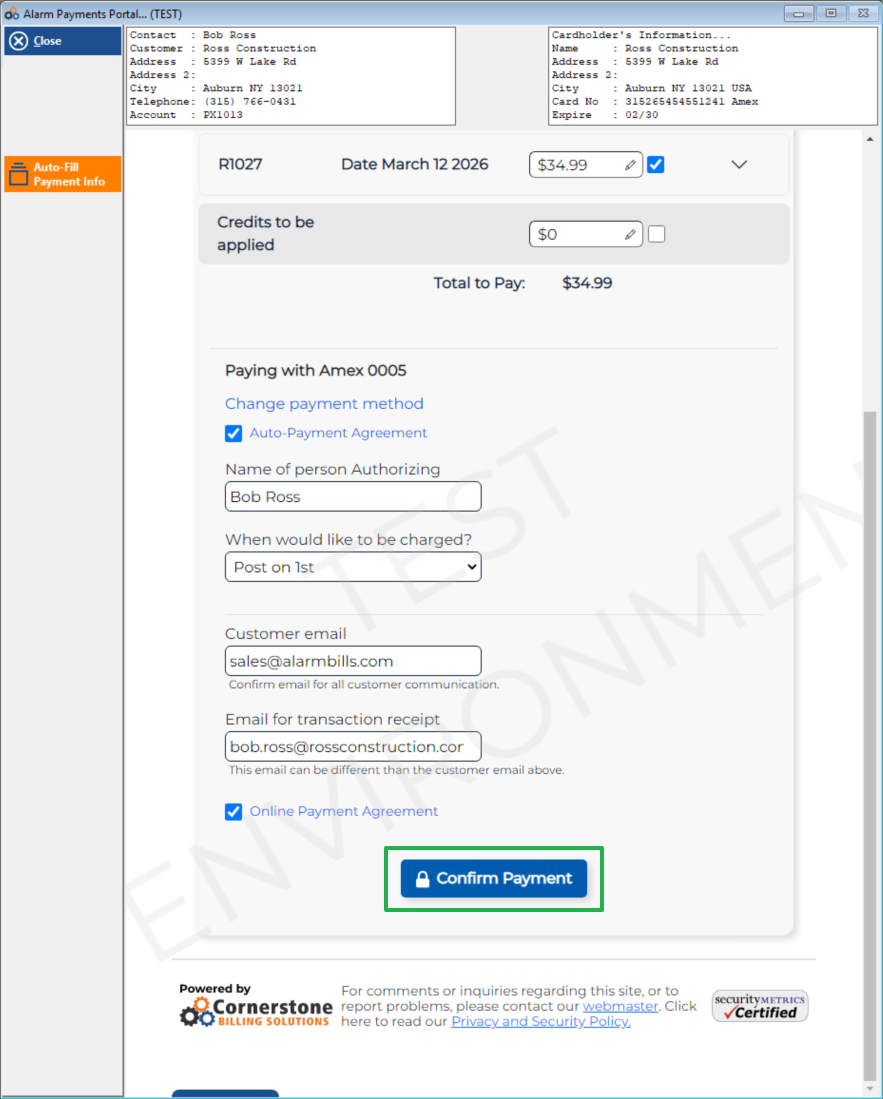
- Confirm: Click Confirm Payment.
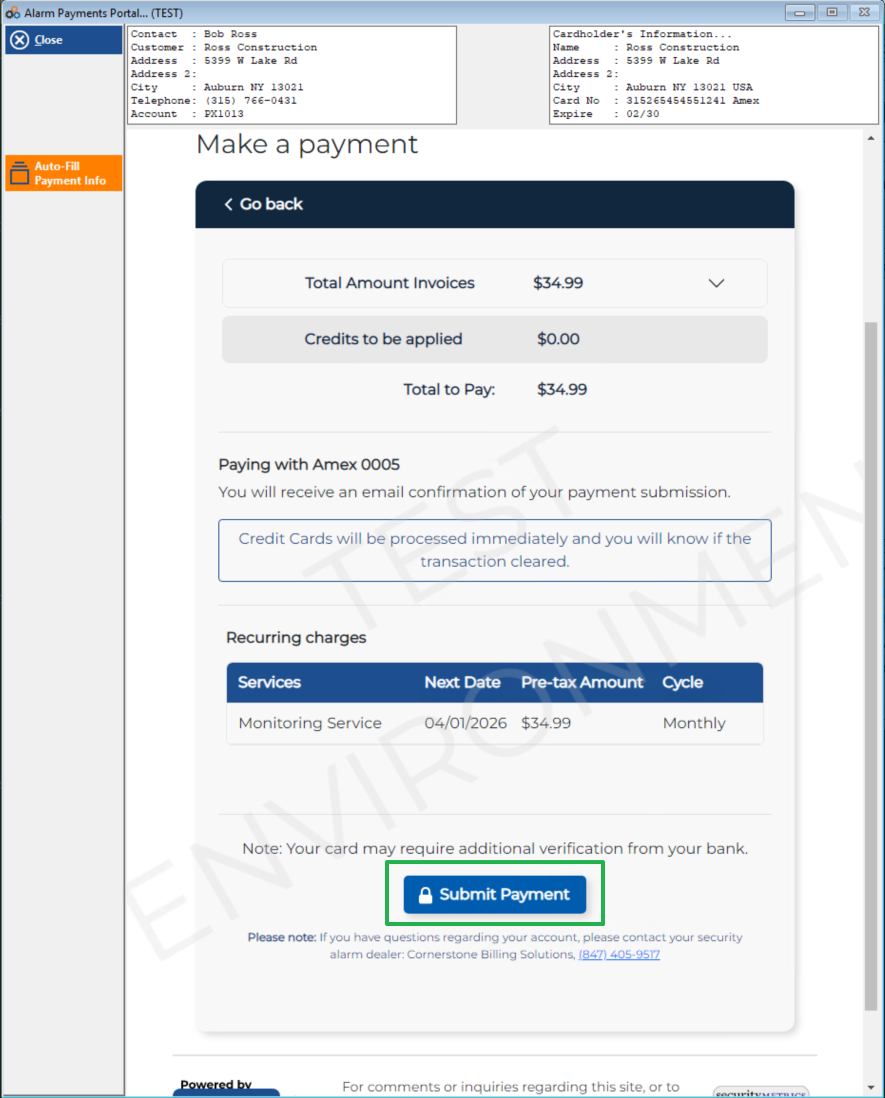
- Submit: Click Submit to process the transaction.
⚠️ IMPORTANT
If paying by credit card, you will see an immediate Approval or Denial message on the screen after you click Submit.
Method 2: Paying Directly on the Website
Use these steps when guiding a customer to pay their own bill, or if you are paying outside of Cornerstone.
Step 1 — Access the Portal
- Navigate to the portal: Open a web browser and go to Alarmpayments.com.
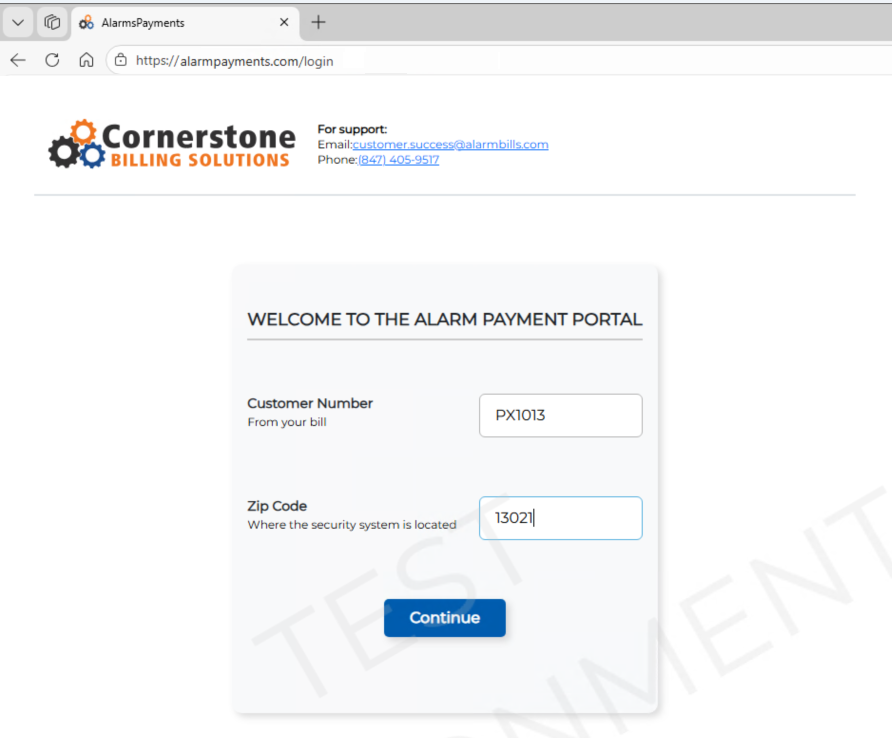
- Enter credentials: Enter the Customer Number and the billing Site Zip Code.
- Proceed: Click Next.
Step 2 — Follow the Payment Steps
Once logged in, the process follows the same flow as Method 1. The customer will need to:
- Begin payment: Click Make Payment.
- Review invoices: Review open invoices and uncheck any they do not wish to pay.
- Select payment method: Select a payment method and enter their payment information.
- Continue and confirm: Click Continue, agree to the terms, and click Confirm Payment to finalize the transaction.
Need Additional Help?
Our Customer Success team is here to assist you.
Phone: 847-405-9517 x1
Email: customer.success@alarmbills.com
Copyright © 1999–2026 Cornerstone Billing Solutions. All rights reserved.
Was this article helpful?
That’s Great!
Thank you for your feedback
Sorry! We couldn't be helpful
Thank you for your feedback
Feedback sent
We appreciate your effort and will try to fix the article