Overview
This guide explains how to set up, customize, and send the Credit Card Update Letter in Cornerstone. The letter uses system macro fields to automatically populate each copy with individual customer information, allowing you to mail merge and print letters for one or more accounts at a time. It also covers how to configure the signature macro field used in the letter's closing.
Setting Up the Letter
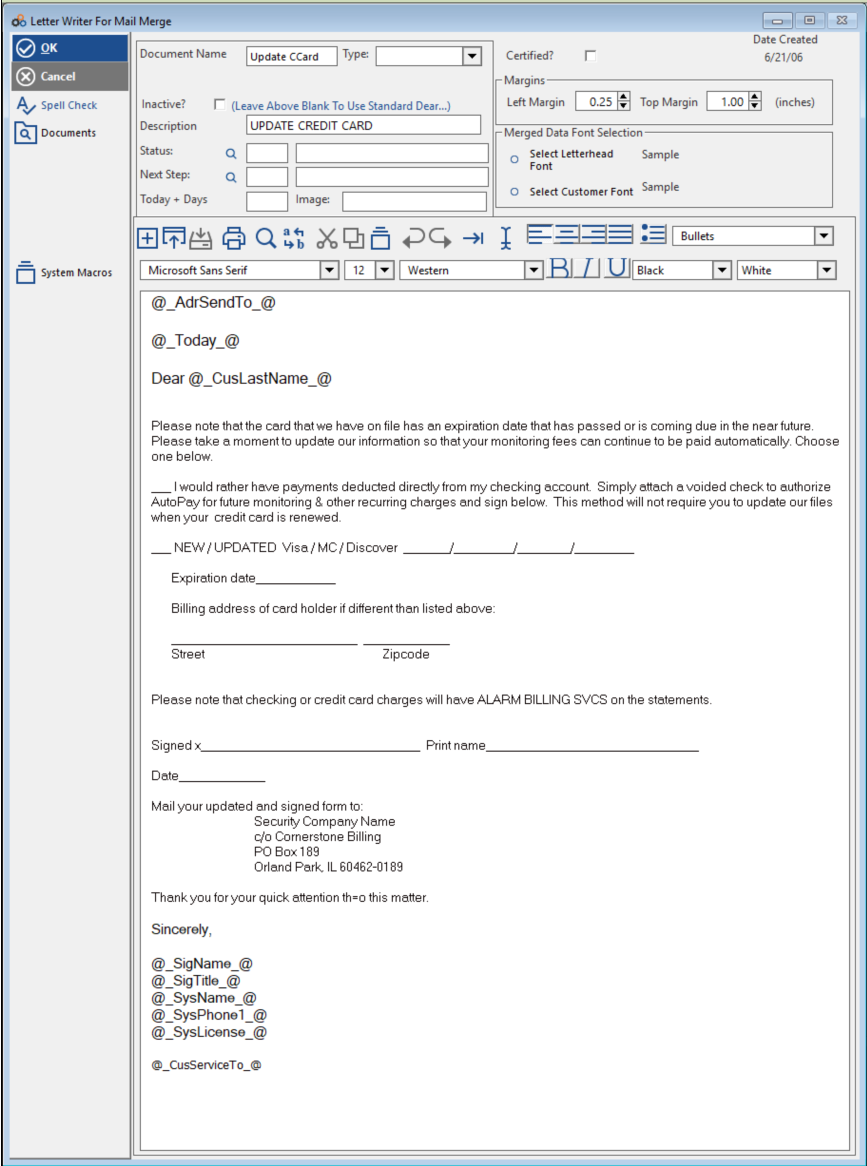
Cornerstone includes a default letter for updating credit cards. The letter can be modified by anyone with access to the letter section. It consists of a base letter combined with system macro fields, which populate customer-specific information into each copy automatically.
To locate and edit the letter:
- Click Inquiry/Mail.
- Click Letter.
- Scroll down the letter list until you find Update CCard.
- Click Change.
- Make any desired modifications to the letter body or macro fields.
- Click Save.
The screenshot below shows the Letter Writer for Mail Merge window with the Update CCard document open. The letter body includes macro fields such as @_AdrSendTo_@, @_Today_@, @_CusLastName_@, and signature fields at the close.
Using the Letter — Sending to Customers
Once the letter has been saved with the appropriate macro fields, you can send it to one or more customers using the Customer Inquiry / Mail Merge tool.
Step 1 — Open Customer Inquiry / Mail Merge
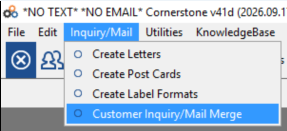
- Click Inquiry/Mail in the menu bar.
- Click Customer Inquiry / Mail Merge.
Step 2 — Configure the Document
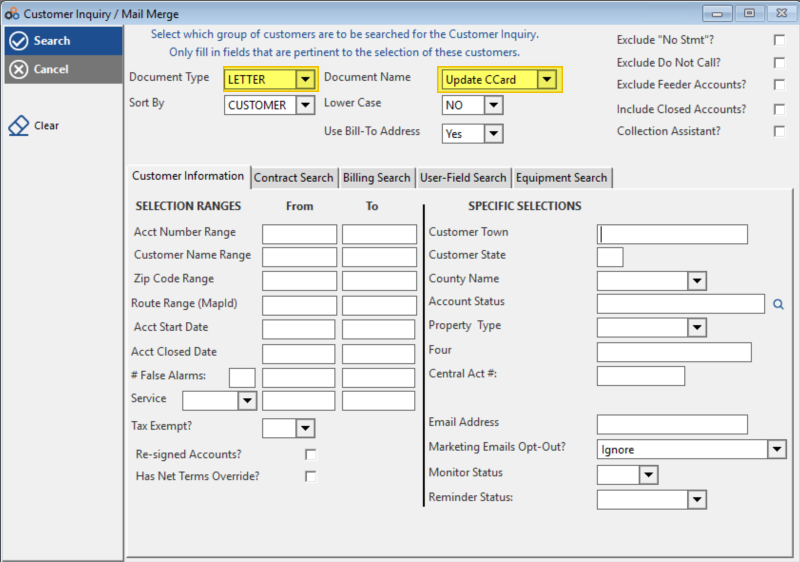
- From the Document Type drop-down, select LETTER.
- From the Document Name drop-down, select Update CCard.
Step 3 — Filter for the Accounts to Receive the Letter
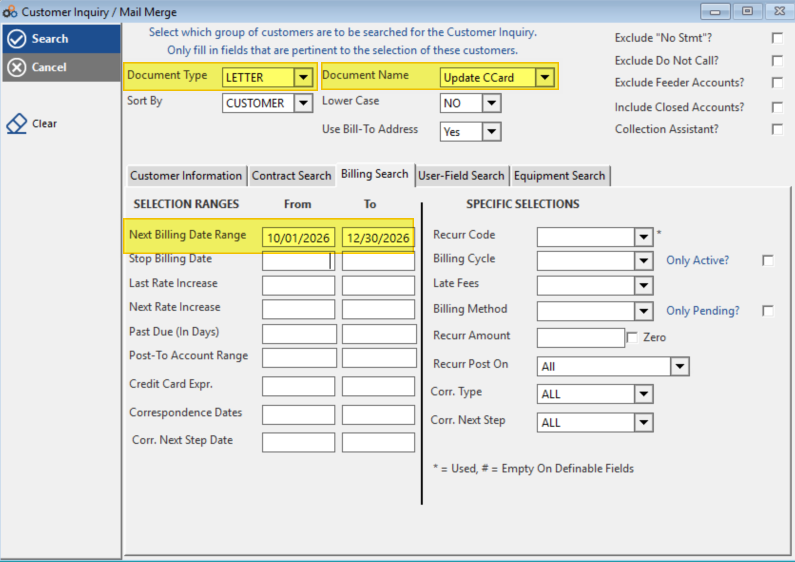
Use the available fields and tabs (Customer Information, Contract Search, Billing Search, User-Field Search, Equipment Search) to filter for the specific accounts that should receive the letter. For example, the Billing Search tab allows you to filter by Next Billing Date Range or Credit Card Expr. to target accounts with expiring cards.
Step 4 — Search and Process
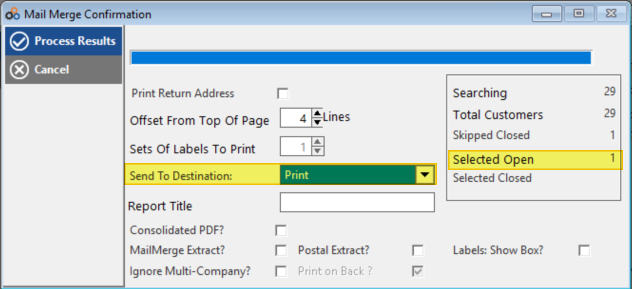
- Click Search. Results are shown as the Selected Open count in the Mail Merge Confirmation window.
- Click Process Results to print the letters.
Each letter will be populated with the individual customer's information from their account record.
Sample Output — Populated Letter
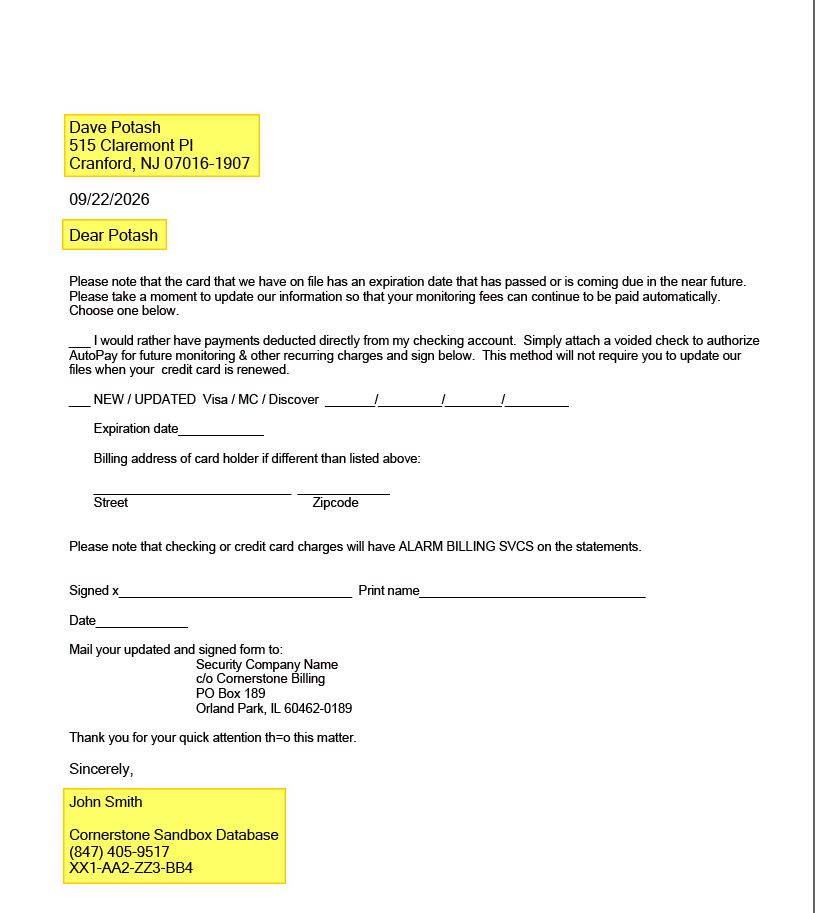
The image below shows a completed, merged letter. The highlighted sections illustrate where macro fields have been replaced with live customer data — including the customer's name and address, today's date, and the signature block containing the employee's name, title, company name, phone number, license number, and service-to address.
Customizing the Letter — System Macro Fields
System macro fields allow you to insert a placeholder in the format @_fieldname_@ that is automatically populated with customer or company information when the letter is processed. Place macro fields anywhere in the letter body where you want dynamic data to appear.
Configuring the Signature Macro Field
The @_SigName_@ field is a specialized macro designed specifically for use in letters. It pulls the employee signature from Employee Profiles. To configure it:
- Click Utilities.
- Click Employee Profiles.
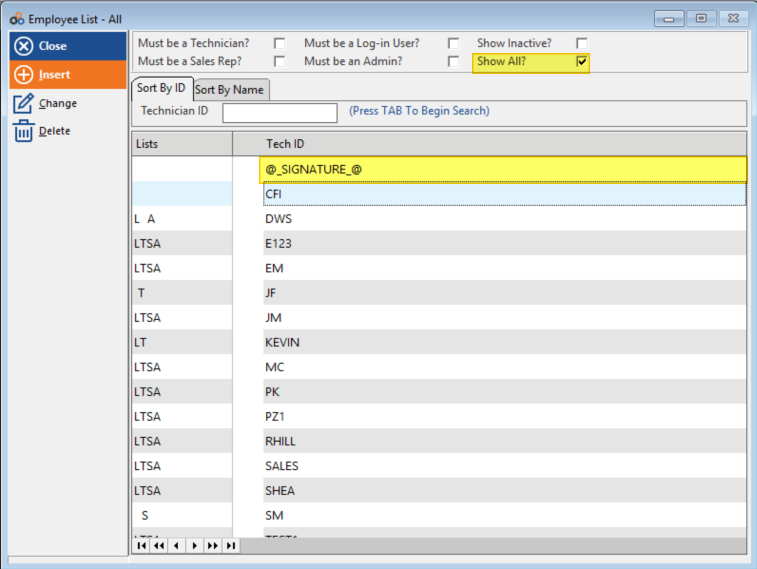
- Click Show All.
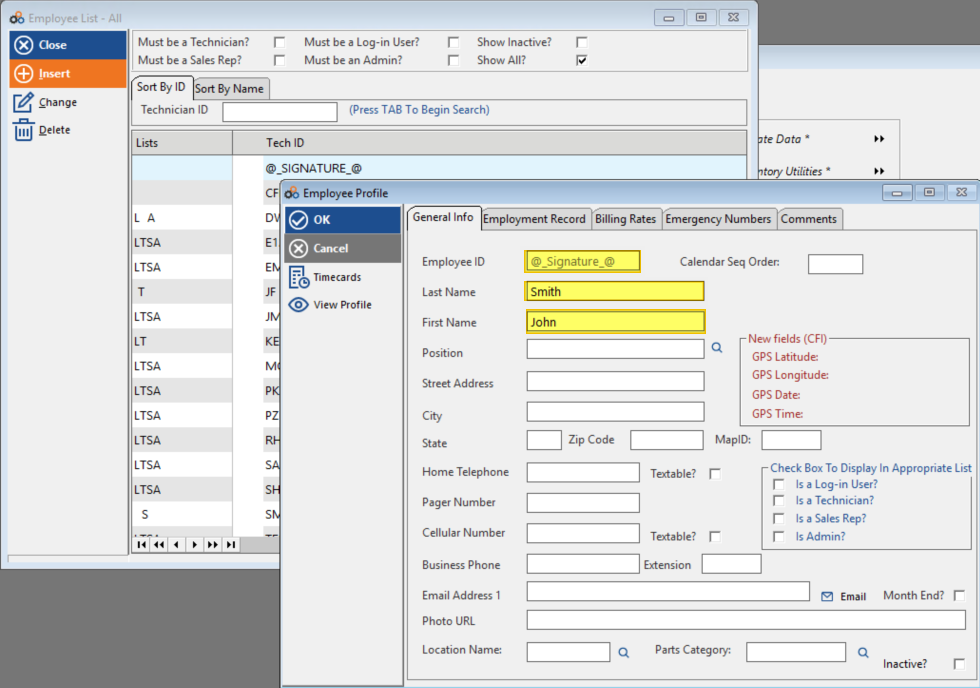
- Highlight
@_SIGNATURE_@in the employee list and Click Change. - Enter the employee information in the supplied fields (e.g., Employee ID, First Name, Last Name).
- Click OK to save.
⚠️ IMPORTANT
The @_SigName_@ field is sourced from the @_SIGNATURE_@ record in Employee Profiles — not from a standard employee record. You must configure this specific profile entry for the signature to populate correctly in merged letters.
Need Additional Help?
Our Customer Success team is here to assist you.
Phone: 847-405-9517
Email: customer.success@alarmbills.com
Copyright © 1999–2026 Cornerstone Billing Solutions. All rights reserved.
Was this article helpful?
That’s Great!
Thank you for your feedback
Sorry! We couldn't be helpful
Thank you for your feedback
Feedback sent
We appreciate your effort and will try to fix the article