Overview
Cornerstone has a direct link from the customer screen to the AlarmPayments.com payment portal. This allows you to submit credit card and checking debit payments for your customers.
Important: Use the Portal to submit payments, you can also set up a customer for Autopayment, use the payment method on file to pay invoices. To see how much someone owes you, use the Invoice History icon to review invoices, alternately the portal will also show all open balances the customer owes allowing you to select which invoices to pay.
How Credit Card Transactions Work
Real-Time Processing
- Credit card transactions are submitted in real time
- Immediate response provided (approval or decline)
- Email confirmation sent to the address provided (entered in login screen or customer's primary email)
Batch Processing
Cornerstone closes credit card batches every Monday, Wednesday, and Friday nights and posts the payments to Cornerstone the next day.
How Checking Debit Transactions Work
Processing Schedule
Transactions are submitted 4 times a month on the afternoon of the previous day so that debits occur on the:
- 1st
- 7th or 8th
- 15th
- 22nd
Critical Deadline: Payments must be submitted by 3:00 PM Central time the day before to process in time.
Notification
- Checking debit transactions receive an on-screen response
- Email sent stating transaction will be submitted within the next 7 days
- Invoices in Cornerstone are posted the next morning
Important Authorization Requirements
We recommend SIGNED AUTHORIZATIONS for any charges OVER $500.
Be sure to email the receipts to the cardholder. Emailing receipts will help reduce questions regarding the charges.
Pricing
For Office Staff
No monthly fee for you or your staff to submit transactions through Cornerstone.
For Subscriber Self-Service
$10 per month flat fee for allowing subscribers to access AlarmPayments.com to pay their bills online.
Using AlarmPayments Portal from Customer Screen
Step 1: Launch the Portal
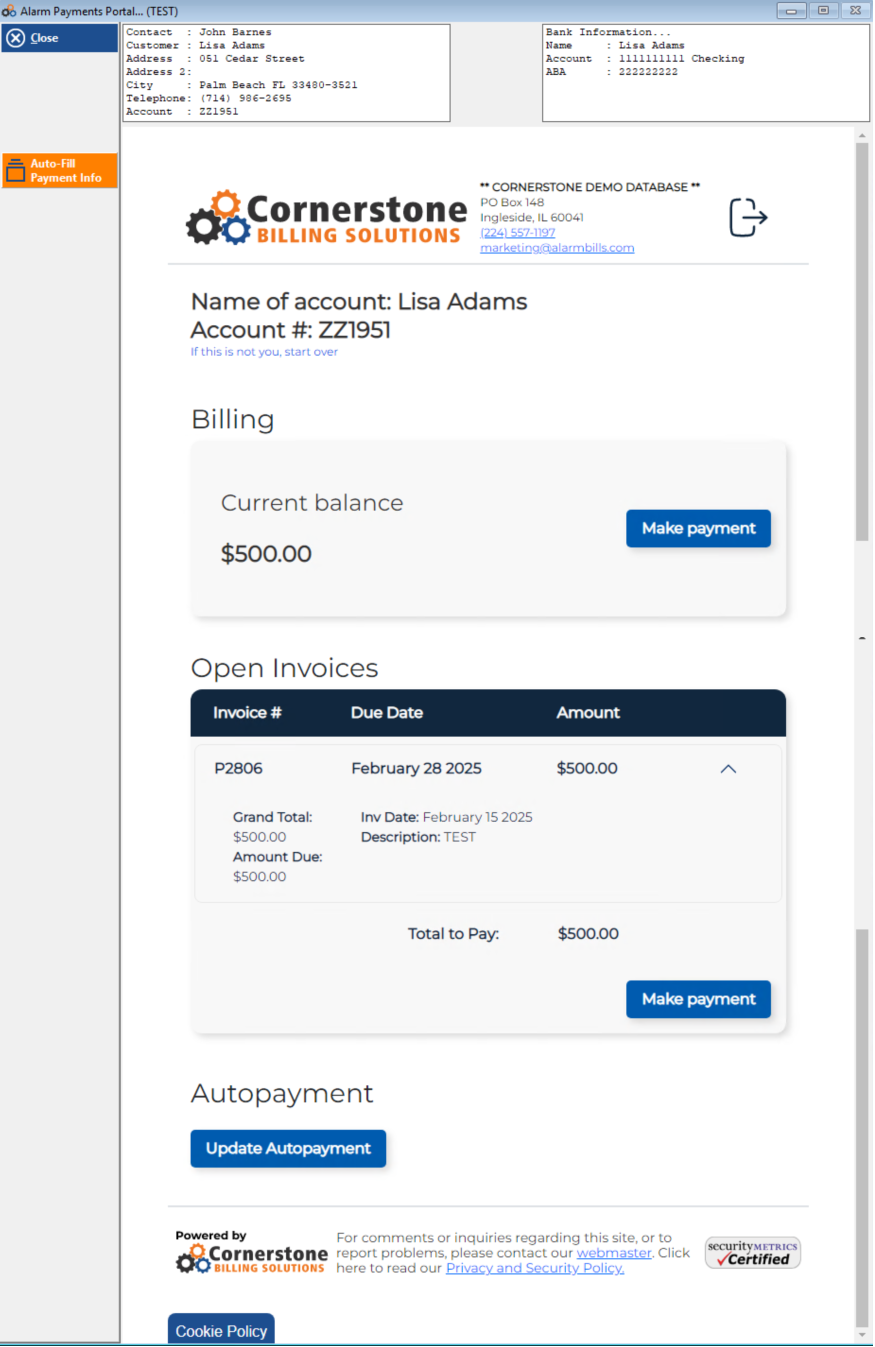
Click on the AlarmPayments Portal icon on the customer screen. The customer login information is automatically provided for the transaction.
Note: Email addresses entered are recorded in Cornerstone.
Step 2: Review Open Invoices
If email address exists in system:
- Taken directly to screen showing open invoices
- Click on invoices the subscriber wishes to pay
- Your company name and phone number is visible to subscribers using AlarmPayments.com
If no email address in Primary address field:
- You are asked to enter an email address for the transaction receipt
- What you enter will be recorded in Cornerstone
Step 3: Enter Payment Information
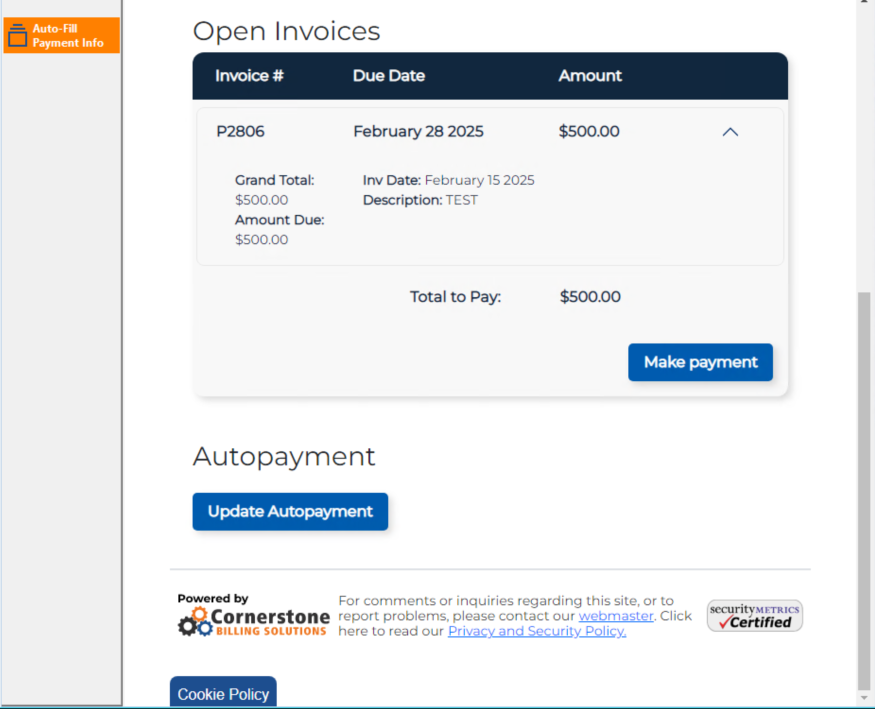
Click "Make payment" or "Update Autopayment" to proceed to the payment entry screen.
Entering Credit Card Information
Required Fields
- Credit card number
- Expiration date
- CVV/Security code (recommended)
- Cardholder billing information
- Zip code
CVV Override (Office Use Only)
While the CVV/Security Code is recommended for every credit card transaction:
If you receive payment information without the security code, you can override the CVV requirement by removing the check mark in the box below the Zip Code field.
Entering Checking Debit Information
Required Bank Information
- Bank routing number
- Account number
- Account holder information
Using Customer Information
Customer site information and cardholder billing information are provided in the system. You can:
- Copy (Control C) and Paste (Control V) in AlarmPayments
- Right-click the mouse for copy and paste options
Setting Up Recurring Autopay
Subscribers that pay through AlarmPayments (credit card or checking debit) are asked if they want to set up future recurring charges to the card or checking account they just used.
Autopay Options
- Select the 1st or 15th as the transaction date
- Digital signature required on summary of recurring charges
- Email confirmation sent to provided address
Important: You can select this option if you have signed authorization from the subscriber.
Autopay Recording
The autopay selection is noted in the account's Notepad.
Final Step - Accept and Confirm
Credit Card Transactions
- Immediate response provided on screen (Approval or Decline)
- Declines note the reason for the decline
- Approval or decline email sent to the address provided
Checking Debit Transactions
- Screen and email notify when transaction will be processed
- States it will be processed within the next 5-7 business days
Tip: If you enter your email address (rather than the subscriber's), you will get the transaction receipt and can forward it to the customer.
Note: The system records the invoice(s) being paid so it posts to the specified invoice.
Tracking AlarmPayments Transactions
Correspondence Log
The Correspondence Log Icon on the customer screen records:
- AlarmPayments transactions submitted from Cornerstone
- Username who submitted them
- Date and time of transaction
- Statements that have been sent out and by whom
Using for Collections
This feature is a good place to check before contacting customers for collections. This way, when contacting the customer, you will have precise and accurate information.
Understanding the Inserted Field
The Inserted field records:
- User login when AlarmPayments portal is launched from Cornerstone
- If launched more than once on the same day, date and time will be recorded
- Payments through www.AlarmPayments.com (by the user) will record the date and time
Credit Card Update Letters
Cornerstone can send credit card update letters on your behalf.
How It Works
These letters identify customers:
- Set for autopay whose cards have expired
- Cards expiring in the next 3 months
Letter Instructions
Letters instruct customers to go to www.AlarmPayments.com to update their autopay information.
Update Process
Typically there is $0 due in the account, so customers:
- Check the box to "Update Autopayment information"
- Enter their information
- Information is recorded in recurring charges
- Email confirmation sent to subscriber
Need Help?
Still have questions? Contact Cornerstone Holding Co. 847-405-9517 or email us customer.success@alarmbills.com
Was this article helpful?
That’s Great!
Thank you for your feedback
Sorry! We couldn't be helpful
Thank you for your feedback
Feedback sent
We appreciate your effort and will try to fix the article