This guide explains how recurring charges work with Finix, our credit card processor and gateway. Finix uses secure tokens to protect credit card information.
Entering New Cards
Changes to Auto-Fill
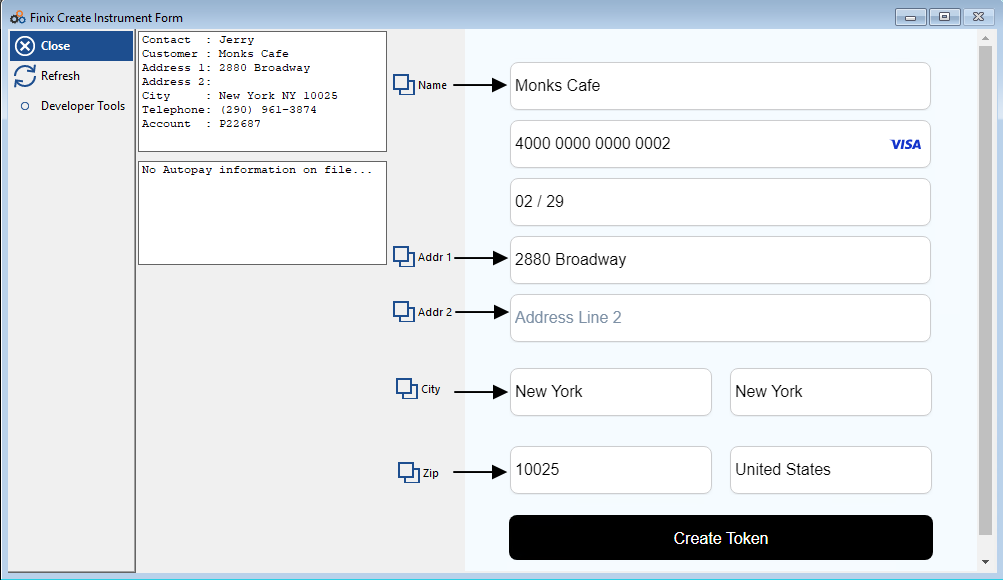
Finix uses a secure form to enter card details. The added security means we cannot auto-fill information. However, we've made it easy to copy and paste information.
How to Copy Information:
- Click the "copy" icon next to each field
- Click the corresponding field on the form
- Paste (Ctrl+V, or right click and select "Paste")
Creating a Token
- Enter the card number and expiration date
- Click "Create Token" - this creates a secure token for the card
What Happens:
- Subscriber accounts are assigned a unique Buyer ID
- The credit card is assigned a Payment Instrument ID
- The card type (credit or debit) is captured, which ensures that debit and prepaid cards are never surcharged
- Once Tokenized, Cornerstone can only access the last 4 digits of the card and the expiration date
Subscriber Notifications
As required by credit card industry rules, the subscriber will receive an email confirmation when their card is set up for recurring charges.
Multiple Recurring Charges
If there are multiple recurring charges, you will be prompted to change all records to the payment option created. This allows you to update all recurring charges with a single click.
- Select "Yes" to update all recurring charges
- Select "No" to update only the one recurring charge
You can always use the "Apply Billing Method to all Recurring Charges" button to add the new instrument to selected charges later.
Inability to Tokenize a Card During Conversion
Expired Cards
Expired cards will fail to tokenize. If we find an expired card during tokenization, we'll switch the billing method to "Printer." This means you won't be able to charge that card, but the original card details are still visible for reference to help when you contact your customer for an update to create a payment instrument.
Changing Billing Method
To create a payment instrument for a card that could not be tokenized:
- Change the Printer method back to the previous method
- This will allow you to see the full card information that existed to help you create a new instrument
- Simply move the input form over so you can see the recurring charge payment information
If you are not ready to create a new instrument, change the billing method back to Printer to preserve the card information until you can create a new instrument.
Expired or Faulty Tokenized Cards
Card Errors
If a recurring charge encounters an error with the tokenized payment instrument and it cannot be used, Cornerstone will switch the method to "Printer" and leave a support note.
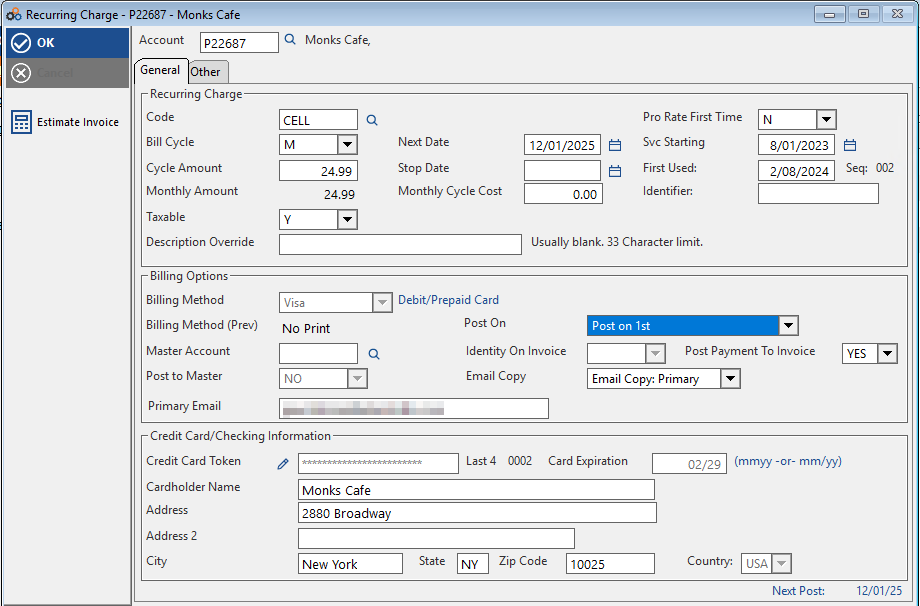
The card's last 4 digits and expiration date are visible for reference. The card number is tokenized so it will only show as ********.
Creating a New Instrument
To update card information for a "Printer" billing method that was a card:
- Change it back to the previous method
- This will allow you to see the last 4 digits and expiration date of the tokenized card
Note: If the card could not be tokenized, the full card information will be displayed.
Updating Name & Address
Changes to the name and address field will update to the existing payment instrument.
Updating Expiration Date
To update the expiration date, you'll need to remove the old payment instrument and create a new one. We know this isn't ideal, but it's how Finix handles secure tokens.
Remember: Cornerstone can only access the last 4 digits and expiration date, not the full card number.
Updating Recurring Charges with Cards
The screens for updating recurring charges will vary slightly depending on if you have one or multiple charges.
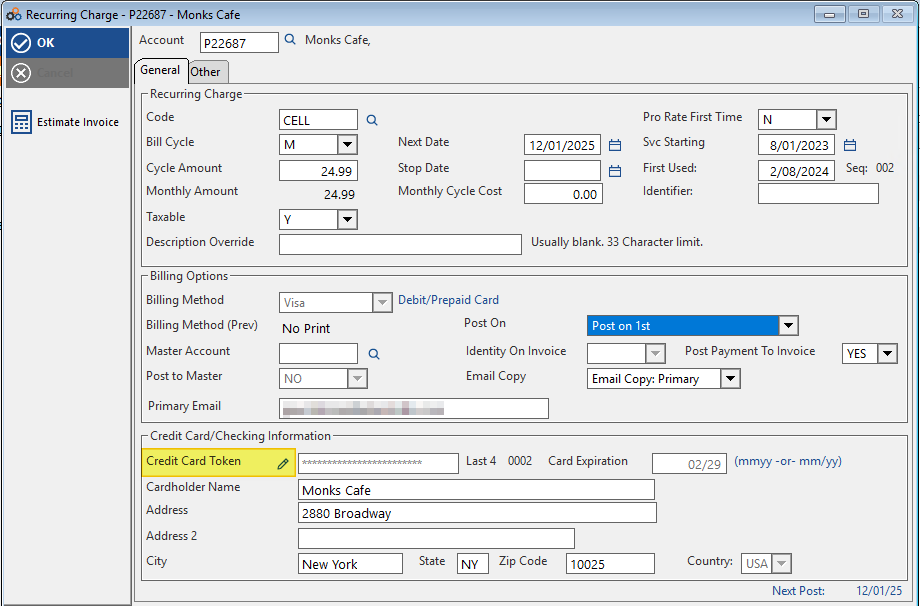
Start by clicking the edit Icon next to the "Card Token ID" field.
Editing Single Recurring Charges
- Click the edit icon next to "Credit Card Token"
- You'll be asked to confirm if you want to remove the instrument (which you will need to do to update card details)
- Choosing "Yes" will prompt you to create a new credit card instrument
- Choosing "No" leaves the recurring record as it was
Editing Multiple Recurring Charges
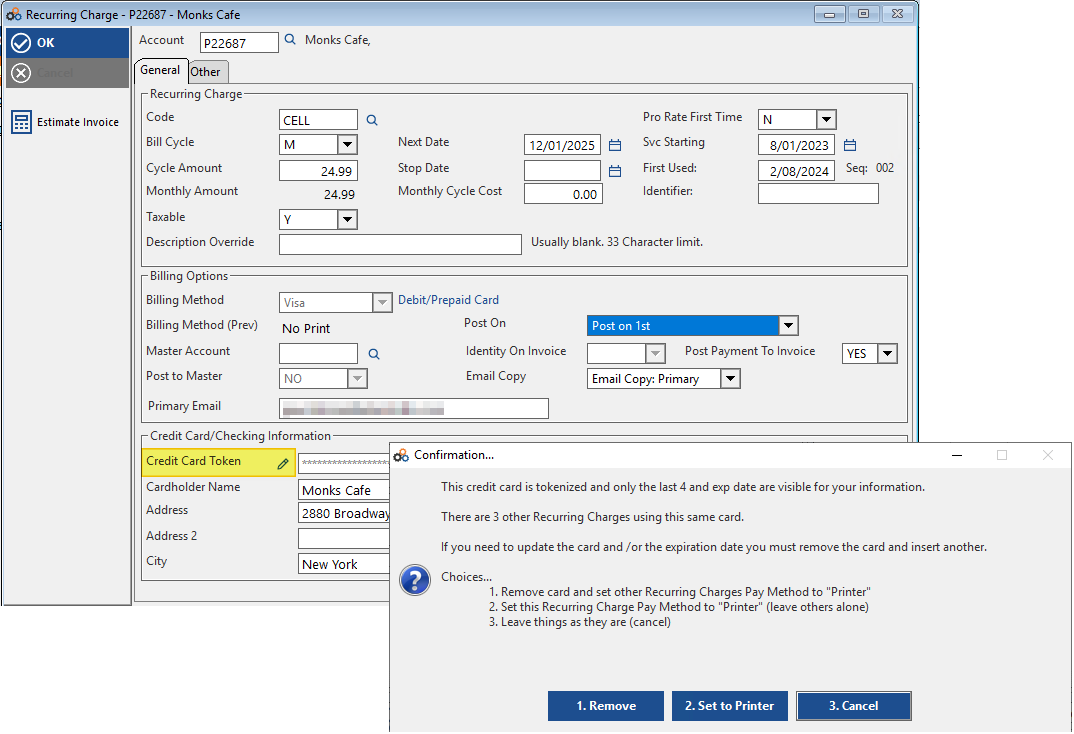
Click the edit icon next to "Credit Card Token". Here you can choose to:
Remove the instrument:
- Deactivates that instrument (card) at Finix
- Removes access to the full card number (but keeps the last 4 digits and expiration date)
- Do this to create a new instrument for recurring charges
Set to Printer:
- Keeps the previous method's payment details
- Uses a paper invoice method
Cancel:
- Makes no changes
- Returns to the original screen
Creating a New Instrument After Removal
Once you've removed the old instrument (the credit card token field is cleared):
- Change the method to the card method you want (new or same card)
- Click the pencil edit next to "credit card information" to create a new instrument
- Fill out the Finix form with the information
Although auto-fill isn't available, we've provided copy buttons to enable easy pasting of information.
Need Help?
Still have questions? Contact Cornerstone Holding Co. 847-405-9517 or email us customer.success@alarmbills.com
Was this article helpful?
That’s Great!
Thank you for your feedback
Sorry! We couldn't be helpful
Thank you for your feedback
Feedback sent
We appreciate your effort and will try to fix the article