Overview
This guide walks you through setting up a new customer record in the Customer Maintenance screen. A complete and accurate customer record ensures invoices are generated correctly, payments can be processed, and all contact information is on file. Follow the steps below in order to enter all required information across the General and Email / Misc tabs.
Step 1 — Open Customer Maintenance
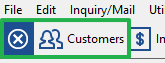
From the main toolbar, click the Customers button to open the Customer Maintenance screen. You can also access it via the Inquiry/Mail menu.
The toolbar button appears as shown below:
Once inside Customer Maintenance, use the toolbar's Customers icon (shown below alongside the dollar-sign billing icon) to navigate between records or create a new one:
Step 2 — Complete the General Tab
The General tab is the primary tab for core customer information. Complete the following fields:
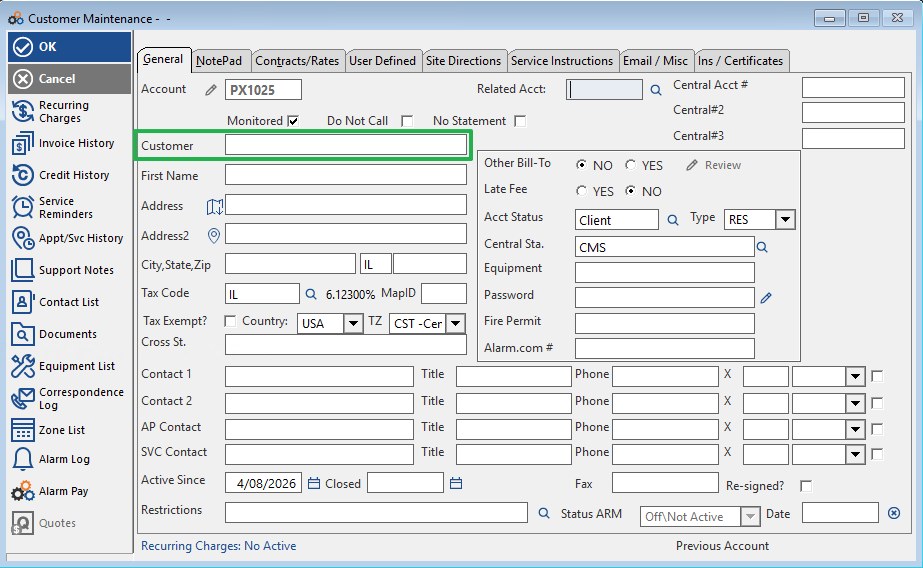
Customer Name
Enter the customer's name in the Customer field. This is the primary identifier for the account and appears on invoices and statements.
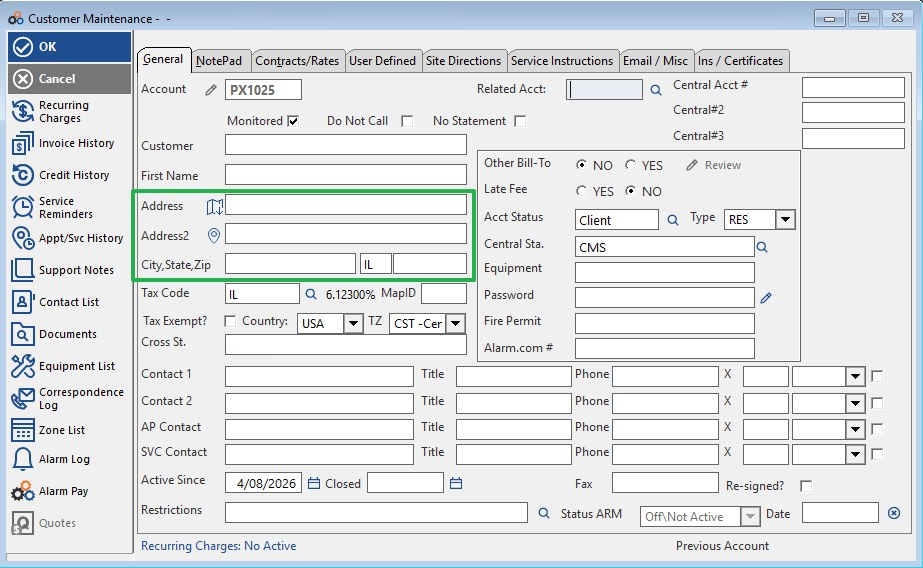
Service Address
Enter the customer's service address in the Address, Address2, and City, State, Zip fields. This is the physical location where the alarm system is installed.
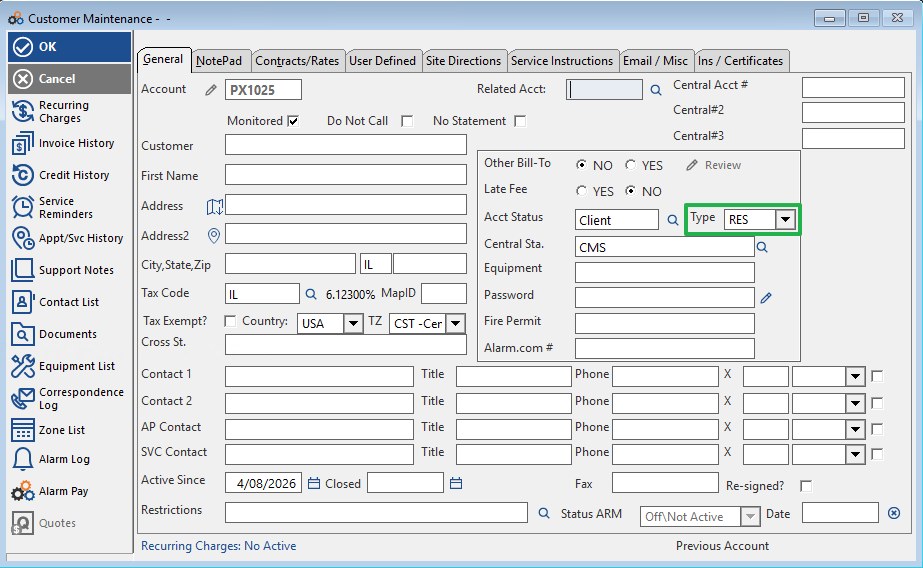
Account Type
Set the Type field (located next to Acct Status) to the appropriate account type — for example, RES for Residential. This field determines how the account is classified throughout the system.
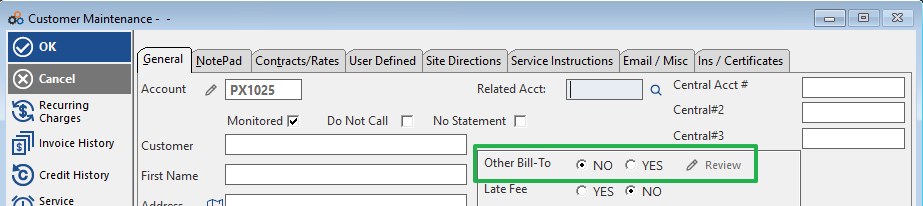
Other Bill-To
The Other Bill-To option allows you to specify a separate billing party for the account. Select YES to enable an alternate bill-to address and use the Review link to enter those details. Leave set to NO if the billing address is the same as the service address.
Contact Information
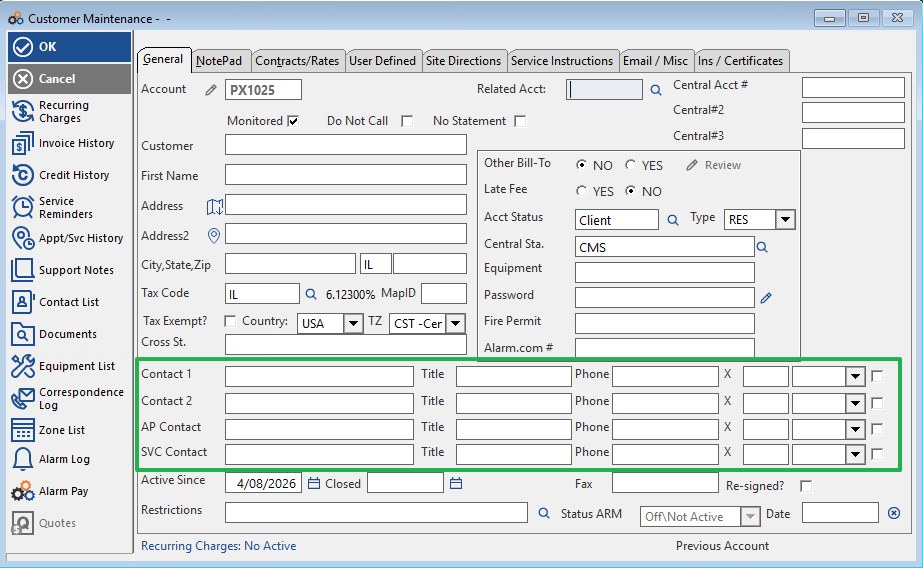
Enter contact details in the contact fields at the bottom of the General tab. The following contact types are available:
| Field | Purpose |
|---|---|
| Contact 1 | Primary contact person for the account |
| Contact 2 | Secondary contact person for the account |
| AP Contact | Accounts Payable contact — the person responsible for paying invoices |
| SVC Contact | Service contact — the person to reach for service-related matters |
For each contact, enter the name, title, and phone number in the corresponding fields.
Contact List
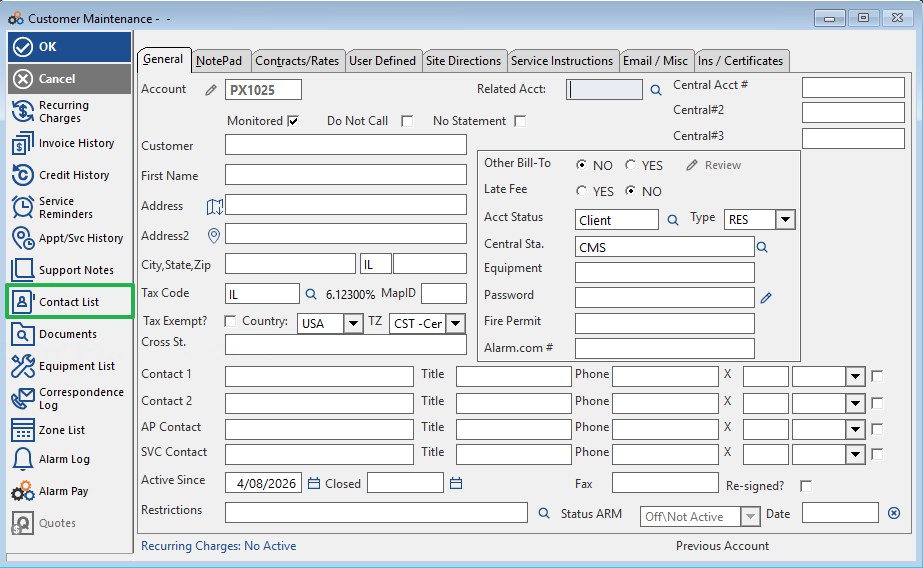
For additional contacts beyond the fields on the General tab, use the Contact List option in the left-hand navigation panel of Customer Maintenance.
Step 3 — Complete the Email / Misc Tab
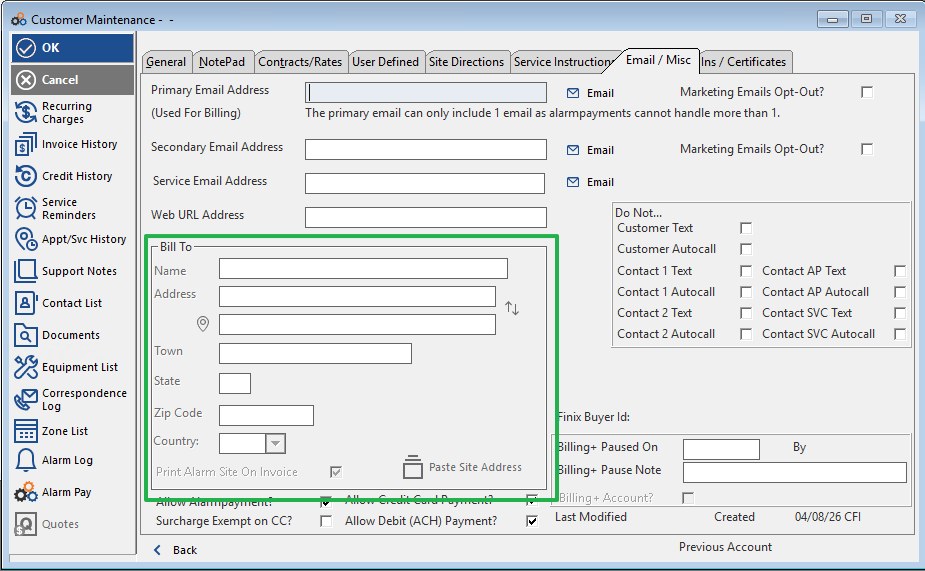
Click the Email / Misc tab at the top of the Customer Maintenance screen to enter email addresses and billing address details.
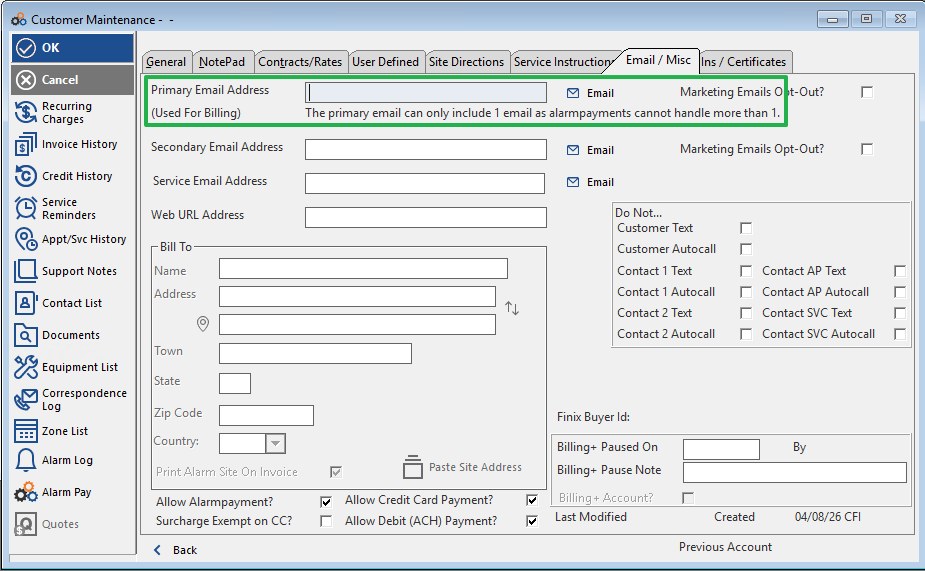
Primary Email Address
Enter the customer's primary email address in the Primary Email Address (Used For Billing) field. This address is used to send invoices and billing communications to the customer.
⚠️ IMPORTANT
The Primary Email Address field can only contain one email address. Alarmpayments cannot handle more than one email in this field. Do not enter multiple email addresses separated by commas or semicolons.
You may also check the Marketing Emails Opt-Out? checkbox next to the Primary Email Address if the customer has requested to opt out of marketing communications.
Additional Email Addresses
Two additional email fields are available on this tab:
| Field | Purpose |
|---|---|
| Secondary Email Address | An additional recipient for billing emails. Also includes a Marketing Emails Opt-Out? checkbox. |
| Service Email Address | Used for service-related communications with the customer. |
Bill To Address
The Bill To section on the Email / Misc tab allows you to specify a separate mailing address for billing purposes. Complete the following fields if the billing address differs from the service address:
- Name — Enter the name of the billing party.
- Address — Enter the billing street address (two lines available).
- Town — Enter the city or town.
- State — Enter the state abbreviation.
- Zip Code — Enter the postal/ZIP code.
- Country — Select the country from the dropdown.
You can also click Paste Site Address to automatically populate the Bill To address fields with the service address entered on the General tab.
Step 4 — Save the Record
Once all required fields have been completed across the relevant tabs, click the OK button in the upper-left corner of the Customer Maintenance screen to save the new customer record. To discard your changes, click Cancel.
⚠️ IMPORTANT
Always click OK to save before navigating away from the Customer Maintenance screen. Any unsaved changes will be lost if you cancel or close the window without saving.
Need Additional Help?
Our Customer Success team is here to assist you.
Phone: 847-405-9517 x1
Email: customer.success@alarmbills.com
Copyright © 1999–2026 Cornerstone Billing Solutions. All rights reserved.
Was this article helpful?
That’s Great!
Thank you for your feedback
Sorry! We couldn't be helpful
Thank you for your feedback
Feedback sent
We appreciate your effort and will try to fix the article