Overview
Cornerstone's Quotes Module provides lead contact management, sales pipeline tracking, and professional quote generation. The system integrates seamlessly with other Cornerstone modules for complete workflow management from sales to installation.
Key Integrations
- Appointment Calendar - Schedule sales calls and installations
- Inventory Tracking - Manage multiple locations and vendors
- Service Tickets - Handle complex installations with multiple technicians
- Time Card/Payout Tracking - Track billing and payroll
- Invoicing - Progress billing for large jobs
- Job Costing - Track profitability and maintain pricing history
Quotes Dashboard
The Quotes Dashboard provides an overview for lead management, sales pipeline tracking, and job status monitoring.
Dashboard Features
- View quote amounts, invoiced amounts, and profit margins
- Filter quotes by various criteria (Pending, Status, Date Range)
- Security settings allow sales reps to view only their own quotes
- Customizable lead, quote, and sales status categories
Key Information Displayed
- Quote ID and date
- Good Through date
- Quote amount (excluding RMR)
- Invoiced amounts
- Profit margin
- Customer/prospect information
- Sales rep assignment
- Lead, Quote, and Sales status
Quotes List Filters and Actions
Available Actions
Insert - Create a new quote from scratch or from a template
Change - Modify the highlighted quote
Delete - Remove the highlighted quote
Print - Print the highlighted quote
Copy - Duplicate an existing quote for modifications or to create templates
Accept - Convert accepted quote to invoice or service ticket
Filter Options
Lead Status - Filter by lead stage (Have Not Contacted, Contacted, Scheduled Appointment, etc.)
Quote Status - Filter by quote stage (In Development, Submitted, Won, Lost, Dead)
Sales Status - Filter by sales stage (Lead, Cold, Warm, Hot, Closed)
Show Only - Display Template Quotes, Accepted Only, or Pending Only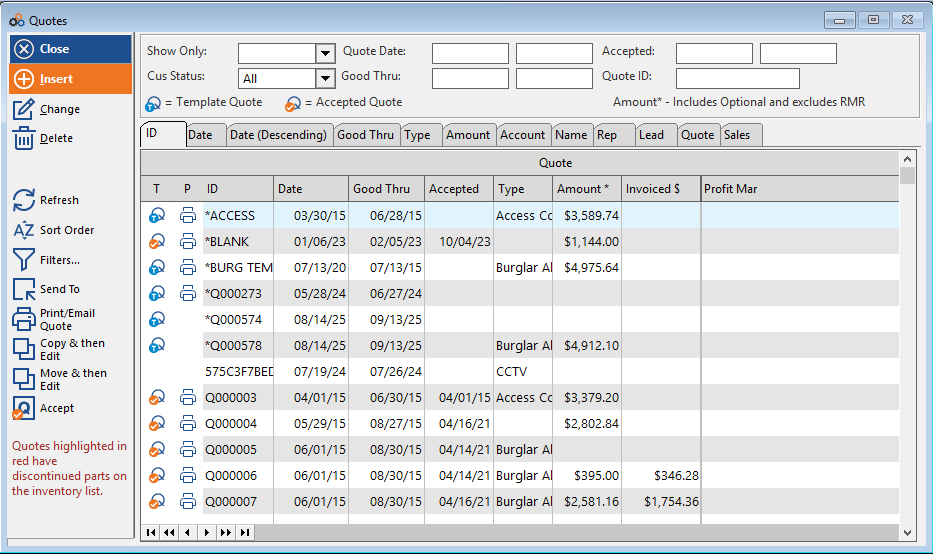
Creating Quotes and Templates
Recommended Process for Templates
- Create a quote from scratch and assign to General account
- Name it descriptively (e.g., BURG TEMP, FIRE TEMP, AV TEMP)
- Select as template
- Create Rich Text Format pages for quote sections
- Build the quote with typical inventory items and recurring charges
- Use template for new prospects and customize as needed
Quote Setup Fields
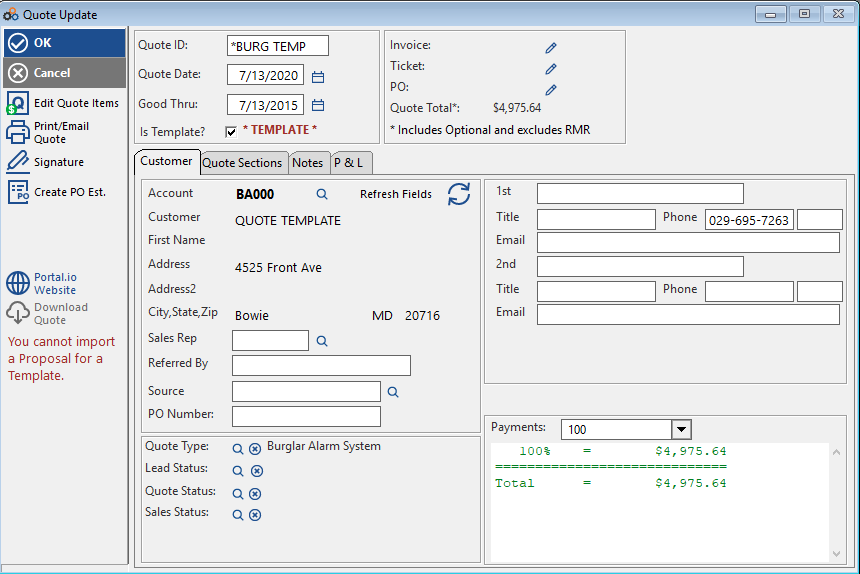
Quote ID - Auto-populated, can be customized (must be unique)
Quote Date - Auto-filled with current date
Good Thru - Based on system net terms for quotes
Quote Type, Lead Status, Quote Status, Sales Status - Select from dropdown boxes
Account - Select existing customer/prospect or create new account
Quote Information Tabs
- Customer Contact - View and use contact information
- Notes - Additional notes section
- P&L - Track profitability
Quote Sections
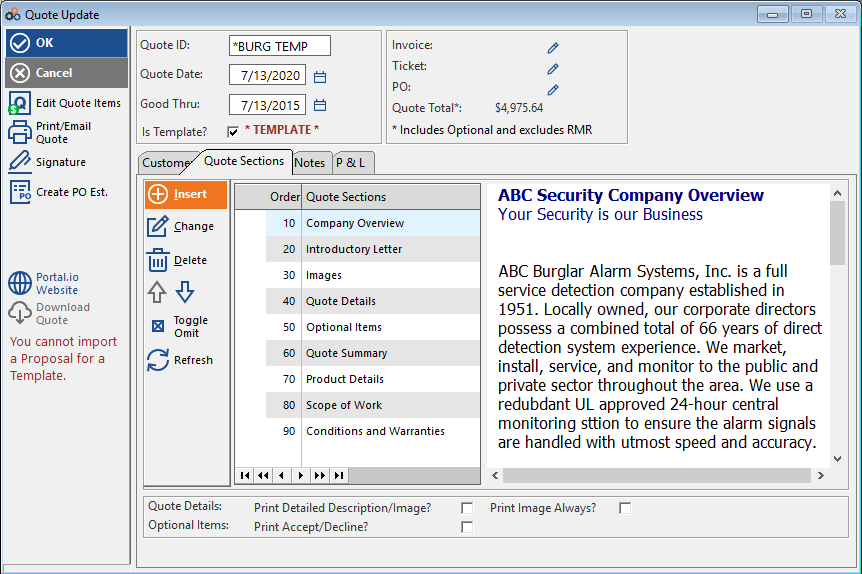
Each quote can include or omit various sections with Rich Text Format capabilities. Sections can be arranged in any order.
Available Sections
Company Overview - Market your expertise with customizable overviews for different products
Introductory Letter - Create and customize default letters
Quote Details - Display quantity, Part ID, and description with optional pricing
- Option to include detailed descriptions and photos
Optional Items - List optional items with acceptance signature lines
Quote Summary - Summarize pricing by GL Code categories (Equipment, Labor, etc.)
- Include recurring charges with annualized amounts
Product Details - Summary sheet of equipment/inventory items with photos
Scope of Work - Identify responsibilities and requirements
Conditions and Warranties - Detail warranty information
Payment Terms - Specify payment requirements
Acceptance - Signature section for quote acceptance
Building the Quote
Adding Items
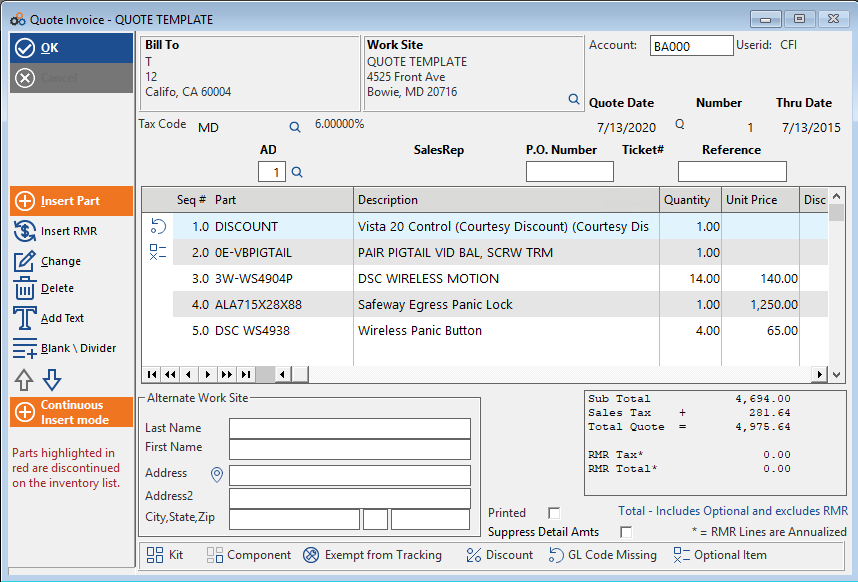
Insert Button - Select inventory items for the quote
- Items not counted until quote is accepted
- Can be marked as optional
Insert RMR - Add recurring charges
- Can mark monitoring charges as optional
Add Text - Insert additional text
Blank/Divider - Create spacing or divider lines
Up/Down Buttons - Rearrange item order
Item Details
For each inventory item, specify:
- Quantity
- Unit price and unit cost
- Taxable status
- GL Code
- Expected labor time (for tracking estimated vs. actual)
Note: Inventory counts are informational only when building quotes. Inventory deduction occurs when quote is accepted.
Quote Options
Suppress Detail Amount - Print only total summary by category, not individual line items
Printed - Checkbox indicates quote printed as final copy
Optional Items - Parts and recurring charges can be marked as optional with Accept/Decline lines
Quote Acceptance
Once a quote is accepted, you have two options:
Option 1: Convert to Invoice
Best for simple jobs:
- Turn quote directly into an invoice
- Email or print/mail invoice
- Invoice tracked in Quotes Dashboard for profitability
- Can suppress prices or include detailed descriptions
Option 2: Convert to Service Ticket
Best for complex installations:
- Create service ticket with all required items
- Schedule installation on calendar
- Assign technician(s)
- Service Items button turns RED if parts are not on-hand
- Track multiple tickets for same job
- Enable progress billing with multiple invoices
Automatic Updates
When quote is accepted:
- Account status changes from Prospect to Client
- Master Ticket number recorded on quote
- Quote information and payment terms transfer to service ticket
- Recurring charges added to account (marked as Pending RMR)
Managing Recurring Charges from Quotes
Accepted recurring charges are added with extended prices and marked as Pending RMR.
Activating Recurring Charges
Once installation is complete and account goes online:
- Edit the recurring charges
- Remove Pending RMR checkbox
- Set Next Bill Date/Service Start Date to begin billing
Customer List identifies Prospect and Pending RMR account status for easy tracking.
Creating Purchase Orders from Quotes
Generate POs directly from quotes as a shopping list.
Use Cases
Estimate Only POs - Shop multiple vendors for best pricing
- Can be sent to multiple vendors
- Cannot be received into inventory
- Best for dealers who wait until quote acceptance to order
Standard POs - Order specific parts for accepted quotes
- Can be received into inventory
- Tracks on-order status
- Updates inventory upon receipt
Important: If using Estimate Only POs, manually adjust inventory or create standard PO for receiving stock.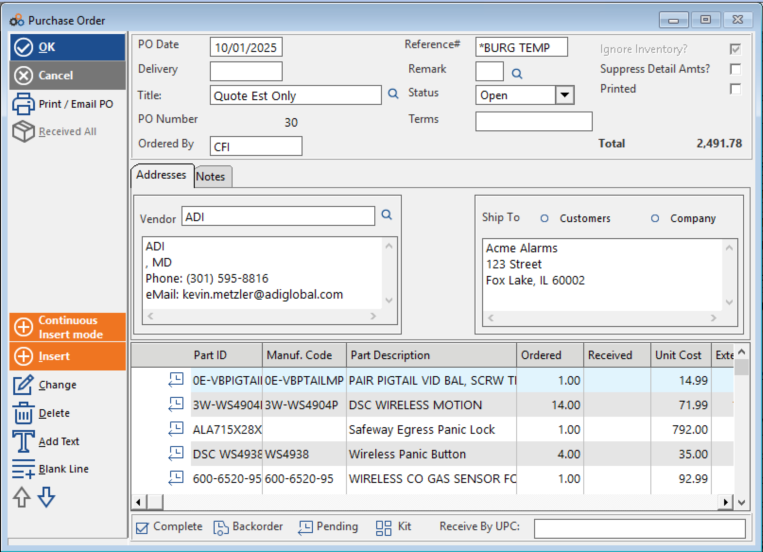
Profit and Loss Tracking
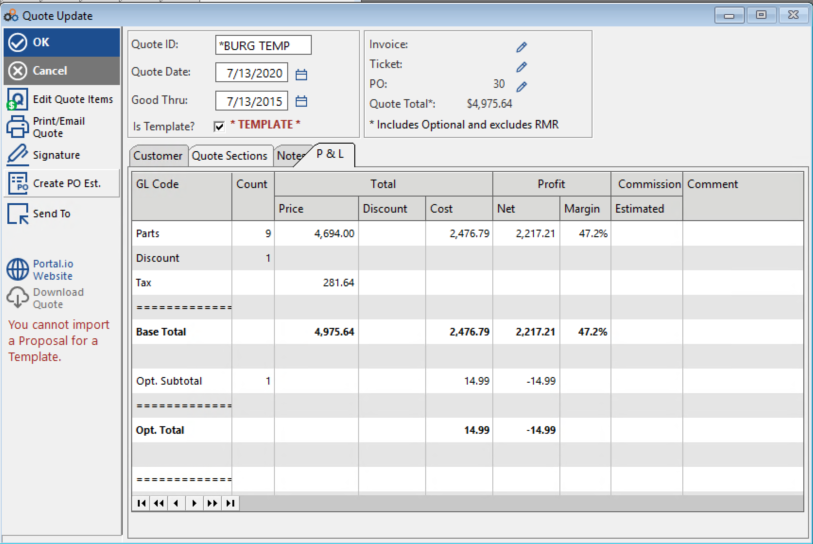
The P&L Tab tracks profit and loss by GL Codes assigned to inventory items.
Requirements for Detailed P&L
- Complete labor and materials cost in inventory items
- Proper GL Code assignments
- Accurate unit cost and price information
Price and Cost Storage
The system stores price and cost at the time the quote is created:
- Used for calculating job profit margin
- Maintained even if inventory prices change
- Available in Job Cost Report
Reports
Dashboard CSV Export
- Email filtered quote lists as CSV files
- Use filters to specify views (all pending quotes, won quotes, etc.)
Job Cost Report
Filter for Quotes to view:
- Detailed or summary profitability views
- Option to exclude labor/materials columns if not using detailed tracking
- Profit margin by GL Code categories
Sales Commission Tracking
- Track commissions on invoiced amounts
- Sales person linked to tickets and invoices
- Commission calculated based on employee profile percentage
- View in Invoice History Report filtered by SalesRep
Inventory Integration
A robust inventory setup is essential for effective quote management.
Inventory Benefits
- Part numbers with manufacturer pricing
- Cost information for accurate job costing
- On-hand counts for availability tracking
- Inventory Dashboard for ordering via Purchase Orders
- Flags when accepted quote parts are below on-hand counts
Alternative Approach
For dealers who quote generic categories and shop vendors after winning:
- Use "category" inventory items in quotes
- Issue "Estimate Only" purchase orders to multiple vendors
- Enter actual ordered parts into inventory later for job costing
- Record installed equipment in customer record
Templates Management
Creating Templates
Templates speed up the quote process significantly.
Methods to Create Templates:
- Create quote from scratch and designate as template
- Copy existing customer quote and convert to template
Template Best Practices:
- Assign to General account
- Use descriptive naming (e.g., *BurgTemp, *FireTemp)
- Design all quote section pages
- Include typical inventory items and recurring charges
- Customize for individual prospects as needed
Need Help?
Still have questions? Contact Cornerstone Holding Co. 847-405-9517 or email us customer.success@alarmbills.com
Was this article helpful?
That’s Great!
Thank you for your feedback
Sorry! We couldn't be helpful
Thank you for your feedback
Feedback sent
We appreciate your effort and will try to fix the article