Overview
Cornerstone provides lead contact management and sales pipeline tracking capability. You can create prospect accounts, design and generate professional quotes, and track the sales process and job status.
Planning Your Quote Presentation
Before creating quotes, think about how you want to package your company and present your services. This information will be used to create and store proposal sections and develop template quotes that speed up your ability to customize and produce professional proposals.
1. Company Overview
Do you have an overview that presents your company and all you can do?
Consider:
- Perhaps your website has text you want to use in proposals
- Do you need different summary overviews for different services?
- Example: More detailed information for Fire Systems versus audio-visual quotes
Flexibility: You can create as many letters as you'd like, then choose which is appropriate for each quote.
2. Introductory Letter
Do you want to include a letter to the customer in the proposal?
Consider:
- Do you want different letters available for different types of proposals?
- Customize tone and content based on service type or customer segment
3. Images
Do you have images you wish to include?
Examples:
- Membership badges (BBB, Angie's List)
- Burglar and Fire association certifications
- Industry accreditations
- Awards or recognitions
4. Quote Details
Do you need to provide commentary on the items or types of services you're proposing?
Use for:
- Explaining technical specifications
- Describing service benefits
- Clarifying installation requirements
5. Optional Items
Do you often propose optional items and need to provide commentary?
Examples:
- Premium upgrades
- Additional coverage areas
- Enhanced monitoring features
- Extended warranties
6. Product Images
Do you want to provide images for items included in your proposal?
Note: If Cornerstone doesn't have images in our library of Manufacturer parts, you can add them to your own images library.
7. Scope of Work / Exclusions / Conditions and Warranties
Create and store your default terms and conditions for services you provide.
Include:
- What's included in the scope
- What's explicitly excluded
- Installation conditions
- Warranty terms and limitations
8. Payment Terms
Create and store payment terms so specific terms can be selected for each proposal.
Common Examples:
- 50% at acceptance and 50% at completion
- 30/30/40 split across milestones
- Net 30 after completion
- Progress billing schedules
Important: Keep track of payment terms after acceptance as part of a service ticket so you invoice appropriately.
9. Acceptance
Specify the acceptance terms clearly.
Critical Caveat: Make sure you include language stating that acceptance of the proposal is not an agreement to provide the services in the proposal. You do not want the proposal to be interpreted as the monitoring contract!
10. Price Validity Period
How long will you honor the quoted price?
Default Setting: There is a net terms default that sets the "Good Thru" date
Flexibility: You may wish to adjust terms on individual quotes based on:
- Material price volatility
- Project complexity
- Market conditions
Building the Quote Details
The process is similar to creating an invoice for Equipment and Labor items. This makes it easy to turn an accepted proposal into either an invoice or a work order/service ticket that includes all the proposal items your techs need to install the job.
Equipment Options
You have two approaches for handling equipment in quotes:
Option 1: Specific Parts with Inventory Tracking
List specific parts and track them in your inventory. Keep inventory current with:
- On-hand counts
- Unit price
- Unit cost
Benefits:
- Accurate profitability tracking
- Real-time availability checking
- Precise ordering and receiving
Option 2: Generic Part Descriptions
Use generic part descriptions for proposals, then shop vendors for the best price on component parts at time of acceptance.
Benefits:
- Flexibility to choose best vendor pricing
- Faster quote generation
- Competitive pricing advantage
Important: Even with generic descriptions, record unit price and cost to track price and profitability for quotes.
Note: At installation time, specify exact parts for the installation ticket or invoice so parts can be recorded on the customer's equipment list.
Combined Approach
You can use both methods - specific parts for standard items and generic descriptions for specialty or variable-cost components.
Inventory Management for Quotes
Whether using specific or generic parts, you'll want to review or build your inventory system.
Benefits of Updated Inventory
For Quoting:
- Up-to-date unit price and cost info helps with accurate project quotes
- Track profitability on proposals
For Scheduling:
- Tracking quantity on hand identifies service tickets that can be scheduled (parts available)
- Identifies tickets that need to wait (parts on order)
For Ordering:
- Use Purchase Order functions to order and receive parts from vendors
- Update extended cost before "receiving" inventory to maintain accurate average unit cost
- Better pricing decisions based on actual costs
Updating Templates
Templates and other quotes can be updated with current price and cost information from your inventory, ensuring your proposals always reflect current pricing.
For more details: See the Inventory Tip Sheet.
Managing Quotes: Dashboard Overview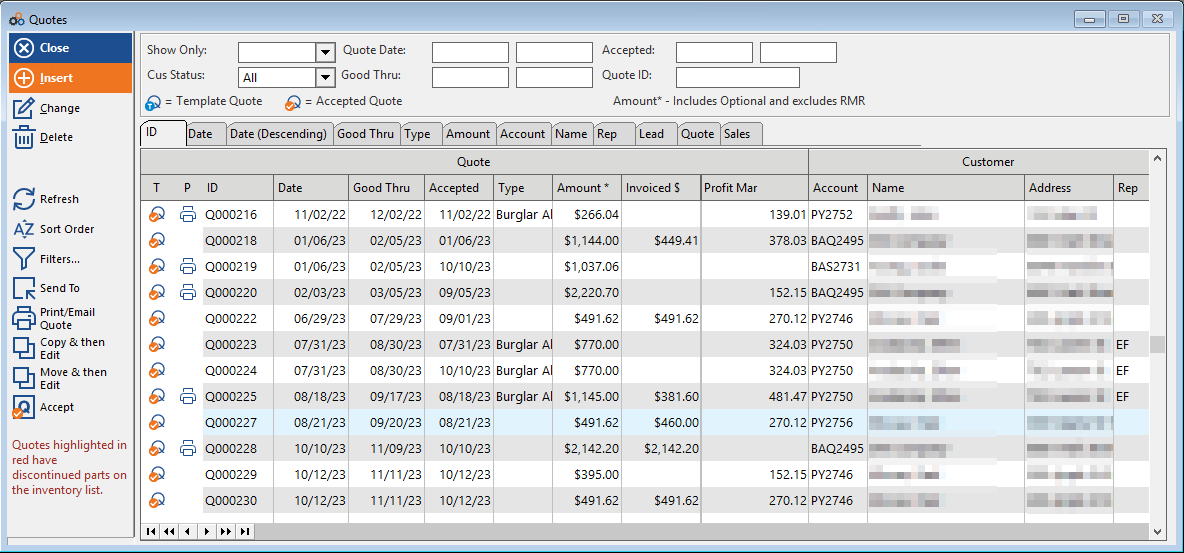
The Quotes screen provides an overview to assist with:
- Lead contact management
- Sales pipeline tracking
- Job status monitoring
Key Information at a Glance
The dashboard displays:
- Quote Amount - Total proposal value
- Invoiced Amounts - How much has been billed
- Profit Margin - Quick review to ensure quotes meet target margins
Filtering Options
Various filters help you view quotes that fit your criteria:
- Pending Only Sorted By Status
- Pending Only for Quote Status "In Development"
- Quotes Good Thru a specified Date range
- Custom combinations based on your needs
Security Settings
The dashboard has security settings that can allow Sales Reps to only view their own quotes, protecting competitive information and maintaining appropriate access controls.
Customizable Categories
The Categories for Lead, Quote, and Sales Status have default categories, but can be customized to your organization's terminology.
Examples:
- Change "Hot Lead" to "Priority Prospect"
- Customize stages to match your sales process
- Align terminology with your CRM workflow
Workflow: From Quote to Completion
Step 1: Create Prospect Account
Set up lead contact information and track initial engagement.
Step 2: Design Quote
- Select appropriate templates and sections
- Add equipment and labor items
- Include images and detailed descriptions
- Set payment terms and acceptance language
Step 3: Generate Professional Proposal
Create polished, branded proposal documents.
Step 4: Track Sales Process
Monitor quote status, follow-up activities, and pipeline progression.
Step 5: Convert to Work Order
Upon acceptance, easily convert quote to:
- Service ticket with all installation details
- Invoice with proper payment terms
- Customer equipment list entries
Best Practices
Template Strategy
- Create templates for common service types
- Include standard sections that apply to most quotes
- Customize templates for different market segments
- Regularly update templates with current pricing
Profitability Focus
- Always track cost information, even with generic parts
- Review profit margins before sending quotes
- Set minimum margin thresholds
- Analyze won vs. lost quotes to optimize pricing
Professional Presentation
- Include high-quality product images
- Use clear, professional language
- Provide detailed scope of work
- Make acceptance terms crystal clear
Pipeline Management
- Update quote status regularly
- Set follow-up reminders
- Track reasons for wins and losses
- Use filters to prioritize high-value opportunities
Additional Resources
For detailed descriptions of the screen and list options, as well as detailed instructions for creating quotes, see the Quotes User Guide.
Need Help?
Still have questions? Contact Cornerstone Holding Co. 847-405-9517 or email us customer.success@alarmbills.com
Was this article helpful?
That’s Great!
Thank you for your feedback
Sorry! We couldn't be helpful
Thank you for your feedback
Feedback sent
We appreciate your effort and will try to fix the article