Overview
Welcome to Cornerstone! This guide walks you through the essential first steps in using our system — from finding a customer to managing their account details. Each section below introduces a core task and links out to more detailed guides where available.
For a shorter guide focused on the most common data entry tasks, see our dedicated article: Getting Started: Cornerstone Data Entry.
1. Navigating the Customer List
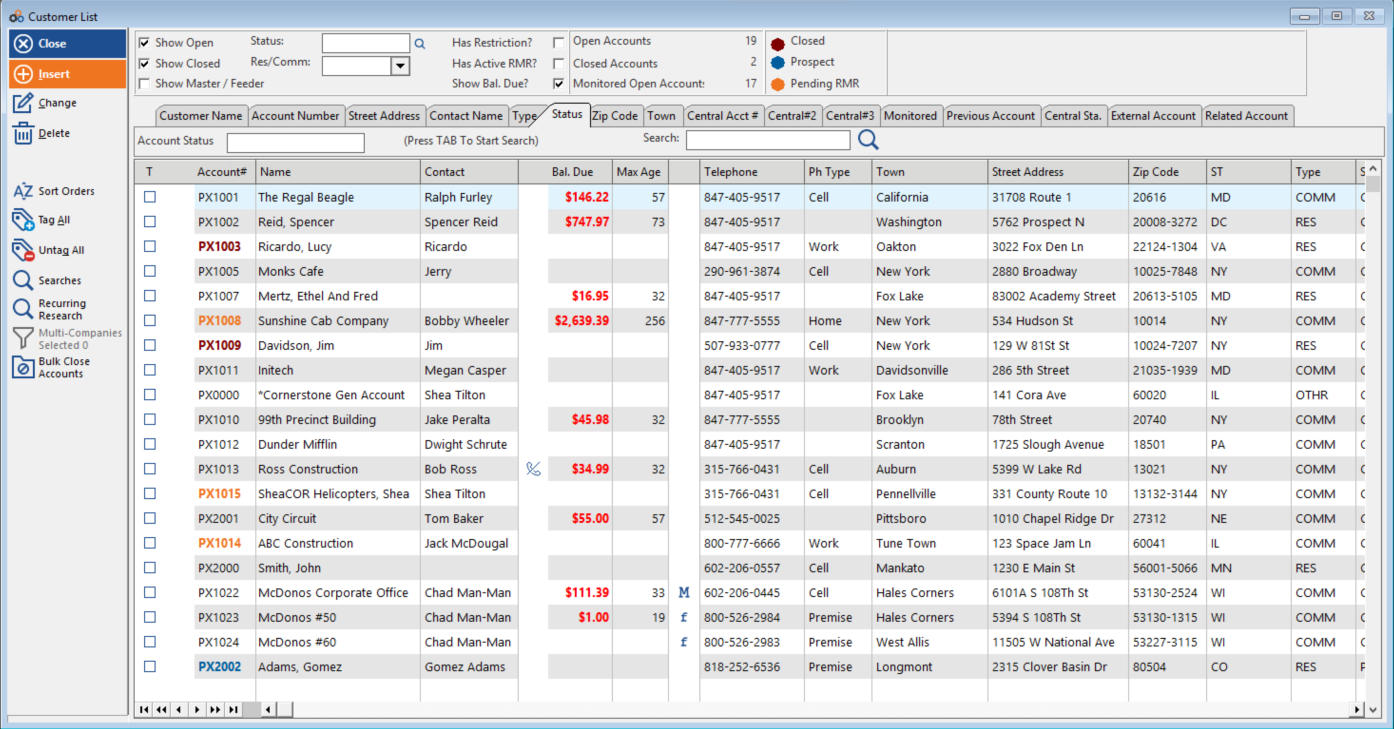
When you first log in, you will land on the Customer List screen. This is your central hub for all customer-related tasks.
- Access the Customer List: Click the Customer icon on the main navigation to reach the customer list at any time.

- Search Using Customer Tabs: Use the specific search fields at the top of the customer list — such as Customer Name, Account #, or Street Address — to locate a record quickly.

- Search Using Wildcard Search: Click the Search icon on the center panel, or enter a value in the main search bar and click the magnifying glass. This powerful tool searches your query across all fields in the customer record.

The most common first tasks are finding an existing customer or creating a new one — both start from this screen.
2. Viewing and Editing an Account
Once you have located a customer, you can view and edit their information directly from their account shell.
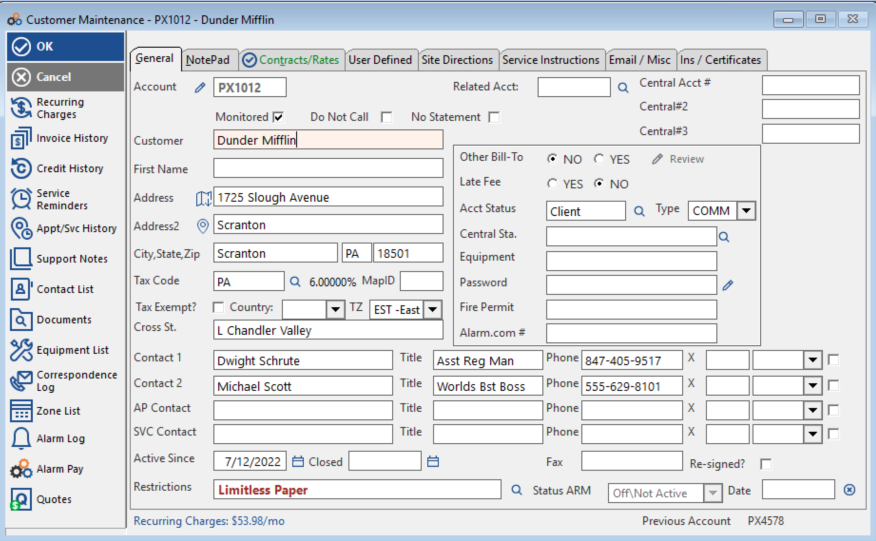
- Open the Account: Double-click on the customer's name in the list to open their account shell.
- Review Customer Information: The Customer Shell provides a complete view of the customer's record, including Site Address and Contact Information, and Central Station ID (CSID).
- Edit Information: Click into any field, make your changes, then click OK to save.
For more information, see: Creating a New Account.
3. Managing Recurring Charges
Adding and updating recurring charges is a key function in Cornerstone. All recurring charge management is accessed from within the customer shell.
Accessing Recurring Charges
From the customer shell, click the Recurring Charges icon.
Adding a New Charge
- Click Insert to add a new recurring charge.
- Select the appropriate charge code, billing cycle, and amount.
- Set the billing method: Printer, Email, or Autopay.
Editing an Existing Charge
Highlight the charge and click Change to edit details such as the amount or billing method.
Stopping a Charge
To stop a recurring charge, enter a stop date in the designated field.
Detailed guides for recurring charge tasks:
4. Other Common Tasks
Here are a few other important tasks you can perform from the customer shell.
Closing an Account
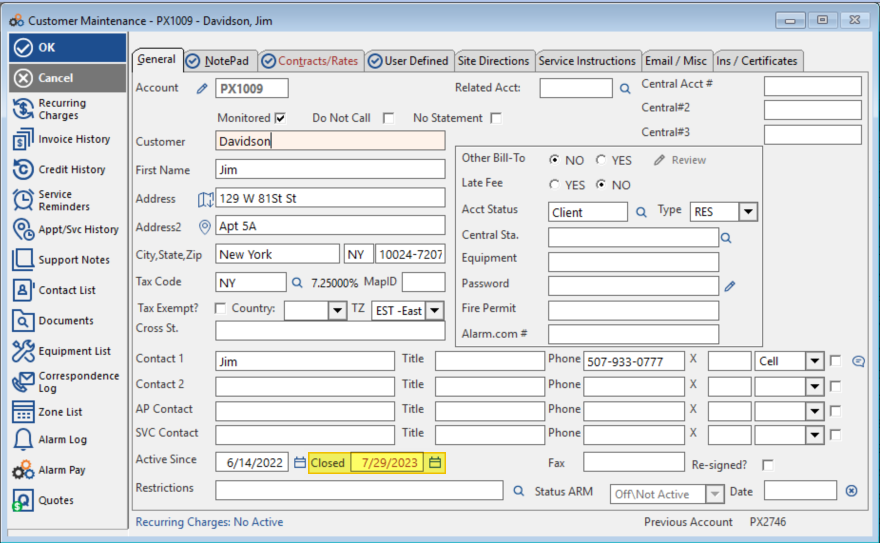
To stop all future billing for a customer, enter a date in the Closed Field — either by typing it in or using the calendar selector. This will automatically stop all active recurring charges.
⚠️ IMPORTANT
Entering a date in the Closed Field will automatically stop all active recurring charges on the account. Confirm this is the intended outcome before saving.
Detailed guide: Close a Customer Account
Adding an Email Address
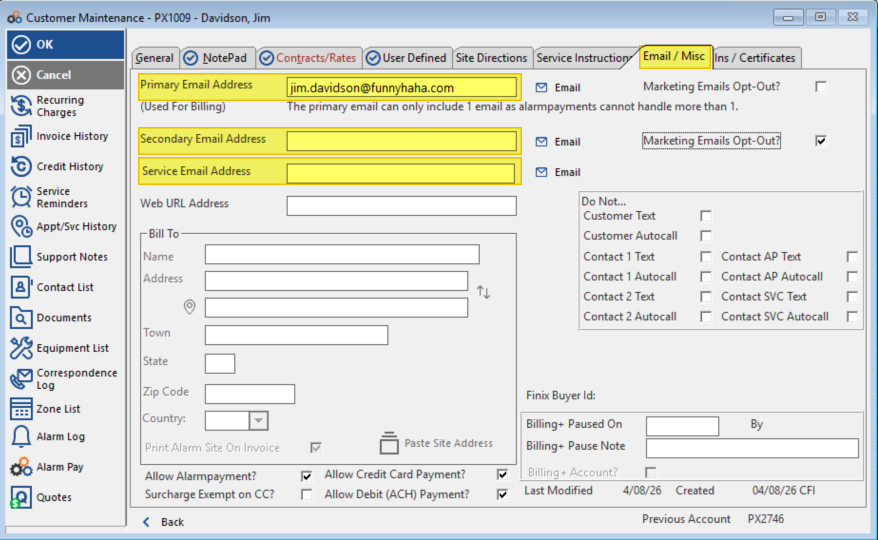
Navigate to the Email/Misc tab within the customer shell to add or update the customer's email address.
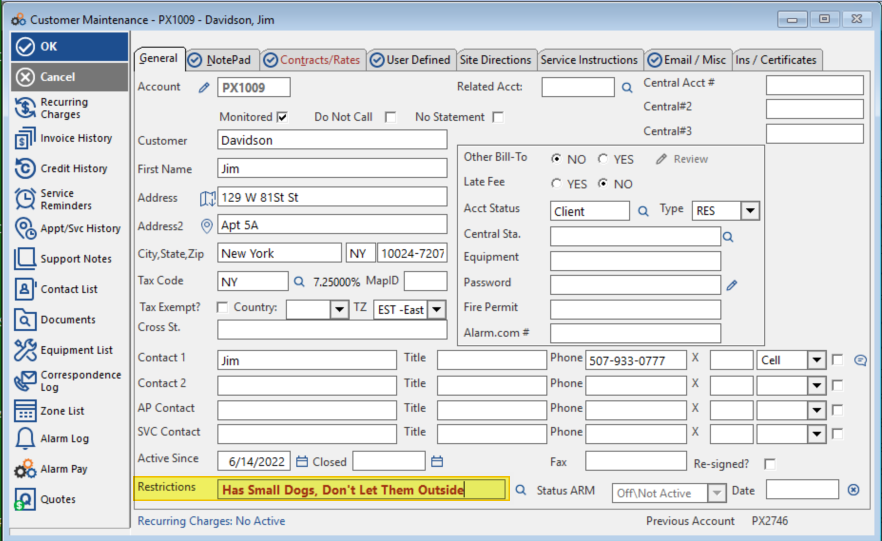
Using Internal Notes (Restrictions)
The Restrictions field is for your internal team's use only. Use it to note any important information or special conditions for the account. This content is not visible to the customer.
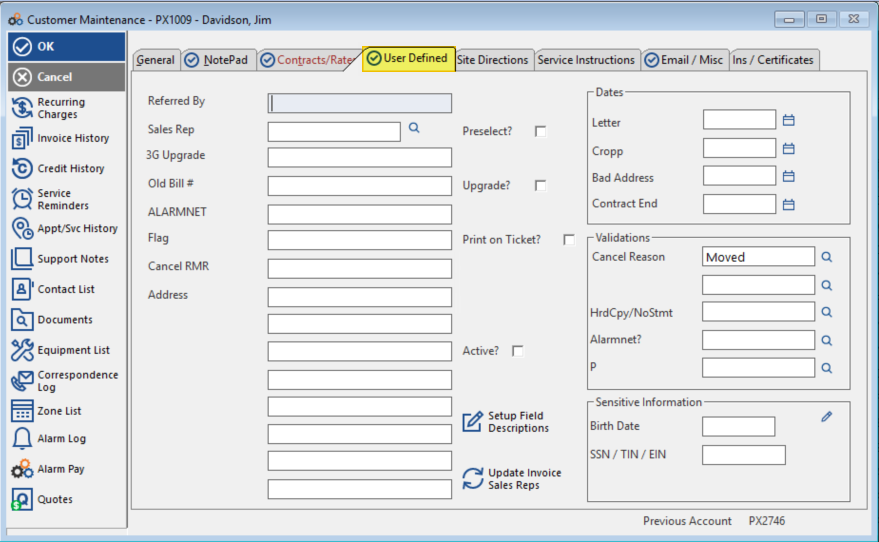
Customizing User-Defined Fields
The User-Defined tab allows you to store custom data points specific to your business — such as referral information, sales representatives, or device types. To customize these fields for your database, please contact the Cornerstone support team.
Need Additional Help?
Our Customer Success team is here to assist you.
Phone: 847-405-9517 x1
Email: customer.success@alarmbills.com
Copyright © 1999–2026 Cornerstone Billing Solutions. All rights reserved.
Was this article helpful?
That’s Great!
Thank you for your feedback
Sorry! We couldn't be helpful
Thank you for your feedback
Feedback sent
We appreciate your effort and will try to fix the article