 Creating and Printing Label Formats
Overview
Cornerstone has revamped its label program to suit all of your mailing needs. This article walks you through creating new label formats in the system and covers the correct print settings required to produce perfectly aligned labels every time.
The label type library has been vastly enhanced and now supports a wide range of Address, Specialty, and Card Product label types.
⚠️ IMPORTANT
We recommend that you delete any previously created label formats and start with new formats before proceeding.
Part 1: Creating a New Label Format
Follow these steps to create a new label format template in the system.
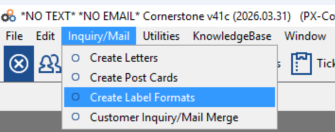
- Navigate to the Label Formats screen. From the main menu, choose Inquiry/Mail > Create Label Formats.
- Create a new template. Click Insert to create a new template and name that template.
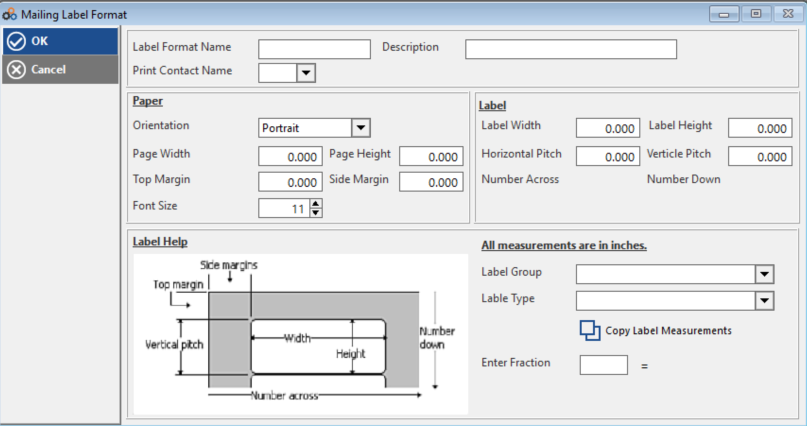
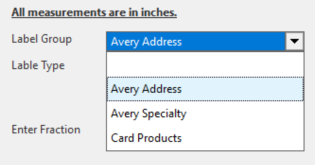
- Select a Label Group. Use the Label Group pull-down to choose from common Address / Specialty / Card Products. You will notice that the list of supported Label Types has been vastly enhanced.
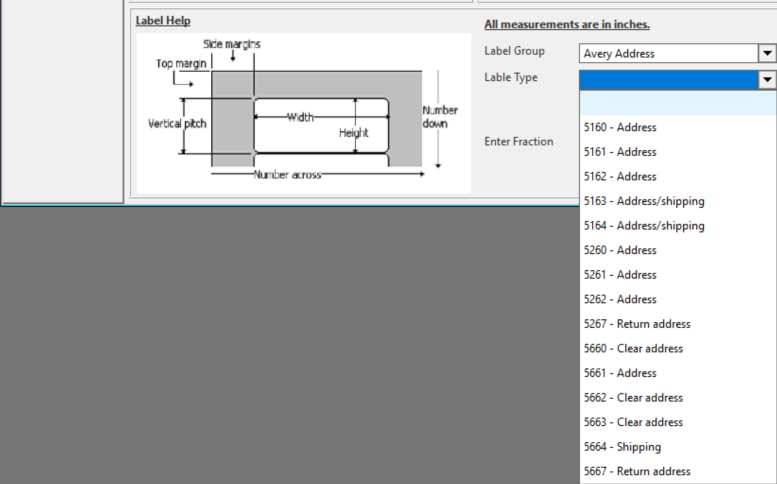
- Choose your Label Type and copy measurements. Select the desired Label Type from the drop-down, then click Copy Label Formats. This automatically fills in all label requirements (page size, margins, pitch, etc.).
Your new label format is now ready to use in Customer Inquiry / Mail Merge.
Part 2: Using Your Label Format in Customer Inquiry / Mail Merge
When running a mail merge to print labels, it is important to select the correct document type and label type to match the format you just created.
- Open Customer Inquiry / Mail Merge from the Inquiry/Mail menu.
- Set Document Type to LABELS. In the Document Type field, select LABELS.
- Select the correct Label Type from the Label Type drop-down to match the format you created (for example, Address – 5160).
[ image_6.jpg ]
Part 3: Printing Your Labels
Saving Before Printing via UniPrint
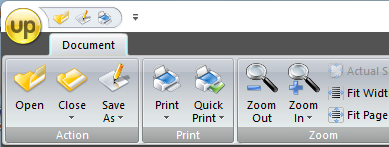
When printing via UniPrint, make sure to SAVE the document first before sending it to the printer.
[ image_9.jpg ]
Printer Page Scaling Settings
When printing any label format, you must use the correct page scaling setting in your printer dialogue. Using these guidelines will ensure perfect labels.
⚠️ IMPORTANT
Always set your printer's page scaling to Actual Size, No Scaling, or Page Scaling = NONE. Do NOT allow it to default to Shrink oversized pages or Shrink Large Pages. Please note that all printer page handling parameters are different — review your Printer manual for details.
Below are examples from two types of printer dialogue screens showing the correct settings to select.

Need Additional Help?
Our Customer Success team is here to assist you.
Phone: 847-405-9517 x1
Email: customer.success@alarmbills.com
Copyright © 1999–2026 Cornerstone Billing Solutions. All rights reserved.
Was this article helpful?
That’s Great!
Thank you for your feedback
Sorry! We couldn't be helpful
Thank you for your feedback
Feedback sent
We appreciate your effort and will try to fix the article