Overview
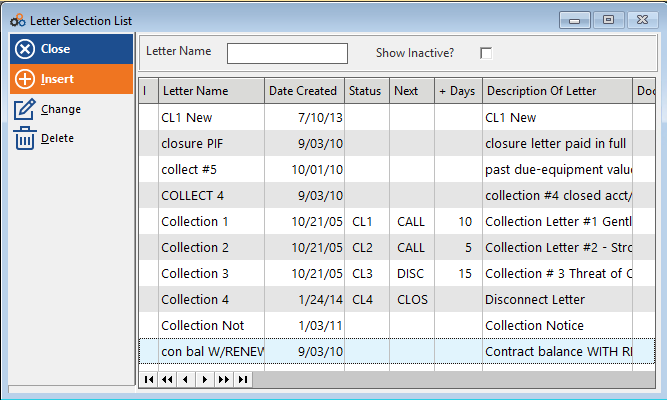
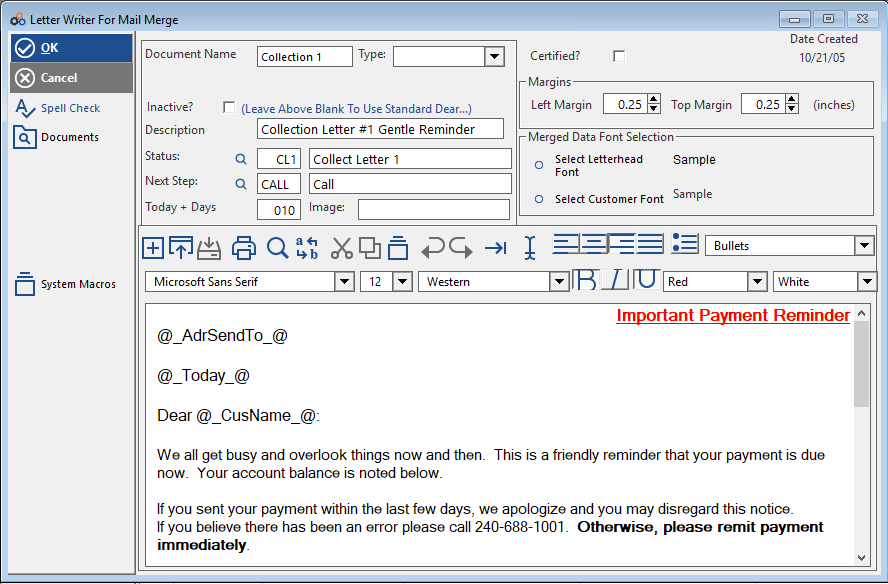
Collection letters in Cornerstone are automatically coded with Status and Next Step information, making it easy to manage your collection workflow. When you generate a collection letter, the system automatically assigns the Next Step and Date in the subscriber's Correspondence Activity.
How Collection Letters Work
Automatic Status Tracking
When a collection letter is generated:
- The Status is recorded in the subscriber's account
- The Next Step is assigned based on your configuration
- The Next Step Date is calculated based on the number of days you specify
- All information is logged in the Correspondence Activity
This automation ensures consistent follow-up and makes it easy to track where each account stands in the collection process.
Billing Plus Module Features
The Billing Plus Module includes enhanced letter writing features that print the remittance coupon as part of the letter.
Quadrant Setup
Cornerstone will set up the letter quadrants for you to accommodate:
- Cornerstone printing and mailing (via CornerMail)
- Your office printing and mailing using specific window envelopes
The quadrant layout ensures proper formatting for return addresses and remittance coupons regardless of which mailing method you choose.
Creating Collection Letters
Accessing the Letter Tool
Use either method to access letter generation:
- Collection Letter / Mail Merge Button on the Reports Screen
- Inquiry / Mail Button at the top of the screen
Step-by-Step Process
Step 1: Select Document Type
Select the Document Type:
- COLLECT - For collection letters
- LETTER - For general correspondence
Step 2: Configure Billing Search Criteria
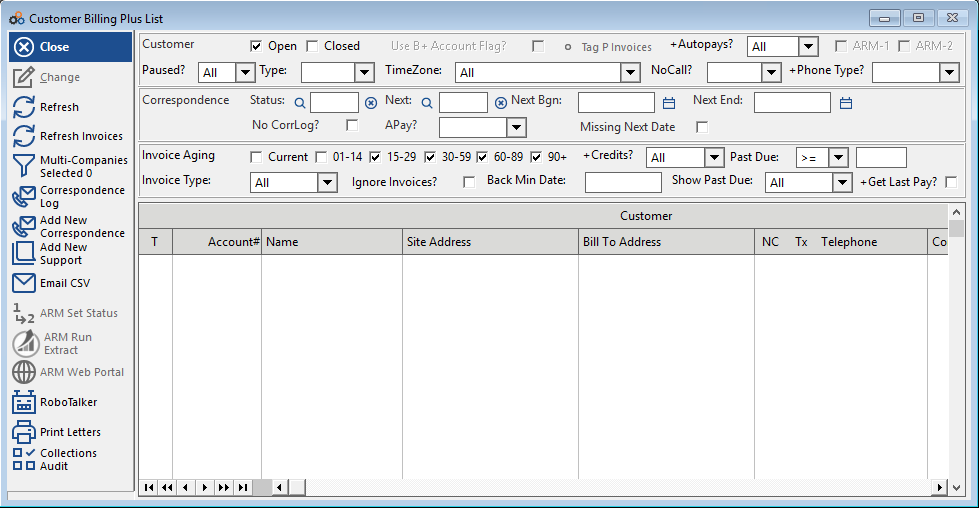
Click on the Billing Search Tab and specify:
- Correspondence Type: LETTER
- Correspondence Next Step: Select the appropriate step (e.g., CL 1 Letter, CL 2 Letter, CL 3 Letter)
- Next Step Date Range: Specify the date range for accounts needing letters
- Past Due (in Days): Set the aging threshold to produce letters for subscribers with outstanding balances
Step 3: Generate Letters
Click to generate the letters for the selected accounts.
Batch Processing Multiple Letter Levels
You can easily process multiple collection letter levels:
- Generate CL1 letters for accounts at the first collection stage
- Repeat the process and select CL2 for accounts needing second notices
- Repeat again with CL3 for accounts needing final notices
This batch approach is much more efficient than printing letters one at a time.
Printing Options
Consolidated PDF Output
Rather than printing letters individually, collection letters can be batch printed by Type of Letter and output as a consolidated PDF.
To use this feature:
- Select Consolidated PDF when printing
- All selected letters will be combined into a single PDF file
- This makes printing and mailing much more efficient
Return Address Handling
Important: Since Collection letters use the quadrant layout for return addresses, the quadrant setting overrides the "Print Return Address" selection for letters. This ensures proper formatting for window envelopes.
Automatic Correspondence Logging
What Gets Recorded
The act of generating a letter automatically records the following in the subscriber's Correspondence Log:
- Letter Type - Which collection letter was sent (CL1, CL2, CL3, etc.)
- Status - Current collection status
- Next Step - What action should be taken next
- Next Step Date - When the next action should occur
Benefits
- Complete Audit Trail - Track all collection communications
- Automated Follow-Up - System reminds you when next steps are due
- Consistent Process - Every account follows the same collection workflow
- Easy Reporting - Generate reports on collection activities and effectiveness
Common Collection Letter Workflow
Example: Three-Letter Collection Process
CL1 - First Notice (30 Days Past Due)
- Friendly reminder of past due balance
- Next Step: CL2 in 15 days if unpaid
CL2 - Second Notice (45 Days Past Due)
- More urgent tone
- Mention potential service interruption
- Next Step: CL3 in 10 days if unpaid
CL3 - Final Notice (55+ Days Past Due)
- Final warning before service suspension or collections
- Clear deadline for payment
- Next Step: Suspend service or send to collections
Customization Options
Editing Letters
You can edit letters prior to generating if needed:
- Select the letter from the list
- Make any necessary changes to text, timing, or format
- Save your customized version
- Generate letters with your modifications
Timing Adjustments
Adjust the number of days for Next Step assignments based on your collection policies:
- Standard: 15-day intervals between letters
- Aggressive: 7-10 day intervals
- Lenient: 20-30 day intervals
Best Practices
Collection Letter Strategy
- Be Consistent - Follow your collection process for all accounts
- Be Timely - Generate letters on schedule to maintain effectiveness
- Be Professional - Even final notices should maintain professionalism
- Document Everything - The automatic logging ensures compliance and tracking
Efficiency Tips
- Batch Process - Generate all CL1 letters at once, then CL2, then CL3
- Use Consolidated PDF - Print all letters in one file for easier handling
- Regular Schedule - Set specific days for collection letter generation (e.g., every Monday)
- Review Next Steps - Regularly check Next Step dates to ensure timely follow-up
Key Benefits
- Automated Tracking - Status and Next Steps recorded automatically
- Batch Processing - Handle multiple letters efficiently
- Remittance Coupons - Easy payment for customers (Billing Plus Module)
- Flexible Mailing - Use CornerMail or print in-office
- Complete Audit Trail - Every letter logged in Correspondence Activity
- Customizable - Edit timing and content to match your policies
Need Help?
Still have questions? Contact Cornerstone Holding Co. 847-405-9517 or email us customer.success@alarmbills.com
Was this article helpful?
That’s Great!
Thank you for your feedback
Sorry! We couldn't be helpful
Thank you for your feedback
Feedback sent
We appreciate your effort and will try to fix the article