Overview
This guide provides an overview of Cornerstone's Billing Plus Module. It covers the following features of this powerful tool and optional services available:
- Cornerstone's receivables management assistance steps / process
- Billing Plus screen
- Billing Plus Customer List filters and actions
- Managing correspondence
- Generating letters
- Generating reports
- Best practices
- A.R.M. Solutions option for third-party collections

Cornerstone's Receivables Management Timeline
The following timeline provides a schematic showing Cornerstone's Billing Plus Module recommended activities. You'll see exactly what to expect at each point in the collections process, as all activities are coordinated and tracked through the module. Although the sample timeline shows that accounts are disconnected when they reach 90 days past due, the timing can be modified to be more or less aggressive.
Billing Plus Screen
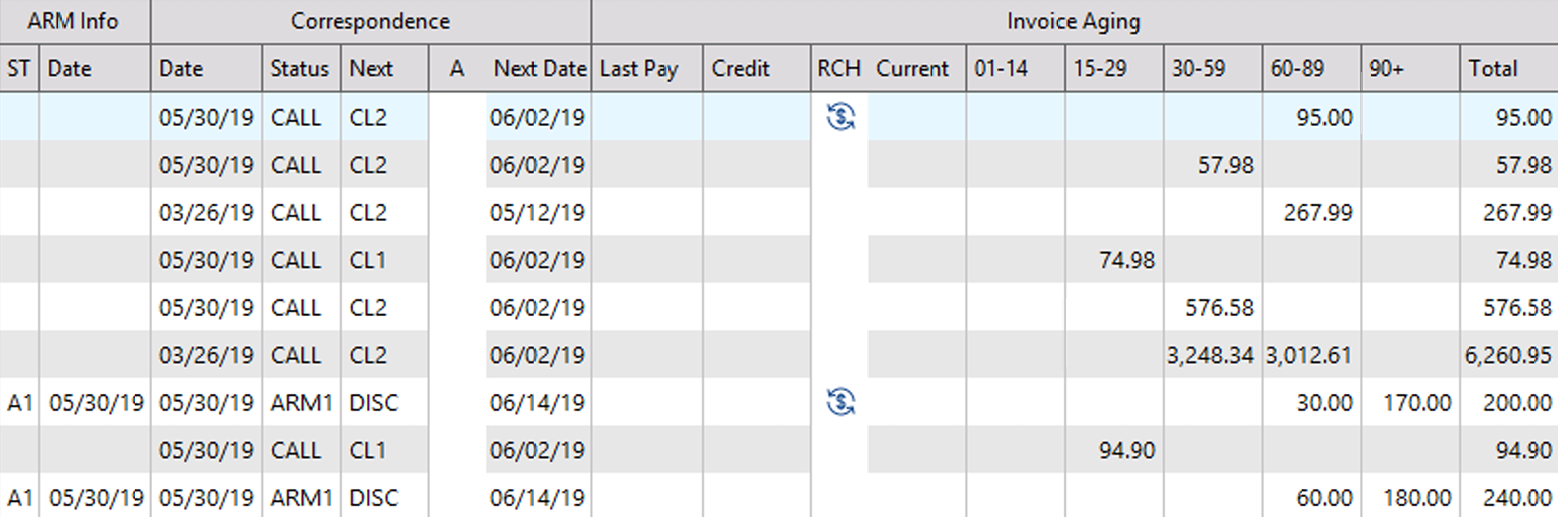
Billing Plus's Customer List provides an interactive aging report. The selection filters allow you to specify the Customer List that you wish to view. For example, you can choose to view only:
- Accounts that are a specified number of days past due (e.g., 90+ days or 15+ days)
- Accounts with a specific Next Step date range
- Accounts with a specific Status or Next Step
- Accounts that have a credit
- Accounts that have made a payment via alarmpayments.com that have not yet posted
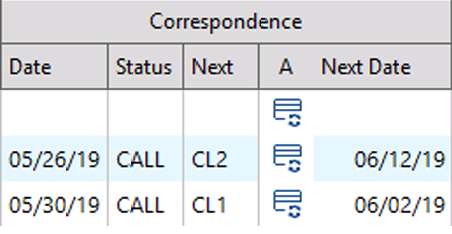
The Customer List shows the aging by days and the Correspondence Activity — Date of Action, Action Status, Next Step, Alarm Payments, and the Date for the Next Step for each subscriber. The amount owed is listed by days old, and the last Payment Date is identified. Note that the aging categories split the 0-30 day's category into two age groups, 1-14 and 15-29, to monitor and minimize the number of accounts that go past 30 days. Credits, if any, are also listed. RCH-Accounts with Active autopay but may have missed a payment at some point. Accounts placed with A.R.M. Solutions — our preferred third-party provider of collections services — can also be tracked, shown with their status and date of placement. (Only available for dealers utilizing Cornerstone staff for collections calls and letters)
Billing Plus Customer List Filters and Actions
Key Functions
Customer: Highlight a customer and select Change, or select and double-click on a customer to open the Customer screen.
Refresh: Refresh the list after editing filter selections.
In order to keep the system moving quickly we load invoices into memory when the module is first opened. If you have been working the list for a while you may wish to click this button to update the amounts due. If any past due accounts have had payments posted since first opening the module you will see those accounts that are now paid fall away.
Correspondence Log Shortcut: This icon is a shortcut straight to the calls/mailings log of the account your cursor is highlighting. This feature is a great time saver when reviewing your list before running letters. If a customer has made a payment since you last called and you no longer wish to include them in the letter batch, use this to edit the next step.
Batch Add Correspondence: This icon allows you to add a correspondence log record to multiple accounts by tagging those accounts. This feature also allows you to mark the past due invoices as billing plus for all accounts that are tagged.
Export to CSV: Generate a comma delimited (CSV) file of the Customer List that is on the screen. You can copy and paste the cells from the sheet into an Excel spreadsheet on your desktop.
Customer Filters
Open / Closed: You can select a filter to view All customers (check both) or only Open or Closed customers.
Autopays?: You can select a filter to view past due customers who currently have or do not have autopay set up. These customers may have missed paying an invoice before autopay began, or have an outstanding P invoice.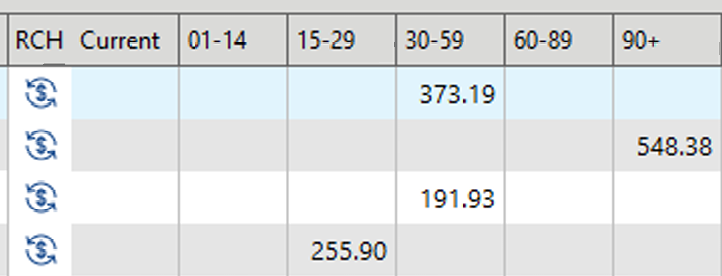
A.R.M.-1 / A.R.M.-2: This overriding filter enables you to view only accounts placed with A.R.M. Solutions Phase 1 or Phase 2 (or both). Other filters are ignored.
Paused: CFI will flag billing plus customers as paused if we are waiting for the Dealer for collection activity before we can resume our process.
Type Filter: Residential, Commercial or Other accounts. This is key when trying to call customers for payment due to hours of operation for commercial accounts.
Time Zone: Allows filtering for different time zones to optimize key contact times.
No Call: Filters for account flagged or not flagged as DO NOT CALL
Phone Type?: Filters for phone number type i.e. Cell, Landline, etc.
Correspondence Filters
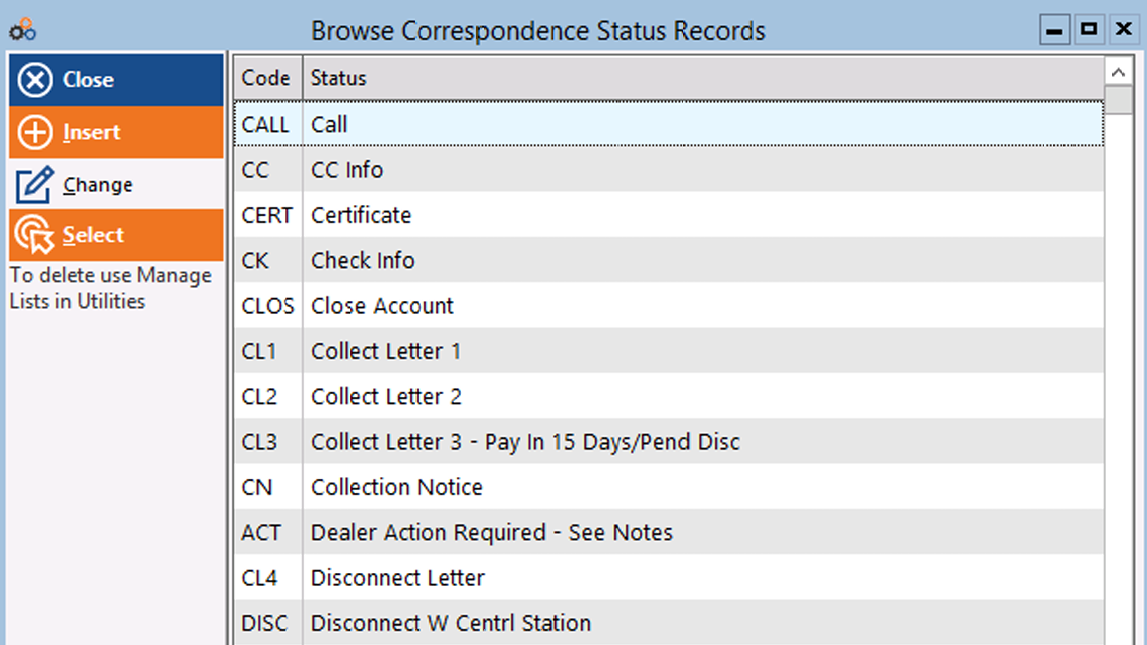
Status: You can filter the Customer List for a specific Correspondence Status — e.g., all customers who have received a Collection 1 Letter.
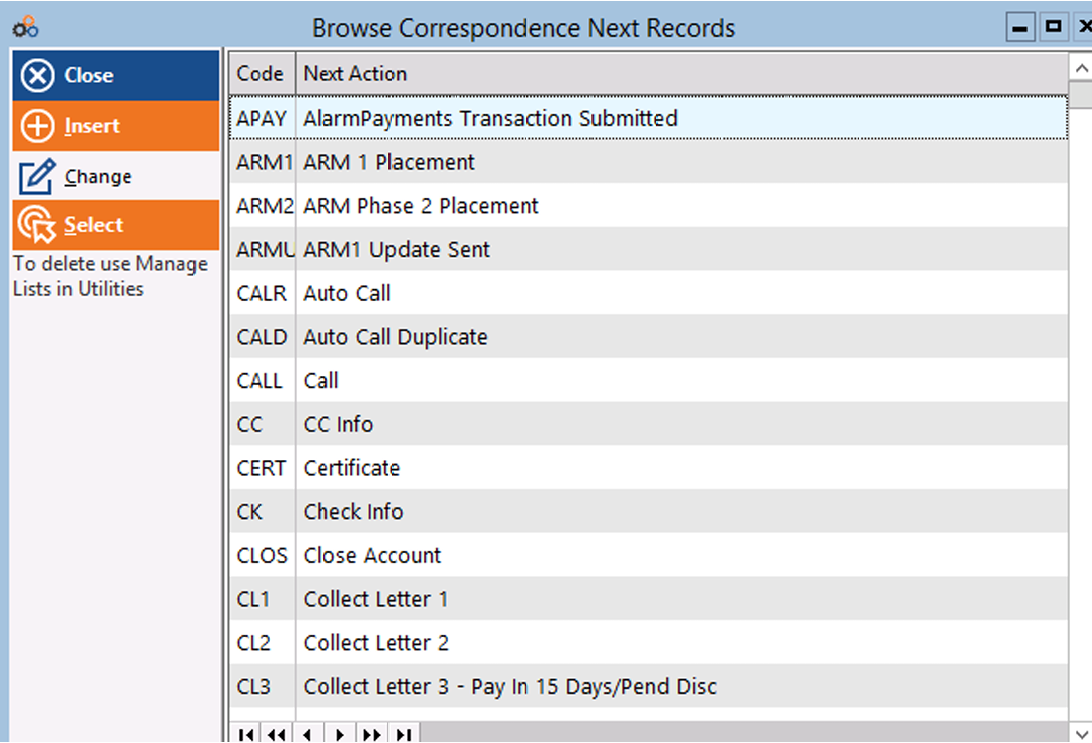
Next Step: Use the Correspondence Next Step List to filter the Customer List by the next step for the subscriber.(See the list below.)
Next Bgn / Next End: Use the Correspondence Status List to filter the Customer List by the Next Step, Start and End Dates. This allows you to filter, for example, subscribers needing a call today.
No Cor Log: Quickly see accounts that are or have become past due but do not yet have any collections activity and should now be worked.
APay?: You can see when an EFT Request or Alarm Payment has been submitted. This allows you to monitor accounts and refrain from making a call or sending an unnecessary collection letter.
Invoice Aging by Days: You can filter the Customer List by the number of days categories — for example, only those with 90+ days. Notice that the Billing Plus Module breaks out the under 30 days range by 1-14 and 15-29 days. This allows you to monitor accounts and try to keep them from moving into the 30+ days categories.
With Credits Only: You can filter to see only accounts with credits, to ensure they have been applied to open, past due invoices. Other filters are ignored.
Past Due: You can filter the Customer List to include accounts with total amounts due >= or < a selected amount by updating the dropdown and entering an amount.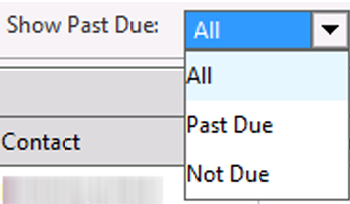
Invoice Type: You can filter which Invoice type you look for - either All, Recurring, or Product. Hitting refresh after choosing each option which filter accordingly.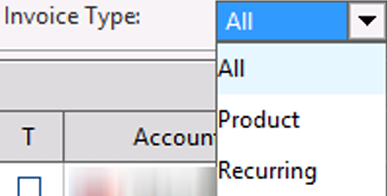
Show Past Due: Select from drop down list to view All, only those invoices that are Past Due, or only invoices that are Not Due.
Managing Correspondence
The Billing Plus Module is designed to maximize the efficiency of the workflowflow. Filter the accounts to zero in on the required activities for the day, and then open the account. Review the Invoice History to see the invoice aging and open the Calls/Mailings Correspondence Log to see what activities have occurred.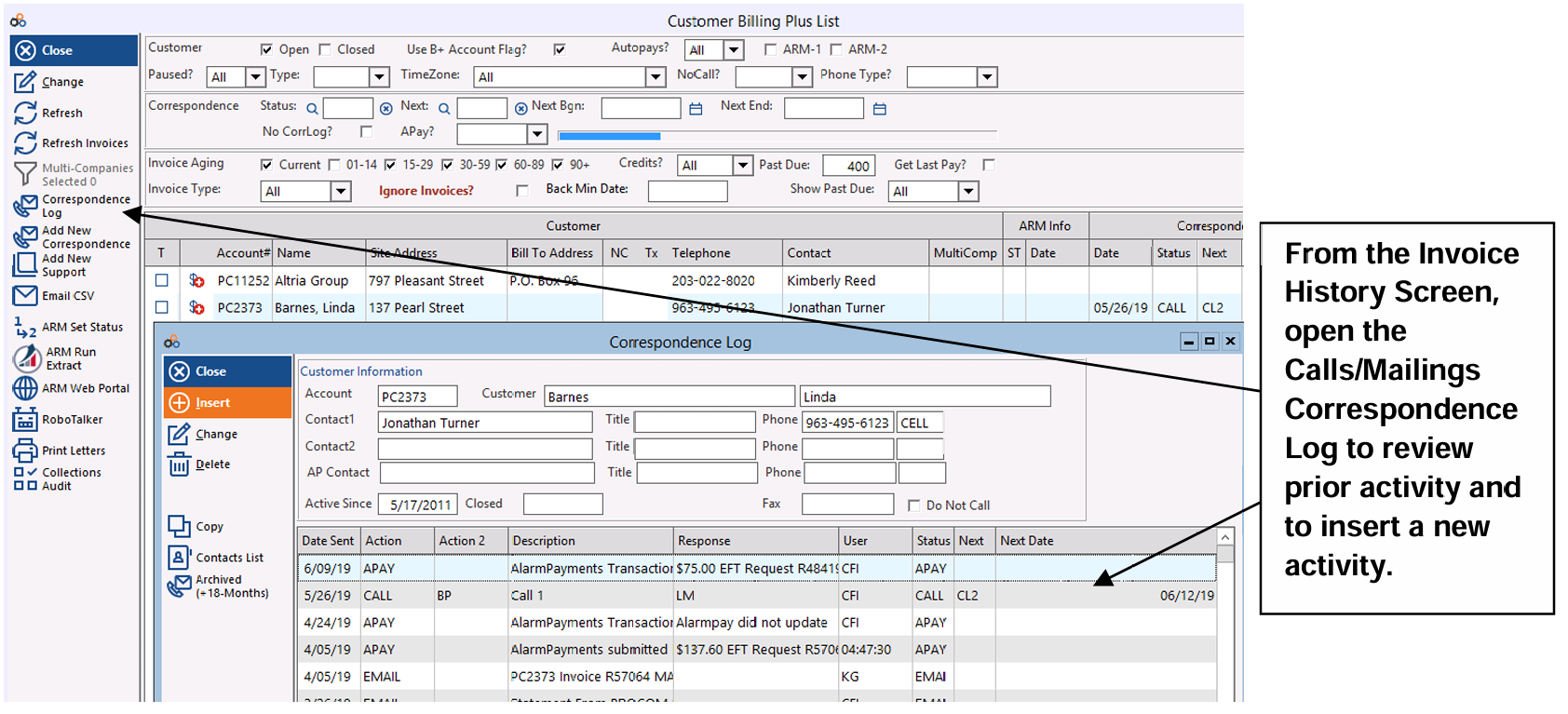
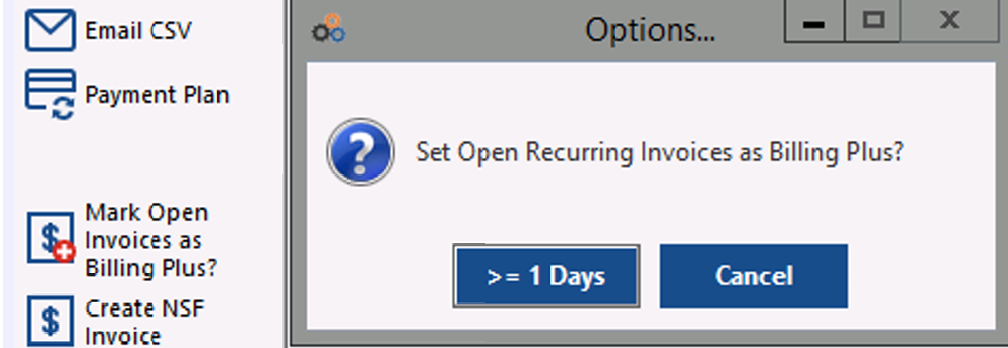
You can flag each invoice that you call on as Billing Plus by checking the Billing Plus box on the individual invoice. Or Use the Mark Open Invoices Icon from the invoice History screen to mark all or any invoice(s) equal to or greater than 1 days past due. Invoices uploaded to A.R.M. Solutions are also recorded by date and tracked. Report filters allow you to track results of the collection efforts — your own Billing Plus and any A.R.M. placements.

Recording Correspondence
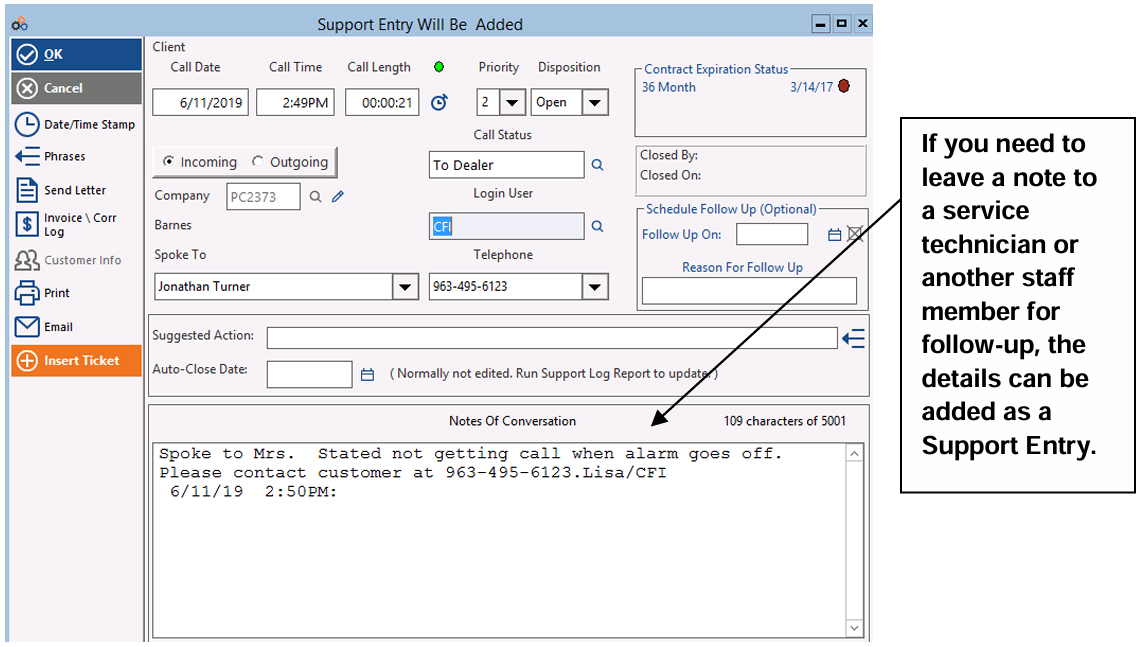
The Correspondence Log records all letters, emails and AlarmPayments initiated by your office staff. Conversations can also be noted to keep track of specific calls and key details. For example, sometimes subscribers are late with payments because they have a service issue. Details of such conversations can easily be inserted into a support note and directed to the relevant person to handle the issue.
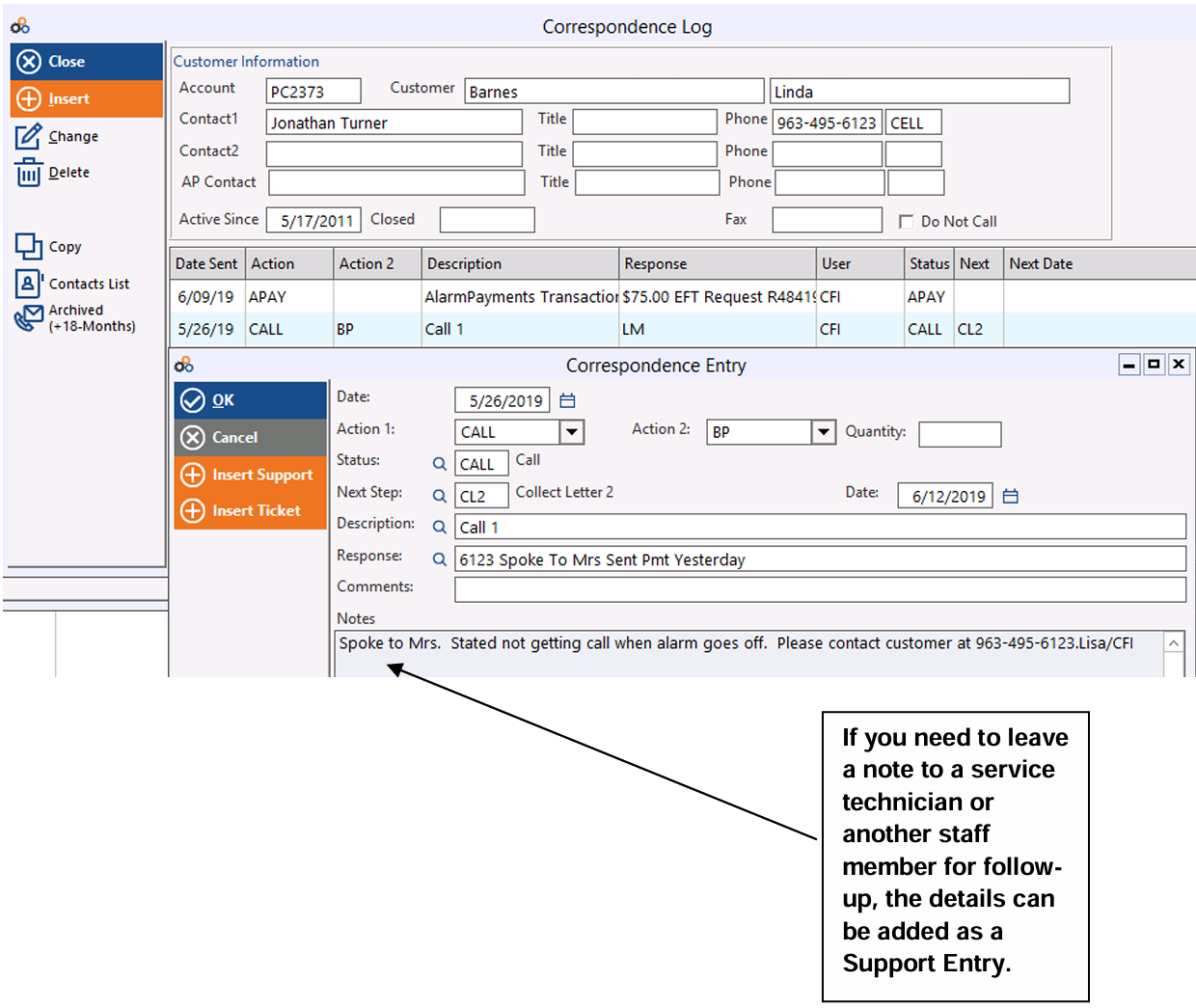
New Correspondence Entries can be made by selecting the drop-down boxes and filling in the fields. Next Steps can be assigned a date for follow-up. This is the data that is displayed on the Customer List Screen.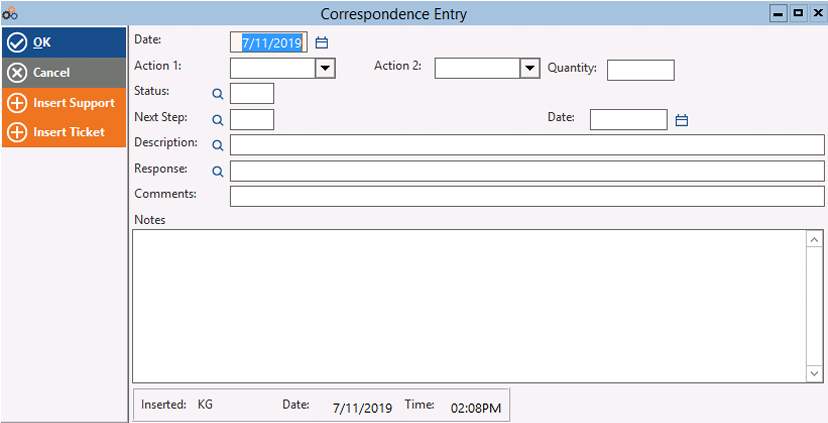
Action 1 and Action 2: Can be identified.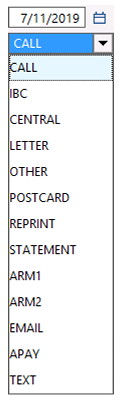 Selecting CALL in Action 1 will auto fill Status and Description fields with CALL as well.
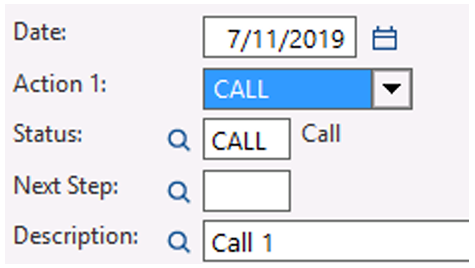
Response: By clicking the magnifying glass icon you can access phrases to select options for this field or you can simply type the response in the field.
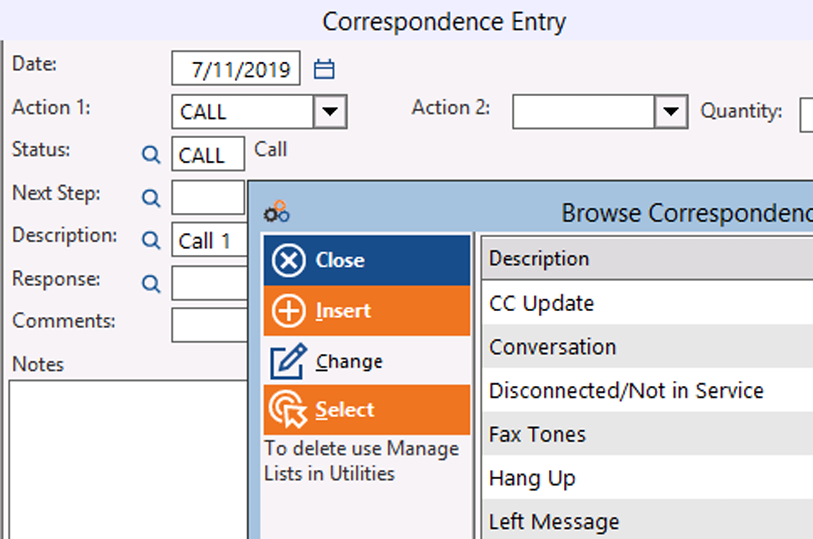
Next Step: The next step field is used to designate the next step that should be taken in the collection process. This field is helpful for a variety of reasons. Think of the Billing Plus screen as a To Do List. You can then filter by the next step making your 'to do list' smaller and therefore easier to view and accomplish the tasks with the highest priority. This makes for a more productive work flow and sense of accomplishment. The next step field is also used for generating letters. Enter the letter to be sent in the Next Step and the day that letter should be sent in the corresponding date field.
Generating Letters
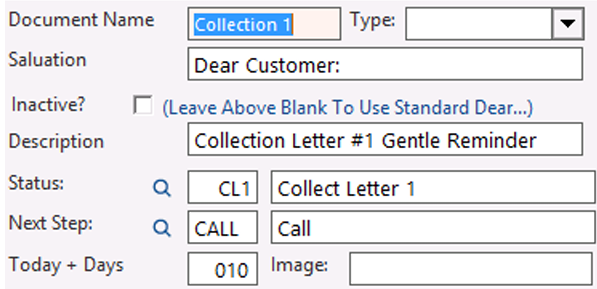
Collection Letters generated in Cornerstone are coded with the Status and Next Step, as well as the number of days out that you want to assign the Next Step Date. This way, subscribers who have a collection letter generated also have the Next Step and Date assigned for the Correspondence Activity.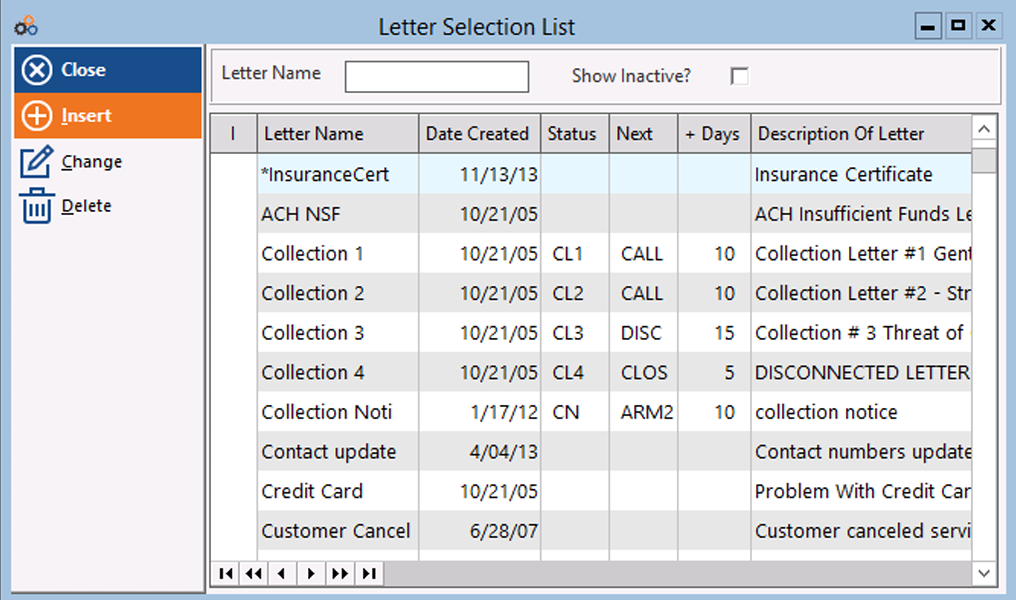
Simply select the Letter from the list and edit your desired timing. You can also edit the letters prior to generating if needed.
Letter Writing Features
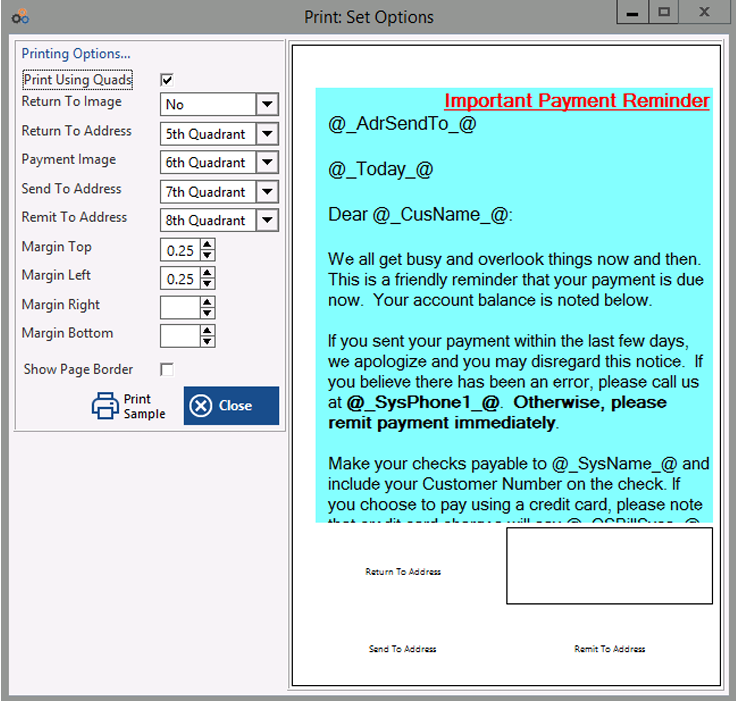
The Billing Plus Module has enhanced letter writing features that print the remittance coupon as part of the letter. Cornerstone will set up the quadrants for you to accommodate Cornerstone printing and mailing or your office printing and mailing using specific window envelopes.
Use the Collection Letter / Mail Merge Button on the Reports Screen or the Inquiry / Mail Button at the top of the screen.
Select the Document Type COLLECT or LETTER to generate a letter. Click on the Billing Search Tab to specify the Correspondence Type LETTER and the Correspondence Next Step (e.g., CL 1 Letter), and specify the Next Step Date range for the accounts needing a letter. Specify Past Due (in Days) to produce the letter for the subscribers with outstanding balances. You can simply repeat the process by selecting CL2 and then CL3 for subscribers needing those letters.
Rather than printing letters one at a time, letters can be batch printed by Type of Letter and printed in a consolidated PDF.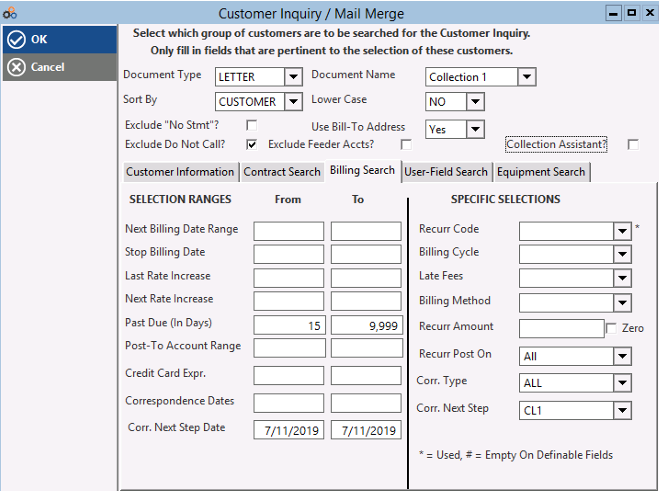
Since the Collection letters use the Quadrants for return address, it overrides the selection of Print Return address for the letters. Select Consolidated PDF to print all letters in a single PDF.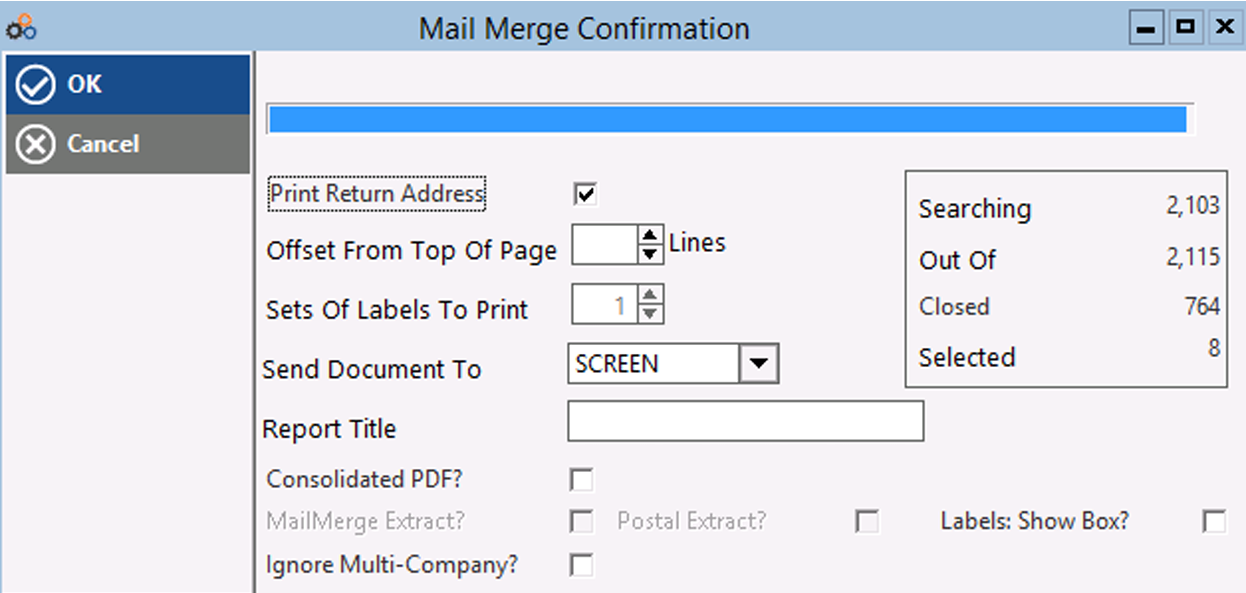
The act of generating a letter records the Letter Type in the Status and your specified Next Step and Next Step Date in the subscriber's Correspondence Log. The next Step and Next Step Date are determined by the parameters identified.
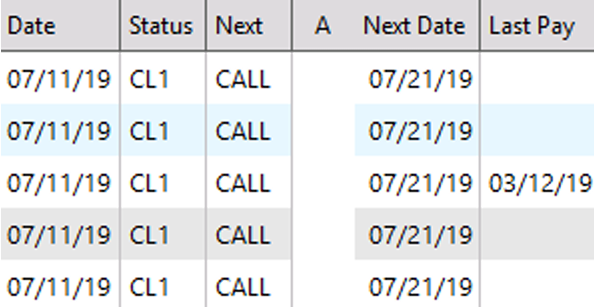
There are several reports that allow you to track results of the collection efforts — your staff's Billing Plus activities as well as any A.R.M. placements. Each invoice being called on by your staff should be tagged as a Billing Plus invoice.
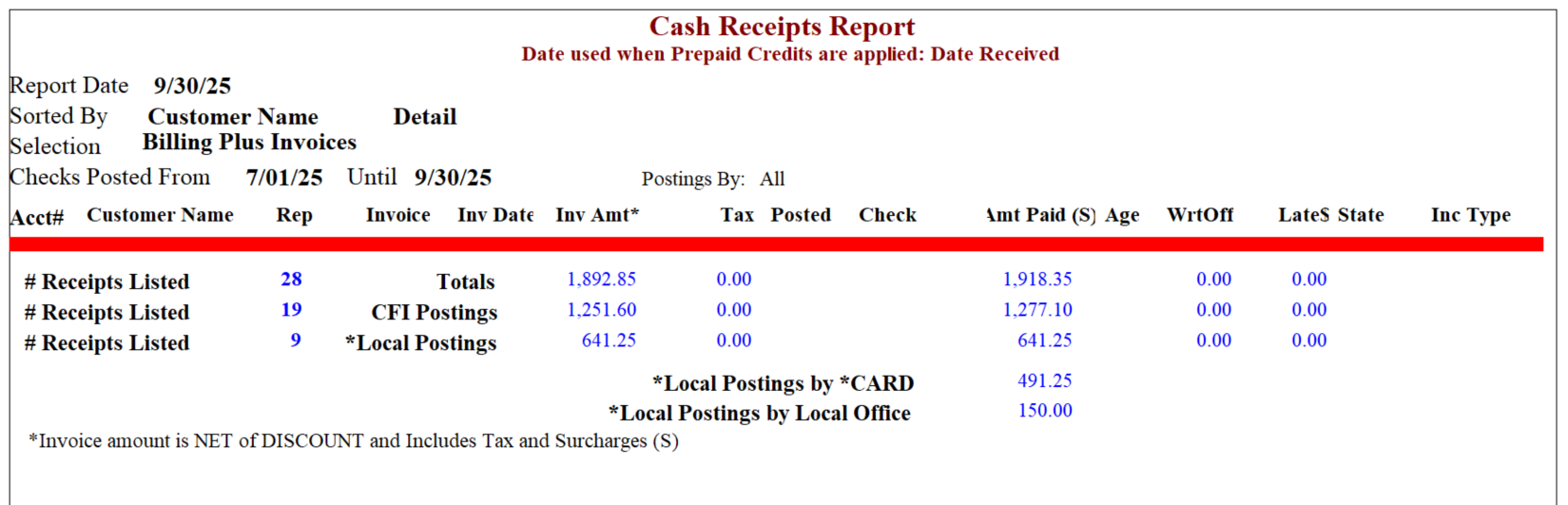
Cash Receipts Report
You can look at Cash Receipts for a specified period of time for those invoices by Generating a Cash Receipts Report using the filter for Billing Plus Invoices. For example, "How much in receipts came in during the first quarter of 2012 on Billing Plus invoices?"
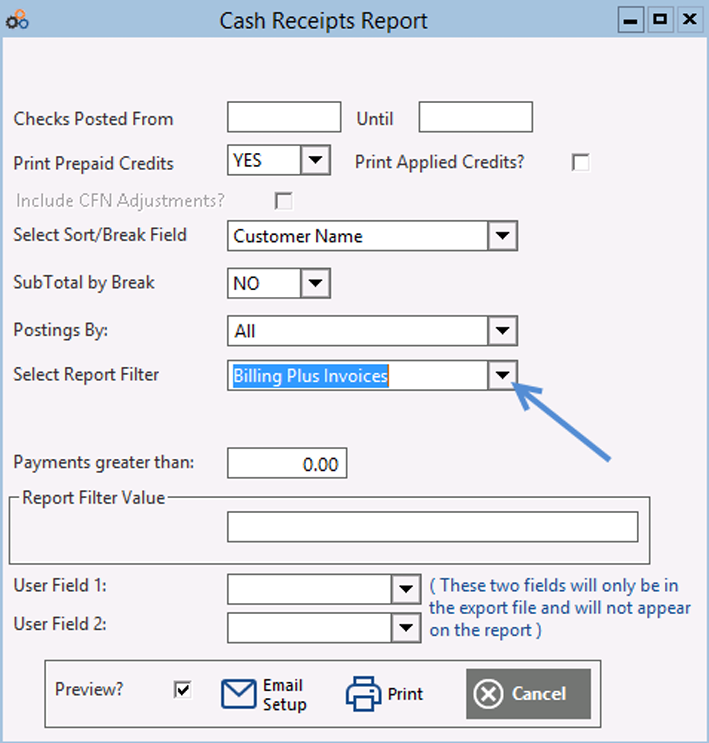
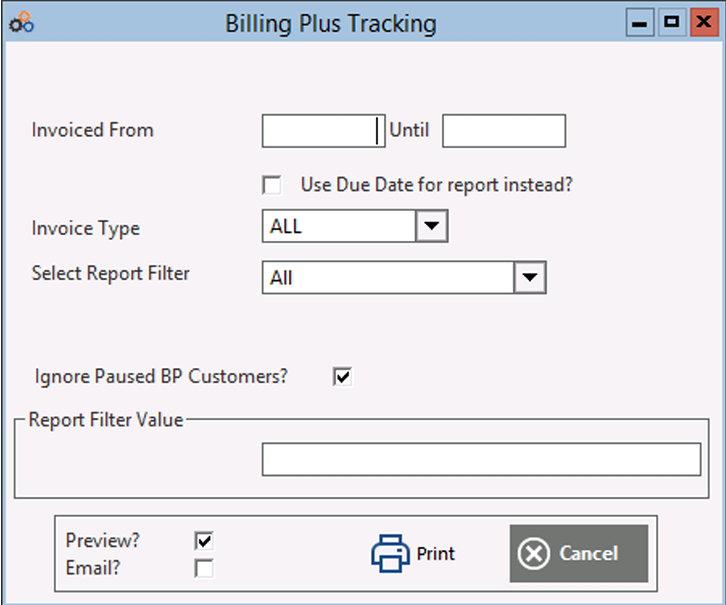
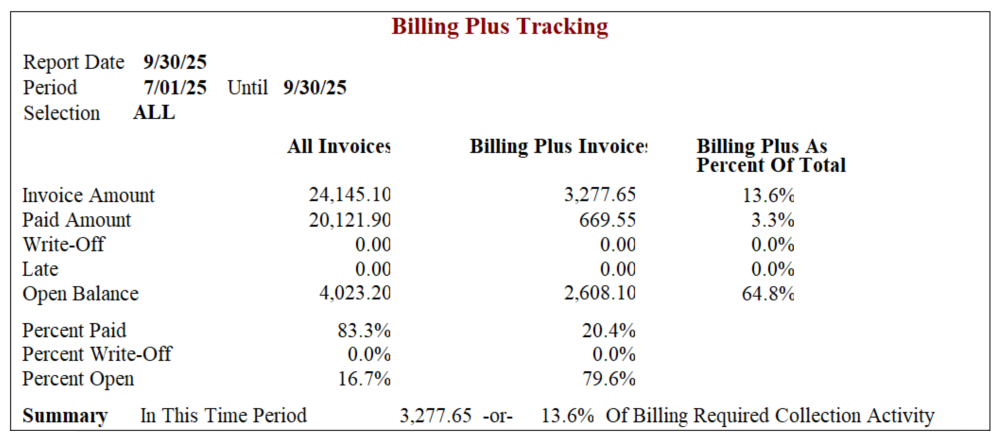
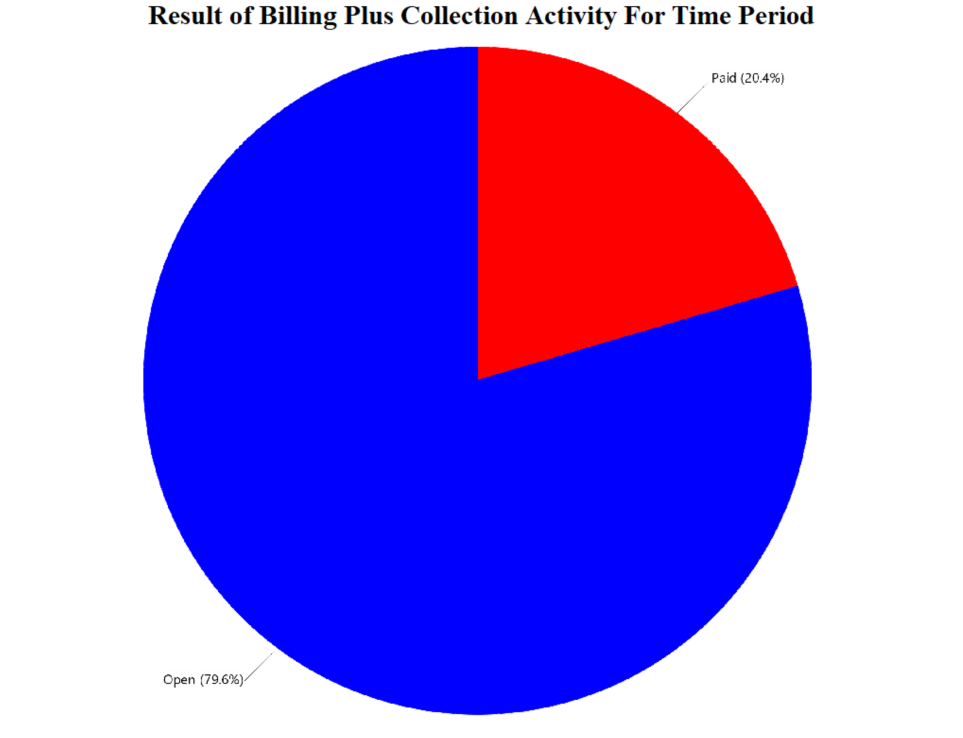
Collection Activity Report
You can also track overall collection activity for invoices generated over a specified period of time. For example, "Of all the invoices generated from 07/01/25 to 09/30/25, how much needed to be called on through Billing Plus efforts, and what were the collection activity results?"
A.R.M. Solutions Reports
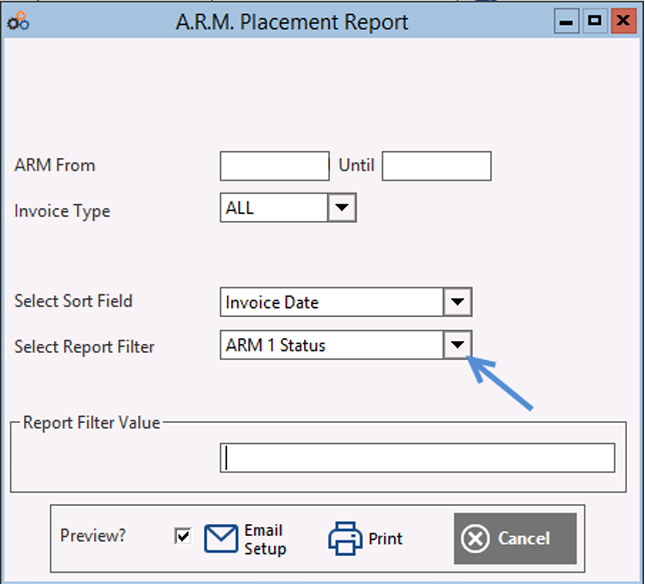
If your company decides to work with A.R.M. Solutions, the A.R.M. Extract process generates the Placement Reports and FTP upload files automatically, tagging the invoices with A.R.M. Phase 1 and 2. Accounts that progress from Phase 1 to 2 are automatically closed in Cornerstone, because they have not paid and their service was identified for disconnection. Invoices that roll from 1 to 2 will be tagged as both 1 and 2 Phases for tracking purposes.
An additional report allows you to track invoices/subscribers by date of placement in the A.R.M. process. Simply specify the date range of placements you wish to review. You can specify All (invoices that were tagged with Phase 1 and 2 status) or select only Phase 1 or Phase 2.
Best Practices
Consistency is your best ally in the collections process. The Billing Plus Module assists in managing the flow of work in a timely manner. Next Step dates help keep things on track and easy to view. Multiple filters allow you to break down the work flow into smaller portions making it easier to focus on the tasks at hand.
Keep track of the numbers you are calling by recording the last four digits in the response line. This will allow you to track which numbers you are more likely to catch your customer. The date/time stamp also records the time the call is made.
Utilize the contact list for additional numbers. This can be accessed from the calls/mailings screen and allows you more time to make the calls, rather than searching for numbers with central station. It also allows you to note who the number is for, so you know who to ask for.
A.R.M. Solutions Option for Third-Party Collections
To enhance your collections efforts using the Billing Plus Module, consider leveraging the capabilities of A.R.M. Solutions. Cornerstone has developed a relationship with this leading provider of third-party collections. We believe that their focus on the security industry, as well as their reasonable Phase I and Phase 2 fee structure make them a good fit for many of our dealers.
Phase 1 Collections
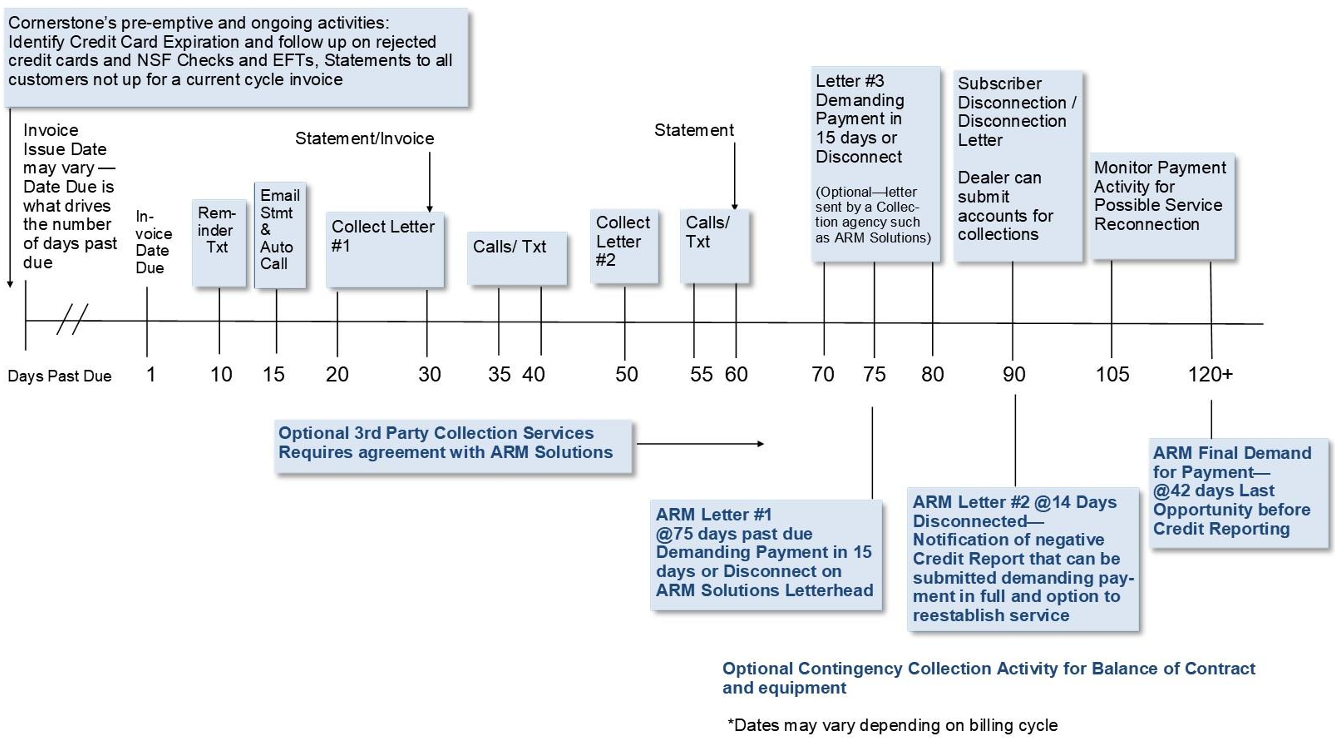
If you decide to work with them, Phase 1 of A.R.M. collections would fit into the Billing Plus process after your staff completes the initial calls and Collection Letters 1 (friendly reminder) and 2 (stronger request for payment).
At about 70-75 days, instead of your company sending Collection Letter 3 (demanding payment within 15 days or disconnection), you would submit the placement to A.R.M. for Phase 1 and they would submit a letter, on their letterhead, demanding payment. The Phase 1 Placement payments would continue to flow through your Billing Plus efforts; you would monitor payments and follow up with disconnecting those subscribers that do not pay. Those subscribers would receive continued collections activity from A.R.M. Solutions. Phase 1 is sold by a block of 100 accounts.
Phase 2 / Contingency Collections
A.R.M. Solutions also offers contingency collection services (e.g., for customers over 150-180 days past due). The initial cleanup and collection efforts for this type of account are based on a 45% fee of what is collected. There is no upfront cost to you for contingency placements. There is a minimum account number requirement for only the Phase 2 / contingency collection.
The following timeline provides a schematic showing the Billing Plus activities (top portion of the graph) and how they can be strengthened by coordinating collection efforts with A.R.M.'s specialist (bottom portion, shown in blue). For those customer who opt to work with A.R.M. Solutions, the blue portion show how their Phase 1 flat-free placement and Phase 2 contingency services dovetail with the Billing Plus Module's receivables management. Instead of the third letter (demanding payment in 15 days or termination of service) going out in your company's name, it is sent from A.R.M. Solutions. We find that chronic late-pay subscribers take notice and pay when they realize there is collection agency involved.
Service Pricing
Cornerstone's Billing Plus Services keeps on top of your aging and keeps you informed of call and letter activity. Price is based on an hourly rate with an additional per account on boarding fee and a per piece price on the letters/mailings to the subscribers. Special Delivery fees are passed through at cost.
Cornerstone offers ARM Solutions as a complementing 3rd Party Collections service that is seamless to you. Upon your review of account to be submitted to Immediate Payment or Disconnection, Cornerstone uploads and monitors the payment activity of placed accounts. Those who do not pay are disconnected (by dealer with central station) and continued follow up through ARM. Accounts who pay in full, have the option of reestablishing service. Pricing is based on a flat fee per placement at a discounted rate per block of 100 account for Cornerstone Customers. ARM also offers contingency collections at 45% of the collected amounts. No up-front placement cost for those accounts that do not pay in Phase 1.
Let us know if you want more information about Billing Plus or the optional services of A.R.M. Solutions. Call us today at 847-405-9517… we’re here to help!
Need Help?
Still have questions? Contact Cornerstone Holding Co. 847-405-9517 or email us customer.success@alarmbills.com
Was this article helpful?
That’s Great!
Thank you for your feedback
Sorry! We couldn't be helpful
Thank you for your feedback
Feedback sent
We appreciate your effort and will try to fix the article