Barcode Scanning
Inventory & Payments · Barcode Scanning
Overview
Using a barcode scanner offers increased efficiency and accuracy. You can post a payment, add parts to an invoice, Service Ticket (Work Order), Quotes (Proposals), or perform inventory maintenance using your barcode scanner.
Configuring Your Barcode Scanner
Any standard PC barcode scanner will work with Cornerstone — USB, Wireless, or Bluetooth connection. Please make sure your barcode scanner terminator is set for TAB. Consult your user guide to configure this setting.
Setting Up Inventory
Inventory items must contain a UPC (Universal Product Code) to use a barcode scanner to add items to invoices, tickets, or quotes. The UPC code identifies which product is retrieved from your inventory when you scan a barcode. Fortunately, it is a simple process to add UPC codes to your inventory items.
Adding a UPC Code to an Inventory Item
Click Inventory > Inventory List. Highlight any item and click Change. With the item open, single left-click in the UPC field. Now scan the UPC barcode on your product. The barcode is translated into a string of digits or alpha-numerics and entered into the UPC field. Click OK to save the part with the UPC code.
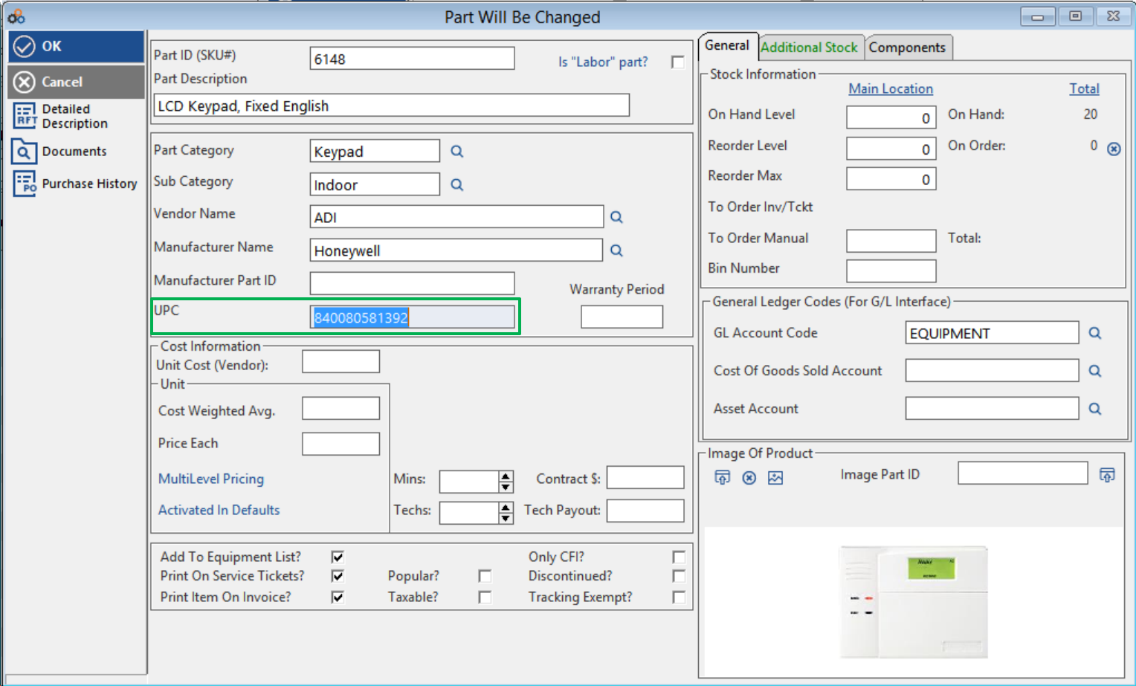
When all your inventory items include a UPC, you will be able to add them quickly and accurately to any invoice, ticket, or quote. Just scan the product barcode, enter the quantity, click OK or press <Enter>, then scan your next item.
Scan Barcode to Receive a Payment Using the Invoice Coupon
Invoice Coupon Sample
The invoice payment coupon includes both a barcode and a QR code. The barcode is used to receive payments in Cornerstone. The QR code is for end subscribers to scan and be directed to the AlarmPayments website so they can post a payment online.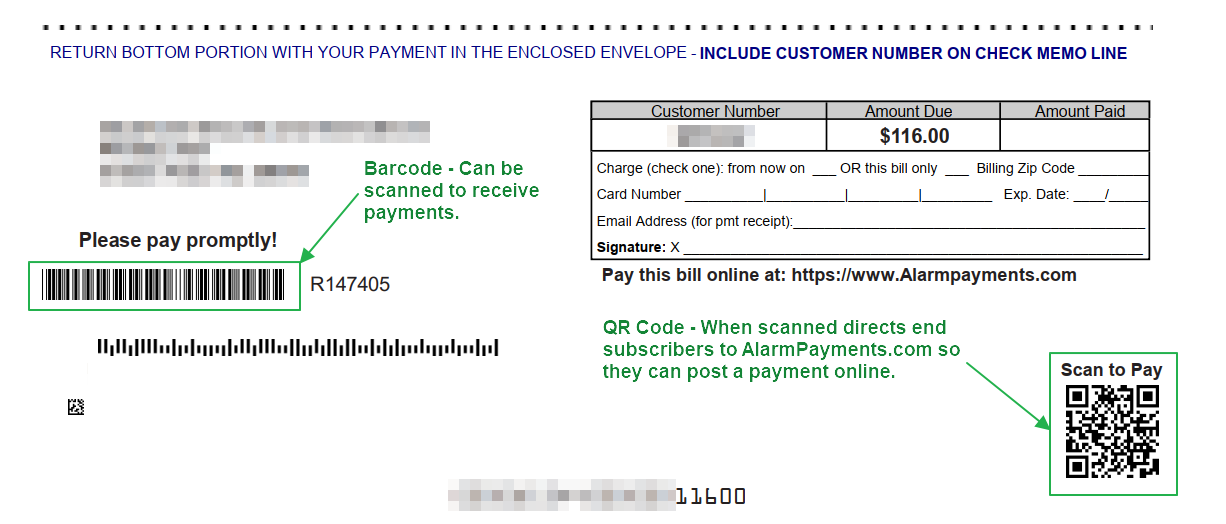
Scan Barcode to Receive a Payment — Step by Step
Click Payments > Post Payments.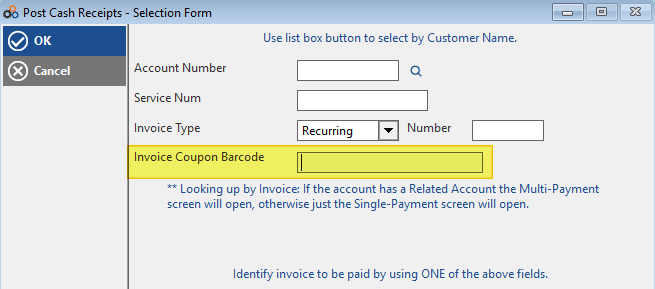
Click in the Invoice Coupon Barcode box (or set it as the default entry field — see the Cornerstone Tip below).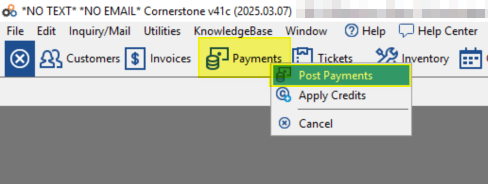
★ Cornerstone Tip
To set the Default Entry Field as Barcode, go to Utilities > Set System Default > Invoice tab, then Post Payment Defaults. Select Barcode as the Default Entry Field. Now when you click Payments > Post Payments, the cursor will automatically appear in the Invoice Coupon Barcode box — ready for your next scan.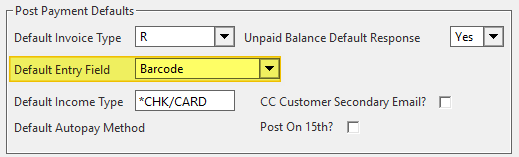
Click in the Invoice Coupon Barcode box. With the cursor waiting for entry, scan the barcode on the payment coupon.
Scan the barcode on the invoice coupon (barcode is highlighted green in the example below).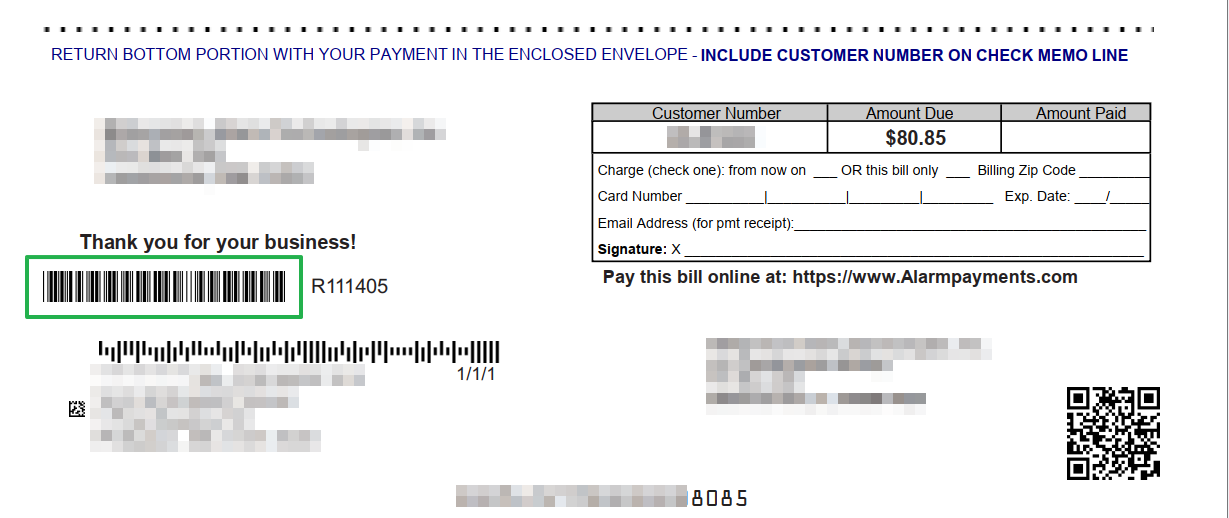
Scanning the barcode populates the barcode entry field with the Invoice Number and Amount.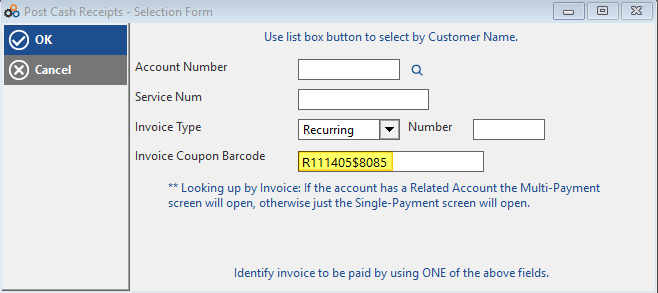
Cornerstone automatically opens the Cash Receipts Posting screen. The cursor is positioned in the Check Amt field. If the amount matches, press TAB to advance to the Check No. field. Enter the check number, then click OK to complete the payment posting.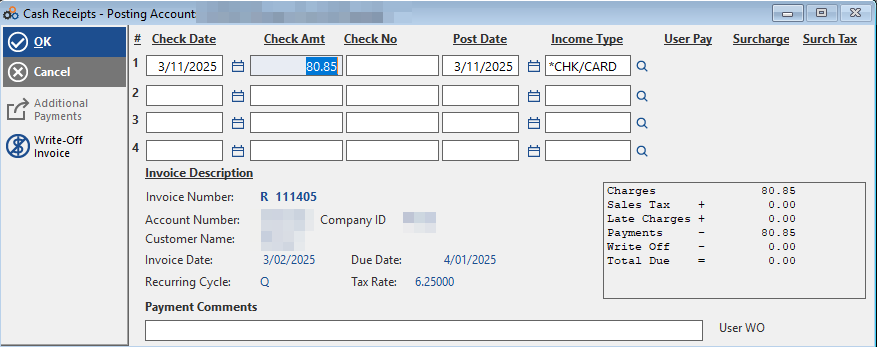
If the customer has multiple open balances, Cornerstone will prompt you to apply the payment to all open tagged invoices.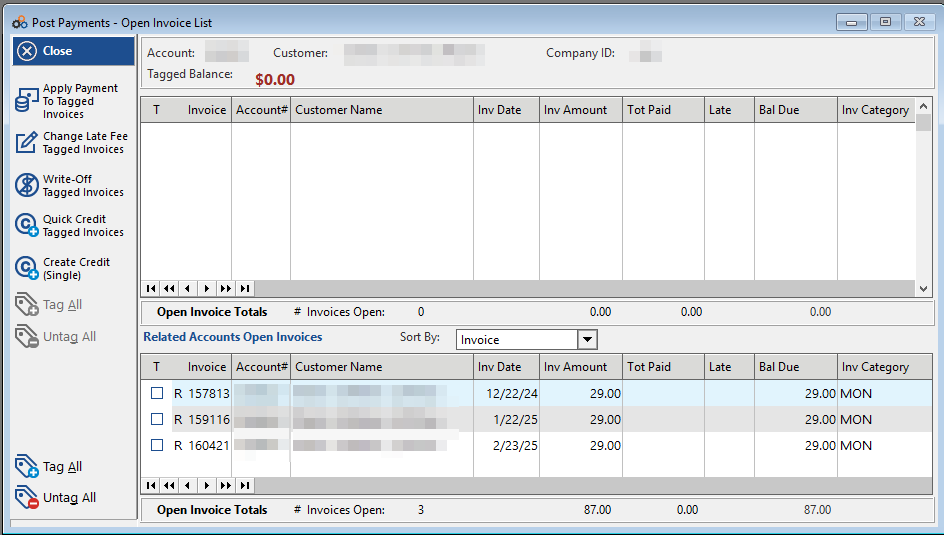
Product Invoices — Adding Items
To add items to a product invoice, open a customer, click Invoice History, then click Insert. On the Invoice Style window, click Product then click OK.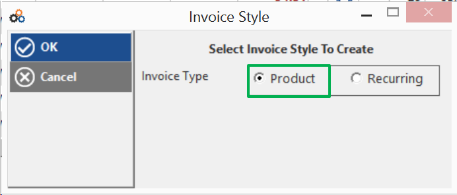
With the product invoice window open, click Continuous Insert mode.
Please note: You do not need a barcode scanner to use Continuous Insert Mode. You can manually search for and add parts to the product invoice.
The cursor will show in the Part ID / UPC Code field. When you scan a product barcode or a barcode on your price sheet, the relevant product is retrieved from your inventory. If a product does not have a barcode, you can enter the Part ID or click the search icon to find the part by description, vendor, category, or other identifier.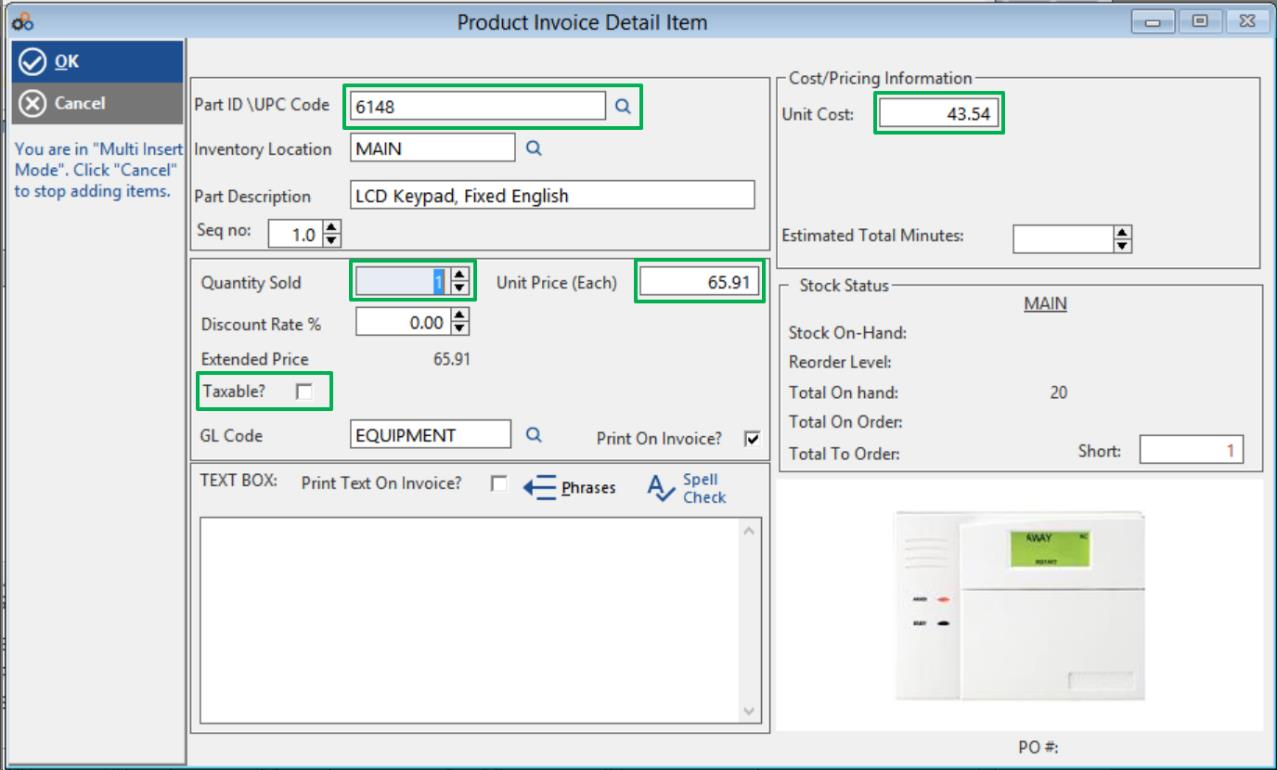
With the item pulled up, the cursor moves to the quantity field. Enter the quantity, edit the price, cost, and taxable status as needed. Click OK or press <Enter>. The item is added and the window stays open for your next item. Click Cancel when finished adding items.
The product invoice displays all scanned items. To add more, click Continuous Insert mode again. When finished, click OK to save.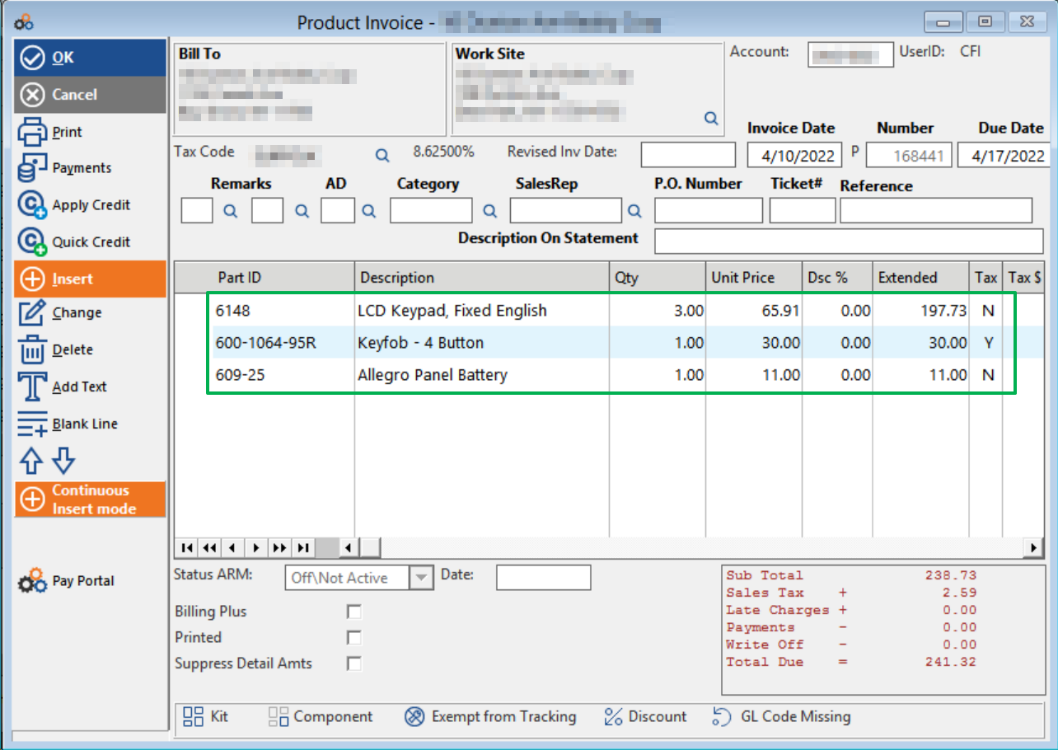
Service Ticket — Adding Service Items
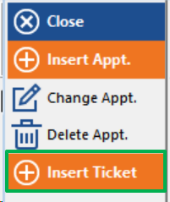
To add items to a service ticket, open a customer, click Appt/Svc History, then click Insert Ticket. Alternatively, click Tickets on the menu bar and click Insert.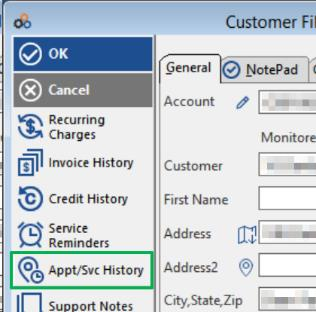
With the service ticket open, click Service Items.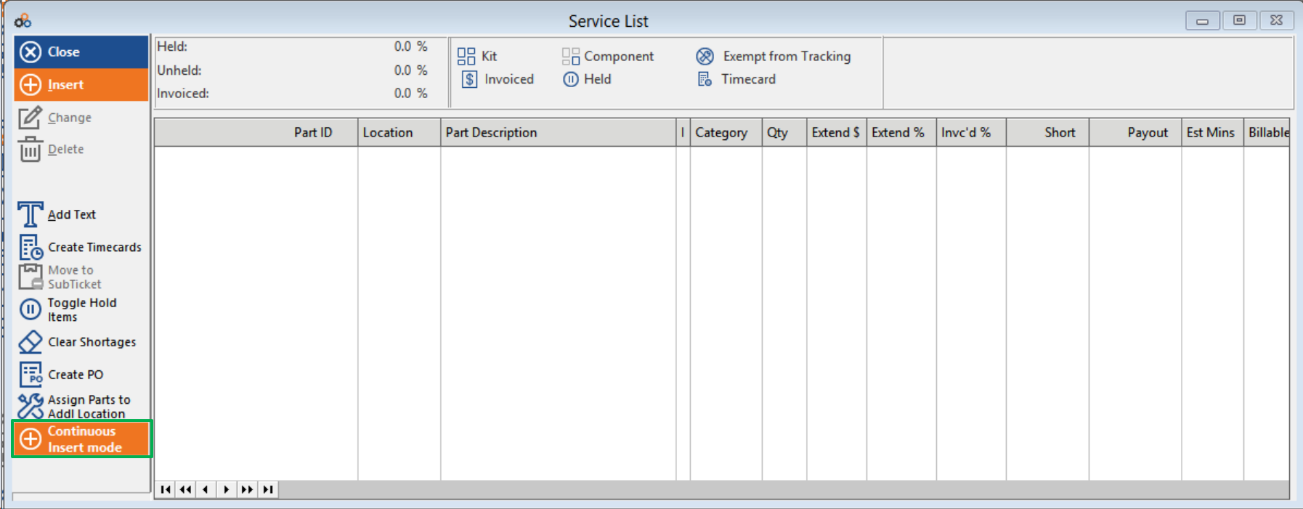
From the Service List window, click Continuous Insert Mode to begin adding service items to your ticket.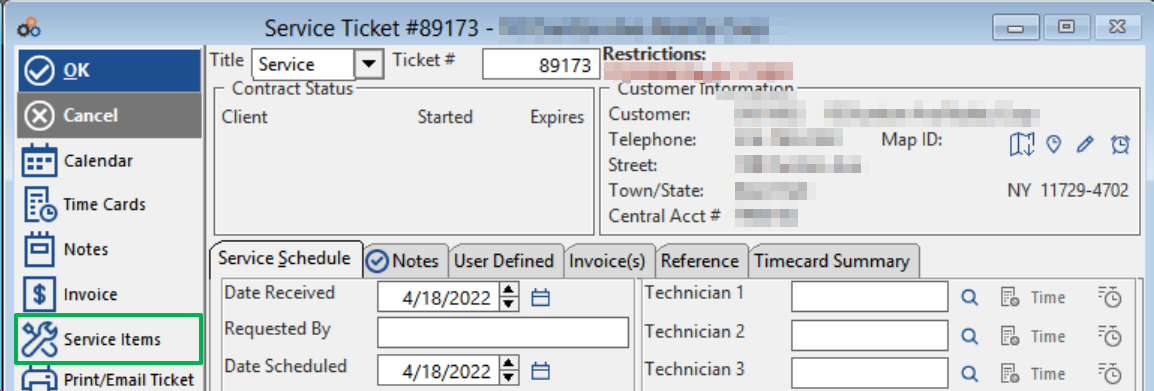
Please note: You do not need a barcode scanner to use Continuous Insert Mode. You can manually search for and add parts to your service ticket.
The cursor shows in the Part ID / UPC Code field. Scan the UPC of your product or a UPC barcode from an inventory sheet. Once the part is retrieved, select the quantity and adjust the unit price and discount as needed. Click OK to add the part. Continue adding parts as necessary.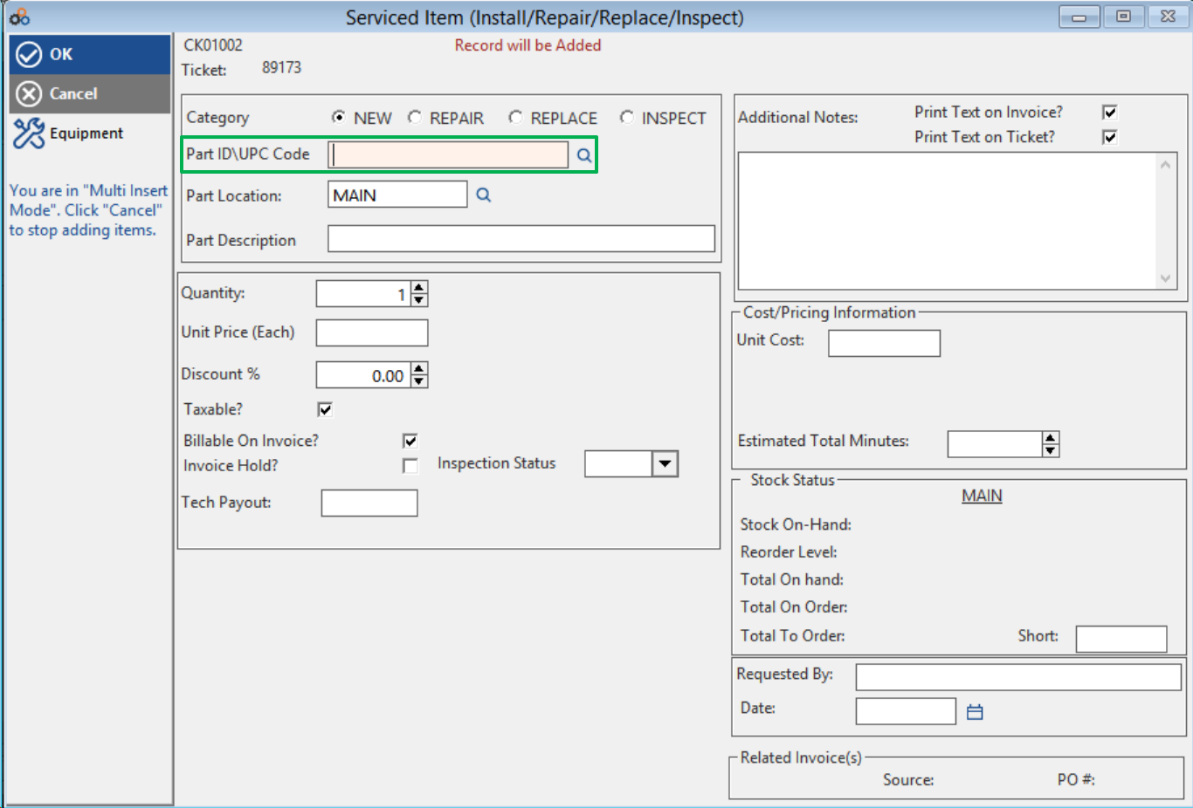
When finished adding parts, click Cancel to complete the scanning process. The scanned items will appear in the Service List window.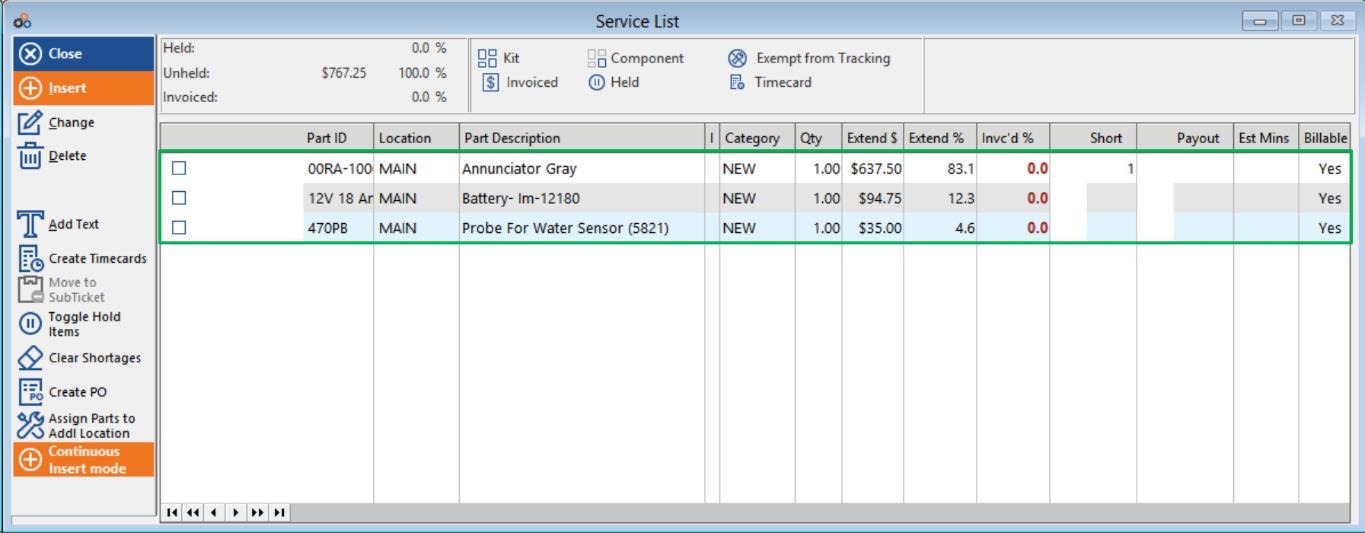
Quotes — Adding Quote Items
To add items to a quote, click Quotes on the menu bar, then click Insert to add a new quote — or highlight an existing quote and click Change. With the quote open, click Build Quote Items.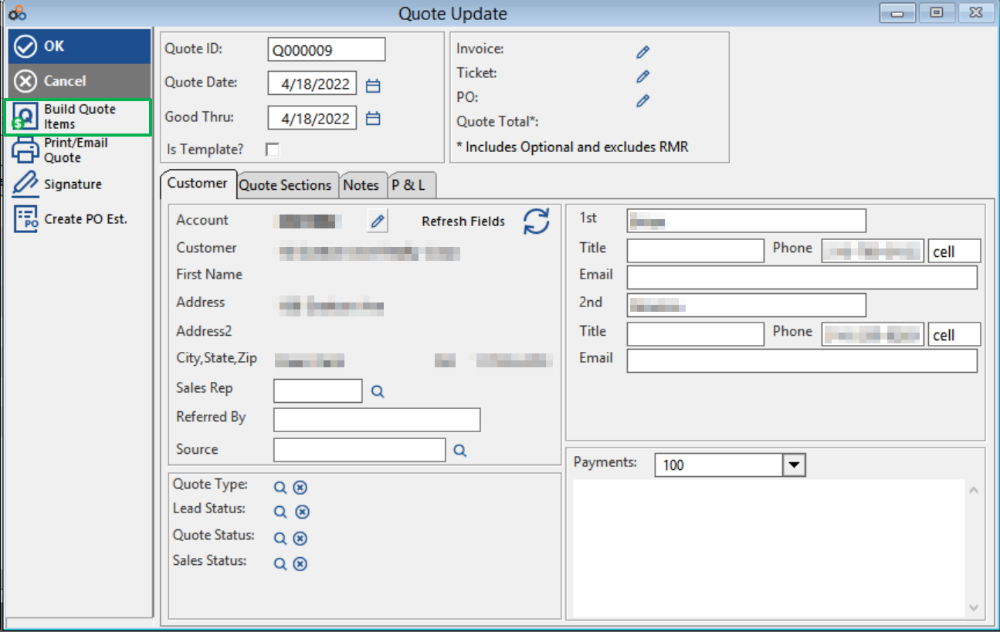
Click Continuous Insert mode to begin adding parts to your quote.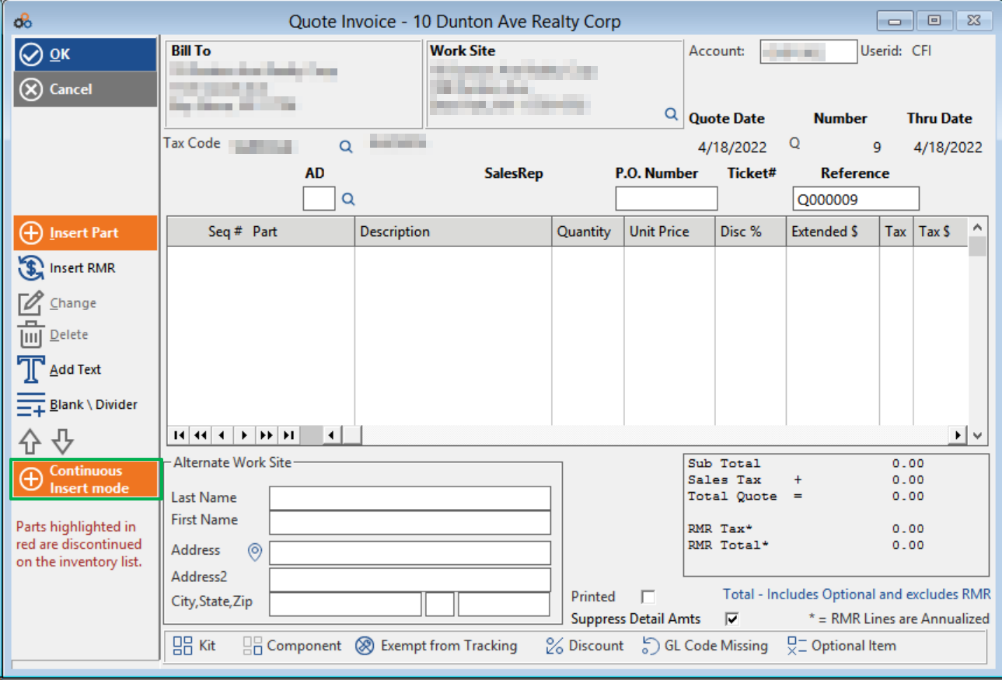
Please note: You do not need a barcode scanner to use Continuous Insert Mode. You can manually search for and add parts to your quote.
The cursor shows in the Part ID / UPC Code field. Scan the UPC of your product or from your price sheet. Adjust quantity, unit price, and discount as needed. Click OK or press <Enter> to add the item. Continue scanning or adding parts to your quote.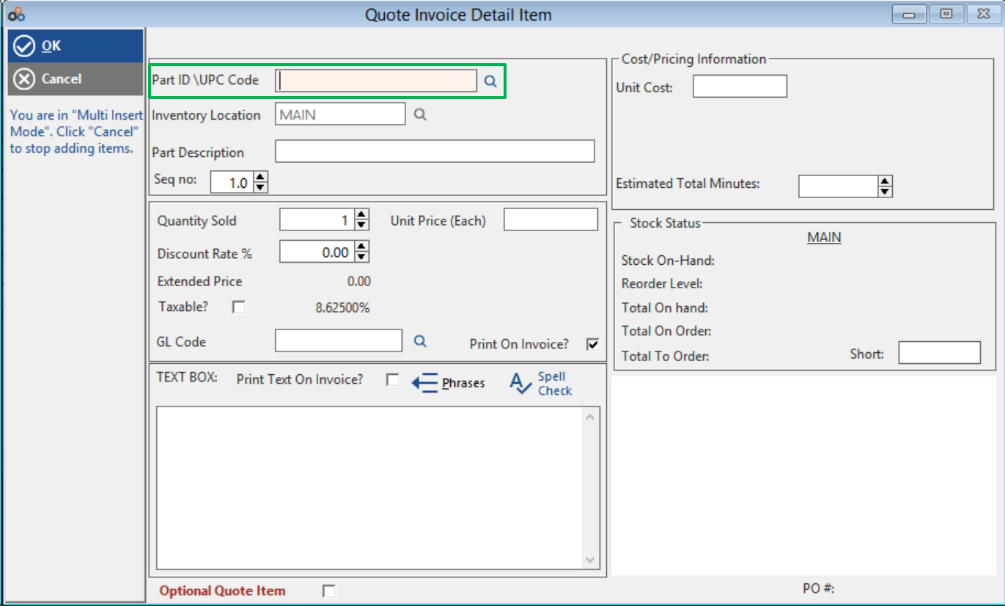
When finished adding items, click Cancel to complete the process. The scanned items will be added to your quote.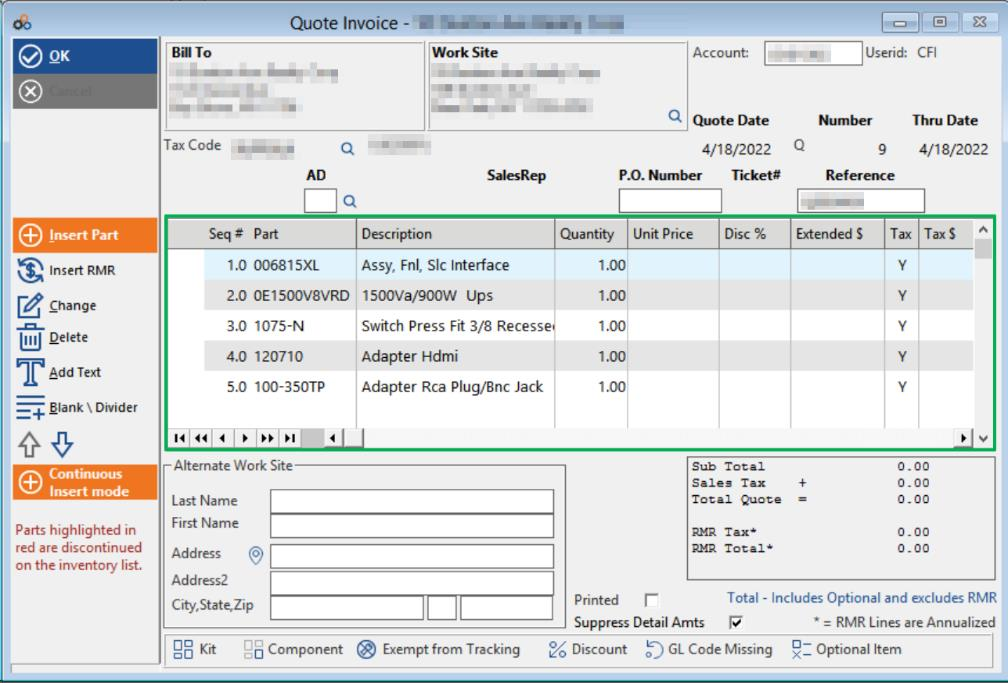
Inventory Reports
To print an inventory report that displays a UPC/Barcode that can be scanned, click Reports on the menu bar, then click the Service / Parts tab, then click the Inventory List – UPC / Barcode report. Make your selections for what information to show or hide on the report, then click Run Report.
The report shows the Part ID, Part Description, Unit Cost / Unit Price (if selected), Bin Location / Category, and the UPC Barcode. If the barcode does not display next to an item, check that a UPC is entered for that part.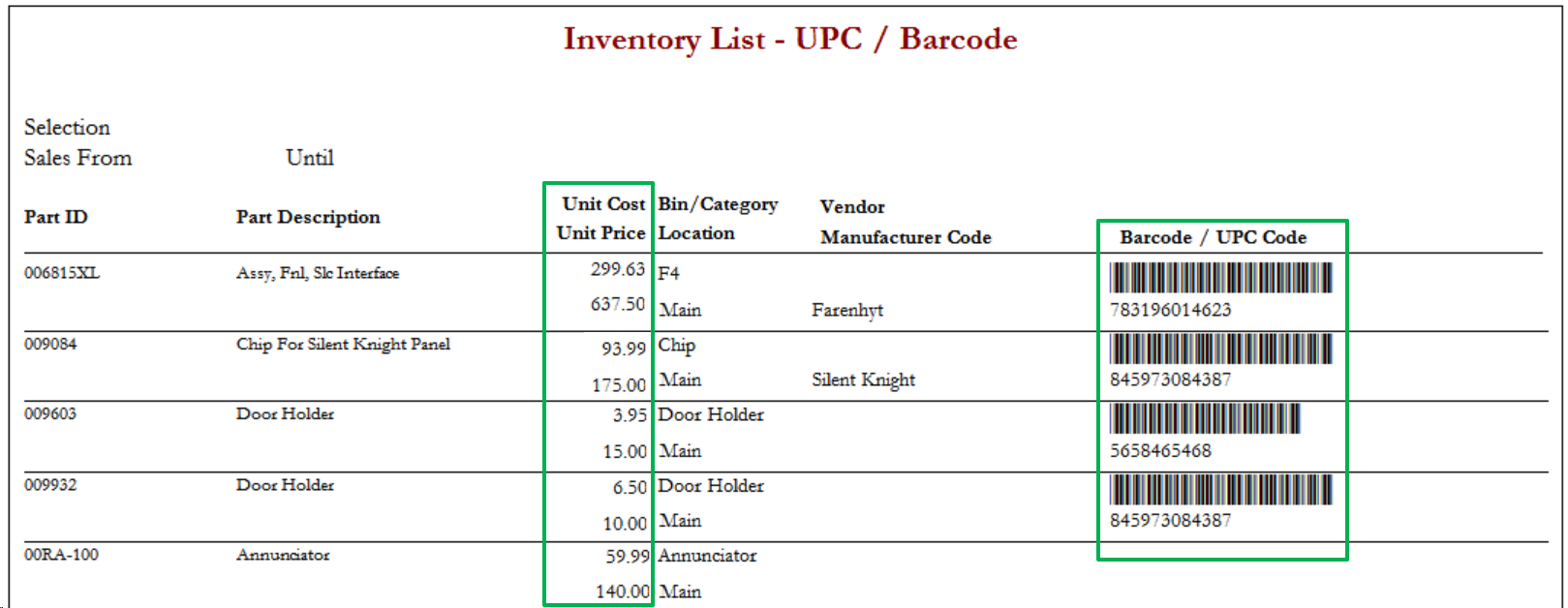
Inventory List (Barcodes Only)
Use these default settings to print an inventory list with barcodes (no pricing shown):
- Do not print: Cost ✓ (checked by default)
- Do not print: Price ✓ (checked by default)
- Do not print: Vendor ✓ (checked by default)
- Exclude discontinued items ✓ (checked by default)
Then click Run Report.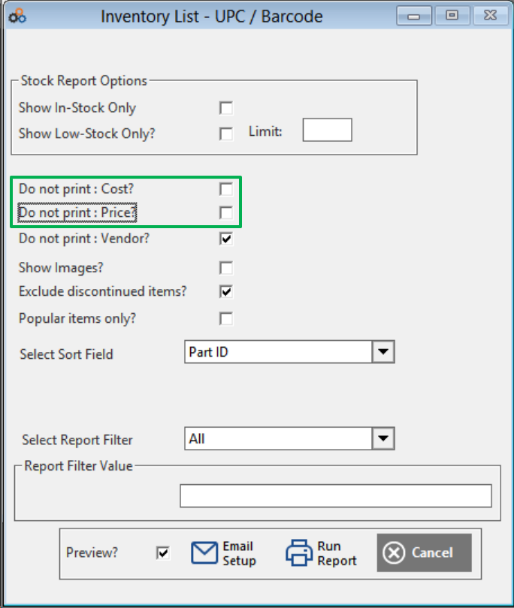
Price Sheet
To print a price sheet that includes cost and price information:
- Uncheck Do not print: Cost
- Uncheck Do not print: Price
Then click Run Report.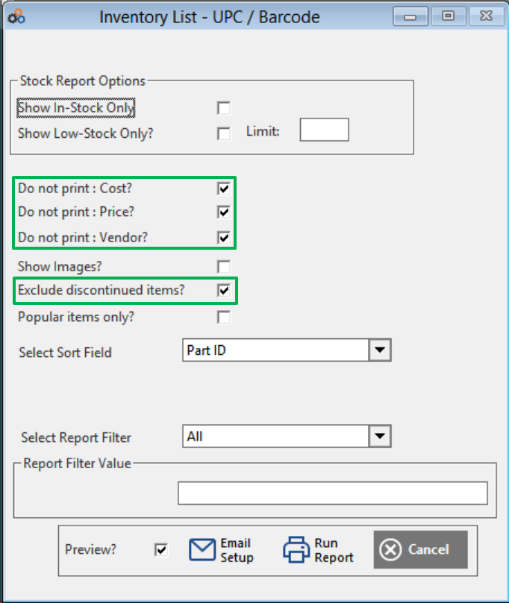
Price Sheet of Popular Items
To print only your "popular" items with pricing:
- Uncheck Do not print: Cost
- Uncheck Do not print: Price
- Check Popular items only
Then click Run Report.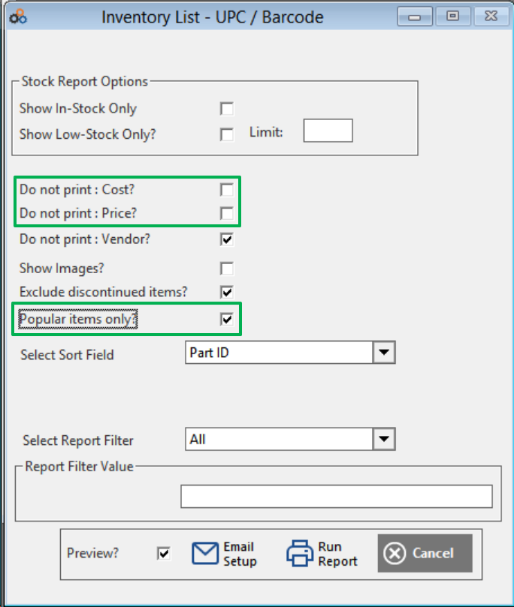
How to Mark an Inventory Item as "Popular"
Click Inventory on the menu bar, then click Inventory List. Highlight the item you want to mark as popular and click Change. Check the Popular checkbox (highlighted in the image below), then click OK to save.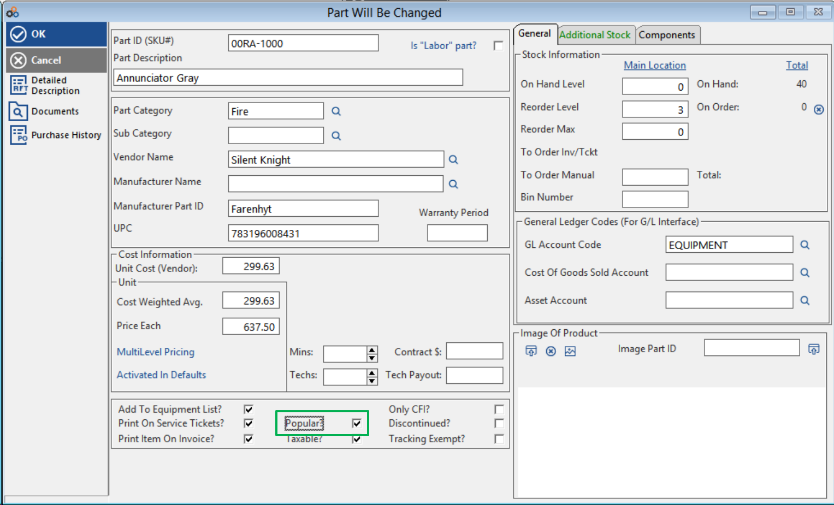
Copyright © 1999–2026 Cornerstone Billing Solutions. All rights reserved.
Was this article helpful?
That’s Great!
Thank you for your feedback
Sorry! We couldn't be helpful
Thank you for your feedback
Feedback sent
We appreciate your effort and will try to fix the article