Overview
This guide explains how to set up and use the Retention inventory item in Cornerstone Billing Solutions. In alarm installation projects, a retention item typically represents up to 5% of the contract amount withheld by the client until the project is fully completed, tested, and approved. The Retention item can also be used as a general-purpose negative line item on invoices without being treated as a standard discount.
This guide covers how to create the Retention inventory item, understand its pre-set system parameters, and add it to a product invoice.
⚠️ IMPORTANT
A RETENTION item is not allowed on a Ticket or a Quote. Discounts and Credits are also ignored for this Part ID.
Setting Up the Retention Inventory Item
Follow these steps to create the Retention item in your inventory for the first time.
- Navigate to Inventory. Go to Utilities > Inventory Dashboard or Inventory List.
- Insert a new item. Click Insert to create a new inventory record.
- Enter the Part ID. Type Retention as the Part ID.
- Review the Part Description. The Part Description will be automatically populated as Retention. You may change this to any description you prefer.
- GL Code. If a GL Code named RETENTION does not already exist in your system, it will be created automatically and assigned as the GL code for this item.
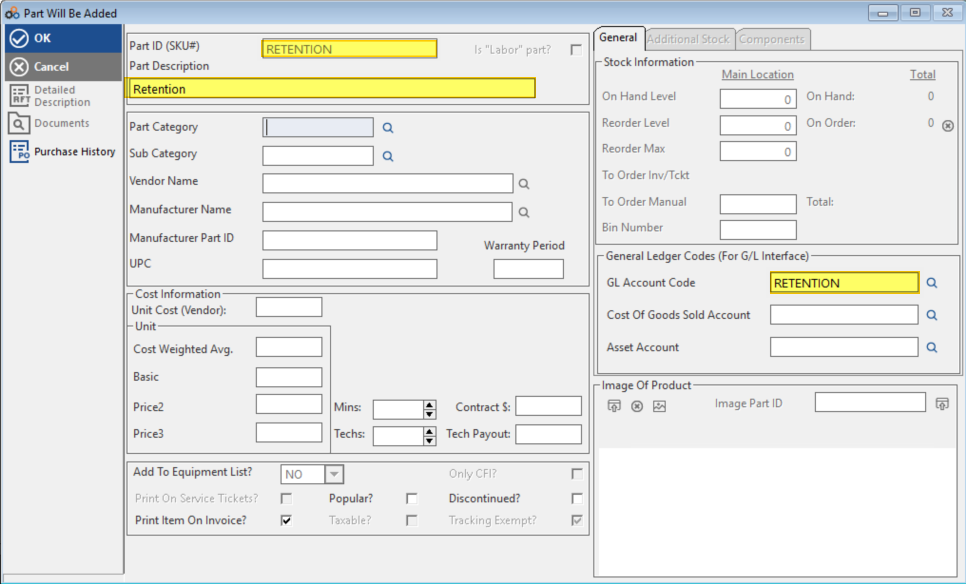
Part Entry — Pre-Set Fields for RETENTION
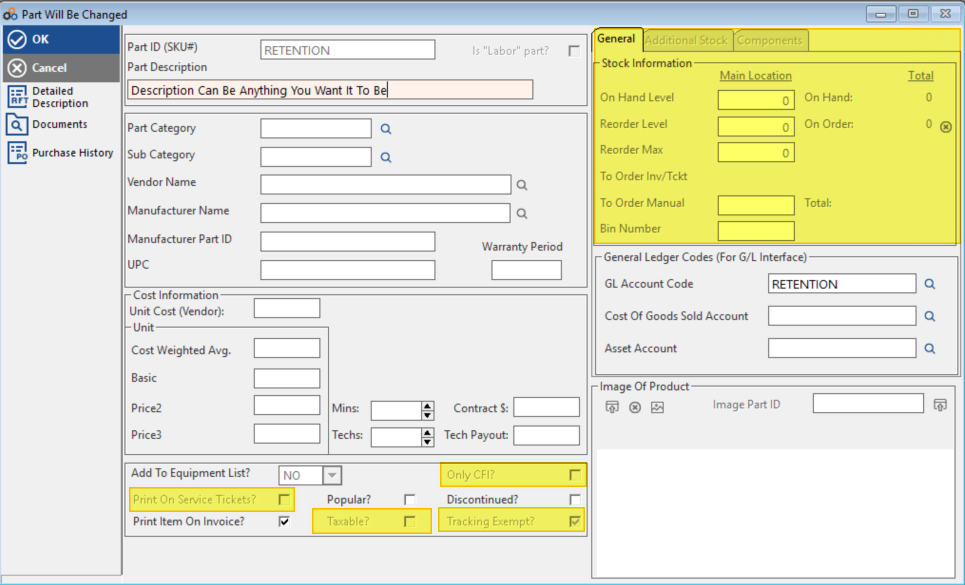
When the Part ID RETENTION is entered, the following fields are automatically set and disabled by the system. These values cannot be changed manually and define how the item behaves throughout Cornerstone.
| Parameter | Value / Setting |
|---|---|
| AllowDecimalQty | False |
| EQUIP_POST | NO |
| ExternalID | Set & disabled |
| InventoryExempt | True |
| Manufacturer_Name | Set & disabled |
| OnlyCFI | Set & disabled |
| PartID_MFG | Set & disabled |
| PrintTicket | FALSE |
| Taxable | N |
| Vendor_Name | Set & disabled |
| WARRANTY | Set & disabled |
| Additional Stock | Set & disabled |
| Components | Set & disabled |
The image below shows how these settings appear in the Part Entry interface. Note the highlighted fields (shown in yellow) indicating the parameters that are locked for the RETENTION Part ID.
Releasing Retention: Project Completion Requirements
For alarm system installations, securing the final retention payment typically requires the successful completion of the following project milestones.
| Requirement | Description |
|---|---|
| System Testing & Re-acceptance | The alarm system must be tested to demonstrate its operation conforms to design intent and often requires a formal Record of Completion. |
| User Instruction | The licensed installer must train the property owner or representative on how to use the system and provide all manufacturer operating manuals. |
| Licensing Compliance | The installation must be performed by a contractor holding a valid C-10 Electrical License issued by the California Contractors State License Board (CSLB). |
| Legal Contract Terms | Alarm company contracts are regulated by the Bureau of Security and Investigative Services (BSIS) and must include the system description, post-installation services, and instructions on usage. See references: [1], [2], [3], [4]. |
Other Uses for Negative Line Items
Beyond retention, a negative item on an invoice can be used to subtract value from the total amount owed for a variety of business purposes. Common uses include the following.
| Use Case | Description |
|---|---|
| Applying Pre-Paid Deposits | Deducting a previously collected retainer or down payment from the final balance. |
| Correcting Overcharges | Adjusting for a price discrepancy on a previously billed item. |
| Processing Refunds or Returns | Crediting the customer for returned goods or cancelled services without having to create a separate credit memo. |
| Applying Loyalty/Promotional Discounts | Highlighting specific promotions, loyalty rewards, or good-will concessions to clearly communicate value to the customer. |
| Trade-in Allowances | Subtracting the value of a customer's used item (such as a piece of equipment) from the purchase of a new one. |
Adding a Retention Item to an Invoice
Once the Retention inventory item has been set up, follow these steps to add it to a product invoice. Any dollar amount entered — positive or negative — will be converted to a negative number automatically.
- Open a product invoice. Navigate to the product invoice you want to apply the retention to.
- Click Insert. Click the Insert button to add a new line item.
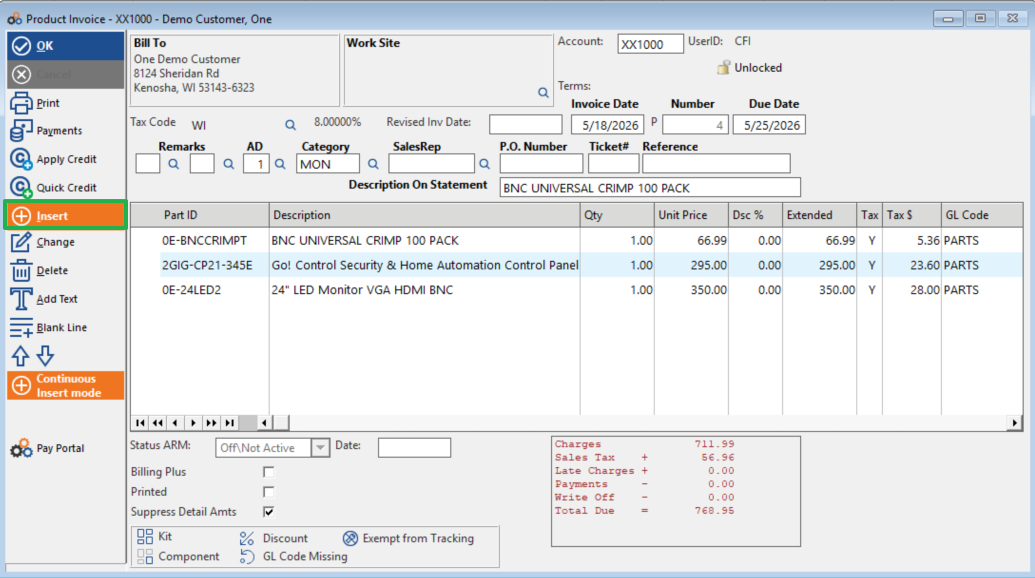
- Search for the Retention item. In the Product Invoice Detail Item window, click the magnifying glass icon next to the Part ID \ UPC Code field and search for Retention, or simply type retention directly into the field.
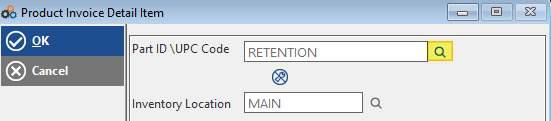
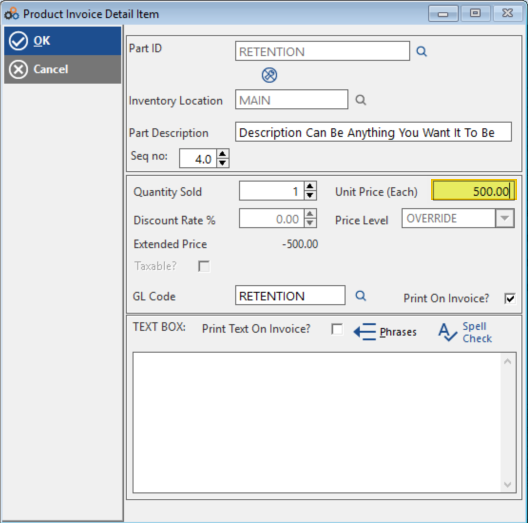
- Enter the dollar amount. Type the retention amount in the Unit Price (Each) field. In the example below, 500.00 is entered as a positive number.
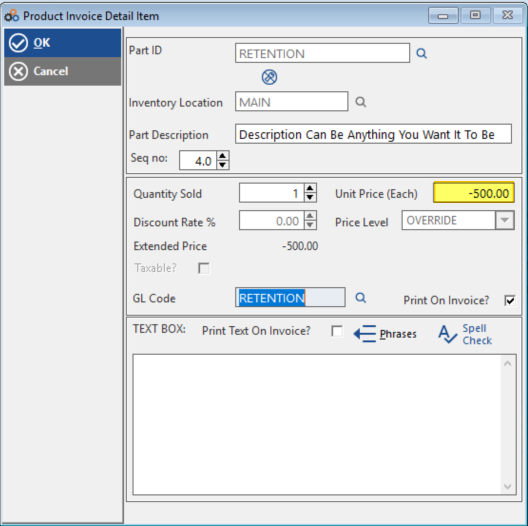
- Tab to the next field. When you press Tab to move to the next field, the system automatically converts the entered amount to a negative number — for example, 500.00 becomes -500.00.
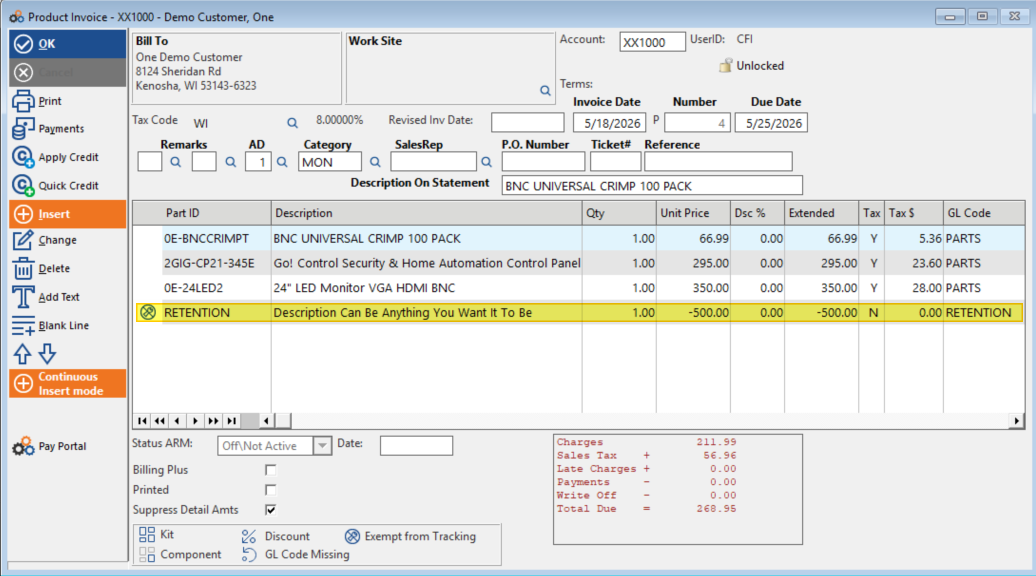
- Click OK. The Retention item is added to the invoice. The amount of the Retention item is deducted from the total balance. In the example below, the invoice total is reduced from $768.95 to $268.95 after the -$500.00 Retention line is applied.
Need Additional Help?
Our Customer Success team is here to assist you.
Phone: 847-405-9517 x1
Email: customer.success@alarmbills.com
Copyright © 1999–2026 Cornerstone Billing Solutions. All rights reserved.
Was this article helpful?
That’s Great!
Thank you for your feedback
Sorry! We couldn't be helpful
Thank you for your feedback
Feedback sent
We appreciate your effort and will try to fix the article