Overview
This guide explains how to set up an AutoPay recurring charge (RMR) on a customer account in Cornerstone Billing Solutions. It covers two scenarios: inserting a brand-new AutoPay RMR charge, and updating an existing recurring charge to use AutoPay.
Once AutoPay is configured on a customer's recurring charges, you can use the Auto-Fill Payment Info feature when launching the AlarmPayments portal from the Cornerstone desktop software. See Using Auto-Fill Payment Info on AlarmPayments.com for details.
Before You Begin
From the Customer List, search for the customer account, then click Change or double-click the customer account to open it. Navigate to Recurring Charges, then choose one of the two workflows below depending on whether you are inserting a new AutoPay RMR or updating an existing recurring charge.
Option 1 — Insert a New AutoPay RMR Charge
Use this workflow when the recurring charge does not yet exist and you need to create it with AutoPay enabled from the start.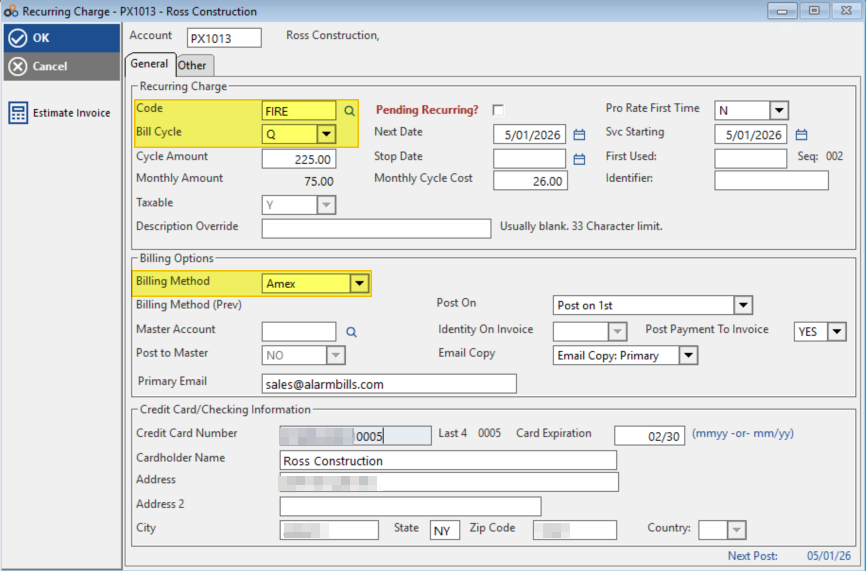
- Open the customer account. From the Customer List, search for and open the relevant customer record.
- Click Recurring Charges. Navigate to the Recurring Charges section of the account.
- Click Insert. Initiate the creation of a new recurring charge.
- Click the Magnifying Glass next to the Code field. This opens the RMR code lookup.
- Select the RMR Code. Choose the appropriate RMR code from the list.
- Adjust Cycle and Cycle Amount if needed. Modify the billing cycle and amount as required for this account.
- Select Post On 1st or 15th. Choose the date on which the AutoPay charge will post each billing cycle.
- Select Billing Method. Choose the appropriate payment method: Amex, Visa, MasterCard, Discover, Checking, or Savings.
- Enter Payment Information. Input the customer's payment details for the selected billing method.
- Click OK to save. Confirms and saves the new AutoPay RMR charge.
Option 2 — Change an Existing RMR to AutoPay
Use this workflow when a recurring charge already exists on the account and you need to update it to use AutoPay.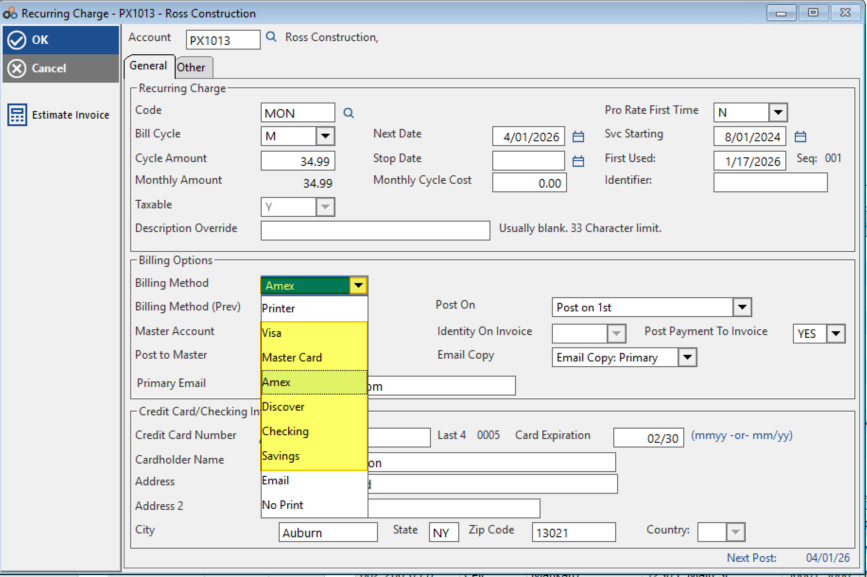
- Open the customer account. From the Customer List, search for and open the relevant customer record.
- Click Recurring Charges. Navigate to the Recurring Charges section of the account.
- Highlight the Recurring Charge and click Change. Select the existing recurring charge you wish to update, then click Change.
- Select Billing Method. Choose the appropriate payment method: Amex, Visa, MasterCard, Discover, Checking, or Savings.
- Select Post On 1st or 15th. Choose the date on which the AutoPay charge will post each billing cycle.
- Enter Payment Information. Input the customer's payment details for the selected billing method.
- Click OK to save. Confirms and saves the AutoPay update to the existing recurring charge.
Billing Method Options
The following payment methods are available when configuring AutoPay on a recurring charge:
| Payment Type | Billing Method to Select |
|---|---|
| Credit Card | Amex, Visa, MasterCard, or Discover |
| Bank Account — Checking | Checking |
| Bank Account — Savings | Savings |
Related Articles
You may also find the following articles helpful when working with AutoPay and recurring billing in Cornerstone Billing Solutions:
- Using Auto-Fill Payment Info on AlarmPayments.com — for automatically populating existing AutoPay data when launching the AlarmPayments portal from Cornerstone desktop software.
- How to Generate a Recurring Automatic Invoice — for inserting a recurring automatic invoice from a customer's Invoice History once recurring charges are set up.
- Quick Reference — Generate a Recurring Automatic Invoice — a condensed reference for inserting a Recurring > Automatic invoice from the Invoice tab.
- How to Post a Payment to a Customer Account — for applying a payment against one or more outstanding invoices.
Need Additional Help?
Our Customer Success team is here to assist you.
Phone: 847-405-9517 x1
Email: customer.success@alarmbills.com
Copyright © 1999–2026 Cornerstone Billing Solutions. All rights reserved.
Was this article helpful?
That’s Great!
Thank you for your feedback
Sorry! We couldn't be helpful
Thank you for your feedback
Feedback sent
We appreciate your effort and will try to fix the article