If users have a dual screen setup and want to still be able to access their ‘other’ screen or have access to their local task bar. Follow the steps below to adjust their screen setup.
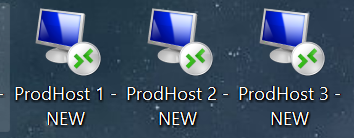 Right Click on the Cornerstone RDP Icon.
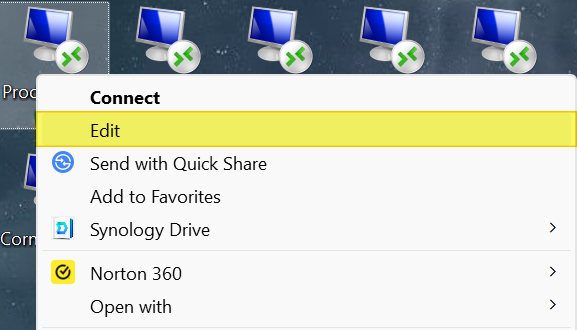
Window 10 – Left click > EDIT
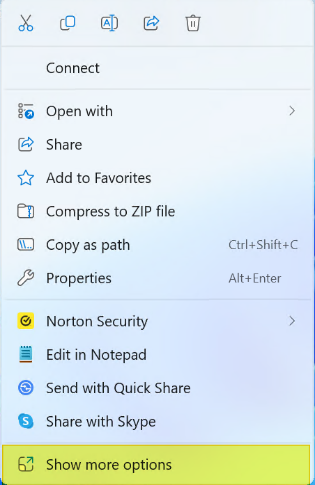
Window 11 – Left Click On > Show More Options. Then left click > EDIT.
With the RDP connection window open. Click > Display (Tab)
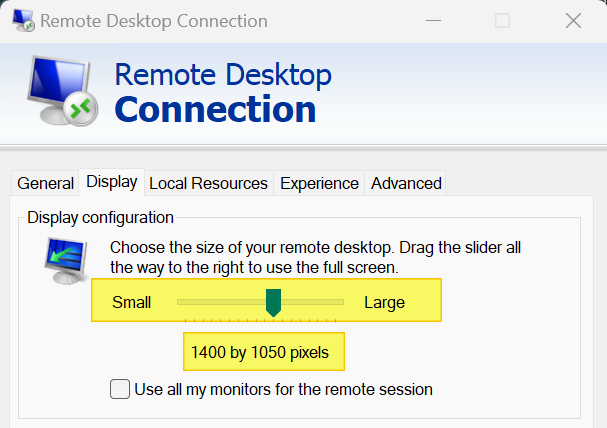
Uncheck > Use all my monitors for the remote session
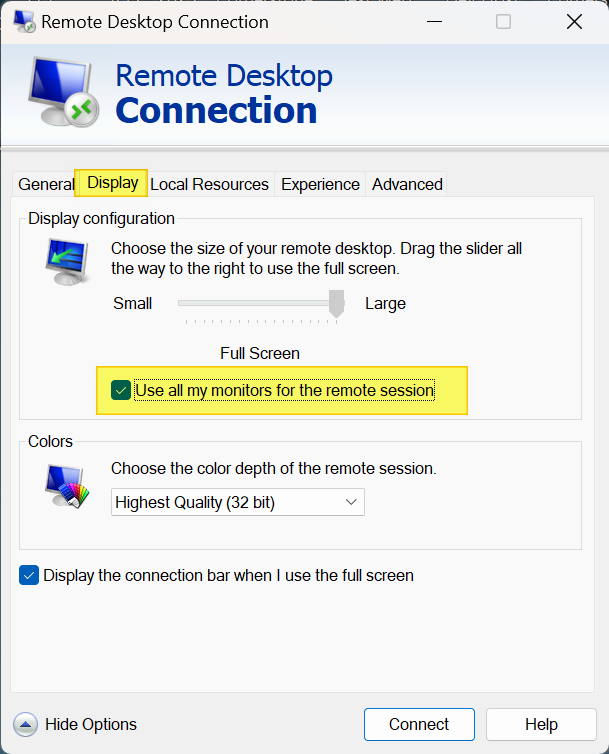
With the ‘Use all my monitors for the remote session’ unchecked you will now see a resolution setting. In the example below 1400 by 1050 pixels. Use the slider to make screen size smaller or larger.
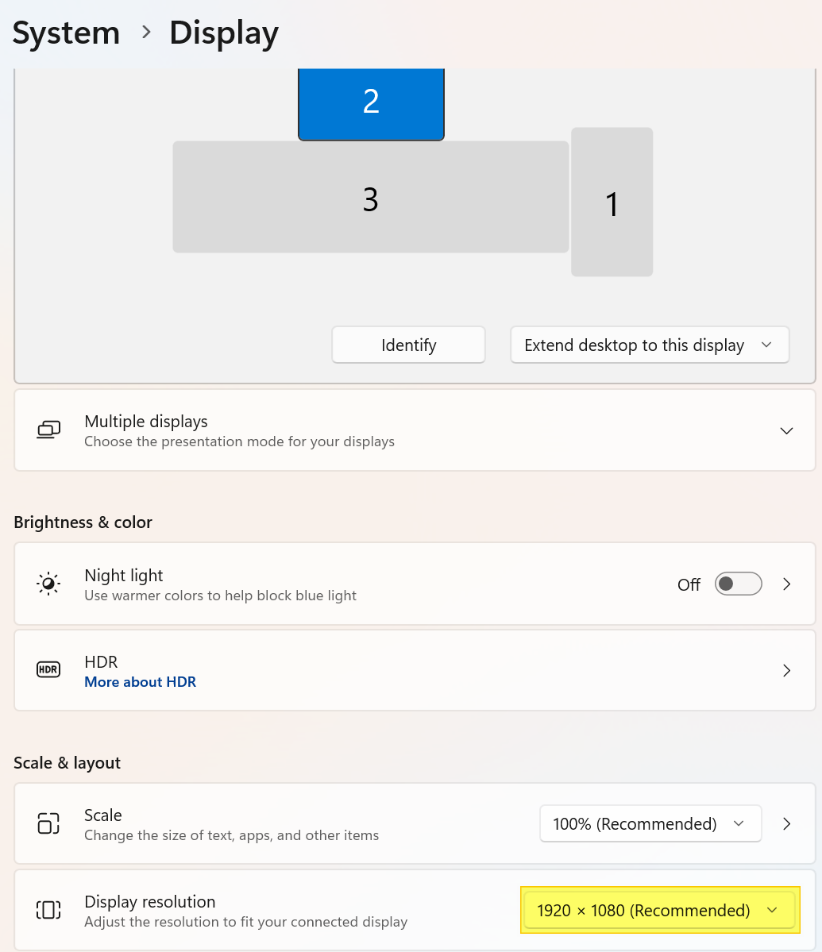
The size should be set for the native desktop resolution on the customer end. To find the resolution being used. Right Click on the users desktop, then left click on Display Settings.
In our example the screen resolution is set for 1920 x 1080.
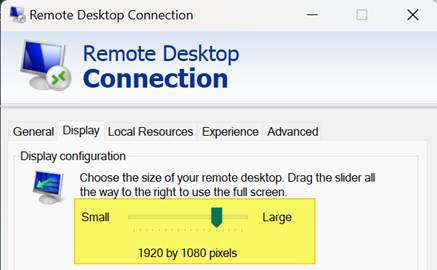
Go back to the Remote Desktop Connection window and using the slider change the size to match the screen resolution.
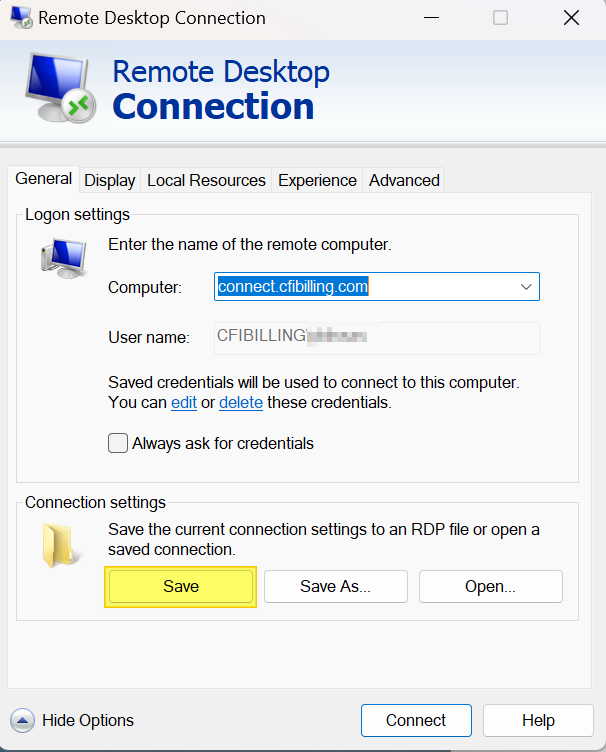
From the Remote Desktop Connection window. Click on the General Tab. Then click SAVE to save the settings.
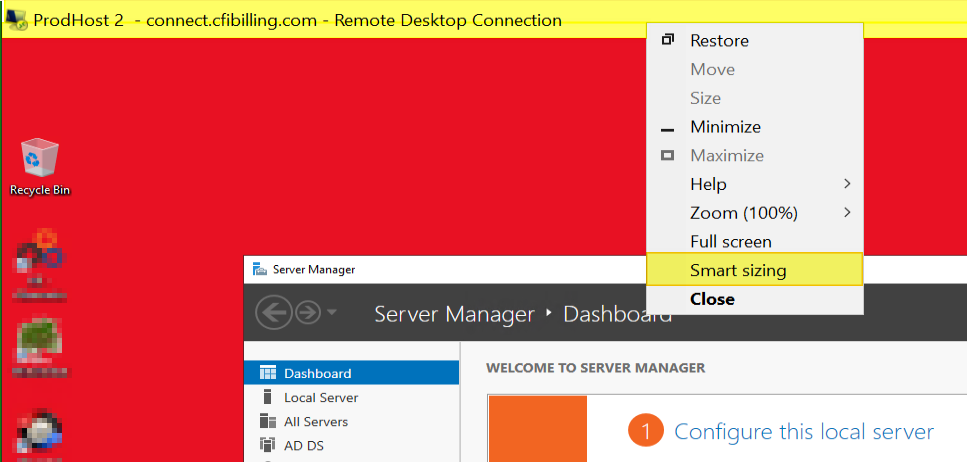
Once the user makes an RDP connection to Cornerstone. Right Click anywhere on the titlebar (highlighted yellow) and left click – Smart Sizing. This will make the RDP window full size on the screen and allow the user access to their local Task Bar and other screens.
Was this article helpful?
That’s Great!
Thank you for your feedback
Sorry! We couldn't be helpful
Thank you for your feedback
Feedback sent
We appreciate your effort and will try to fix the article