Setting Up Windows Credentials Manager
Overview
Windows Credentials Manager allows you to set up and store Remote Desktop Credentials, so you only need to enter your internal User ID and Password to log in to Cornerstone.
Part 1: Open Windows Credentials Manager
Step 1: Search for Credentials Manager
From the Windows Taskbar, Click > Search and type "Credentials Manager" or "Windows Credentials Manager" or "Manage Windows Credentials". Click > Manage Windows Credentials.
Alternatively, you can go to Search > Control Panel > Credentials Manager.
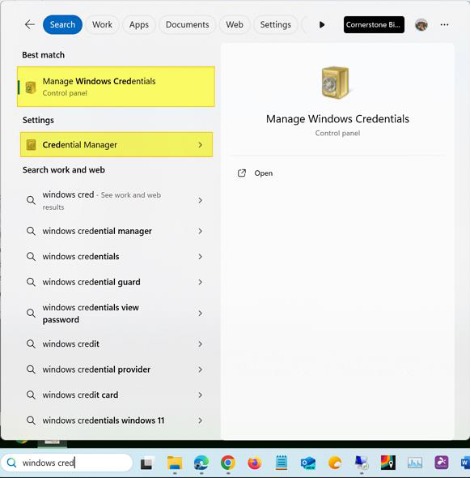
Windows Search results showing "Manage Windows Credentials" as the best match in the taskbar search.
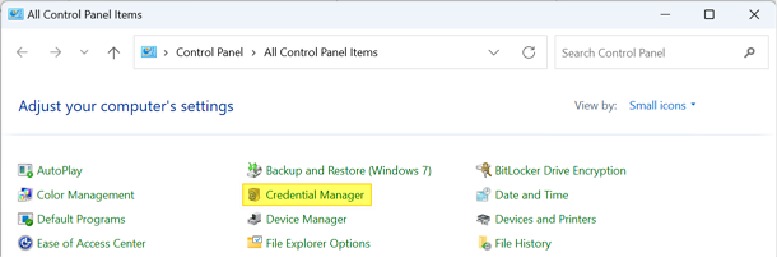
Control Panel showing "Credential Manager" highlighted among All Control Panel Items — the alternative access method.
Part 2: Add a Windows Credential
Step 2: Select Windows Credentials
From the Windows Credentials Manager window, Click > Windows Credentials.
Step 3: Add a New Credential
Then Click > Add a Windows Credential.
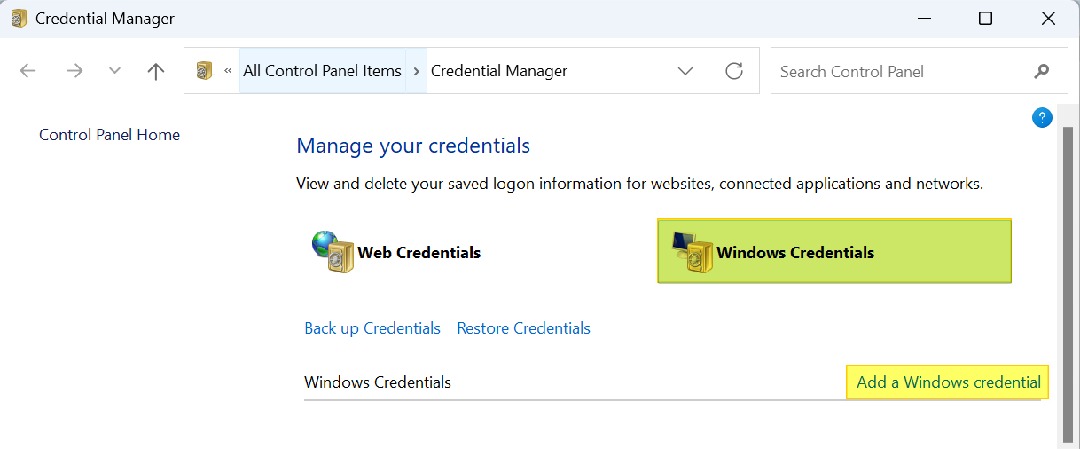
Credential Manager window showing "Windows Credentials" tab highlighted and the "Add a Windows credential" button.
Step 4: Enter the Network Address
Enter connect.cfibilling.com in the Internet or Network Address field.
Step 5: Enter the User Name
Enter CFIBILLING\XX1 (where XX is the dealer code and the user number) in the User Name field.
Step 6: Enter the Password
Enter the User Password in the Password field. This is your EXTERNAL password.
Step 7: Save the Credential
Click > OK to save the credentials.
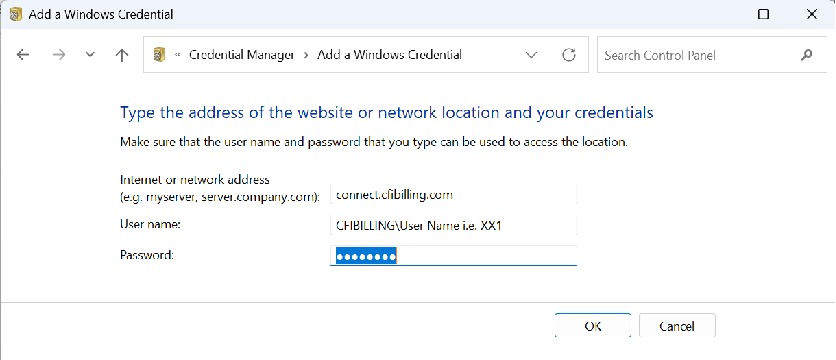
"Add a Windows Credential" dialog showing connect.cfibilling.com in the network address field and CFIBILLING\User Name in the user name field.
Part 3: Configure the RDP Connection
Step 8: Edit the Remote Desktop Connection
Find the RDP connection icon for Cornerstone then > Edit the Remote Desktop Connection.
Windows 10: Right click the RDP Connection icon, then left Click > Edit.
Windows 11: Right click the RDP Connection icon, then left Click > Show More Options > Edit.
Step 9: Enter the Computer Address
Enter connect.cfibilling.com in the Computer field.
Step 10: Enter the User Name
Enter CFIBILLING\XX1 (where XX is the dealer code and the user number).
Step 11: Uncheck "Always Ask for Credentials"
UNCHECK the option labelled "Always ask for credentials".
Step 12: Save the Connection
Click > Save.
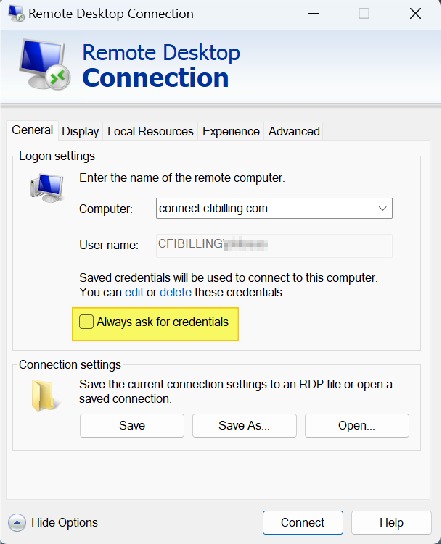
Remote Desktop Connection dialog showing connect.cfibilling.com in the Computer field, CFIBILLING username, and the "Always ask for credentials" checkbox highlighted for unchecking.
Step 13: Connect to Cornerstone
Click > Connect. If everything was set up correctly you should connect directly to Cornerstone and Alarmwin. The user now needs to enter their internal User ID and Password.
Need Help?
Our Customer Success team is here to assist you with any questions.
Email: customer.success@alarmbills.com
Phone: 847-405-9517 x1
Copyright © 1999–2026 Cornerstone Billing Solutions. All rights reserved.
Was this article helpful?
That’s Great!
Thank you for your feedback
Sorry! We couldn't be helpful
Thank you for your feedback
Feedback sent
We appreciate your effort and will try to fix the article