Overview
If you prefer to print and mail your own invoices, the Recurring Batch Reprint utility allows you to batch-print recurring invoices to your local printer. To use this workflow, customer RMR charges must be set to No Print so that invoices are generated but not automatically sent to Cornerstone's print service. You can then use the Recurring Batch Reprint utility to print those invoices on demand.
Prerequisites
Before using the Recurring Batch Reprint utility, confirm the following:
• Each customer's RMR charges must have the Billing Method set to No Print (not Printer).
• You must have administrative rights to access the Utility menu. Contact your supervisor for access if needed.
• Know whether you are accessing Cornerstone via RDP Desktop or RDP Web, as the print output behavior differs between the two.
⚠️ Important: Please make sure you set the RMR charges correctly. If you select Printer instead of No Print, the invoice will be printed and mailed from Cornerstone's print service and you will be charged for the mailed invoice.
Part 1: Setting Up the Recurring Charge
Each customer's RMR charge must be configured with the No Print billing method so that invoices are generated but held for local printing. Follow the steps below to configure this setting.
Step 1: Open the Customer Record
From the main Cornerstone screen, click Customers. Highlight the customer, then click Change or double-left-click the customer record to open it.
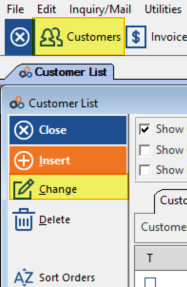
The Customer List showing the Close, Insert, and Change buttons used to open a customer record.
Step 2: Navigate to Recurring Charges
Inside the Customer Maintenance screen, click Recurring Charges.
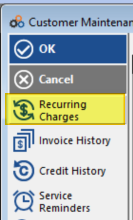
The Customer Maintenance sidebar with Recurring Charges highlighted.
Step 3: Insert or Edit the RMR Charge
Either INSERT a new RMR charge or EDIT / CHANGE an existing one. Set up the RMR charge as normal — select a code, set the next date, and configure any other required fields.
Step 4: Set the Billing Method to No Print
Under Billing Options, click the Billing Method dropdown and select No Print. Then click OK to save the RMR charge.
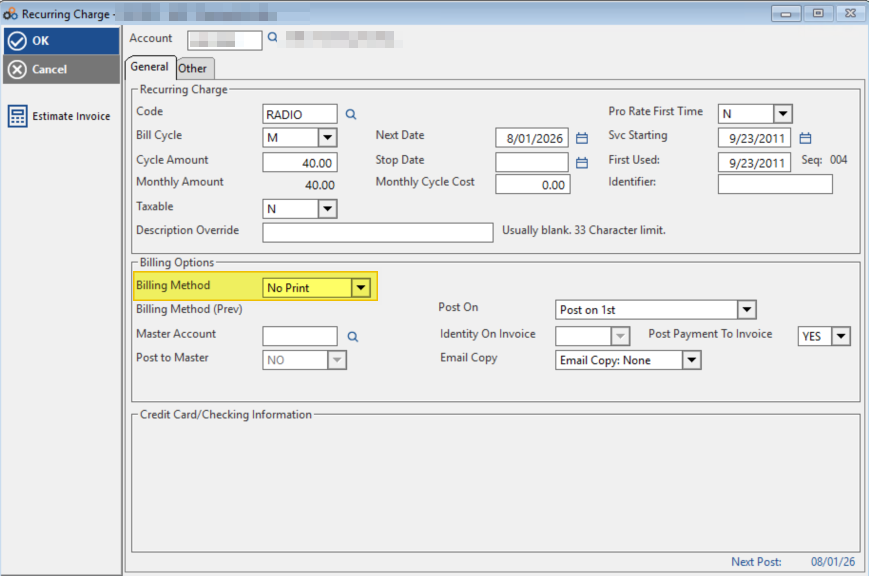
The Recurring Charge screen with the Billing Method dropdown set to No Print, highlighted in yellow under Billing Options.
When your customer is billed, the invoice will be generated but not printed. You can then use the Recurring Batch Reprint utility to print invoices to your local printer.
Part 2: Finding the Correct Billing Date Range
Before running the Recurring Batch Reprint, run an Invoice History report to confirm the exact date your customers were billed. Billing typically occurs on the 2nd, 12th, 22nd, or 28th of the month.
Step 5: Open the Invoice History Report
Go to Reports > Financial (tab) > Invoice History report.
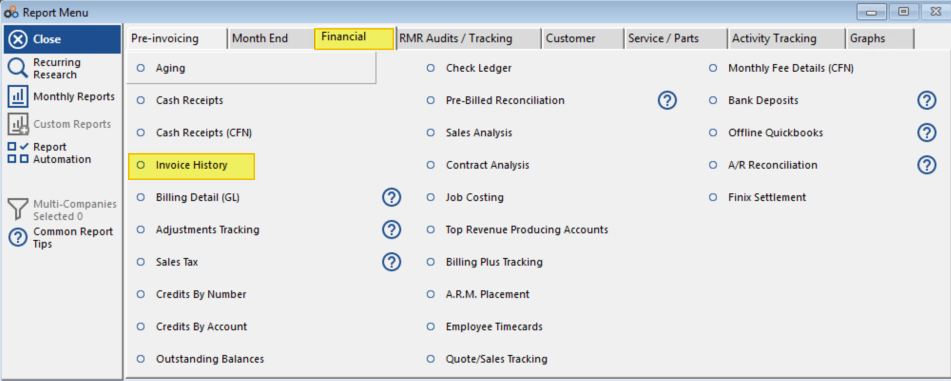
The Report Menu with the Financial tab selected and Invoice History highlighted in yellow.
Step 6: Configure and Run the Invoice History Report
Enter the date range for Invoiced Dated From / To. Set Invoice Type to RECURRING. Then click Run Report.
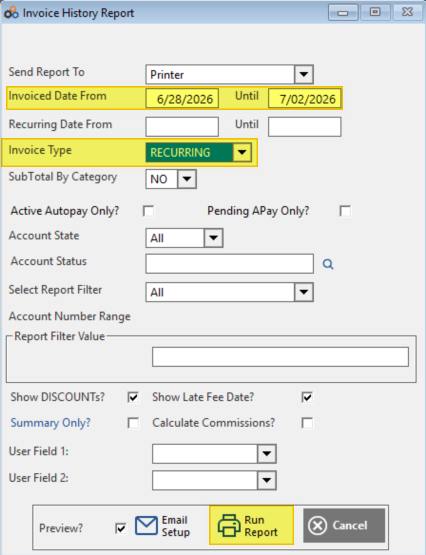
The Invoice History Report dialog with Invoiced Date From/To and Invoice Type set to RECURRING, highlighted in yellow.
Step 7: Note the Billing Date from the Report Results
Review the report results to confirm the date the last recurring invoices were generated. In the example below, the last recurring invoices were generated on 6/28/26. You will use this date when entering the date range in the Recurring Batch Reprint utility.
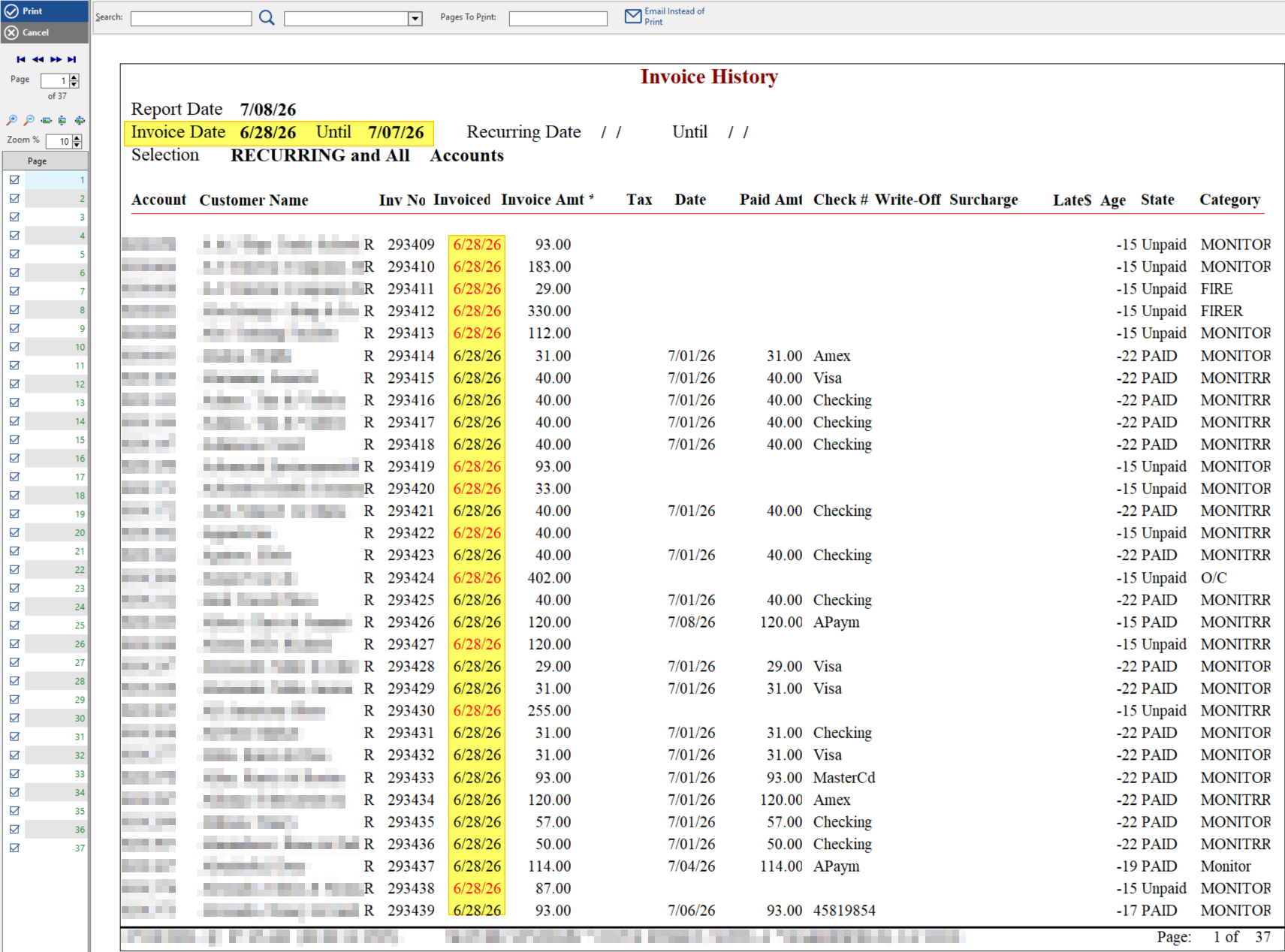
The Invoice History report results showing recurring invoices generated on 6/28/26, with invoice dates highlighted in yellow.
Part 3: Using the Recurring Batch Reprint Utility
You will need administrative rights to access the Utility menu. Contact your supervisor for access if you do not currently have it.
Step 8: Open the Recurring Batch Reprint Utility
From the main Cornerstone screen, click Utilities, then click Recurring Batch Reprint.
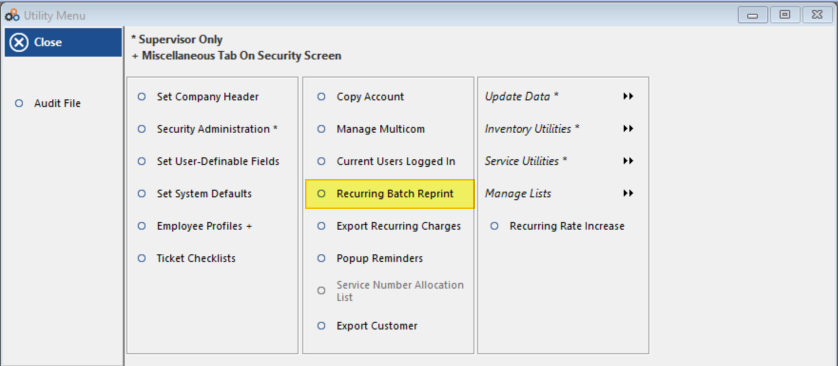
The Utility Menu with Recurring Batch Reprint highlighted in yellow.
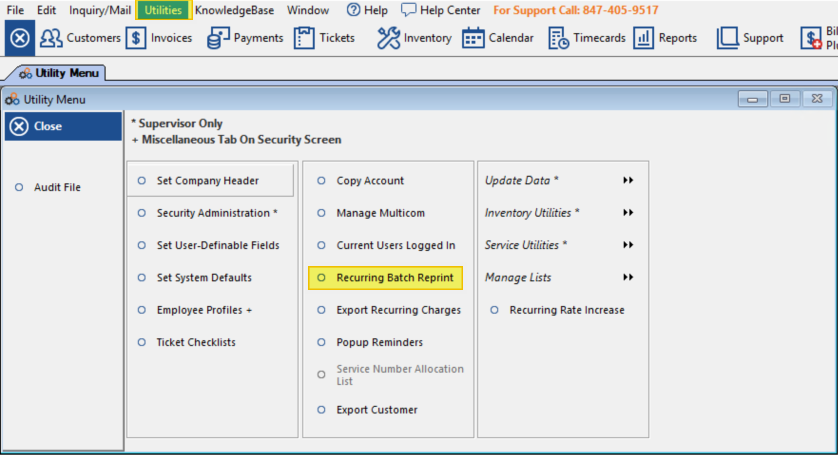
The full Cornerstone main screen showing the Utilities menu open with Recurring Batch Reprint highlighted in the Utility Menu panel.
Step 9: Enter the Invoice Date Range
In the Recurring Invoice Batch Print dialog, enter the date range that the invoices were generated in the Print Invoices Dated From and To fields. In the example, this is 6/28/26 to 6/28/26.
Step 10: Select the Paymethod
From the Paymethod dropdown menu, select No Print.
Set the Payment Status and Print Status as All.
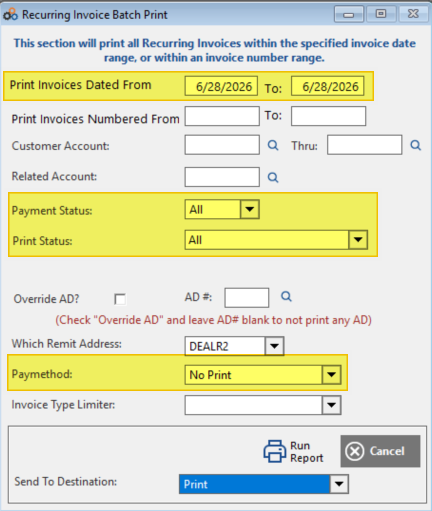
The Recurring Invoice Batch Print dialog with Print Invoices Dated From/To set to 6/28/2026 and Paymethod set to No Print, both highlighted in yellow.
Step 11: Select the Invoice Type Limiter (Optional)
The Invoice Type Limiter field is optional and determines how Master/Feeder invoices will be handled. If you leave this option blank, all invoices will be printed to a consolidated PDF — one large PDF file containing all invoices. The other options are:
Master/Feeder – ONLY — This will print just the Master/Feeder invoice.
Master/Feeder – EXCLUDE — This will omit the Master/Feeder invoices and only print standard Recurring Invoices.
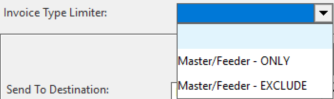
The Invoice Type Limiter dropdown showing the Master/Feeder – ONLY and Master/Feeder – EXCLUDE options.
Step 12: Run the Report
The Send To Destination field will default to Print. You do not need to change this setting. Click Run Report to generate the consolidated PDF.
Part 4: Print Output — RDP Desktop vs. RDP Web
How the consolidated PDF is delivered depends on whether you are accessing Cornerstone via RDP Desktop or RDP Web.
RDP Desktop
If using RDP Desktop and Uniprint, the consolidated PDF will be sent to Uniprint. You will either have the preview window open — click Print or Quick Print — or the print job will be sent directly to your default printer, depending on your Uniprint settings.
The RDP Desktop shortcut icon (Cornerstone 1.rdp) used to access Cornerstone via Remote Desktop.
RDP Web
If using RDP Web, a file called REPORT.PDF will begin to download. You can use Save As to choose a name for the PDF and select where to save it on your computer.
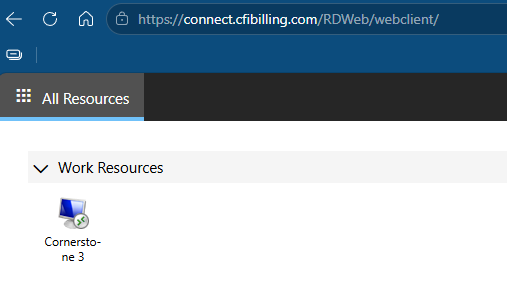
The RDP Web browser interface at connect.cfibilling.com/RDWeb/webclient showing the Cornerstone 3 application under Work Resources.
Need Help?
Our Customer Success team is here to assist you.
Email: customer.success@alarmbills.com
Phone: 847-405-9517 x1
Copyright © 1999–2026 Cornerstone Billing Solutions. All rights reserved.
Was this article helpful?
That’s Great!
Thank you for your feedback
Sorry! We couldn't be helpful
Thank you for your feedback
Feedback sent
We appreciate your effort and will try to fix the article