The Central Station Audit Report helps you compare your Central Station bill to the list of accounts you are billing, ensuring you're not paying for monitoring on cancelled accounts and that all monitored accounts are being billed properly.
Why Run a Central Station Audit?
Ask yourself these important questions:
- Are you billing everyone that you are monitoring?
- Are you monitoring everyone that you are billing?
- Are you paying for monitoring for cancelled accounts?
It pays to periodically take your Central Station list and compare it to the list of accounts that you are billing.
Two Types of Reports
1. Central Station Audit Report
Quickly and easily generate a report of relevant accounts by central station and email it to yourself to compare to a list the central station provides you.
This report can be filtered by central station and exported to Excel for manual comparison.
2. Central Station Audit Reconciliation Report
The Audit Report can do the reconciliation for you and report back the accounts that need to be reviewed.
How to Use: Once you have been set up to communicate with your central station. Run the Central Station Audit Report, click > Globe icon to download the list of accounts from your central station. Then make any necessary changes to your filters. Then click > Run Report.
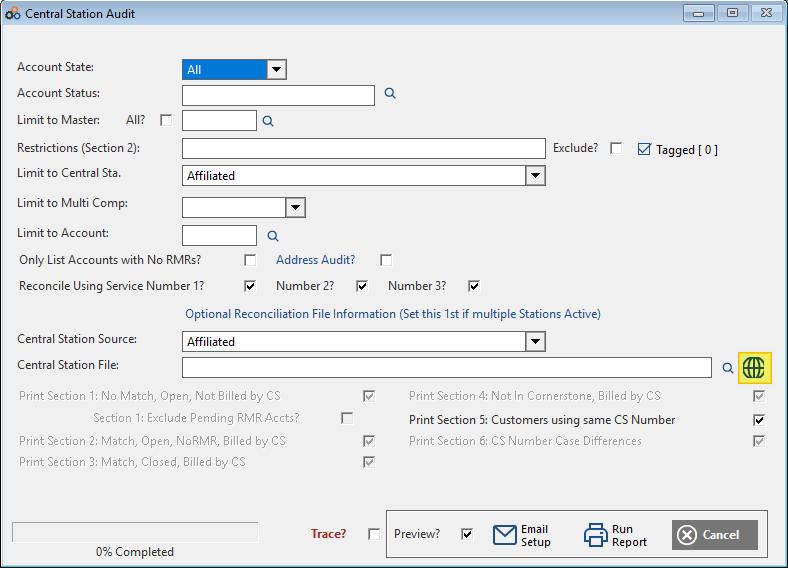
How the Reconciliation Works
The Reconciliation process matches the CSID on the CS List to those stored in Cornerstone's three central station fields. This process ignores spaces and hyphens — which is what makes it difficult to do this kind of analysis in Excel.

Understanding the Reconciliation Report
The report provides five categories of results:
1. No Match In Central Data (In Cornerstone, Open, Not Being Billed By Central Station)
These accounts are in Cornerstone, but the central station number in the customer record does not match against Central Station ID (CSID) numbers on the Central Station List.
Action Items:
- Check if it's a monitored account and the CSID is not recorded in the account
- Verify if the account is assigned to the wrong Central Station
- Determine if it's a cancelled monitored account that needs to be closed in Cornerstone
2. Match in Central Data (In Cornerstone, Open, NoRMR, Being Billed By Central Station)
These accounts are in Cornerstone and in Central Station. The account is Open in Cornerstone and being billed by the Central Station, however there is NoRMR record.
Common Causes:
- End-dating a RMR record without closing the account properly
- Employee/customer "no-charge" agreement
Recommendation: Use the Restrictions field in the Customer-General tab to annotate special circumstances with phrases such as:
- "NO Charge - Per Contract"
- "Model Home"
- "Employee - NO Charge"
3. Match In Central Data (In Cornerstone, Closed, Being Billed By Central Station)
These accounts match the Central Station List but they are closed accounts in Cornerstone.
Action Required: Make sure they are cancelled at the Central Station.
4. No Customer Matches (Not In Cornerstone, Being Billed By Central Station)
These accounts are on the Central Station list and you are being billed for them, but there are no matches in Cornerstone.
Action Items:
- Check if the account was added in Cornerstone for billing
- Verify that all related Central Station numbers are included in the 3 Central Station fields in the Customer Record
5. More Than 1 Customer Using Same Central Station Number
Each Central station number should be unique.
Action Items:
- Look at the accounts to see if there should be a different number entered
- Check the numbers for typos
- If you reuse Central Station numbers, make sure that both accounts are not open and being billed in Cornerstone
Central Station List File Specifications
Cornerstone has developed formats for several Central Stations including UCC, Emergency24, AvantGuard, etc., but we have a default format.
What You Need
Provide Cornerstone with a comma delimited text (CSV) file of the active accounts with the following headers and data, separated by a comma.
Important: It must be a text file, as an Excel spreadsheet will drop any leading zeros in the data.
File Format
Account,Subscriber Name,Address,City,State,Zip Code
Field Descriptions:
- Account: The Central Station ID Number
- Subscriber Name: First and last or last name is ok
- Address: Street Address
- City: City
- State: State
- Zip: Zip code
Central Station Fields in Cornerstone
Central Station Field on Customer Screen
The Central Station Field on the Customer Screen can be used to identify the central station associated with the subscriber account. Use this field for filtering the Central Station Audit Report so that you are only comparing the correct accounts to your CS list.
Recording Multiple Central Station Numbers
You can record up to three Central Station Numbers on the customer screen for each customer. You control what you would like to label each of the fields in the User Defined Tab Setup Field Descriptions.
Example Usage:
- Field 1: Main monitoring number
- Field 2: GSM Radio number
- Field 3: Uplink number
These 3 Central Station numbers appear on the Customer list with tabs for the data that can be searched and sorted.
Running the Reports
For Short Lists
Simply align the customer list and compare it to your central station list.
For Longer Lists
Generate the Central Station Audit Report and email yourself the data as a CSV file that can be opened in Excel. The information is provided with each field as a separate column for easy comparison.
For Master Billing Accounts
If you have a number of Feeder accounts with rollup invoicing in a consolidated Master Billing Account, you can quickly and easily review the accounts and the central station assignments by limiting to a selected Master account.
Running the Reconciliation
- Provide Cornerstone with a CSV file of your Central Station List
- We will put it in the data directory for you to use for the reconciliation feature
- Once available, select the Central Station Source file type and the central station file
- Run your report
- If you work with multiple Central Stations, filter the data analysis for only accounts assigned to that central station
Updating Your Results
As you review and fix data:
- Correct typos in the CSID
- Add missing CSIDs
- Close cancelled accounts
- Add new accounts
You can rerun the report to update your results and track your progress.
Need Help?
Still have questions? Contact Cornerstone Holding Co. 847-405-9517 or email us customer.success@alarmbills.com
Was this article helpful?
That’s Great!
Thank you for your feedback
Sorry! We couldn't be helpful
Thank you for your feedback
Feedback sent
We appreciate your effort and will try to fix the article