Overview
Cornerstone has added a new feature to Alarmwin: Custom Account Statuses. In addition to the standard selectable Account Statuses already in the system, you can now create your own custom statuses to differentiate between account types or track project phases.
This article covers how to add, assign, deactivate, and filter by custom Account Statuses, as well as which reports support Account Status filtering.
Use Case Examples
Custom statuses you might want to create include:
- Pre-wire
- Phase 1
- Phase 2
- Finish / Trim Out
- Installation
- Programming
- Training
- Fire
- Burg
Security Requirements
⚠️ IMPORTANT
You will need security administration rights to access this menu option. Contact your administrator for access.
How to Add a New Custom Account Status
There are two ways to add a new Account Status.
Method 1: From the Utility Menu
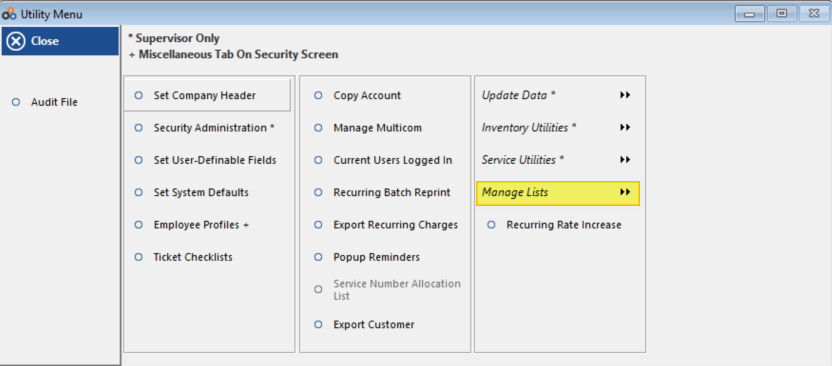
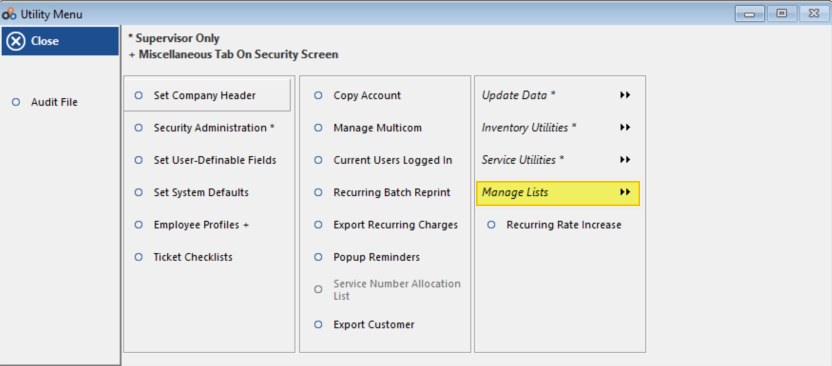
- Click Utilities > Manage Lists.
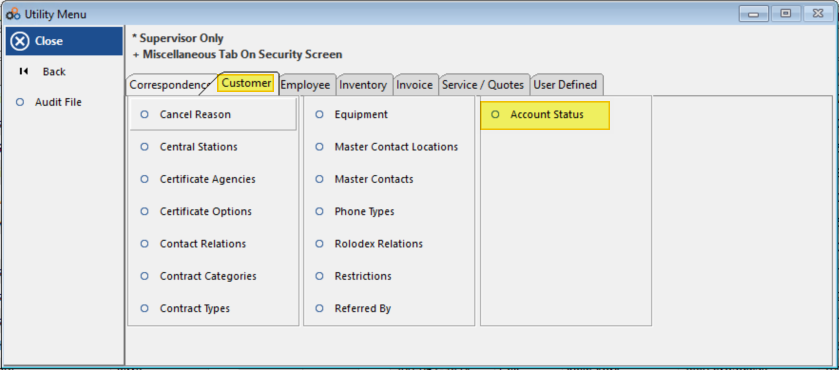
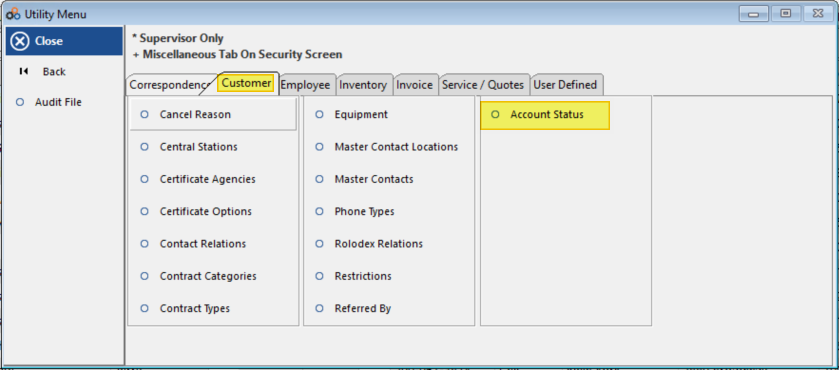
- Click the Customer tab, then click Account Status.
- From the Account Status window, click Insert.
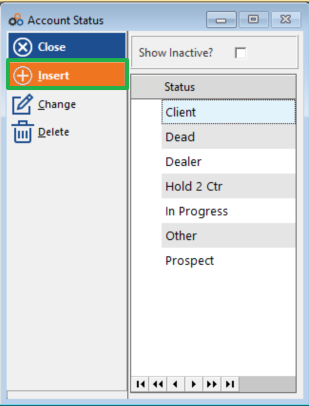
- Enter the new account status, then click OK to save.
Method 2: From the Customer Account
- Open the customer list screen. Highlight the customer and click Change, or double-click the customer account to open it.
- Click the search icon next to the Account Status field.
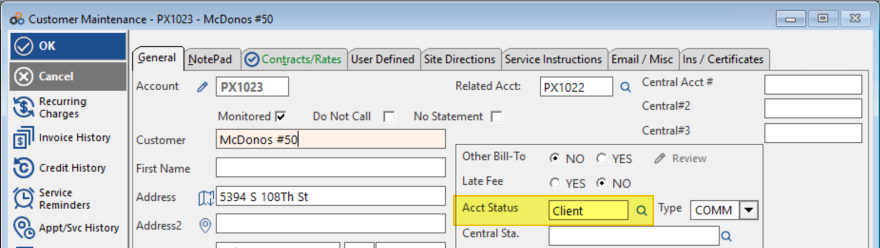
- Click Insert.
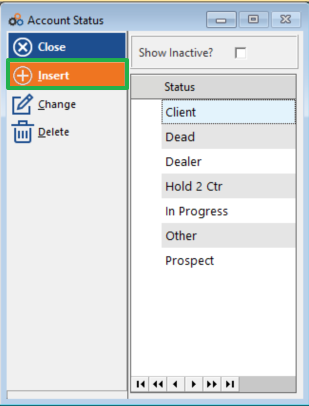
- Enter the new account status, then click OK to save.
- Highlight the new account status and click Select to assign the new status to the customer account.
Assigning a Status to a Customer Account
- Open the customer list. Double-click the account, or highlight the account and click Change.
- Click the search icon next to the Account Status field.
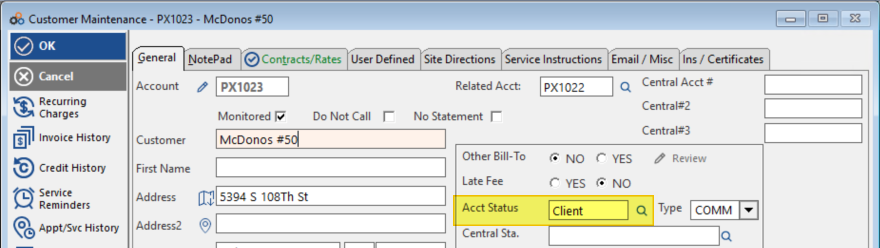
- From the Account Status list, highlight the status you would like to assign, then click Select — or double-click to select.
- The customer status has been updated to the selected account status.
How to Make an Account Status Inactive
There are two ways to mark an Account Status as inactive.
Method 1: From the Utility Menu
- Click Utilities > Manage Lists.
- Click the Customer tab, then click Account Status.
- From the Account Status window, highlight the Account Status you would like to make inactive, then click Change.
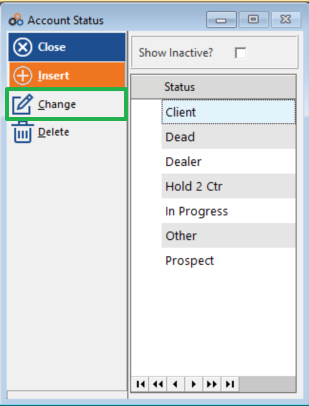
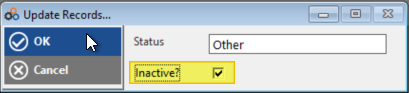
- Place a check in the Inactive checkbox, then click OK.
Method 2: From the Customer Account
- Open the customer list screen. Highlight the customer and click Change, or double-click the customer account to open it.
- Click the search icon next to the Account Status field.
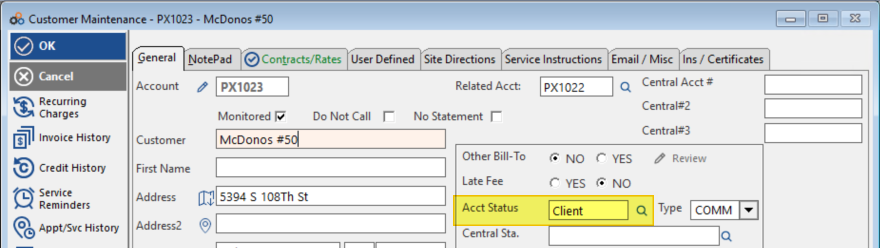
- From the Account Status list, highlight the status you would like to make inactive, then click Change.
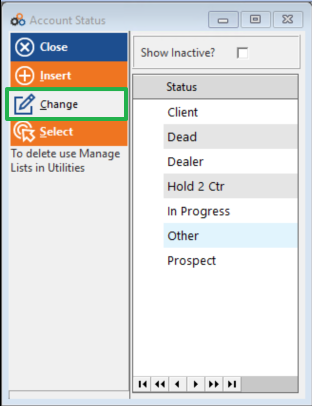
- Place a check in the Inactive checkbox, then click OK.
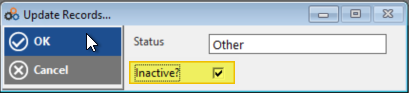
⚠️ IMPORTANT
If a customer was assigned an Account Status that is subsequently marked as Inactive, that status will continue to display on the customer account until a new Account Status is selected.
Viewing Inactive Statuses
- Navigate to Utilities > Manage Lists > Customer (tab) > Account Status. Alternatively, open a customer account and click the search icon next to the Account Status field to bring up the Account Status selection list.
- Place a check in the Show Inactive checkbox.
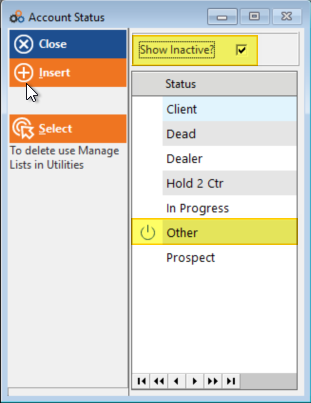
- Any inactive statuses will display with an inactive icon next to the status name.
Filtering the Customer List by Account Status
- Open the customer list.
- Option 1: Click the search icon next to the Status selection box, select the account status you would like to filter for, then click OK.
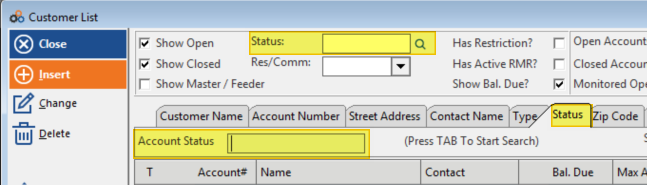
- Option 2: Click the Status tab, then enter the account status you are searching for in the Account Status field and press TAB on your keyboard.
- The customer list will be filtered to display only customers assigned the selected account status.
Reports That Can Filter by Account Status
A number of customer reports support filtering by a specific Account Status:
| Report Name |
|---|
| Accounts Created Report |
| Accounts Closed Report |
| Central Station Audit Report |
| Customer List Report |
| Customer Email Audit Report |
Need Additional Help?
Our Customer Success team is here to assist you.
Phone: 847-405-9517 x1
Email: customer.success@alarmbills.com
Copyright © 1999–2026 Cornerstone Billing Solutions. All rights reserved.
Was this article helpful?
That’s Great!
Thank you for your feedback
Sorry! We couldn't be helpful
Thank you for your feedback
Feedback sent
We appreciate your effort and will try to fix the article