Overview
The Customer List screen can be configured to display two useful account overview columns: Balance Due and Max Age. Balance Due shows the amount owed by each account at a glance, while Max Age shows the age of the oldest invoice in a customer's history that still carries an open balance. Both columns are optional and can be enabled, positioned, and customized to suit your workflow.
Displaying Balance Due
Enabling the Balance Due Column
At the top of the Customer List screen, you have the option to check a box to show the Bal. Due for each account. This gives you a quick overview of any amounts owed at a glance.
| Checkbox State | Result |
|---|---|
| Checked | Balance Due will display for all accounts |
| Unchecked | Balances will not display |
Displaying Max Age
Enabling the Max Age Column
The Max Age column shows the age of the oldest invoice in a customer's invoice history that carries an open balance. To enable it, follow these steps:
- Right-click on the column titles at the top of the Customer List screen, then click Columns.
[ image_1.jpg ]
- Put a check in the Max Age checkbox. This will cause the Max Age column to show on the Customer List screen.
- Use the Move Up / Move Down buttons to move the Max Age column to the position you would like, then click OK.
[ image_2.jpg ]
This allows you to customize your view for easier access to balance information.
Customizing Column Position
Moving the Column
The Balance Due and/or Max Age columns will appear at the far right of the Customer List screen by default. If you want to move either column farther to the left, follow these steps:
- Right-click on the column titles at the top of the Customer List screen.
- Select the column of information you want to move.
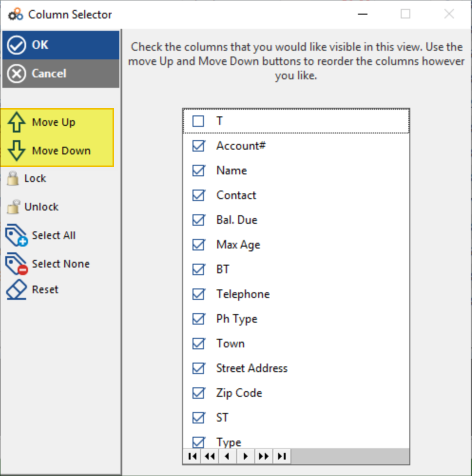
- Move the field up to the position where you want it.
This allows you to customize your view for easier access to balance information.
Need Additional Help?
Our Customer Success team is here to assist you.
Phone: 847-405-9517 x1
Email: customer.success@alarmbills.com
Copyright © 1999–2026 Cornerstone Billing Solutions. All rights reserved.
Was this article helpful?
That’s Great!
Thank you for your feedback
Sorry! We couldn't be helpful
Thank you for your feedback
Feedback sent
We appreciate your effort and will try to fix the article