Overview
This guide explains how to unaccept a quote that was accepted in error. The process involves completing the original ticket, documenting the reason for cancellation in the Notes tab, and then using the Copy Then Edit function on the original quote to create a new quote for the same customer.
Steps
Step 1: Enter the Completed Date on the Ticket
Open the ticket and enter today's date in the Date Completed field on the Schedule tab.
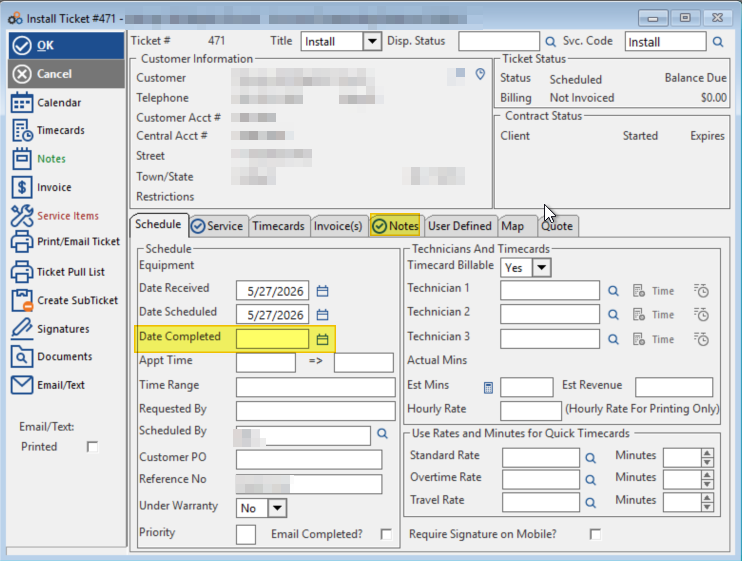
Install Ticket #471 showing the Schedule tab with the Date Completed field highlighted in yellow, ready for entry.
Step 2: Enter the Cancellation Reason in the Notepad
Click the Notes tab and enter the reason for cancelling the ticket in the Ticket Notes field (for example, "CREATED IN ERROR").
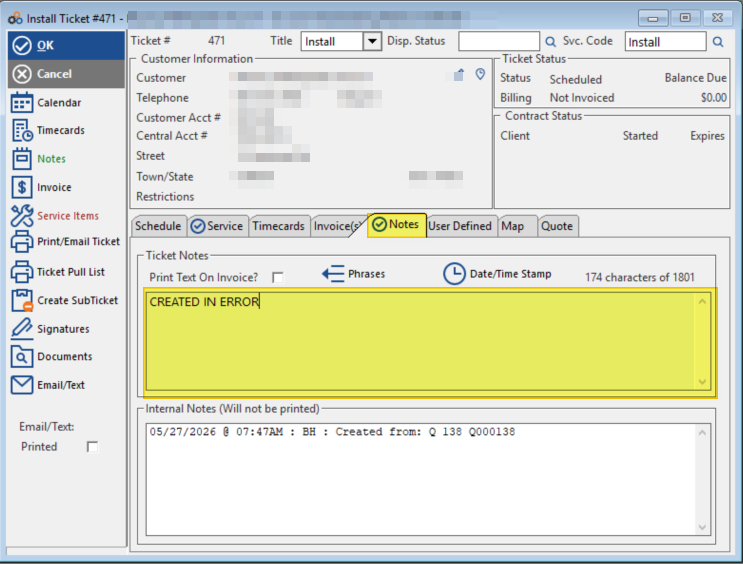
Install Ticket #471 showing the Notes tab with "CREATED IN ERROR" entered in the Ticket Notes field, highlighted in yellow.
Step 3: Copy Then Edit the Original Quote
Go back to the original quote in the Quotes list, select it, and then click Copy & then Edit from the left-hand action menu.
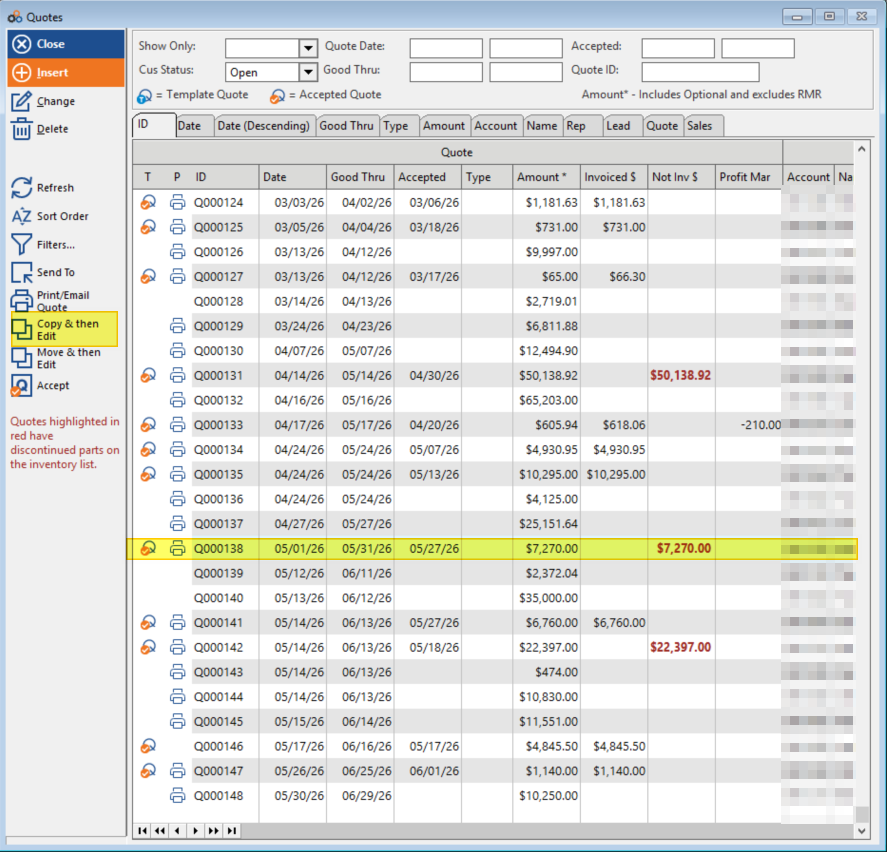
The Quotes list showing quote Q000138 selected (highlighted in yellow) and the "Copy & then Edit" option highlighted in the left-hand menu.
Step 4: Choose SAME to Associate the New Quote with the Same Customer
When the Confirmation dialog appears asking what account to associate with the new quote, click Same to create the new quote for the same customer.
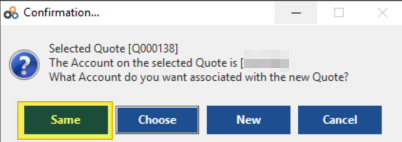
The Confirmation dialog for quote Q000138 asking what account to associate with the new quote, with the "Same" button highlighted in yellow.
Need Help?
Our Customer Success team is here to assist you.
Email: customer.success@alarmbills.com
Phone: 847-405-9517 x1
Copyright © 1999–2026 Cornerstone Billing Solutions. All rights reserved.
Was this article helpful?
That’s Great!
Thank you for your feedback
Sorry! We couldn't be helpful
Thank you for your feedback
Feedback sent
We appreciate your effort and will try to fix the article