Overview
Use this reference to convert a Master Account back to a standard customer account. The process requires removing the dealer RMR charge(s) and clearing the Master Account field.
Steps to Convert Master → Standard Account
- Customer List — Highlight the account, then click Change
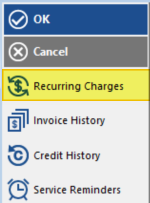
- Recurring Charges — Click Recurring Charges
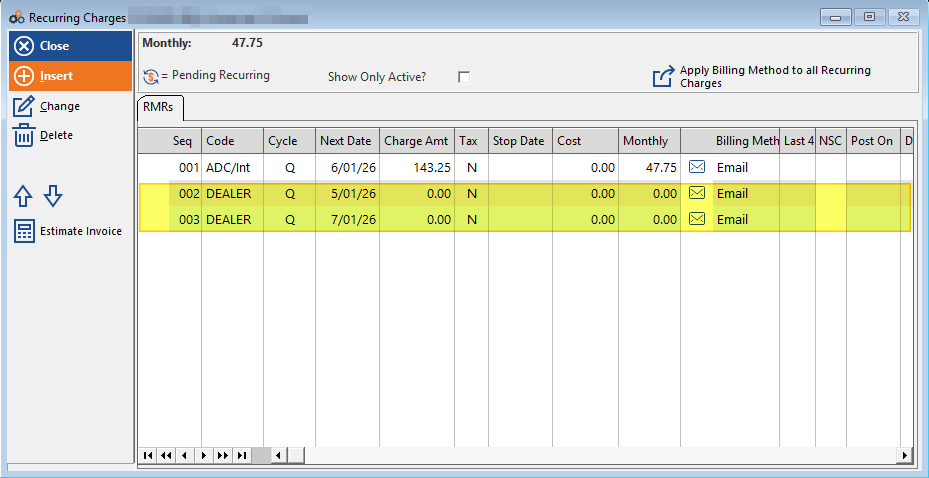
- Remove Dealer RMR — Highlight each DEALER RMR charge and click Delete or press DEL on the keyboard
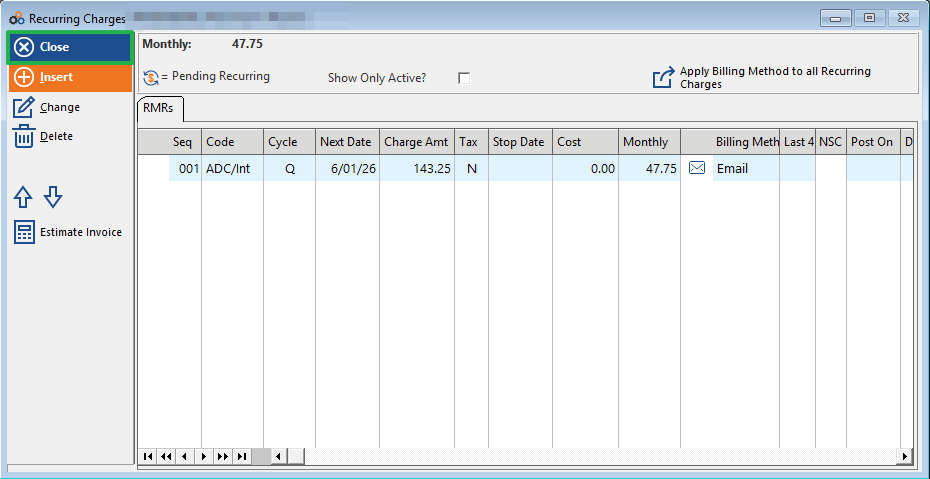
- Save — Once all RMR charge(s) are removed, click Close to save changes
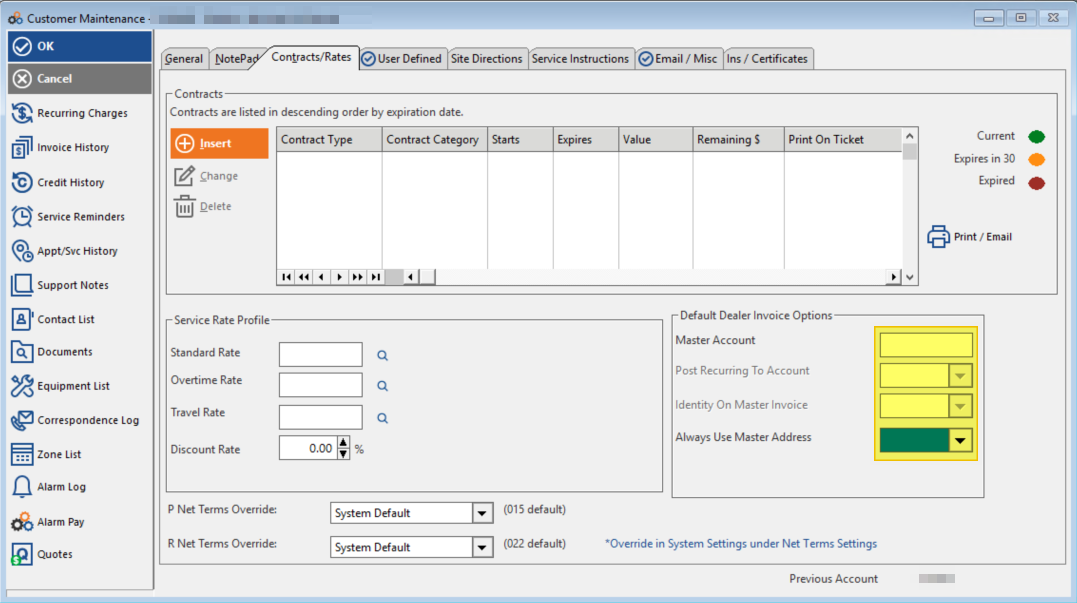
- Contracts / Rates Tab — Click the Contracts / Rates tab on the customer account
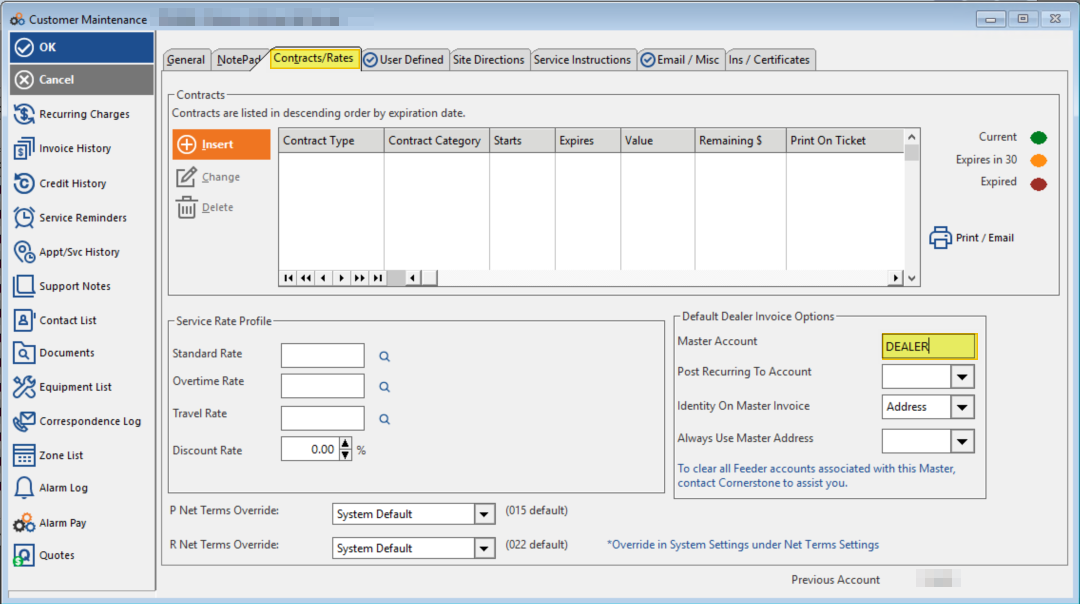
- Master Account Field — Remove the word DEALER from the Master Account field
| Location | Action | Shortcut |
|---|---|---|
| Customer List | Highlight account → click Change | — |
| Recurring Charges | Highlight DEALER RMR → Delete | DEL |
| Recurring Charges | Click Ok to save | — |
| Contracts / Rates Tab | Remove DEALER from Master Account field | — |
⚠️ IMPORTANT
All DEALER RMR charges must be removed before saving. If multiple DEALER charges exist, delete each one individually before clicking Ok.
For questions about this process, contact your team lead or submit an internal support request through the help desk.
Copyright © 1999–2026 Cornerstone Billing Solutions. All rights reserved.
Was this article helpful?
That’s Great!
Thank you for your feedback
Sorry! We couldn't be helpful
Thank you for your feedback
Feedback sent
We appreciate your effort and will try to fix the article