Overview
This guide explains how to generate and deliver a single recurring invoice on demand in Cornerstone Billing Solutions. It covers how to access invoice generation from Invoice History, how to run the invoice, and how to choose a delivery method — including print, email, CornerMail, or a combination. It also covers the additional step required when generating Master/Dealer invoices
How to Generate a Single Recurring Invoice
Step 1 — Access Invoice Generation
- Go to Invoice History on the customer account.

- Click Insert.
- Select Recurring.
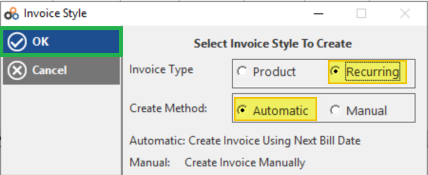
- Click OK.
Step 2 — Generate the Invoice
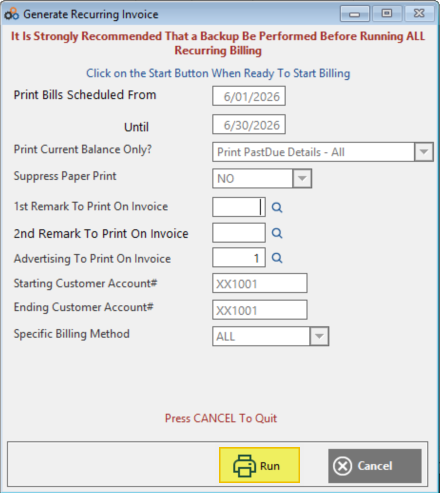
- On the "Generate Recurring Invoice" screen, click Run to generate the invoice.
Printing and Delivery Options
Flexible Delivery Methods
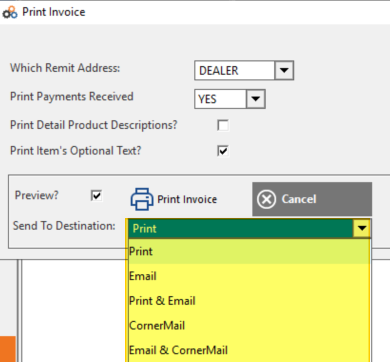
On the "Print Invoice" screen, you can choose how to deliver the invoice regardless of how the recurring charge is originally set up. The available delivery options are:
| Delivery Method | Description |
|---|---|
| Send to your printer | |
| Send via email | |
| CornerMail | Use CornerMail delivery |
| Combination | Use multiple delivery methods at once |
Email Customization
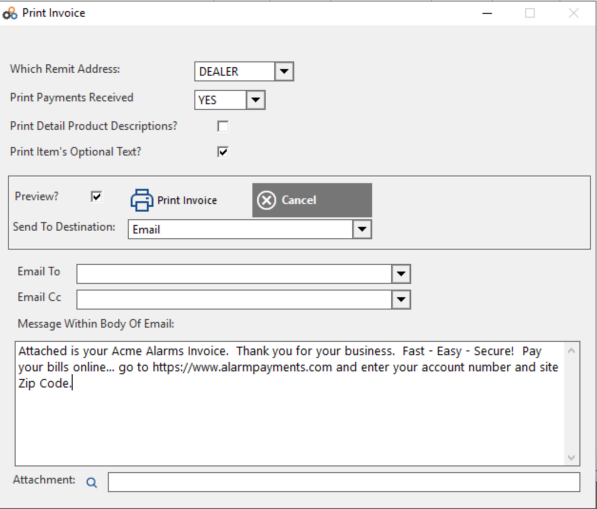
If you choose to email the invoice, keep the following in mind:
- You can edit the email body before sending.
- Emails are sent out immediately upon confirmation.
Master/Dealer Invoices
The process works the same way for Master/Dealer invoices, with one additional step required after the standard invoice generation process.
- Follow the standard invoice generation process as described above.
- On the "Generate Dealer Invoice" screen, click Run. This ensures both the master and dealer invoices are properly generated.
⚠️ IMPORTANT
When generating a Master/Dealer invoice, you must also click the Run button on the "Generate Dealer Invoice" screen. Skipping this step means the dealer invoice will not be properly generated.
Menu Path at a Glance
| Scenario | Full Menu Path |
|---|---|
| Standard recurring invoice | Invoice History › Insert › Recurring › OK › Generate Recurring Invoice › Run |
| Master/Dealer invoice | Invoice History › Insert › Recurring › OK › Generate Recurring Invoice › Run › Generate Dealer Invoice › Run |
Key Benefits
| Benefit | Detail |
|---|---|
| On-demand generation | Generate individual invoices without changing recurring charge settings |
| Flexible delivery | Choose delivery method at the time of generation for maximum flexibility |
| Email customization | Customize email content for each invoice as needed |
| Immediate delivery | Emails are sent immediately — ideal for time-sensitive invoices |
Need Additional Help?
Our Customer Success team is here to assist you.
Phone: 847-405-9517 x1
Email: customer.success@alarmbills.com
Copyright © 1999–2026 Cornerstone Billing Solutions. All rights reserved.
Was this article helpful?
That’s Great!
Thank you for your feedback
Sorry! We couldn't be helpful
Thank you for your feedback
Feedback sent
We appreciate your effort and will try to fix the article