Search For A Customer
Overview
This article explains how to search for customers in Cornerstone and how to customize your customer screen by adding or reordering columns. Following the recommended methods outlined below will help you quickly locate customer records and tailor your display to suit your workflow.
How to Search for a Customer
As a best practice, Cornerstone recommends using the Customers Icon > Customer Tabs to find customers. This method supports searching by a wide variety of fields, including Name, Address, Central Station ID, Previous Account Number, Check #, Invoice #, Wildcard search, and many more.
Step 1: Click the Customers Icon
Locate and click the Customers Icon in the application.
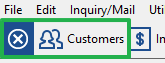
Step 2: Select the Customer Tabs
Select the Customer Tabs. You can now search by a wide variety of fields, including Name, Address, Central Station ID, Previous Account Number, Check #, Invoice #, Wildcard search, and many more.

How to Add or Reorder Columns on Your Customer Screen
You can customize which columns are visible on your customer screen and in what order they appear.
Step 1: Right-Click the Column Headers
Right-click any of the column headers on your customer screen (e.g., "Name," "Address") to open a pop-up menu.
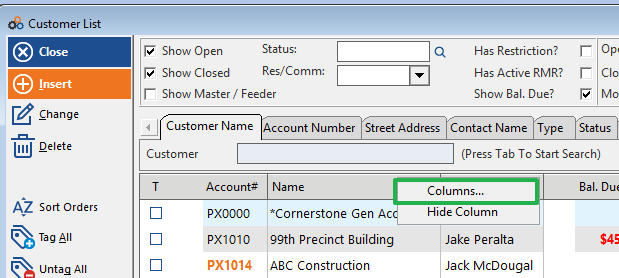
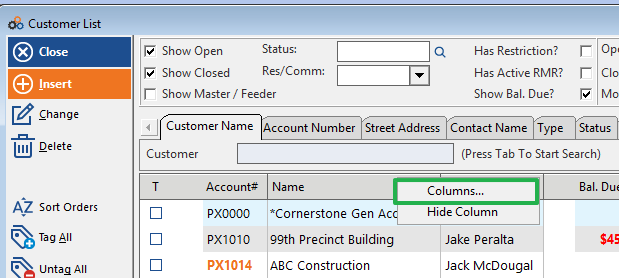
Step 2: Click Columns
From the pop-up menu, click Columns. A new window will open.
Step 3: Select Your Columns
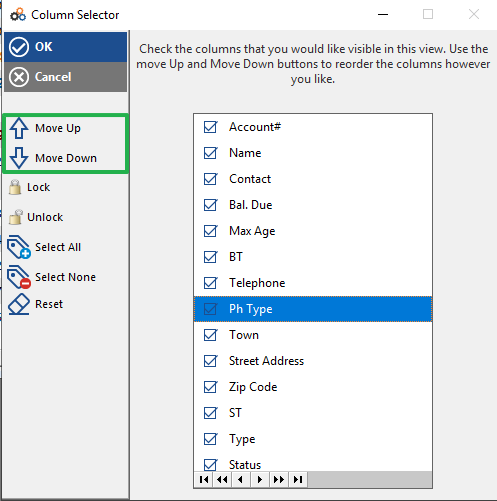
In the new window, select the box for any columns you would like to appear on your customer screen.
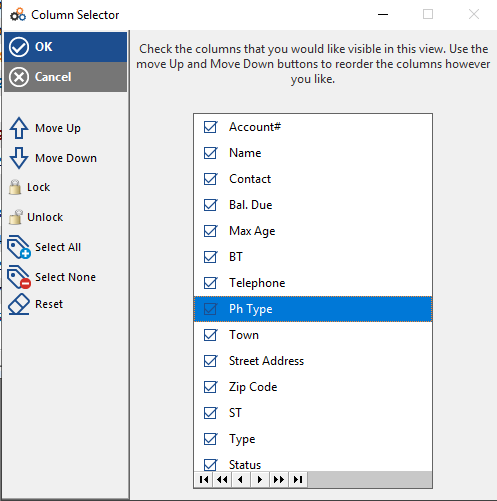
Step 4: Set Your Preferred Display Order
Use the arrow buttons to move the columns up or down to set your preferred display order.
Step 5: Save Your Changes
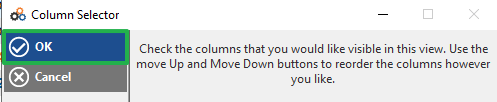
Click OK to save your changes. Your customer screen will now reflect the updated column selection and order.
Need Help?
Our Customer Success team is here to assist you with any questions.
Email: customer.success@alarmbills.com
Phone: 847-405-9517 x1
Copyright © 1999–2026 Cornerstone Billing Solutions. All rights reserved.
Was this article helpful?
That’s Great!
Thank you for your feedback
Sorry! We couldn't be helpful
Thank you for your feedback
Feedback sent
We appreciate your effort and will try to fix the article