Ticket Checklist Feature

Overview
The Ticket Checklist feature allows you to attach customised checklists to service tickets so that your Technicians know exactly what they need to ask or do when they arrive at a customer's location. Checklists can be tied to specific Service Codes, meaning the list of items for Burglar Alarm Service can differ from the list for Fire Inspections.
This article covers three key tasks: creating checklists, viewing and loading a checklist on a ticket, and answering checklist items.
1. Create Checklists
Step 1 — Navigate to Ticket Checklists
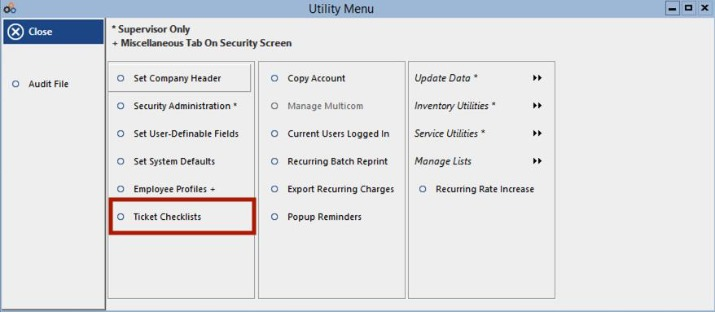
Go to Utility Menu > Ticket Checklists.
Step 2 — Insert a Checklist Header
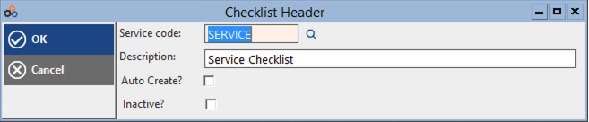
Insert a Checklist Header with a Service Code and Description. The Service Code Checklist for Tickets screen displays existing checklist headers in the upper panel and their associated list items in the lower Related List Items panel.

Step 3 — Configure Auto Create
By default, the checklist will appear on every ticket that uses the associated Service Code. If you want the checklist to appear only on tickets you specifically choose — rather than automatically — uncheck Auto Create? on the Checklist Header.
⚠️ IMPORTANT
If Auto Create? is checked, the checklist will automatically attach to every ticket that matches the Service Code. Uncheck this option if you need manual control over which tickets receive the checklist.
Step 4 — Insert Checklist Items
Insert Checklist Items for each header. When creating items, keep the following in mind:
- Each item can be marked Required or Inactive.
- Edit the sequence of items using the up/down arrows on the Service Code Checklist screen.
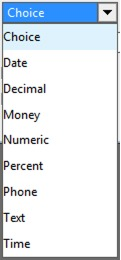
- Select an Answer Type for each item. The available answer types are: Choice, Date, Decimal, Money, Numeric, Percent, Phone, Text, and Time.
- For Choice items, you can select predefined choice options using the lookup icon, or type your own choices separated by the | character (pipe symbol).
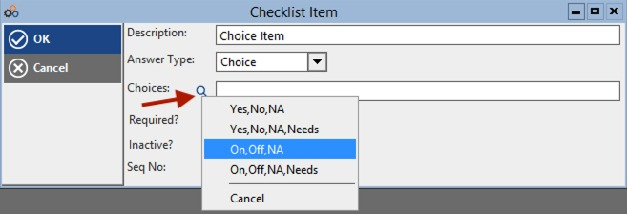
The example above shows a Choice item being configured with predefined option sets such as Yes,No,NA or On,Off,NA selectable from the lookup, or you can type custom options.
2. View / Load a Checklist
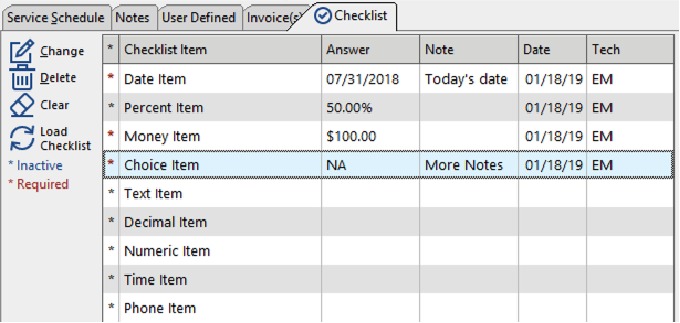
For any ticket that has a Service Code with an associated checklist, a new Checklist tab will appear on the ticket screen. Follow the steps below to load and review the checklist:
- Open the service ticket.
- Click the Checklist tab.
- If items do not appear automatically, click the Load Checklist button.
Once loaded, the Checklist tab uses colour to indicate completion status:
| Tab Colour | Meaning |
|---|---|
| Red | There are unanswered required items remaining on the checklist. |
| Black | All required items have been answered — the checklist is complete. |
3. Answer Checklist Items
For Technicians or others accessing the checklist in the system, use the following process to complete checklist items:
- Double-click a checklist item to fill in the answer.
- Required items will display in red until they are answered.
- The date and technician who answered each item will be automatically recorded.
Printing or Emailing a Ticket with a Checklist
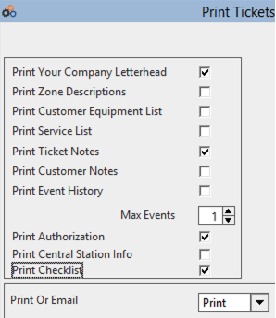
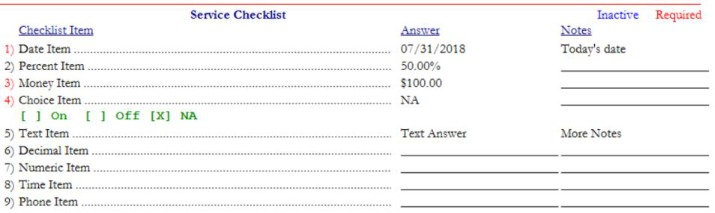
When printing or emailing a ticket, you have the option to include the checklist at the end of the ticket by checking the Print Checklist option in the Print Tickets screen. Technicians can fill in the printed checklist on-site and return it to the office.
Need Additional Help?
Our Customer Success team is here to assist you.
Phone: 847-405-9517 x1
Email: customer.success@alarmbills.com
Copyright © 1999–2026 Cornerstone Billing Solutions. All rights reserved.
Was this article helpful?
That’s Great!
Thank you for your feedback
Sorry! We couldn't be helpful
Thank you for your feedback
Feedback sent
We appreciate your effort and will try to fix the article