Overview
Your customer requires a Purchase Order number or a Reference to appear on all recurring invoices.
Setting up the RMR charge
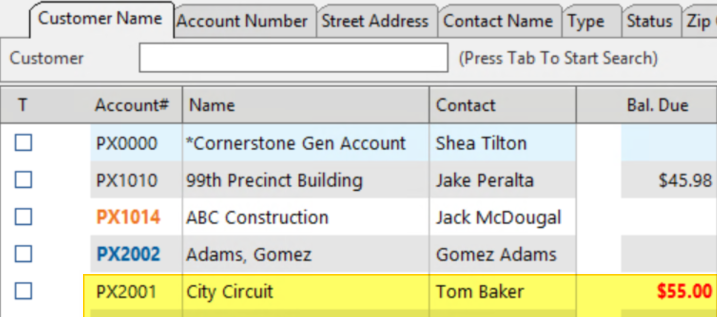
Step 1: Click on the Customer you'd like to add the charge to
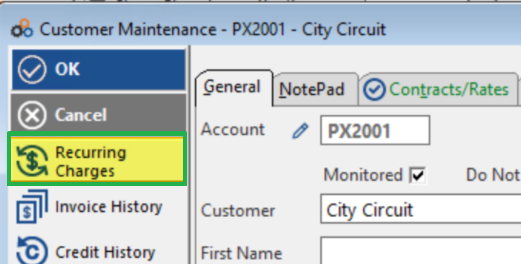
Step 2: Click on Recurring Charges
Step 3: Click Insert
The system will generate a preview of the upcoming invoice based on the customer's recurring charges.
Pro-Rated Charges
If a customer has a pro-rated recurring charge, the estimate will display:
- The pro-rate line item
- The calculated pro-rated charge amount
This allows you to verify pro-rated amounts before the actual invoice is generated.
Benefits
- Preview invoices before generation
- Verify pro-rated charge calculations
- Ensure accuracy before billing customers
- Identify any potential billing issues in advance
- Answer customer questions about upcoming charges
When to Use This Feature
Use the Estimate Invoice function when you need to:
- Check upcoming invoice amounts for customers
- Verify pro-rated charges are calculated correctly
- Respond to customer inquiries about their next bill
- Review recurring charges before processing batch invoices
- Confirm new recurring charges are set up properly
Need Help?
Still have questions? Contact Cornerstone Holding Co. 847-405-9517 or email us customer.success@alarmbills.com
Was this article helpful?
That’s Great!
Thank you for your feedback
Sorry! We couldn't be helpful
Thank you for your feedback
Feedback sent
We appreciate your effort and will try to fix the article