Overview
Cornerstone integrates with COPS to make it easy for dealers to set up accounts in one location and pull and/or push account information including customer site, contact list, zones, and alarm history.
This integration makes it possible to have key central station information in Cornerstone to make it easier to manage the customer's account and schedule service.
Benefits:
- Having zones in Cornerstone helps determine the length of time needed for service scheduling
- Zones can be attached to service tickets
- Call History helps you target subscribers for service or false alarm issues
Important: For life safety reasons, the Central Station is the main record keeper for the customer site, contacts, and zones as the operators require that information when receiving an alarm.
Recommended Approach
Cornerstone recommends that accounts be created in COPS and pulled into Cornerstone.
Why: Given the complexity of data elements required for COPS operators to respond to signals, this is the simplest and safest method.
Data Sync: Edits made in COPS do not automatically communicate to Cornerstone. We have a 'Get From Central' button to pull the customer's information from COPS and update what is in Cornerstone.
Tasks That Must Be Done in COPS
Some things MUST ALWAYS be done directly in/with COPS:
Setting the Responding Authority
- Must be done at COPS directly
- The list is constantly being updated
- Dealer's responsibility to ensure selections are proper working numbers
Adding and Changing Code Words
- COPS allows for a list of code words for the site (not contact-specific)
- Cornerstone's structure is one master codeword for the site with ability to add specific code words by contact
Special Protocol Instructions
- Some accounts may require special instructions
- Must be handled/recorded directly with COPS
- Includes Call List Contact time frame settings
Closing Accounts
- Closing an account in Cornerstone only stops recurring billing
- Cancellations must be handled directly with COPS
- Use Central Station Notice function in Cornerstone to email request and record in Correspondence log
Placing Accounts on Test
- Technicians and office staff continue to use MPower for day-to-day activities
- For interacting with and making changes to monitored information
Setup and Data Fields
Cornerstone will enter your Dealer/Site Account Number and set the permissions for pushing and pulling data with COPS.
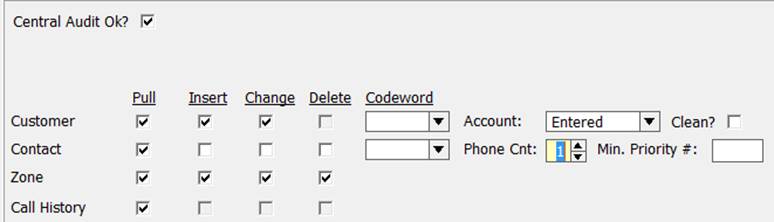
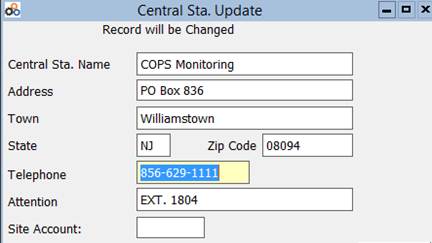
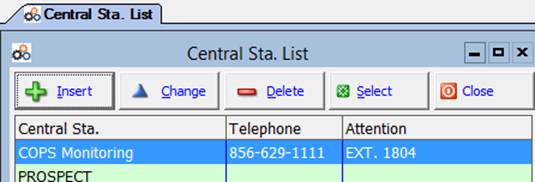
Accounts Monitored Elsewhere: If you have accounts monitored elsewhere or not at all, choose a Central Station option other than COPS so data changes don't try to communicate with COPS.
Launch MPower from Cornerstone
Cornerstone makes it easy to launch MPower to work directly in COPS with a convenient button.

Creating an Account in Cornerstone
Method A: PREFERRED - Create in COPS, Pull to Cornerstone
- Create account in COPS
- Enter the Cornerstone Account number (if not auto-generated)
- Enter the Central Account # (number COPS assigned)
- Click Download Customer to pull data from COPS into Cornerstone
What Gets Downloaded: Account information, Contacts, and Zones

Method B: Create in Cornerstone, Push to COPS
- Enter all Customer data
- Enter the next number provided by COPS
- Clicking OK communicates with COPS to create the account

Fill In for Customer Info Call COPS for the next available # or insert your next assigned #
to submit to COPS
Important: You must finish the account and make it active directly at COPS by launching MPower from Cornerstone to complete:
- Establishing Responding Authorities
- Code Words
- Setting account as Active
Number Assignment: You will either need to contact COPS for the next available number or utilize your list of assigned blocks of numbers. Enter the number exactly as COPS expects it (including hyphens).
Multiple Prefixes
The communication link between Cornerstone and COPS is the number in the 1st Central Station # Field.
Multiple Devices: If you have multiple prefixes, you have been assigned different numbers based upon devices. While site info and contacts are shared between devices, devices may have different zones.
Cornerstone's system only records 1 set of zones per site.
Solution: If a subscriber has multiple devices with different zones, create multiple customer records with the communicating device/COPS # in the 1st Central Station Number field for each device.
Alternative: If you don't need zones for the 2nd or 3rd central station number, store those numbers in the 2nd and 3rd Central Account# fields.
Data Fields
Fields communicated with COPS are identified below. The 1st Central Acct# communicates with the Central. You can put additional device numbers in fields 2 and 3 if you don't need their zone info stored in Cornerstone.
Required Fields
Account - Your 2 letters appear, enter remaining digits or auto-filled
Central Acct# - Enter the assigned number from COPS
Customer - Company name or last name (Required)
First Name - First name if residential customer
Address - Street address (Required)
City, State - Enter city and state (Required)
Zip - Enter zip code (Required, allows USPS address validation)
TaxCty - Select from list (not submitted to COPS but required for billing)
TZ - Time Zone auto-fills from Zip Code and is communicated to COPS
Cross Street - Enter cross street (Recommended, not required)
Type - Select RES or COMM (Required)
Equipment - Panel Type (Optional)
Code Word - DO NOT USE - Master Site Password not supported by COPS
Permit - Use for License number or Permit number
Site/Premise - COPS' Ctv Contact 1 (Recommended)
Phone1 - COPS' Ctv phone number (Required)
Contact 2 - COPS' Ctv Contact 2 (Recommended)
Phone2 - COPS' Ctv phone number 2 (Recommended)
Contacts
Cornerstone's Contact list structure is different from COPS. We allow only the pull of Contacts from COPS.
COPS maintains: A single list of all Contacts with only one number per contact and no specific code words by contact.
Cornerstone: Only allows download, and Contacts will be in view mode only.
Download Contacts pulls contact information from COPS. Use 'Get From Central Station' button to pull updates made directly with COPS.
Zone Lists
Zone lists are device-specific and link to the Central Station number in the 1st field.
For Multiple Devices: If you need to record different zone information, create a second account with the second device in the 1st Central Station field.
Download Zones pulls zones from COPS if created there. Use Get From Central Station button for updates.
Fields: Zone ID (Required), Zone Description (Required)
Call History
Call History can be pulled into Cornerstone to track and manage issues such as false alarms and low battery signals.
How to Access: In the Alarm Log icon, choose Download History to pull in data for the previous month-to-date.
Need Help?
Still have questions? Contact Cornerstone Holding Co. 847-405-9517 or email us customer.success@alarmbills.com
Was this article helpful?
That’s Great!
Thank you for your feedback
Sorry! We couldn't be helpful
Thank you for your feedback
Feedback sent
We appreciate your effort and will try to fix the article