Overview
Cornerstone has partnered with Portal.io, one of the leading proposal creation services. Portal.io maintains one of the most complete product databases with over 1 million current items, and is integrated with a host of suppliers and vendors to provide fully managed dealer pricing.
This integration was built to streamline two key workflows:
- Inventory pricing management — update parts price and cost in Cornerstone
- Proposal-to-workflow conversion— turn accepted Portal.io proposals into the scheduling and dispatch workflow in Cornerstone, including:
- Progress billing
- Technician assignment and scheduling
- Inventory tracking
- Recurring billing
Cornerstone's integration begins at the point where a customer has accepted a Portal.io proposal.
Importing a Portal.io Proposal
Once a customer has accepted a Portal.io proposal, follow the steps below to import it into Cornerstone.
The accepted proposal will display a confirmation banner in Portal.io, as shown below.
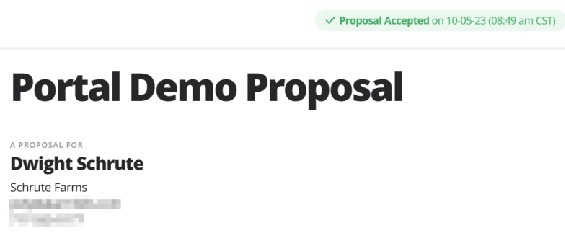
Portal.io proposal accepted confirmation banner showing "Proposal Accepted" status for the Portal Demo Proposal (Dwight Schrute / Schrute Farms).
Step 1: Open Quotes
From Cornerstone, click Quotes.
Step 2: Click Insert
From the Quotes screen, click Insert.
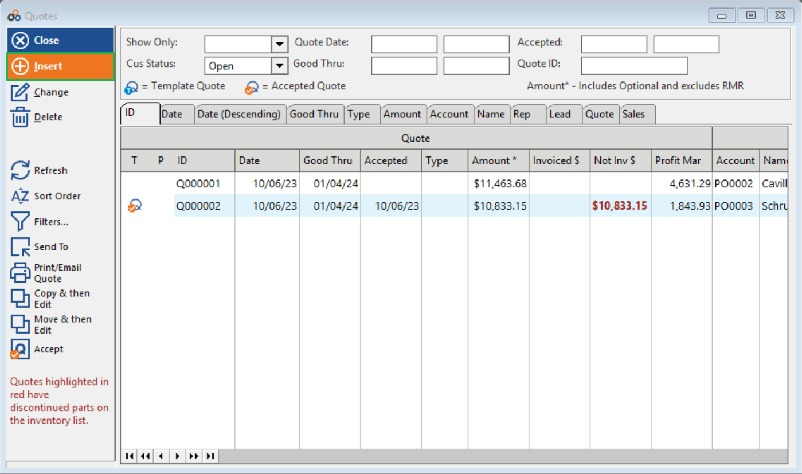
The Quotes screen showing existing quotes and the Insert button in the left navigation panel.
Step 3: Select Scratch
At the confirmation prompt, select Scratch.
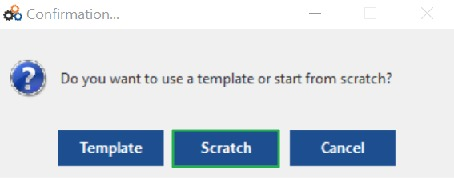
Confirmation dialog asking whether to use a template or start from scratch, with the Scratch button highlighted.
Step 4: Download the Proposal
From the Quote Update screen, click Download Proposal to begin importing an accepted proposal into Cornerstone. Alternatively, click Portal.io Website to add, modify, or view existing Portal.io proposals.
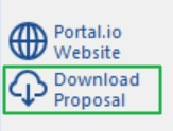
Quote Update screen buttons showing "Portal.io Website" and "Download Proposal" options.
Step 5: Select a Proposal from the List
The Proposal List window will open, showing all "Accepted" proposals in Portal.io, listed in descending last-modified order. To import a proposal, highlight a proposal in the list and click Select.
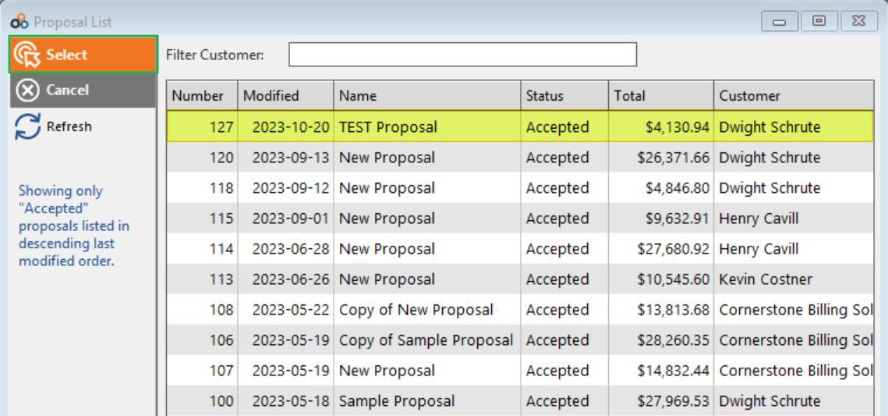
The Proposal List window displaying all Accepted proposals with Number, Modified date, Name, Status, Total, and Customer columns. A proposal is highlighted in yellow for selection.
Step 6: Confirm the Proposal Import
You will receive a popup confirmation displaying the proposal details. Click Yes to confirm that this is the proposal you would like to import.
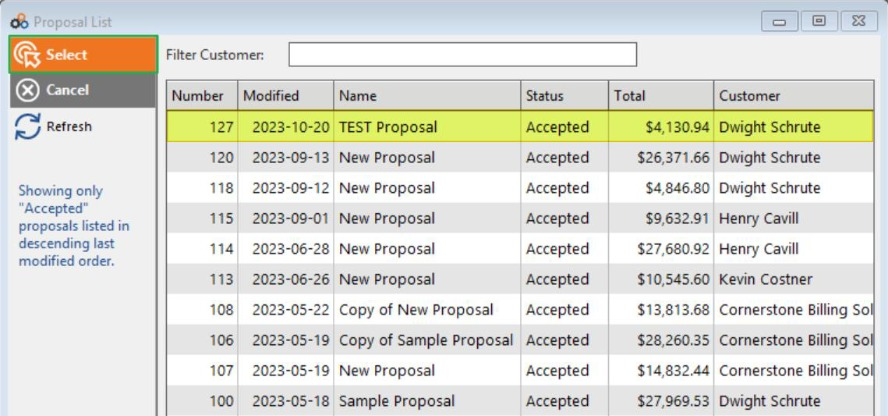
Confirmation popup showing full proposal details including ID, Number, Name, Status, address, contact information, and Proposal Amount, with Yes and No buttons.
Step 7: Select or Create a Customer Account
The Customer Selection List will open with the customer information from the Portal.io proposal listed in blue text on the left. You can search for an existing customer, then highlight and click Select. If the proposal is for a new customer not in Cornerstone, click Insert.
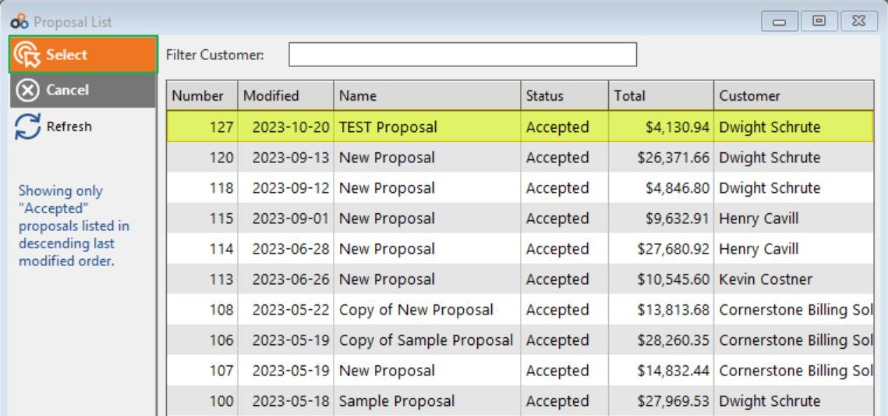
Customer Selection List showing Portal.io customer information in blue on the left panel, with the existing Cornerstone customer list on the right for matching or selection.
If you select Insert, a new customer account record will be created and the customer information will be populated based on the Portal.io proposal. (1) If you use account auto-numbering, the account number will be automatically assigned; otherwise enter the new account number. (2) Select the tax code to assign to the account. Then click OK to save the account.
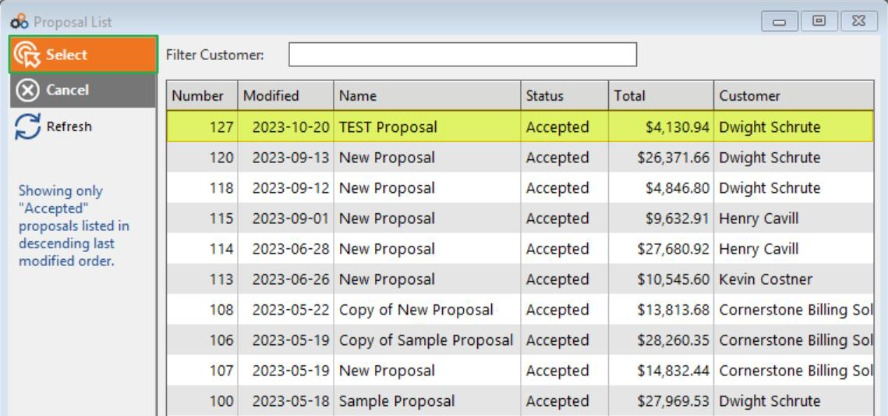
Customer File Maintenance screen for the newly created customer account (Schrute, Dwight), with the account number field (1) and tax code field (2) highlighted.
Parts Matching
Once the Portal.io proposal is imported, the Match Catalog List With Current Inventory screen will open, allowing you to match parts or import new parts into Cornerstone.
Parts can be added in one of three ways:
- Matched Existing — Parts highlighted in green have matched a part in your inventory. Parts are matched based on Part ID, Manufacturer ID, Brand, or Model Number. Matched parts will be updated with the latest price, cost, part category, sub-category, vendor name, manufacturer, and manufacturer part ID from Portal.io.
- Matched Manually — Indicates the specified part was manually matched to an existing inventory part in Cornerstone. The price, cost, and product information will be updated with the latest pricing and product information from Portal.io, including part category, sub-category, vendor name, manufacturer, and manufacturer part ID.
- Auto Add Item — Parts highlighted in blue did not match any existing inventory items and have not been manually matched. These items can be automatically added to your Cornerstone inventory. You can Auto Add an individual item by highlighting a part and clicking Auto Add, or click Ok to add all blue highlighted parts at the same time. The part price, cost, part category, sub-category, vendor name, manufacturer, and manufacturer part ID will be imported.
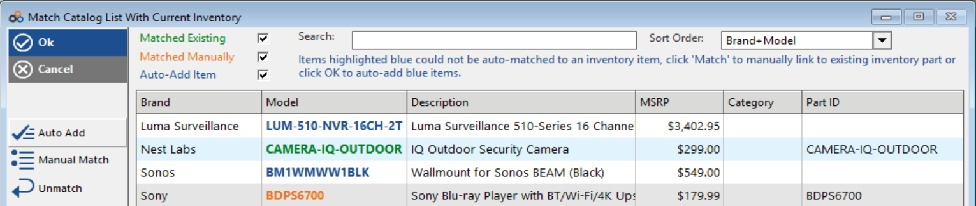
The Match Catalog List With Current Inventory screen showing items color-coded: green for Matched Existing, orange for Matched Manually, and blue for Auto Add items.
Manual Match Example
To manually match a Portal.io part to an existing inventory part:
Step 1: Select the Item
Left click on an item in the list you wish to match.
Step 2: Click Manual Match
Click Manual Match.
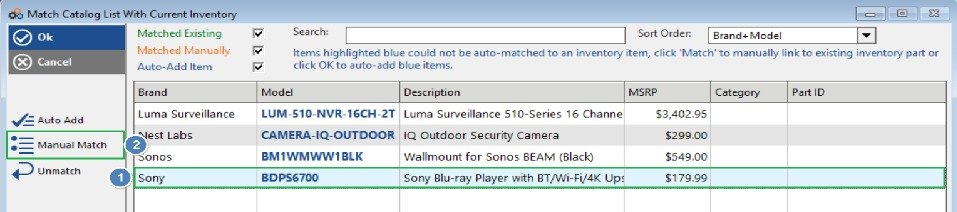
Match Catalog List With Current Inventory screen with item Sony BDPS6700 selected (step 1) and the Manual Match button highlighted (step 2).
Step 3: Search and Select the Matching Part
The Inventory Master List window will open with the part information from Portal.io shown in blue text on the left. Search for the item you would like to match using Description, Part ID, Part ID Mfg, or the Search field. Once you have located the item, click to highlight it, then click Select.
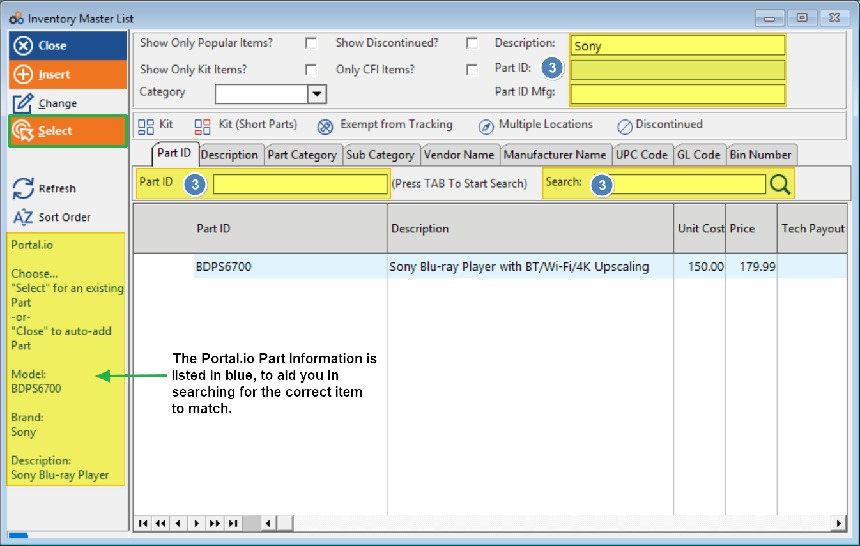
Inventory Master List window showing Portal.io part information in blue on the left panel, with the BDPS6700 Sony Blu-ray Player located in the inventory list for selection.
After matching your part, you will be returned to the Match Catalog List With Current Inventory window. The matched item will now be highlighted orange, showing the part has been manually matched.
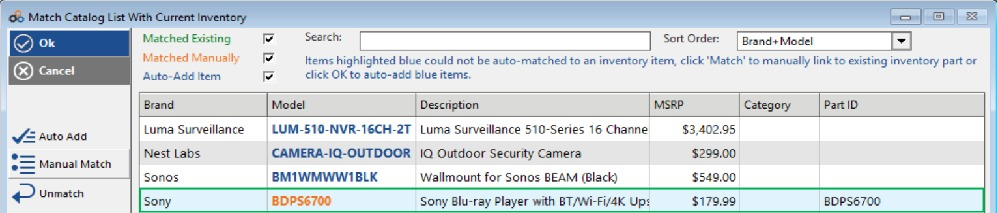
Match Catalog List With Current Inventory screen showing Sony BDPS6700 now highlighted orange, confirming the part has been manually matched.
After manually matching a Portal.io part to an existing part in Cornerstone, the part will be updated with price, cost, part category, sub-category, vendor, manufacturer name, and manufacturer ID from Portal.io.
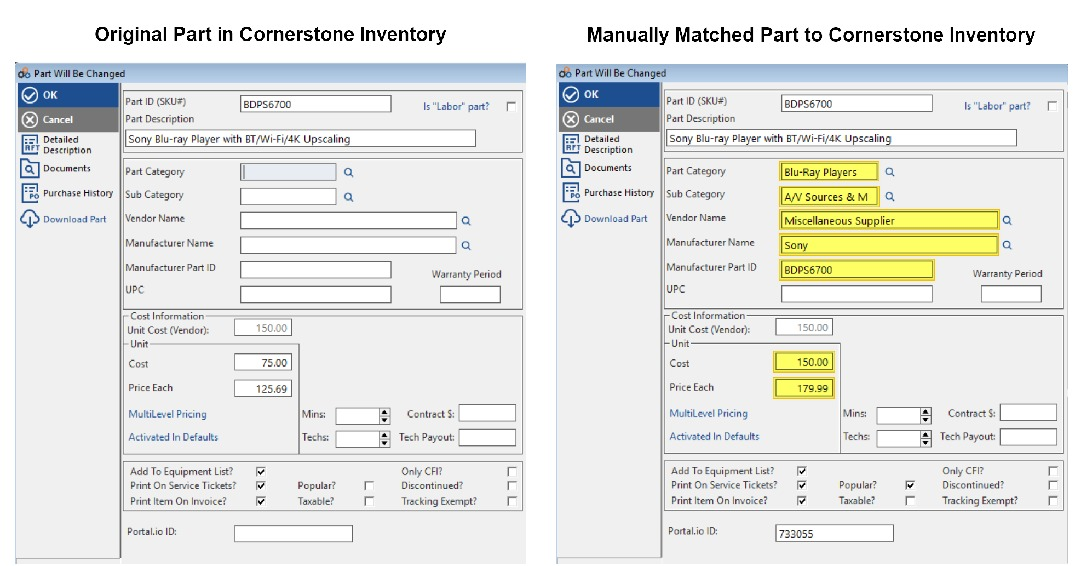
Side-by-side comparison of the Part Will Be Changed screen showing the Original Part in Cornerstone Inventory (left, with empty fields) versus the Manually Matched Part to Cornerstone Inventory (right, with Portal.io data populated including Part Category, Sub Category, Vendor Name, Manufacturer Name, Manufacturer Part ID, Cost, and Price Each).
Auto Add — Individual Item Example
Items highlighted in blue did not match any existing inventory item. You can manually select an item to Auto Add it individually.
Step 1: Select the Item
Left click on an item in the list you wish to Auto Add.
Step 2: Click Auto Add
Click Auto Add.
Step 3: Confirm the Item is Added
When the item is manually Auto Added, the color will change from blue to green, showing that the item is now considered a matched inventory item.
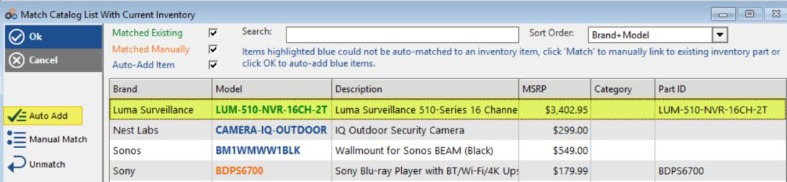
Match Catalog List With Current Inventory screen showing the Luma Surveillance item now highlighted green after being individually Auto Added, with the Auto Add button highlighted in the left panel.
Auto Add — All Items Example
Items highlighted in blue did not match any existing inventory items. To Auto Add all blue highlighted items to inventory at once:
Step 1: Open the Match Catalog Screen
From the Match Catalog List With Current Inventory screen, confirm the blue-highlighted items you wish to add.
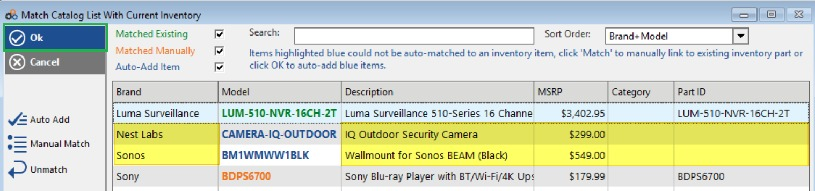
Match Catalog List With Current Inventory screen showing the list of items with blue-highlighted Auto Add items ready to be added in bulk.
Step 2: Click OK
Click OK. All items highlighted in blue will be Auto Added to your inventory. If these items appear on any future proposals, they will be considered a "match" since they are now part of your Cornerstone inventory list.
Correcting an Incorrectly Matched Item
If you matched a Portal.io item to a Cornerstone inventory item incorrectly, you can "unmatch" the item and return it to its previous state in the Match Catalog List With Current Inventory screen.
Step 1: Select the Item to Unmatch
Left click on the item in the list you wish to unmatch (for example, Sony BDPS6700).
Step 2: Click Unmatch
Click Unmatch.
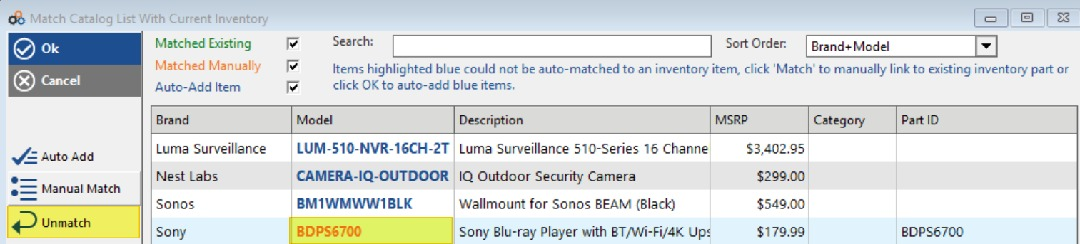
Match Catalog List With Current Inventory screen with the Unmatch button highlighted and the Sony BDPS6700 item selected for unmatching.
Step 3: Confirm the Item Returns to Auto Add
The item returns to its previous state as an Auto Add item, highlighted blue.
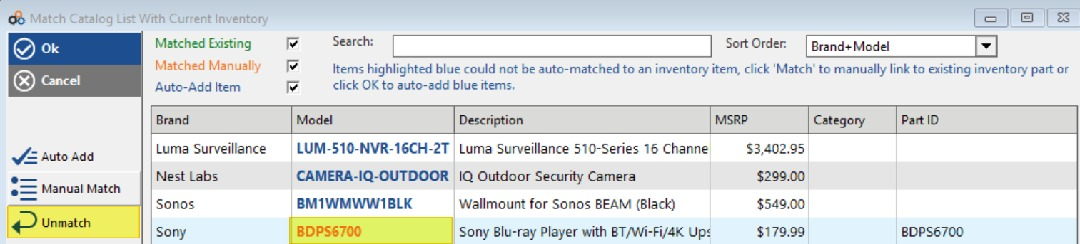 The Match Catalog List With Current Inventory showing Sony BDPS6700 returned to its blue Auto Add state after being unmatched.
Step 4: Re-Match or Auto Add
You can now either manually match to another inventory item or auto add the item to your Cornerstone inventory.
Filtering Items Shown
Use the check boxes to see only Matched Existing, Matched Manually, or Auto Add items.
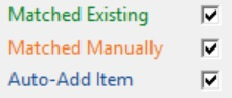 Filter checkboxes for Matched Existing (green), Matched Manually (orange), and Auto-Add Item (blue) with all three checked.
Quote Check
When a proposal is imported into Cornerstone, checks are performed to make sure the Cornerstone Quote tax rates and totals match the Portal.io proposal tax rates and totals. If a discrepancy is found, you will receive a popup warning notification.
Example: If the tax rate for a new customer did not match the tax rate on the Portal.io proposal, the warning will indicate either that the tax rate was incorrectly selected or that the tax rate stored in Cornerstone does not match the tax rate from Portal.io.
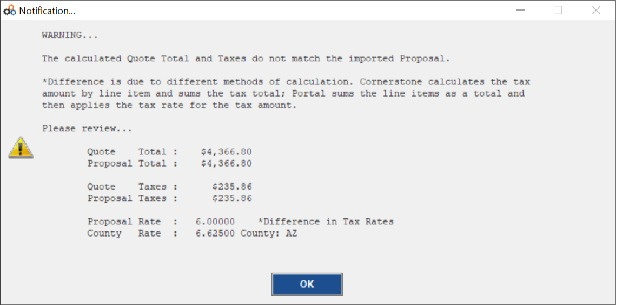
Notification popup warning that the calculated Quote Total and Taxes do not match the imported Proposal, showing Quote Total, Proposal Total, Quote Taxes, Proposal Taxes, Proposal Rate, and County Rate with a notation of "Difference in Tax Rates."
⚠️ Important: If your tax rates extend beyond 2 decimals, you may experience slight rounding differences in the tax calculations. Cornerstone calculates tax on each line item and then sums the taxes, while Portal sums the line items and then applies the tax rate. If there is a discrepancy, it is generally only pennies and you can adjust the proposal in Cornerstone before invoicing.
Updating Inventory
Updates to Cornerstone's inventory can also be accomplished from the Inventory Dashboard. While pulling the proposal updates those specific items, Download Parts will refresh ALL connected parts at the same time so that you have the most current pricing and cost information.
Step 1: Open the Inventory Dashboard
Click Inventory > Inventory Dashboard.
Step 2: Click Download Parts
Click Download Parts.
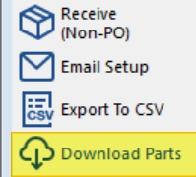
Inventory Dashboard menu showing Receive (Non-PO), Email Setup, Export To CSV, and Download Parts options, with Download Parts highlighted.
Step 3: Choose Your Download Option
You have two choices:
- Sync Known Parts With Portal.io — This will sync cost, price, category, manufacturer ID, vendor, etc. for any part that has been previously imported from Portal.io.
- Pull Portal.io Parts into Cornerstone — This will import all of your Portal.io parts into Cornerstone's inventory. Any "known" parts will be updated and any "new" inventory items will be added. This includes cost, price, category, manufacturer ID, vendor, etc.
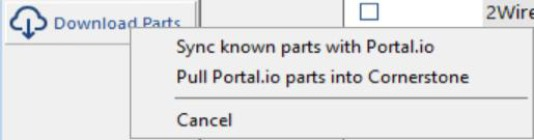
Download Parts dropdown menu showing "Sync known parts with Portal.io," "Pull Portal.io parts into Cornerstone," and "Cancel" options.
Step 4: Choose Whether to Download Images
Regardless of which choice you make, you will be presented with a confirmation to download associated images for each Catalog item. If you select Yes, part images will be downloaded and added to each part. If you select No, only the part cost, price, and associated part information will be imported.
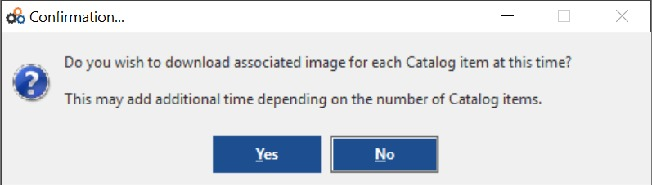
Confirmation dialog asking "Do you wish to download associated image for each Catalog item at this time?" with Yes and No buttons, and a note that this may add additional time depending on the number of Catalog items.
⚠️ Important: If you have a large quantity of items, downloading images of each item can take some time.
Step 5: Match or Auto Add Parts (Pull Only)
When you select Pull Portal.io Parts Into Cornerstone, you will be presented with the Match Catalog List With Current Inventory screen. You can perform manual matches or auto add items, just as when importing a proposal from Portal.io.
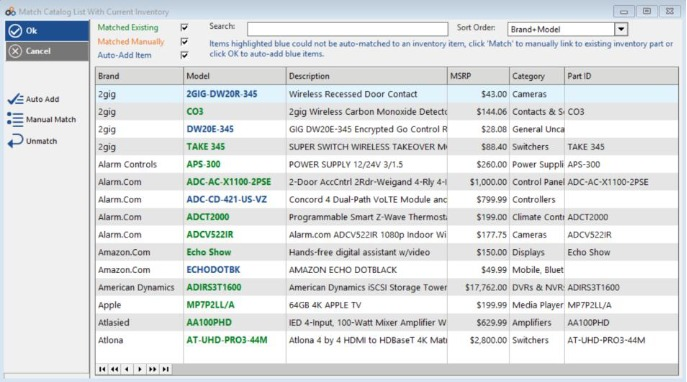
Match Catalog List With Current Inventory screen populated with a large list of Portal.io parts from multiple brands (2gig, Alarm Controls, Alarm.Com, Amazon.Com, etc.) showing green and orange matched items alongside blue Auto Add items.
RMR / Recurring Charges
Recurring items added to Portal.io must match the RMR Code and description used in Cornerstone. To add recurring charges to your Portal.io catalog, log in to your Portal.io account and click Catalog > Our Custom Items.
Step 1: Add a New Custom Item
Click the + in the top right corner of the Custom Items window.
Step 2: Enter the RMR Code
In the Brand Name field, enter the RMR Code used in Cornerstone.
Step 3: Enter the RMR Description
In the Short Description field, enter the Description of the RMR code used in Cornerstone.
Step 4: Enter Cost and Sell Price
Enter the Cost and Sell Price.
Step 5: Set Recurring Service and Tax Exempt Flags
Put a check in Recurring Service. Put a check in Tax Exempt if you do not charge tax on services.
Step 6: Create the Custom Item
Click Create Custom Item.
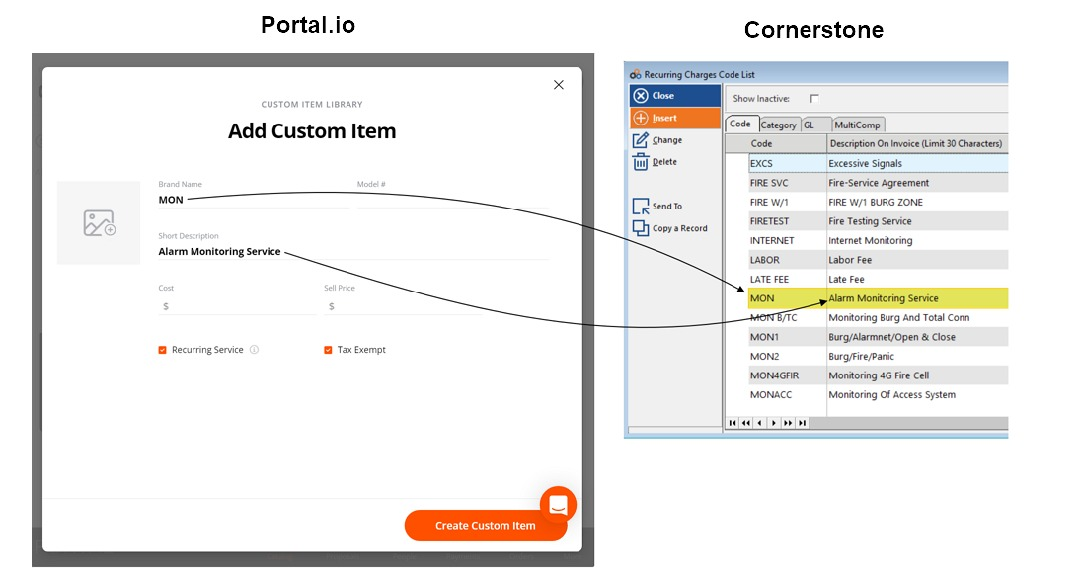
Side-by-side view of the Portal.io Add Custom Item form (with Brand Name "MON" and Short Description "Alarm Monitoring Service," Recurring Service and Tax Exempt checked) mapped to the corresponding Cornerstone Recurring Charges Code List showing the matching MON — Alarm Monitoring Service entry.
When added to a proposal and imported into a Cornerstone Quote, a pending RMR charge will be added to the customer account when the quote is accepted as a service ticket or invoice.
From the quote, click on Edit Quote Items. You can change the frequency and amount if necessary.
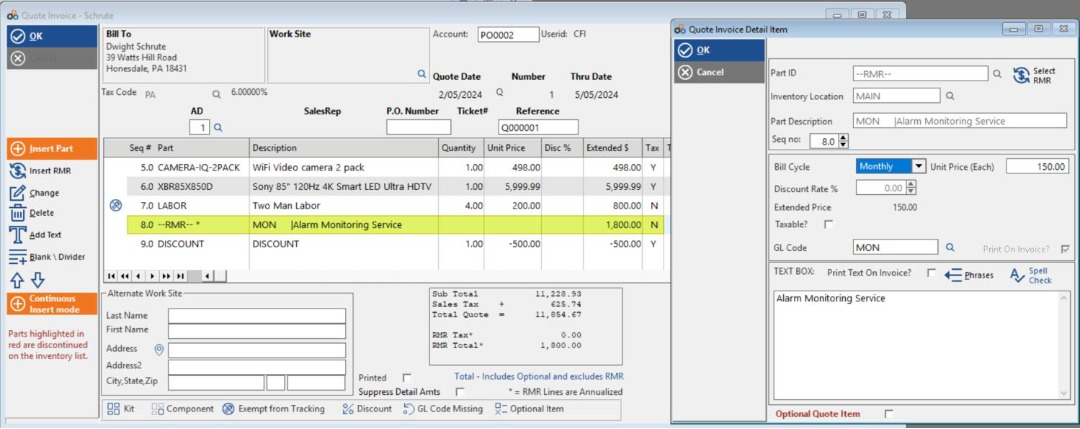
Quote Invoice screen for Schrute showing the RMR line item (MON — Alarm Monitoring Service at $1,800.00 annualized) alongside the Quote Invoice Detail Item panel where Bill Cycle, Unit Price, GL Code, and other RMR settings can be edited.
When the quote is accepted and turned into a service ticket or invoice, the RMR charge will be added to the customer's account as Pending RMR. On the Customer List, the customer account number will be highlighted in orange.
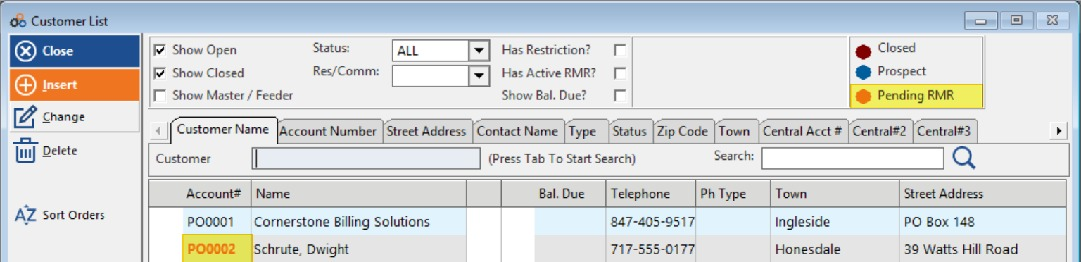
Customer List screen with account PO0002 (Schrute, Dwight) highlighted in orange indicating a Pending RMR status, with the Pending RMR legend visible in the top right.
Opening the customer account shows an orange highlight on the Recurring Charges menu item when there are Pending RMR Charges, and a standard (non-highlighted) appearance when there are no pending charges.
Opening the Recurring Charge Profile shows the Pending checkbox. To activate the RMR charge, uncheck Pending and enter the Next Date — the date the RMR charge will start being billed to the customer.
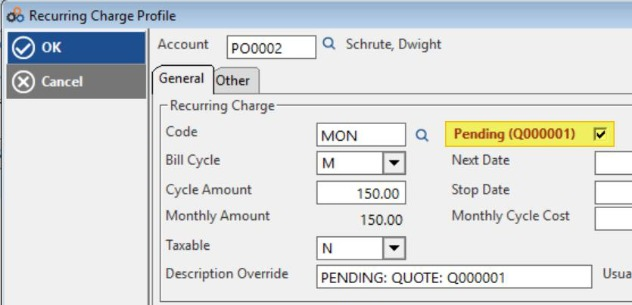
Recurring Charge Profile screen for account PO0002 (Schrute, Dwight) showing Code MON, Bill Cycle M, Cycle Amount 150.00, Monthly Amount 150.00, Taxable N, Description Override "PENDING: QUOTE: Q000001," and the Pending checkbox checked with Next Date field empty.
Need Help?
Our Customer Success team is here to assist you.
Email: customer.success@alarmbills.com
Phone: 847-405-9517 x1
Copyright © 1999–2026 Cornerstone Billing Solutions. All rights reserved.
Was this article helpful?
That’s Great!
Thank you for your feedback
Sorry! We couldn't be helpful
Thank you for your feedback
Feedback sent
We appreciate your effort and will try to fix the article