USA Central Integration & 1-Time Data Entry
Central Station Integration · USA Central
Overview
Cornerstone integrates with USA Central to make it easy for dealers to set up accounts in one location and either PUSH or PULL account information — including Customer, Site, Contact List, and Zones.
Recommended: Continue creating accounts at USA Central, then Pull the data into Cornerstone.
The integration respects USA Central's required data fields (e.g., at least one contact and phone number) and provides validated selection lists for other fields (e.g., Devices). Data syncs both ways — changes in Cornerstone push to USA Central immediately, and you can pull updated info from USA Central back into Cornerstone.
To get started: Call Cornerstone and we can help set up the connection with you and USA Central.
Getting Started — Setup Steps
Verify your Central Station numbers. Make sure each account includes the dealer code before the assigned central account number, preferably without hyphens. This is the linking field between Cornerstone and USA Central. Contact Cornerstone if it needs to be adjusted.
Contact USA Central. Request an API integration with Cornerstone. USA Central will provide a username and password. Give those credentials along with your USA Central Site Account number to Cornerstone, and we will set up the handshake.
Determine your edit protocol. Decide whether edits flow only through your office via Cornerstone, or whether subscribers can also call USA Central directly. Cornerstone can Push new accounts and edits to USA Central, and Pull/synchronize updated data from USA Central.
Some actions must be handled directly with USA Central:
- Closing accounts. Closing an account in Cornerstone only stops recurring billing. Cancellations must be handled directly with USA Central per your established protocol. Use the Central Station Notice function in Cornerstone to email your request and log it in the Correspondence log.
- Special protocol instructions. Accounts requiring special instructions must have those handled and recorded directly with USA Central.
- Responding Authority review. When Cornerstone pushes a subscriber's site address, USA Central generates GPS coordinates and auto-selects the responding authority. If a valid GPS coordinate is not returned, you will receive a warning to review it with USA Central.
⚠ Important — Central Station Is the Main Record Keeper
The Central Station is the primary record keeper for Customer Site, Contacts, and Zones. Edits to required USA Central fields in Cornerstone will immediately PUSH the new values to USA Central. However, changes made directly at USA Central do not automatically sync back to Cornerstone.
Use the Get from Central Station button each time you open an account to pull the most recent information from USA Central.
Setup and Data Fields
Cornerstone enters your Dealer / Site Account Number in two places: the System Header and the Central Station List. User Defined fields 18 and 20 are set to USA Central Device and Dispatch Type respectively. Multiple Central Station prefix numbers can be accommodated.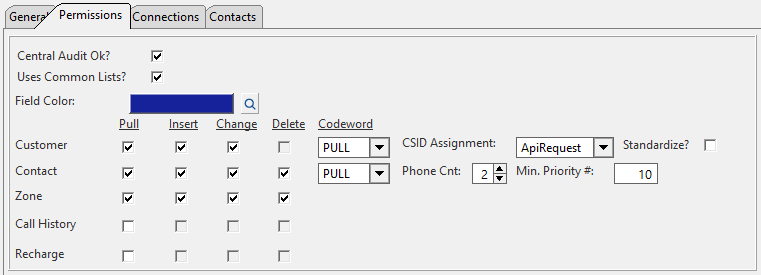
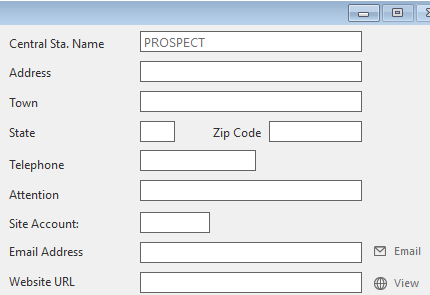
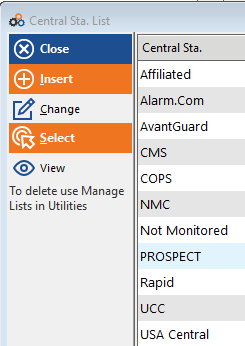
If you have accounts monitored elsewhere or not at all, choose a Central Station option other than USA Central so data changes do not attempt to communicate with USA Central.
Creating an Account in Cornerstone
Accounts can be created in Cornerstone and pushed to USA Central, or — if USA Central created the account — you can download the customer record from USA Central.
Option A — USA Central Created the Account (Recommended)
Enter the Cornerstone Account number (if not auto-generated) and enter the Central Account # assigned by USA Central when it created the account. Then click Download Customer to pull all data from USA Central into Cornerstone. You will also be prompted to download Contacts and Zones.
Option B — Creating the Account in Cornerstone to Push to USA Central
Enter a Cornerstone Account number and leave the Central Acct # blank. After entering all customer data, clicking OK communicates with USA Central to assign the next available Central ID number, records it, and creates the account in USA Central.
You will need to assign a Cornerstone account number before getting the USA Central number, so you can number accounts sequentially or use an alternative method.
A Note About Multiple Prefixes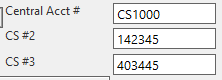
The communication link between Cornerstone and USA Central uses the number in the 1st Central Station # field. Multiple prefixes mean you have been assigned different numbers based on device types. While Site info and Contacts are shared between devices, devices may have different Zones.
Cornerstone records only one set of Zones per site. To record different zone information for each device, you will need a separate customer record per device — with the communicating device/USA Central # in the 1st Central Station Number field. Additional device numbers that don't need Zone info stored in Cornerstone can be placed in the 2nd and 3rd Central Account # fields.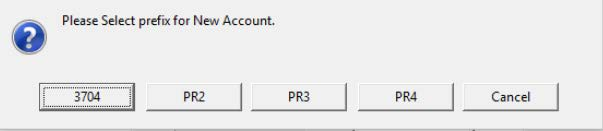
Most dealers create two separate accounts when the same customer has both Burglary and Fire service — allowing separate equipment records, service tickets, and reminders. Billing can always be consolidated into one account.
Data Fields — Customer Record
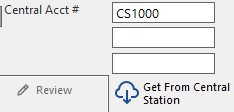
For accounts already in Cornerstone, open the account and click Download Customer to pull Site, Contacts, and Zones from USA Central (linked to Central Acct# 1). After downloading, use the Get from Central Station button each time you open the account to ensure you have the most recent data.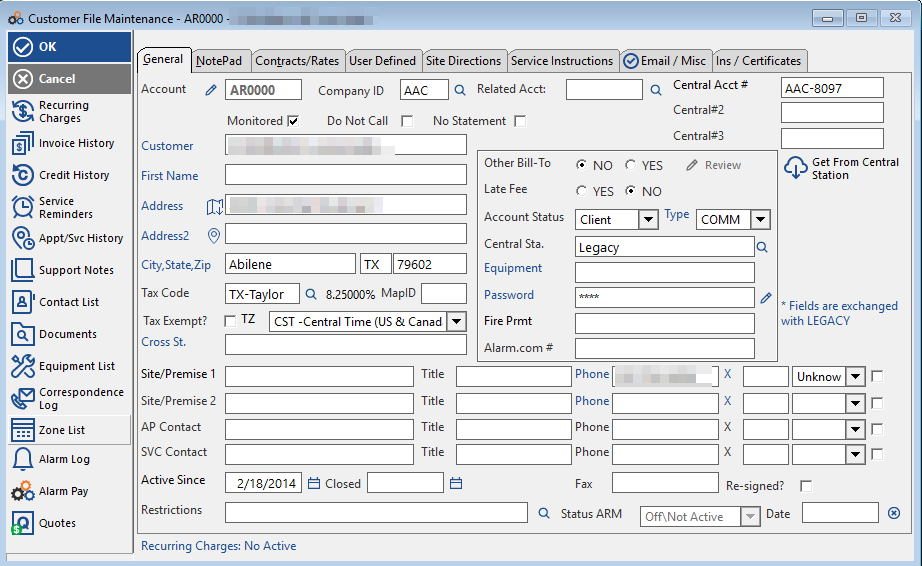
Required & Optional Fields for Push to USA Central
| Field | Instructions |
|---|---|
| Account | Your 2-letter prefix appears; enter the remaining digits |
| Central Acct # | Leave blank — USA Central assigns the ID number |
| Customer | Company name or last name |
| First Name | First name for residential customers |
| Address | Street address (Address line 1) |
| City, State, Zip | Fill in all fields; enables USPS address validation |
| Tax Code | Select city from list (not sent to USA Central, but required for billing). Must be entered manually when downloading from USA Central. |
| TZ | Time Zone auto-fills from Zip Code; communicated to USA Central |
| Type | Select RES or COMM — sends R or C to Site Type |
| Equipment | Optional panel type; USA Central Device Type selection is done in User Defined tab |
| Code Word | Enter the password. If none required, enter NCR. Leave blank if contacts have individual pass codes. |
| Site/Premise | Contact 1 name — recommended, not required |
| Phone | Premise phone number — recommended, not required |
User Defined Tab — Device & Dispatch Type
Click the User Defined tab to enter the two USA Central fields below.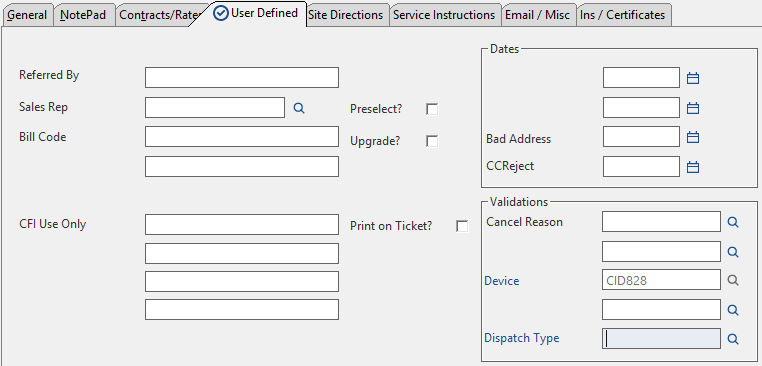
USA Central Device Type — Choose from the dropdown list. Required. If unknown, enter MISC. Click the lookup icon for validated options.
Dispatch Type — Choose from the dropdown list. Required for 2-Way Devices; recommended for all other devices. The Device number is assigned Event Codes and Event Types at USA Central.
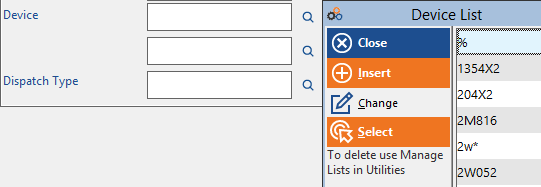
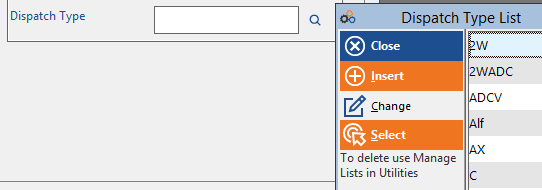
Important: Once the Device is established (by selection and push, or by downloading), changes to the Device must be made directly at the Central Station.
Click OK and you will be prompted to validate the address as a USPS-recognizable mailing address. If recognized, the Zip+4 will be available — click Update to apply it to the Cornerstone entry.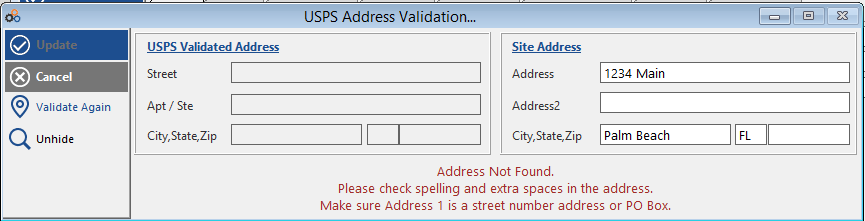
Contacts
The customer record includes a premise contact name and phone number. The Contact List provides the full call list for the account.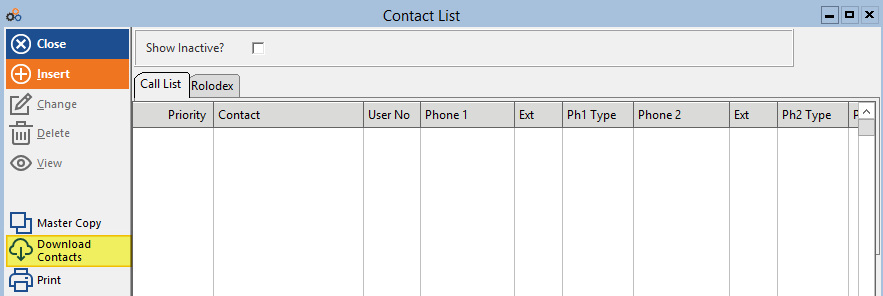
Download Contacts pulls Contact information from USA Central if it already exists there but not in Cornerstone. Once contacts have been downloaded or submitted, a Get From Central Station button is available to pull any updates made directly at USA Central.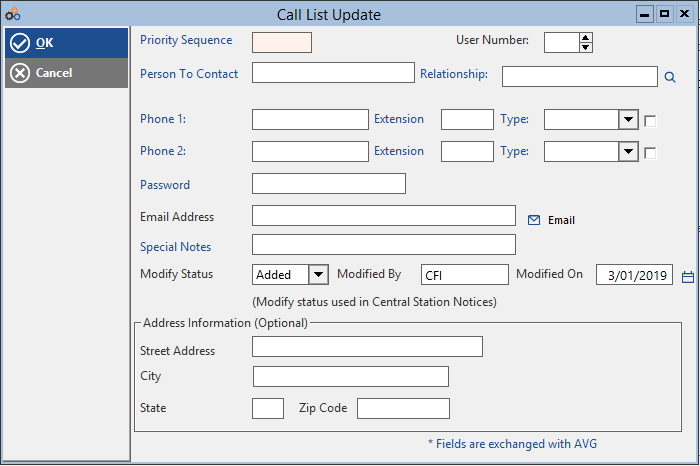
Required Contact Fields
| Field | Instructions |
|---|---|
| Priority Sequence | Enter in increasing values for each additional contact |
| Person to Contact | Enter First and Last Name. Text before the first space = first name; after = last name. |
| Phone 1 | Fills in the first phone number field in USA Central |
| Phone 2 | Fills in the second phone number field in USA Central |
If a contact is deleted at USA Central, you will be notified and instructed to delete that contact in Cornerstone.
Zone Lists
Zone Lists are device-specific and link to the Central Station number in the 1st field. If multiple devices are installed at the same site, they share site and contact information. To record different Zone information per device in Cornerstone, create a separate account with the second device in the 1st Central Station field.
Use Get From Central Station to pull zones from USA Central for accounts originally created there. Once downloaded, this button remains available for future Zone updates made directly at USA Central.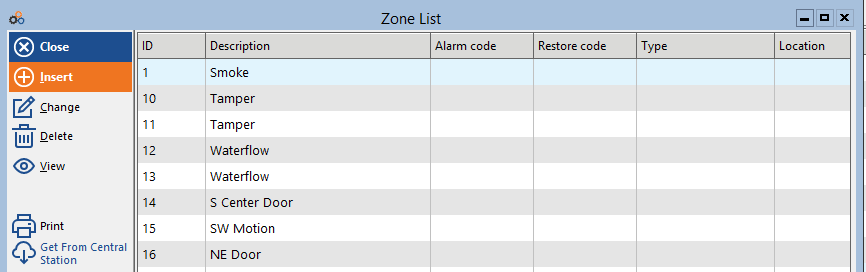
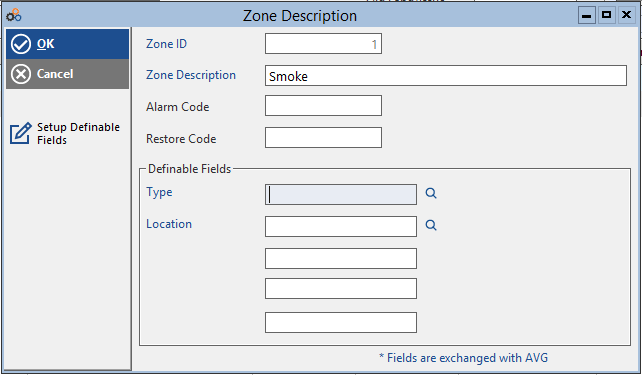
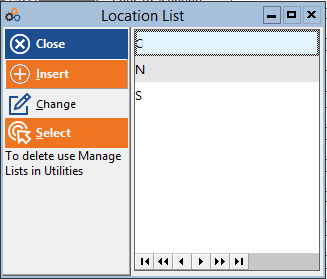
Required Zone Fields
| Field | Instructions |
|---|---|
| Zone ID | Enter the Zone Number |
| Zone Description | Enter the Zone Description |
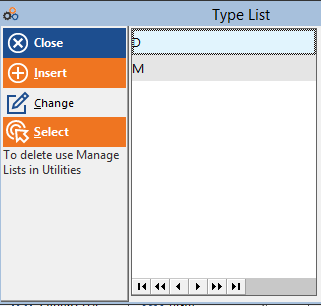
| Service Type | Select from the list box |
| Location | Select from the list box |
⚠ Actions That Must Be Done Directly With USA Central
- Closing accounts. Closing in Cornerstone only stops recurring billing. Cancellations must be handled directly with USA Central. Use the Central Station Notice function in Cornerstone to email and log your request.
- Special protocol instructions. Must be handled and recorded directly with USA Central.
- Responding Authority changes. GPS coordinates and responding authority are auto-assigned by USA Central when Cornerstone pushes the site address. If no valid GPS is returned, a warning will prompt you to review with USA Central.
Copyright © 1999–2026 Cornerstone Billing Solutions. All rights reserved.
Was this article helpful?
That’s Great!
Thank you for your feedback
Sorry! We couldn't be helpful
Thank you for your feedback
Feedback sent
We appreciate your effort and will try to fix the article