Overview
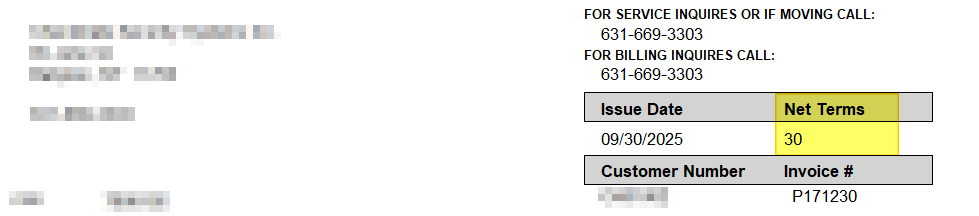
We have added a feature to Alarmwin that allows you to print NET TERMS, instead of a standard DUE DATE on invoices. You can also make invoices 'Due Upon Receipt'.
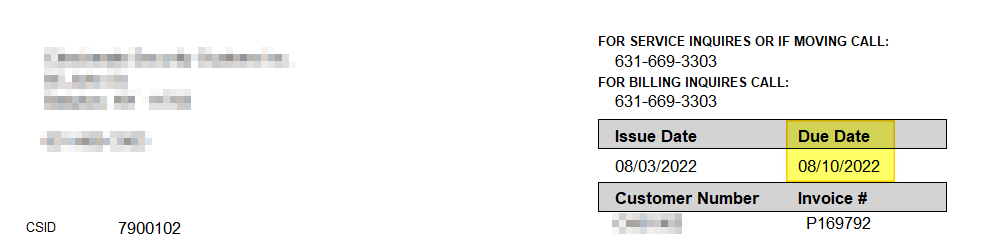
Standard Invoice - Due Date
Standard Invoice - Net Terms
What You Can Do
You can now:
- Display Net Terms as the standard dating on invoices vs date due.
- Set the 'pattern' used for displaying net terms i.e. Net 10, Net Terms 10, Terms 10 Days
- Change Net Terms on a per customer basis
- Set up Product Invoices to be due upon receipt
Net Terms 'Pattern'
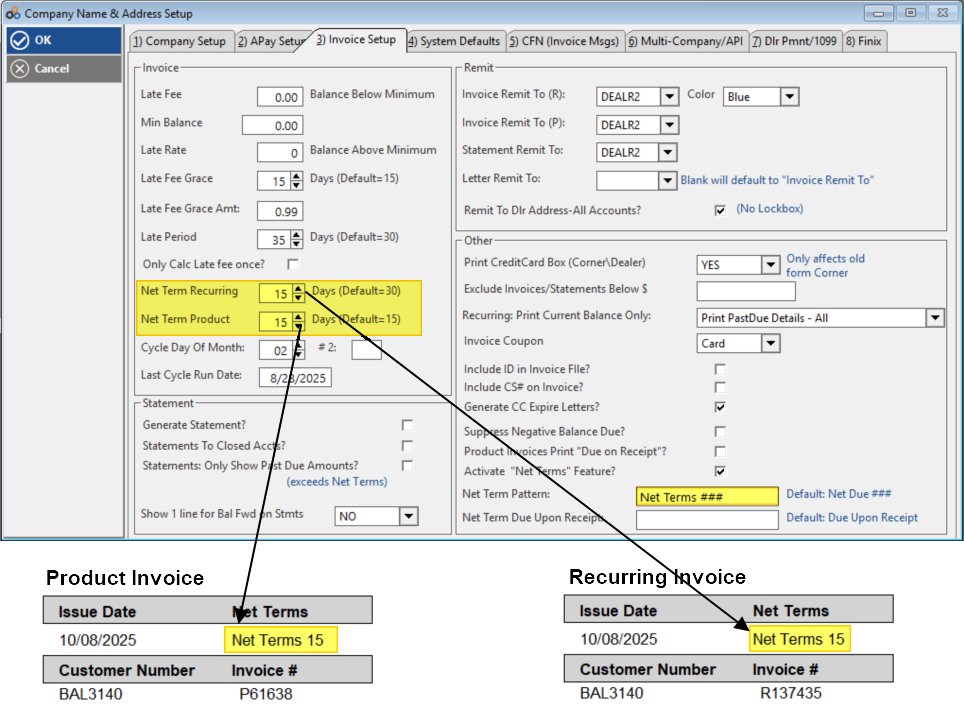
The net terms can use a custom pattern to display net terms.
- Leaving the 'Net Term Pattern' field blank will display the default net term 'pattern' Net Due with the 'net terms' number coming from the Net Term Recurring and Net Term Product fields.
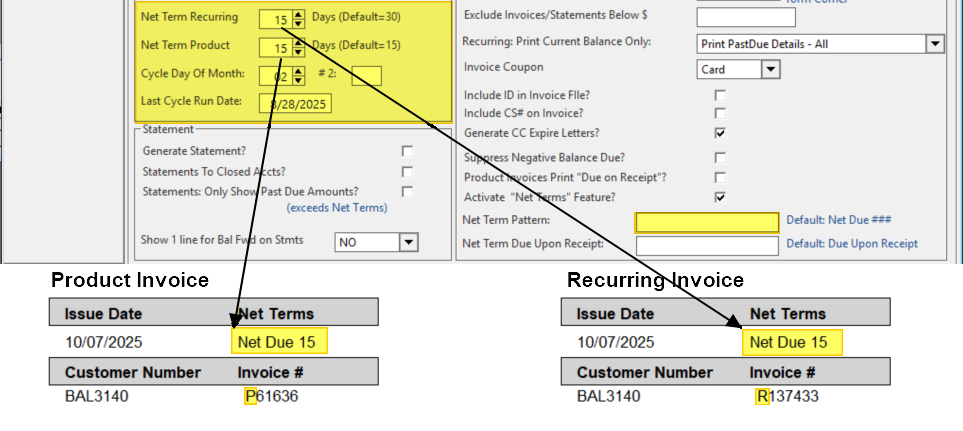
- Entering 'Net ###' in the Net Term Pattern box yields Net 15. You MUST enter '###' after the text, otherwise the net term number of days will not display. We can display up to 3 characters for net terms. Example: Net 120 Days.
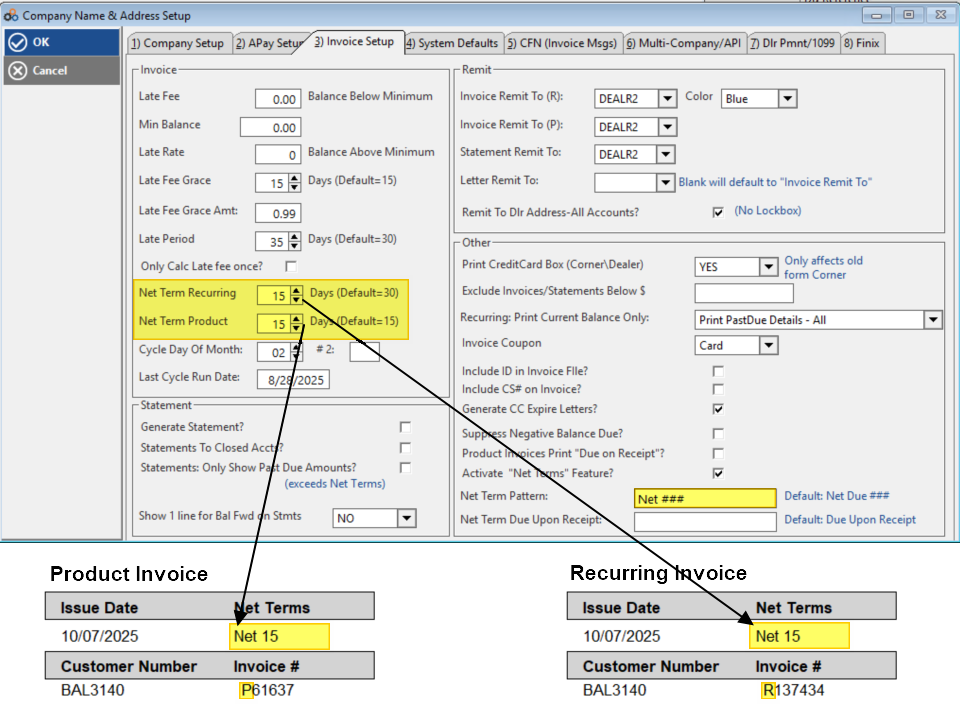
- Entering 'Net Terms ###' in the Net Term Pattern box yields Net Terms 15.
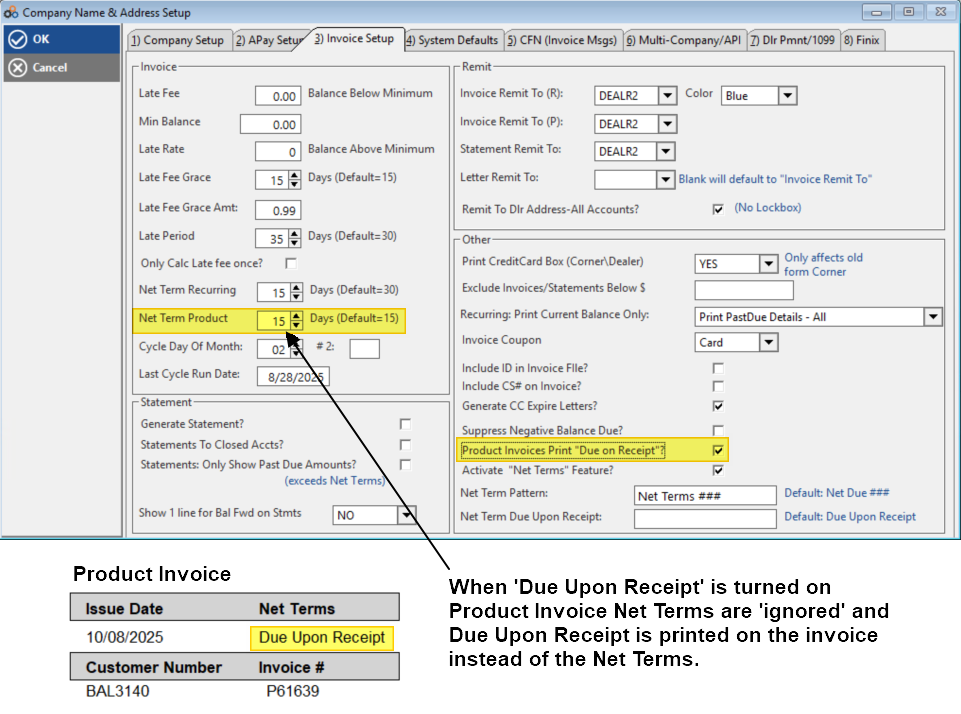
Setting Product Invoices to be 'Due upon Receipt'- Go to Utilities > Set Company Header
- Click the 3) Invoices Tab
- In the bottom right corner put a check in 'Product Invoices Print 'Due on Receipt?'.
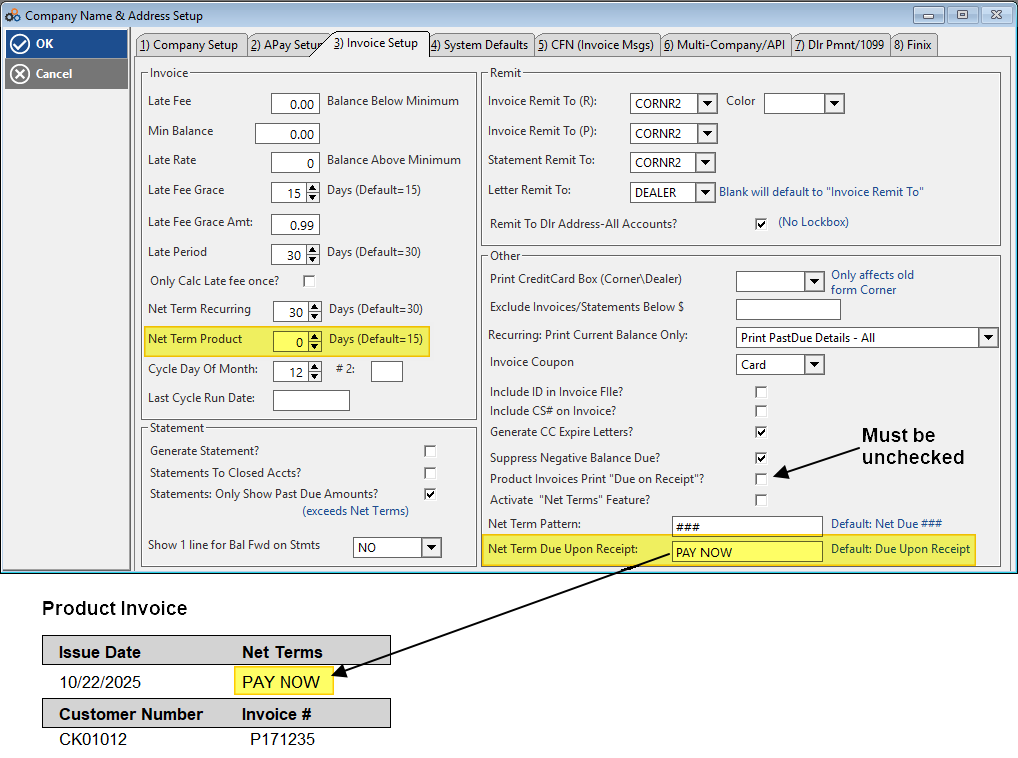
Setting Product Invoices to be 'Due upon Receipt' using a different net terms message.
- Go to Utilities > Set Company Header
- Click the 3) Invoices Tab
- In the bottom right corner uncheck 'Product Invoices Print 'Due on Receipt?'.
- Set the Net Terms Product to '0' days.
- Enter the text you would like to appear in the Net Term Due Upon Receipt box, in our example 'PAY NOW'
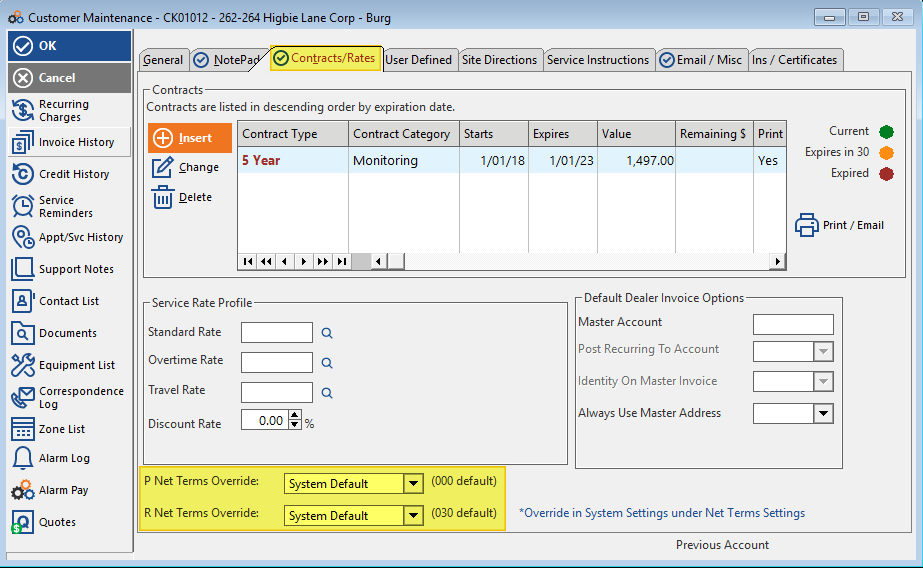
Change Net Terms For A Specific Customer
- Open the customer account
- Click > Contracts / Rates (Tab)
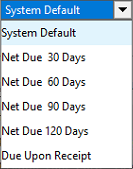
- At the bottom of the window click the P Net Terms Override (drop down box)
- At the bottom of the window click the R Net Terms Override (drop down box)
- Choices are:
NOTE: Once an invoice has been generated with a specific 'Net Term' pattern, the invoice Net Term cannot be changed for that specific invoice.
Need Help?
Still have questions? Contact Cornerstone Holding Co. 847-405-9517 or email us customer.success@alarmbills.com
Was this article helpful?
That’s Great!
Thank you for your feedback
Sorry! We couldn't be helpful
Thank you for your feedback
Feedback sent
We appreciate your effort and will try to fix the article