Overview
This article explains how to change the Billing Method on an individual recurring charge (RMR) record in the Cornerstone system. Specifically, it covers the scenario where a recurring charge is currently set to bill via Printer (paper invoice) and you need to switch it to send an Email Copy to the customer instead. Follow the steps below to locate the recurring charge and update the billing method and email settings.
Step 1 — Open the Customer Record and Navigate to Recurring Charges
Begin by opening the customer's record in Customer Maintenance, then access their recurring charges.
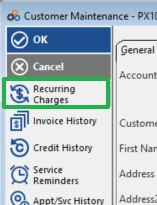
- Open Customer Maintenance for the relevant account (e.g., PX1010 — 99th Precinct Building).
- Click Recurring Charges in the left-hand navigation menu of the Customer Maintenance screen.
Step 2 — Identify the Recurring Charge to Update
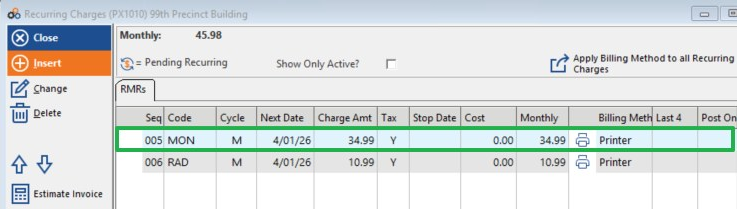
The Recurring Charges screen displays all RMR lines associated with the account. Review the list to identify the charge whose Billing Method you need to change.
- Review the RMRs list. Each line shows the Seq number, Code, Cycle, Next Date, Charge Amount, Tax, Stop Date, Cost, Monthly amount, Billing Method, Last 4, and Post On fields.
- Locate the specific charge you need to update — for example, Seq 005, Code MON, currently showing a Billing Method of Printer.
- Double-click the charge line (or highlight it and click Change in the left-hand action menu) to open the Recurring Charge detail record.
Step 3 — Update the Billing Method
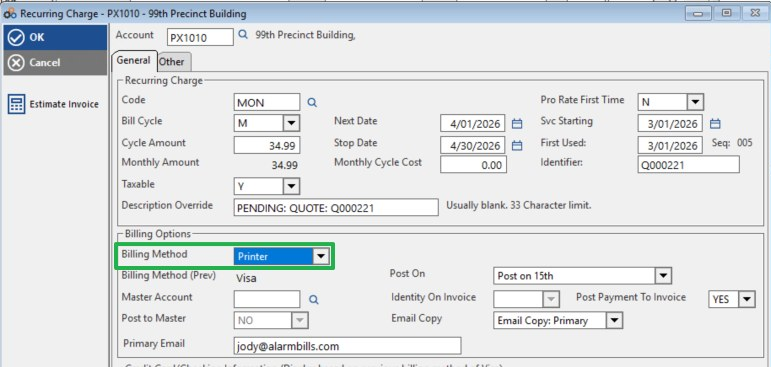
Once the Recurring Charge detail screen is open, update the Billing Method field in the Billing Options section.
- Locate the Billing Options section in the lower portion of the General tab.
- Click the Billing Method dropdown — it will currently show Printer.
- Select the new Billing Method appropriate for this customer (for example, change from Printer to an email-based method).
⚠️ IMPORTANT
The Billing Method (Prev) field will automatically display the previous billing method (e.g., Visa) for your reference. Changing the Billing Method on an individual recurring charge affects only that charge — it does not automatically update all recurring charges on the account. To apply a billing method change across all recurring charges at once, use the Apply Billing Method to all Recurring Charges button available on the main Recurring Charges screen.
Step 4 — Configure the Email Copy Setting
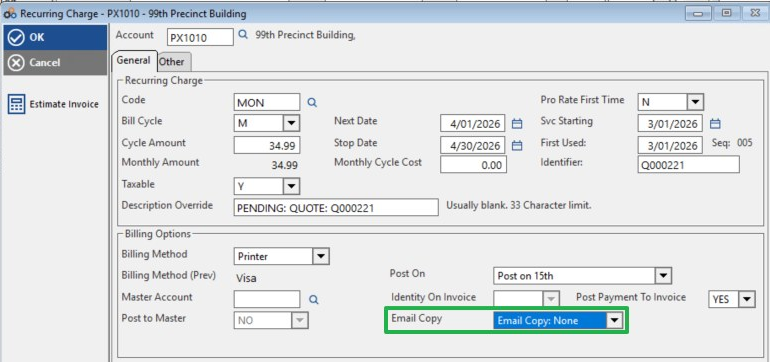
After setting the Billing Method, verify or update the Email Copy field to control whether an email copy of the invoice is sent and to which address.
- Locate the Email Copy dropdown in the Billing Options section. If no email copy is to be sent, this will display Email Copy: None.
- Click the Email Copy dropdown and select the appropriate option — for example, Email Copy: Primary to send the invoice to the customer's primary email address on file.
- Verify the Primary Email field displays the correct email address for the customer (e.g., jody@alarmbills.com).
- Click OK to save the changes to the recurring charge record.
Field Reference — Recurring Charge Detail (General Tab)
The table below summarises the key fields relevant to updating a billing method on a recurring charge.
| Field | Description |
|---|---|
| Billing Method | The current method used to deliver the invoice for this recurring charge (e.g., Printer, email-based method). |
| Billing Method (Prev) | Read-only field showing the previous billing method before the most recent change. |
| Email Copy | Controls whether an email copy of the invoice is sent and which email address it is sent to (None, Primary, etc.). |
| Primary Email | The primary email address on file for the account, used when Email Copy is set to Primary. |
| Description Override | Optional field to override the default charge description on the invoice. Usually left blank. Maximum 33 characters. |
| Post Payment To Invoice | Determines whether payments are posted directly to the invoice (YES/NO). |
Need Additional Help?
Our Customer Success team is here to assist you.
Phone: 847-405-9517 x1
Email: customer.success@alarmbills.com
Copyright © 1999–2026 Cornerstone Billing Solutions. All rights reserved.
Was this article helpful?
That’s Great!
Thank you for your feedback
Sorry! We couldn't be helpful
Thank you for your feedback
Feedback sent
We appreciate your effort and will try to fix the article