Overview
This guide explains how to move an invoice from one customer account to another within Cornerstone Billing Solutions. This is useful when an invoice has been posted to the wrong account and needs to be reassigned without deletion or re-entry.
This process is intended for authorized users who have access to customer account invoice management.
Before You Begin
Before moving an invoice, please ensure the following:
- You have access to the source customer account containing the invoice.
- You know the destination account you want to move the invoice to.
- The destination account already exists in the system and can be located by search.
Steps to Move an Invoice
- Navigate to the customer account that currently holds the invoice you wish to move.
- Click Invoice History to open the list of invoices associated with that account.
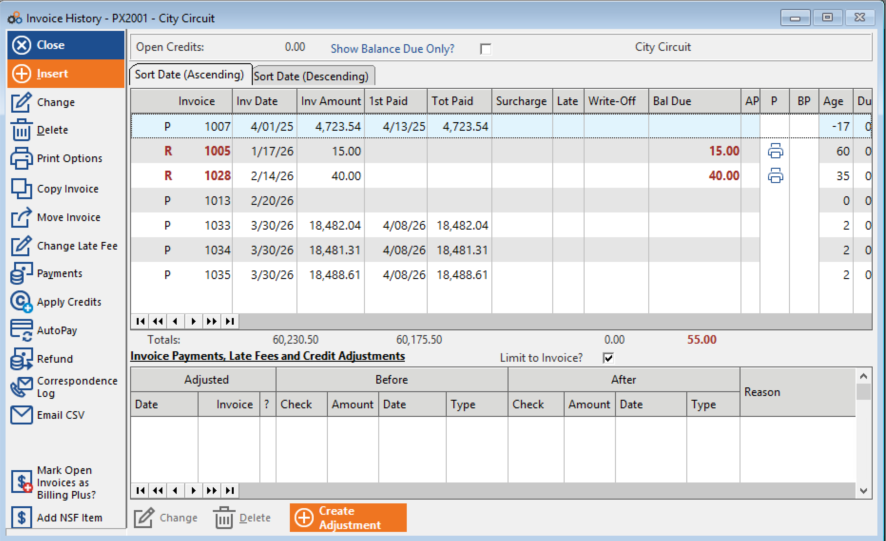
- Highlight the invoice you want to move by clicking on it to select it.
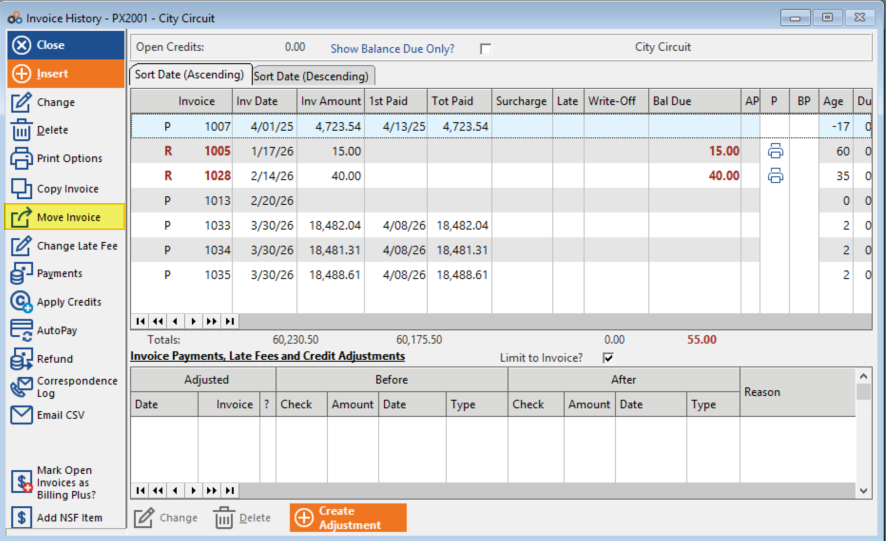
- Click Move Invoice to initiate the transfer process.
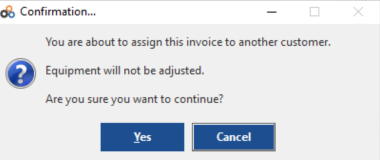
- Click YES to confirm that you want to move the selected invoice.
- Search & Select the destination account using the account search function.
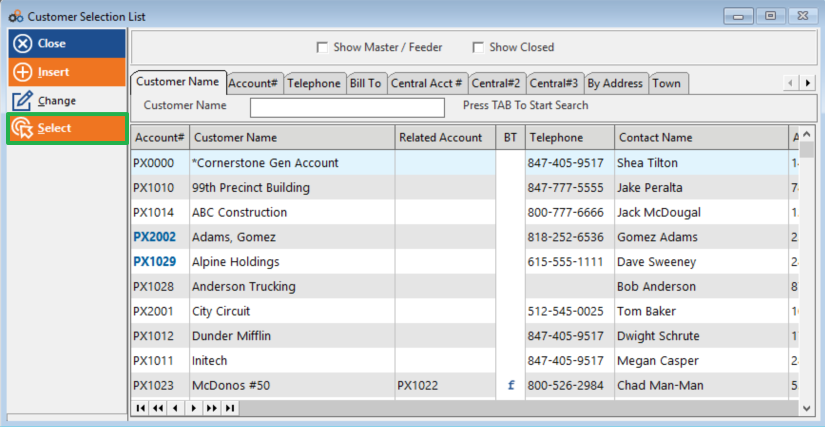
- Click OK to complete the move. The invoice will now be associated with the selected destination account.
⚠️ IMPORTANT
Once you click YES and confirm the move, the invoice will be transferred to the destination account. Please verify that you have selected the correct invoice and the correct destination account before confirming. If you move an invoice in error, contact the Customer Success team for assistance.
Need Additional Help?
Our Customer Success team is here to assist you.
Phone: 847-405-9517 x1
Email: customer.success@alarmbills.com
Copyright © 1999–2026 Cornerstone Billing Solutions. All rights reserved.
Was this article helpful?
That’s Great!
Thank you for your feedback
Sorry! We couldn't be helpful
Thank you for your feedback
Feedback sent
We appreciate your effort and will try to fix the article