Overview
When a customer's email address is invalid or undeliverable, outgoing emails from Alarmpayments.com will bounce back and generate a support log entry automatically. This article explains how to identify the two types of email bounce entries in the Support Log and what each one means, so you can take the appropriate action to resolve the issue.
Understanding Email Bounce Types
There are two distinct email bounce dispositions that will appear in the Support Log. Each indicates a different type of delivery failure and requires a different level of action on your part.
| Bounce Type | Disposition Label | What It Means |
|---|---|---|
| Permanent Bounce | Bounce-Perm / General / | The email address is permanently undeliverable — it does not exist or has been rejected outright. The customer's email address needs to be corrected in their account record. |
| Transient Bounce | Bounce-Tran / General / | The email delivery failed temporarily — for example, the recipient's mailbox was full or the mail server was temporarily unavailable. The issue may resolve on its own, but the customer's email address should be verified. |
Identifying a Permanent Bounce (Bounce-Perm) in the Support Log
A permanent bounce entry indicates that an email sent from Alarmpayments.com could not be delivered because the email address is invalid or non-existent. Follow the steps below to locate and read this type of entry.
- Open the Support Log from within the customer's account record or from the main navigation.
- Locate the bounce entry. Entries with a permanent bounce will display in the log list with a Call Date and the Status column showing Open.
- Click the entry to expand the detail pane at the bottom of the Support Log window.
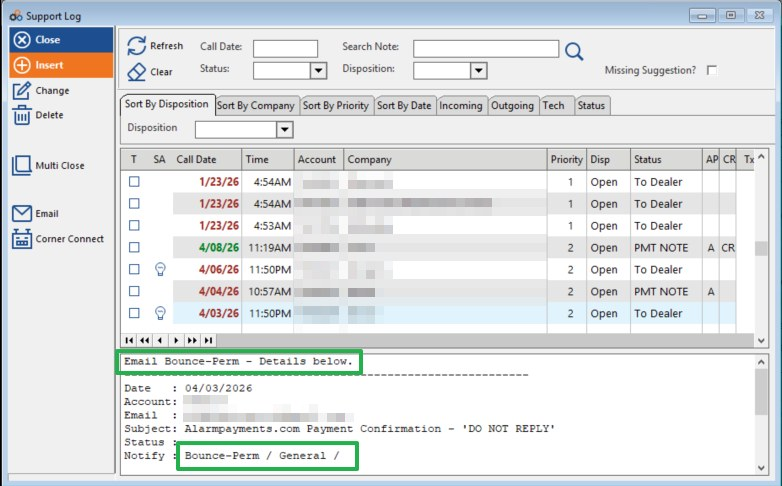
- Review the detail pane. The first line will read Email Bounce-Perm – Details below. The entry will include the Date, Account number, Email address the message was sent to, Subject line of the bounced email, and the Notify field displaying Bounce-Perm / General /.
- Note the email address shown in the detail pane — this is the address on file that is invalid and needs to be updated in the customer record.
Example: Permanent Bounce Entry
The screenshot below shows a Support Log entry where the detail pane reads Email Bounce-Perm – Details below and the Notify field displays Bounce-Perm / General /. In this example the bounced email was an Alarmpayments.com Payment Confirmation.
Identifying a Transient Bounce (Bounce-Tran) in the Support Log
A transient bounce entry indicates a temporary delivery failure. The email address on file may still be valid, but delivery was unsuccessful at the time. Follow the steps below to locate and read this type of entry.
- Open the Support Log from within the customer's account record or from the main navigation.
- Locate the bounce entry. Entries with a transient bounce will appear in the log list similarly to permanent bounce entries, showing a Call Date and an Open Status.
- Click the entry to expand the detail pane at the bottom of the Support Log window.
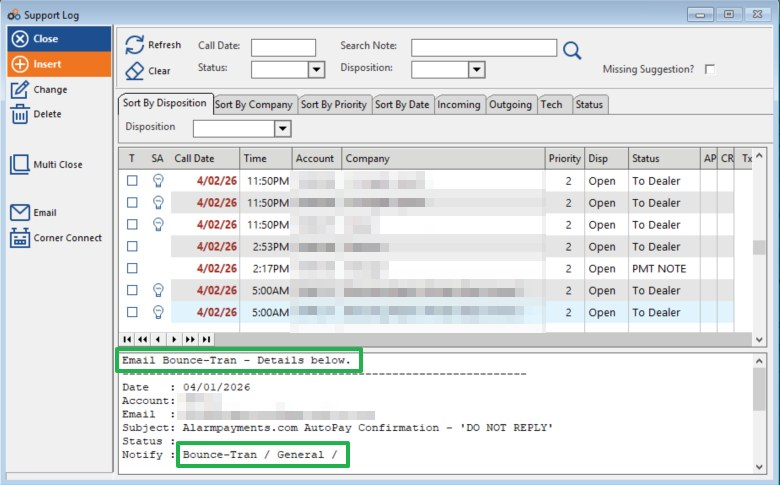
- Review the detail pane. The first line will read Email Bounce-Tran – Details below. The entry will include the Date, Account number, Email address the message was sent to, Subject line of the bounced email, and the Notify field displaying Bounce-Tran / General /.
- Note the email address shown and verify with the customer whether it is correct. Because this is a temporary failure, the address may be valid — but it is worth confirming.
Example: Transient Bounce Entry
The screenshot below shows a Support Log entry where the detail pane reads Email Bounce-Tran – Details below and the Notify field displays Bounce-Tran / General /. In this example the bounced email was an Alarmpayments.com AutoPay Confirmation.
⚠️ IMPORTANT
A Bounce-Perm entry means the email address on the account is definitively invalid and must be updated before any further emails can be successfully delivered to that customer. A Bounce-Tran entry indicates a temporary failure — verify the address is correct and monitor for repeated bounces, which may indicate the address has become permanently invalid.
Need Additional Help?
Our Customer Success team is here to assist you.
Phone: 847-405-9517 x1
Email: customer.success@alarmbills.com
Copyright © 1999–2026 Cornerstone Billing Solutions. All rights reserved.
Was this article helpful?
That’s Great!
Thank you for your feedback
Sorry! We couldn't be helpful
Thank you for your feedback
Feedback sent
We appreciate your effort and will try to fix the article