Overview
Support Call follow-ups can now be assigned to a specific user, ensuring accountability and proper task distribution across your team. This article walks you through how to assign a follow-up, what to expect in the calendar view, and the benefits of using this feature.
How to Assign a Follow-Up
Step 1: Create or Open a Support Call
- Insert a new support call or open an existing one.
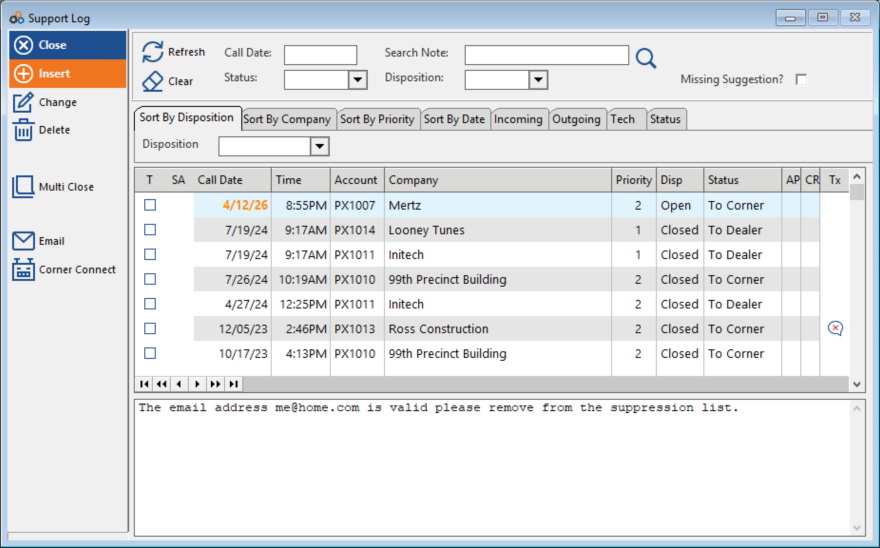
- Enter or select a Follow Up Date.
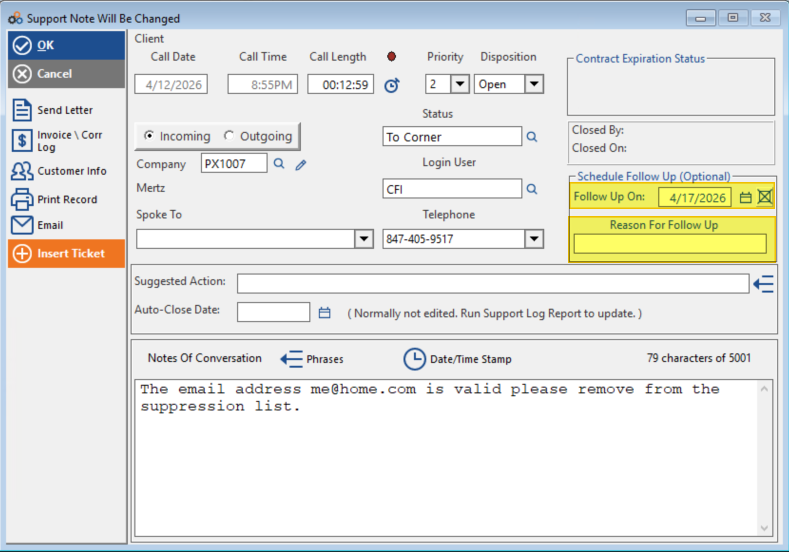
- Enter a Reason For Follow Up if needed (optional).
- Click OK.
Step 2: Assign to a User
After clicking OK, you will receive the following prompt:
"Would you like to assign this reminder to a specific person?"
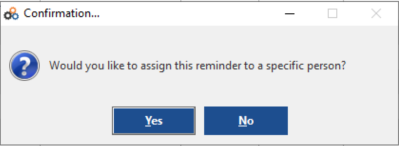
Choose one of the following options:
- Select YES — You will be prompted to choose an employee from the employee list to assign the follow-up to.
- Select NO — The follow-up will be scheduled on the calendar without being assigned to a specific user.
Calendar View
Once assigned, the follow-up reminder will appear:
- On the date you specified.
- Under the selected employee's calendar for support call follow-up.
- Making it easy for team members to see their assigned tasks.
Benefits
| Benefit | Description |
|---|---|
| Accountability | Ensure follow-ups are assigned to the right person. |
| Better Task Management | Team members can easily see their assigned follow-ups. |
| Flexibility | Choose whether to assign follow-ups or leave them unassigned. |
| Visibility | Follow-ups appear directly on employee calendars. |
Additional Resources
For detailed instructions and additional steps, see our comprehensive Tip Sheet on this feature.
Need Additional Help?
Our Customer Success team is here to assist you.
Phone: 847-405-9517 x1
Email: customer.success@alarmbills.com
Copyright © 1999–2026 Cornerstone Billing Solutions. All rights reserved.
Was this article helpful?
That’s Great!
Thank you for your feedback
Sorry! We couldn't be helpful
Thank you for your feedback
Feedback sent
We appreciate your effort and will try to fix the article